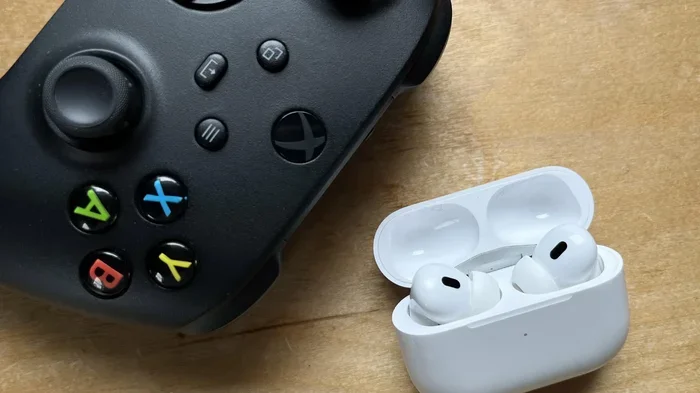
How Do I Connect My Airpods To My Xbox For Easy Gaming
Connecting your AirPods to your Xbox is easier than you think. Whether you own AirPods Pro, AirPods Max, or standard AirPods, this guide walks you through every step. You will learn the Bluetooth pairing method, audio settings, and troubleshooting tips. Gaming with AirPods on your Xbox gives you private, high-quality sound without bulky headsets. Follow our simple instructions and start gaming with crystal-clear audio today.
So you want to use your AirPods with your Xbox. Maybe your headset broke, or you just prefer the comfort of your wireless earbuds. Either way, you are in the right place. Connecting AirPods to an Xbox is totally doable, and it does not require any fancy equipment in most cases.
Many gamers love the idea of using AirPods for Xbox gaming. They are lightweight, comfortable, and deliver solid sound quality. But the process is not always obvious. Xbox consoles handle Bluetooth differently than other devices. That is why we put together this complete guide. By the end, you will know exactly how to pair your AirPods, adjust your audio settings, and fix any problems that come up.
Whether you have an Xbox Series X, an Xbox Series S, or an older Xbox One, this guide covers it all. We will walk through each method step by step. You will also find quick tips, common mistakes to avoid, and answers to the most frequently asked questions. Let us get your AirPods connected so you can get back to gaming.
Key Takeaways
- Xbox supports AirPods through Bluetooth: You can pair your AirPods directly to your Xbox console using the Bluetooth settings menu.
- AirPods Pro and AirPods Max work best: These models offer better audio quality and lower latency than standard AirPods for gaming.
- You need a Bluetooth adapter for older Xbox models: The Xbox One does not have built-in Bluetooth, so a USB adapter is essential.
- Low latency audio matters for gaming: Bluetooth can introduce slight delays, but workarounds exist to minimize lag during gameplay.
- Troubleshooting is simple: Most connection issues can be fixed by resetting your AirPods, updating firmware, or checking Xbox audio settings.
- AirPods battery life is important for long sessions: Keep your AirPods charged before extended gaming marathons.
📑 Table of Contents
- Why Connect AirPods to Your Xbox
- How to Connect AirPods to Xbox Series X and Series S
- Connecting AirPods to Xbox One
- Understanding Bluetooth Latency for Gaming
- Troubleshooting Common AirPods Xbox Connection Issues
- AirPods vs Gaming Headsets: Which Is Better for Xbox
- Tips for the Best AirPods Gaming Experience on Xbox
- Can You Use AirPods for Xbox Party Chat
Why Connect AirPods to Your Xbox
You might be wondering why anyone would use AirPods instead of a proper gaming headset. There are actually several good reasons. Let us break them down.
Comfort and Convenience
AirPods are incredibly light. You can wear them for hours without feeling discomfort. Traditional gaming headsets can feel heavy and clamp your head too tight. With AirPods, you get a comfortable gaming experience that does not cause ear fatigue.
Audio Quality
Apple designed AirPods with excellent sound drivers. The AirPods Pro and AirPods Max especially deliver rich, detailed audio. Gaming audio on AirPods is surprisingly good. You will hear footsteps, explosions, and dialogue with clear precision. This can give you a real advantage in competitive games.
No Extra Gear Needed
Most people already own a pair of AirPods. Why buy a separate headset when you can use what you already have? Using your wireless earbuds for Xbox saves money and saves space on your gaming setup.
How to Connect AirPods to Xbox Series X and Series S
The newer Xbox consoles, the Xbox Series X and Xbox Series S, have built-in Bluetooth support. This makes the connection process much simpler. Here is exactly how to do it.
Step 1: Put Your AirPods in Pairing Mode
First, make sure your AirPods are charged. Open the charging case lid and press and hold the button on the back until the LED light flashes white. This means your AirPods are ready to pair. AirPods pairing mode is the same for all models, including AirPods Pro and AirPods Max.
Step 2: Go to Xbox Bluetooth Settings
On your Xbox console, go to the home screen. Navigate to Settings, then select Devices & Connections. Choose Bluetooth. You will see a list of available devices. Your AirPods should appear in this list.
Step 3: Select Your AirPods
Tap on your AirPods when they appear. The console will connect to them automatically. You should hear a confirmation sound. Once connected, your Xbox audio will route through your AirPods. This means all game sounds, chat audio, and music will play through your earbuds.
Step 4: Adjust Audio Settings
After pairing, go to Settings and then General. Select Volume & Audio Output. Make sure your headset audio is set to Bluetooth. You can also adjust the volume balance between game audio and chat here. Xbox audio settings give you full control over how sound comes through your AirPods.
Quick Tip
If your AirPods do not show up immediately, make sure they are close to your Xbox console. Bluetooth has a limited range. Move them within a few feet and try again.
Connecting AirPods to Xbox One
The Xbox One does not have built-in Bluetooth. This is a common frustration for many gamers. But do not worry. You still have options to get your AirPods working with your Xbox One.
Using a Bluetooth Adapter
The most reliable way to connect AirPods to an Xbox One is with a Bluetooth adapter. These small USB devices plug directly into your Xbox console. They add Bluetooth functionality that the Xbox One lacks out of the box.
Here is how it works. You buy a compatible Bluetooth adapter. Plug it into a USB port on your Xbox One. Then put your AirPods in pairing mode. The adapter will detect your AirPods and create a wireless bridge between them and your console. Xbox wireless protocol works through this adapter to deliver audio to your earbuds.
Recommended Bluetooth Adapters
Look for adapters that support low-latency Bluetooth. Some popular options include the 1Mii B06 TX adapter and the Avantree Oasis. These adapters are designed for gaming and help reduce the audio delay that Bluetooth can sometimes cause.
Alternative Audio Options for Xbox One
If a Bluetooth adapter does not work for you, there are other paths. You can use a wired connection with a 3.5mm cable from your controller to your AirPods. Some Xbox One controllers have a 3.5mm jack. You can also explore options like connecting through a Bluetooth pairing hub that sits between your console and your wireless devices.
For those who want to explore broader connectivity options, you might also find our article on connecting your PC to the internet without Ethernet helpful for understanding wireless connection methods across devices.
Understanding Bluetooth Latency for Gaming
One concern many gamers have is audio delay, also known as latency. Bluetooth technology inherently introduces a small amount of delay. This is because audio data takes time to compress, transmit, and decompress. For music or movies, this delay is barely noticeable. For competitive gaming, it can matter.
What Is Latency and Why Does It Matter
Latency is the time between when a sound happens in the game and when you hear it through your AirPods. In fast-paced games like first-person shooters, even a small delay can affect your reaction time. If you hear footsteps a fraction of a second late, you might not react quickly enough.
How to Minimize Bluetooth Latency
There are several ways to reduce audio lag when using AirPods with your Xbox:
- Use Bluetooth 5.0 or newer: Newer Bluetooth versions have lower latency than older ones.
- Stay close to your console: Keep your AirPods within 10 feet of your Xbox for the strongest signal.
- Use a low-latency Bluetooth adapter: If you are on Xbox One, a quality adapter makes a big difference.
- Reduce interference: Keep your Xbox away from other wireless devices that might cause signal conflicts.
When Latency Is Not a Problem
For casual gaming, story-driven games, and multiplayer matches where reaction time is not critical, Bluetooth latency is usually fine. You will not notice the delay in games like RPGs, puzzle games, or racing games. Low latency audio becomes important mainly in competitive or fast-action titles.
Troubleshooting Common AirPods Xbox Connection Issues
Sometimes things do not go smoothly. Your AirPods might not connect, or the audio might cut out. Here are the most common problems and how to fix them.
AirPods Not Showing Up on Xbox
If your AirPods do not appear in the Bluetooth device list, try these steps. First, make sure your AirPods are in pairing mode. The LED light should be flashing. Second, restart your Xbox console. Sometimes a simple reboot fixes connection issues. Third, move your AirPods closer to the console. Bluetooth range is typically about 30 feet, but walls and other obstacles can reduce this.
Audio Cutting Out or Glitching
Intermittent audio is a common Bluetooth issue. It usually happens when the signal is weak. Try these fixes:
- Move closer to your Xbox console.
- Remove other Bluetooth devices from the area.
- Check that your AirPods are fully charged.
- Restart both your AirPods and your Xbox.
No Sound Through AirPods
If you are connected but hear no sound, check your Xbox audio output settings. Go to Settings, then General, then Volume & Audio Output. Make sure your headset is set to Bluetooth audio. You may also need to check that the volume is not muted on either your console or your AirPods.
Common Mistakes to Avoid
Many people make the same mistakes when trying to connect AirPods to Xbox. One big mistake is trying to connect through the Xbox app on a phone instead of the console itself. Another is forgetting to put the AirPods in pairing mode. And a third is not checking the audio output settings after connecting. Avoid these and your experience will be much smoother.
AirPods vs Gaming Headsets: Which Is Better for Xbox
Now that you know how to connect your AirPods, you might wonder if they are really as good as a dedicated gaming headset. Let us compare them side by side.
| Feature | AirPods | Gaming Headset |
|---|---|---|
| Comfort | Very light, no clamp | Can feel heavy over time |
| Audio Quality | Good, balanced sound | Great, designed for gaming |
| Microphone Quality | No built-in mic (except AirPods Max) | Excellent, built-in chat mic |
| Battery Life | 4-20 hours depending on model | 20-50+ hours typically |
| Latency | Slight delay possible | Minimal to none |
| Price | Already owned by many | $50-$200+ |
As you can see, AirPods are a great gaming headset alternative. They are especially good for casual and mid-core gamers. If you play competitive games where every millisecond counts, a dedicated headset might still be the better choice. But for most gamers, AirPods work perfectly fine.
Many players also use their AirPods for listening to music or taking calls outside of gaming. This versatility is a big advantage. You get one device that handles both entertainment and communication. If you are interested in learning more about Bluetooth audio across devices, check out our guide on pairing Bluetooth headphones to your LG TV for more Bluetooth pairing insights.
Tips for the Best AirPods Gaming Experience on Xbox
Once your AirPods are connected, there are a few things you can do to get the best experience. These small tweaks make a big difference.
Keep Your AirPods Charged
Nothing ruins a gaming session faster than dying earbuds. Before you start a long gaming session, make sure your AirPods are fully charged. AirPods battery life varies by model. AirPods Pro can last about 4.5 hours on a single charge, while AirPods Max can go up to 20 hours. Keep your charging case nearby for quick top-ups.
Use Noise Cancellation Wisely
If you have AirPods Pro or AirPods Max, you can use active noise cancellation. This blocks out background noise so you can focus on your game. However, some gamers prefer to turn it off so they can still hear people talking in the room. Try both modes and see what works best for you.
Update Your AirPods Firmware
Apple regularly releases firmware updates for AirPods. These updates can improve Bluetooth stability and audio quality. To update, place your AirPods in the charging case, keep them near your iPhone, and check for updates in the Settings app. AirPods connection performance improves with the latest firmware.
Adjust Xbox Chat Mixer
The Xbox chat mixer lets you balance game audio and voice chat. Go to Settings, then General, then Volume & Audio Output. Adjust the chat mixer so you can hear both your game and your teammates clearly. This is especially helpful when using AirPods without a dedicated microphone.
For more tips on wireless audio setups, you might also enjoy our article on using Bluetooth on hearing aids, which covers Bluetooth connectivity across different devices and use cases.
Can You Use AirPods for Xbox Party Chat
Yes, you can use AirPods for Xbox party chat, but with some limitations. When connected via Bluetooth, your AirPods receive audio from party chat. However, sending your voice back through the AirPods is not straightforward. Most AirPods do not have a built-in microphone that works with Xbox party chat over Bluetooth.
There are workarounds. Some players use the Xbox controller’s built-in chat headset jack with a separate microphone. Others use the Xbox app on their phone for voice chat while keeping their AirPods connected for game audio. This setup gives you the best of both worlds. You get high-quality game audio through your AirPods and clear voice chat through your phone.
If you want to explore more connectivity options, our article on plugging speakers into your laptop offers additional insights into audio output setups across devices.
Connecting your AirPods to your Xbox opens up a world of wireless gaming audio without the bulk of a traditional headset. It is a simple process that works across all Xbox models with the right approach. Whether you use the built-in Bluetooth on Xbox Series X or S, or a Bluetooth adapter on Xbox One, the steps are straightforward and easy to follow.
Remember to keep your AirPods charged, minimize Bluetooth interference, and adjust your audio settings for the best experience. Most connection issues have simple fixes. And if you run into problems, the troubleshooting tips in this guide should help you get back on track quickly.
Connecting AirPods to Xbox is one of those small upgrades that makes a big difference in your gaming sessions. You get comfortable, wireless, high-quality sound every time you pick up your controller. Give it a try tonight and see the difference for yourself. Happy gaming.
Frequently Asked Questions
Can I Connect AirPods to Xbox Without a Bluetooth Adapter?
Yes, if you have an Xbox Series X or Xbox Series S. These consoles have built-in Bluetooth, so you can pair your AirPods directly without any extra equipment. Simply go to Settings, select Devices & Connections, and choose Bluetooth to start the pairing process.
Why Do My AirPods Keep Disconnecting from My Xbox?
Disconnections usually happen due to weak Bluetooth signal or interference. Move your AirPods closer to the console, reduce the number of connected Bluetooth devices, and make sure your AirPods are fully charged. Restarting both devices often fixes the issue as well.
Can I Use AirPods Pro for Xbox Gaming?
Absolutely. AirPods Pro work great with Xbox consoles. They offer active noise cancellation and a comfortable fit for long gaming sessions. Pair them the same way you would any other AirPods through the Xbox Bluetooth settings.
Is There Any Lag When Using AirPods with Xbox?
Bluetooth does introduce a small amount of latency, but it is usually not noticeable for casual and most competitive games. Using a low-latency Bluetooth adapter on Xbox One can further reduce any delay. For the most demanding fast-paced games, a wired headset may still have a slight edge.
Can I Use My AirPods Microphone for Xbox Chat?
Most AirPods do not support Xbox party chat through Bluetooth alone. The Xbox console does not route microphone input through Bluetooth audio devices. You can still use the Xbox controller’s built-in mic or the Xbox app on your phone for voice chat while your AirPods handle game audio.
Do AirPods Work with Xbox Cloud Gaming?
Yes, AirPods work with Xbox Cloud Gaming (formerly xCloud). Since cloud gaming streams to your phone or browser, your AirPods connect to your device normally via Bluetooth. This gives you a wireless, clutter-free gaming experience wherever you are.