Can I Connect My TV To WiFi Without A Remote Control
You can connect my TV to WiFi without a remote using several simple and proven methods. Whether you lost your remote, have a broken one, or just bought a new TV, this guide covers every option. You will learn how to use your smartphone, TV buttons, mobile hotspots, and universal remotes to get your smart TV online. Each method works for most major TV brands and is easy to follow at home.
Key Takeaways
- Use your smartphone: Free TV remote apps let you control your TV and set up WiFi from your phone.
- Try the TV buttons: Most smart TVs have built-in controls on the back or side panel for network setup.
- Use a mobile hotspot: You can share your phone’s internet with your TV using a temporary hotspot.
- Get a universal remote: Affordable universal remotes work with almost any TV brand and model.
- Try a streaming stick: Devices like Roku or Chromecast can connect to WiFi and control your TV.
- Reset your network settings: Sometimes a simple reset fixes WiFi connection problems on your TV.
📑 Table of Contents
- Why You Might Need to Connect My TV to WiFi Without a Remote
- How to Connect My TV to WiFi Without a Remote
- Using Your Smartphone as a TV Remote
- Setting Up a Mobile Hotspot for Your TV
- Using a Universal Remote or Smart Home Device
- Troubleshooting WiFi Connection Problems on Your TV
- Common Mistakes to Avoid When Setting Up WiFi Without a Remote
- Key Takeaways
- Conclusion
Why You Might Need to Connect My TV to WiFi Without a Remote
There are many reasons you might need to connect my TV to WiFi without a remote. Maybe your remote stopped working after a spill. Perhaps the batteries died and you cannot find replacements right now. Or maybe you just moved into a new place and the remote is nowhere to be found.
Whatever the reason, the situation is more common than you think. People lose remotes all the time. Pets chew on them. Kids hide them in the couch cushions. And sometimes the remote just stops working after a software update.
The good news is that you do not need a remote to get your smart TV online. Modern TVs have built-in ways to access their network settings and connect to your wireless network. You just need to know where to look and what steps to follow.
In this guide, you will learn every method you can use to connect my TV to WiFi without a remote. Each method is simple, works for most TV brands, and does not require any special tools or skills. Let us get started.
How to Connect My TV to WiFi Without a Remote
There are several ways to connect your TV to WiFi without a remote control. Some methods use your phone. Others use buttons on the TV itself. And some involve buying a small accessory. Let us look at each one in detail.
Method 1: Use the TV Buttons
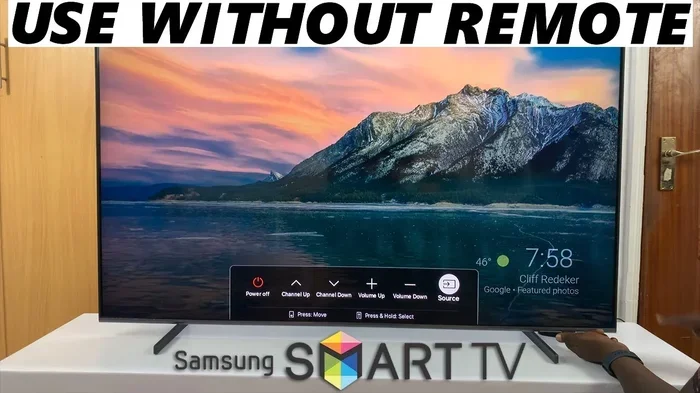
Most smart TVs have buttons hidden on the back, side, or bottom edge. These buttons let you navigate the TV menu and change settings without a remote. Here is how to find and use them.
First, look at the back of your TV near the bottom. You will usually see a small panel with a few buttons. Common buttons include Power, Volume Up, Volume Down, Channel Up, Channel Down, and Menu. Some TVs also have a directional pad or joystick in the center.
Press the Menu or Home button to open your TV settings. Use the directional buttons to navigate to the Network or WiFi section. Select your wireless network from the list and enter your WiFi password using the on-screen keyboard.
Quick Tips for Using TV Buttons:
- Check your TV manual for the exact button layout. Every brand is slightly different.
- If your TV has a joystick, push it up, down, left, or right to navigate.
- Press the Menu button first to see all available options on your TV.
Method 2: Use a Smartphone Remote App
Many TV brands offer free apps that turn your phone into a remote control. These apps connect to your TV through WiFi or Bluetooth. Once connected, you can navigate menus and set up your wireless connection.
Popular apps include Samsung SmartThings, LG ThinQ, Sony TV SideView, and Roku Mobile. Download the app that matches your TV brand from the App Store or Google Play. Make sure your phone and TV are on the same WiFi network.
Open the app and select your TV from the device list. You will see a virtual remote on your phone screen. Use it to go to Settings, then Network, and select your WiFi network. Type in your password using the phone keyboard, which is much easier than the on-screen TV keyboard.
Method 3: Use a Streaming Device
If your TV is not a smart TV or if the built-in WiFi is not working, you can use a streaming device. Devices like Roku, Amazon Fire Stick, Apple TV, or Google Chromecast plug into your TV’s HDMI port and connect to WiFi on their own.
These devices come with their own remotes. You can set up the streaming device to connect to your wireless network. Then you can use the streaming device to access all your favorite apps and content. Some streaming sticks also let you mirror your phone screen to the TV.
Method 4: Use a Universal Remote
A universal remote is a simple and affordable solution. These remotes work with almost any TV brand. You can buy one for under $15 at most stores or online.
Look for a universal remote that supports your TV brand. Follow the setup instructions that come with the remote. You will usually need to enter a code for your specific TV model. Once paired, the universal remote works just like your original one, including access to network settings.
Method 5: Use an Ethernet Cable
If WiFi is giving you trouble, you can skip it entirely and use a wired connection. Most smart TVs have an Ethernet port on the back. Simply plug in an ethernet cable from your router to your TV.
This method gives you a stable and fast internet connection. It also eliminates the need to deal with WiFi passwords and signal strength issues. If your TV is far from your router, you might need a longer cable or a WiFi extender.
Comparison of Methods
| Method | Cost | Difficulty | Best For |
|---|---|---|---|
| TV Buttons | Free | Easy | Quick setup without any extra tools |
| Smartphone App | Free | Easy | Easier typing and navigation |
| Streaming Device | $20-$50 | Easy | Non-smart TVs or broken WiFi |
| Universal Remote | $10-$25 | Easy | Long-term remote replacement |
| Ethernet Cable | $5-$15 | Easy | Stable and reliable connection |
Using Your Smartphone as a TV Remote
Using your phone as a remote is one of the easiest ways to connect my TV to WiFi without a remote. Nearly every major TV brand has a free app for this purpose. Let us walk through the process step by step.
First, make sure your phone and TV are connected to the same WiFi network. This is important because the app needs to talk to your TV. Open your phone’s app store and search for your TV brand’s official app.
Install the app and open it. The app will scan for TVs on your network. Once it finds your TV, tap on it to connect. You will see a virtual remote interface on your phone screen.
Use the virtual remote to navigate to Settings. Go to Network or WiFi. Select your home network and enter the password. The app makes typing much easier than using the tiny on-screen keyboard on your TV.
Expert Insight: Some TV remote apps also let you cast content directly from your phone to the TV. This means you can share photos, videos, and music without needing a separate streaming device. Check your app’s features to get the most out of it.
Which Remote App Works Best?
Different TV brands have different apps. Here are the most popular ones:
- Samsung SmartThings: Works with Samsung TVs. Offers full remote control and screen mirroring.
- LG ThinQ: Works with LG TVs. Includes voice control and home device management.
- Sony TV SideView: Works with Sony TVs. Supports remote control and content search.
- Roku App: Works with Roku TVs and streaming devices. Very user-friendly interface.
- Apple TV App: Works with Apple TV. Offers Siri voice control and remote functions.
Common Mistakes When Using Phone Apps
People often make a few mistakes when using phone apps as TV remotes. Make sure your phone is not on battery saver mode, as this can block the connection. Also, double-check that both devices are on the same network. And restart the app if it does not find your TV right away.
Setting Up a Mobile Hotspot for Your TV
A mobile hotspot is another great way to connect my TV to WiFi without a remote. This method uses your phone’s cellular data to create a temporary wireless network that your TV can join.
This is especially useful when you are setting up a new TV in a location where you do not have access to your home WiFi password yet. Or if your router is temporarily not working.
Go to your phone’s Settings and look for Hotspot or Personal Hotspot. Turn it on and set a network name and password. Your TV should see this new network in its WiFi settings list. Select it and enter the password to connect.
Keep in mind that using a hotspot uses your phone’s data plan. Streaming video uses a lot of data, so this method is best for short-term use or for initial TV setup. Once your TV is connected to your home WiFi, you can turn off the hotspot.
Quick Tips for Using a Mobile Hotspot
- Keep your phone plugged in while using it as a hotspot. It drains battery quickly.
- Set a strong password for your hotspot to prevent neighbors from using it.
- Check your data usage if you plan to use the hotspot for streaming.
- Place your phone close to your TV for a stronger signal.
Using a Universal Remote or Smart Home Device
A universal remote is a handy tool to have around the house. These remotes work with most TV brands and models. They come pre-programmed with codes for hundreds of TV manufacturers.
To set up a universal remote, look up your TV brand and model number in the included code list. Enter the code using the remote’s number pad. Test if the remote controls your TV by pressing the Power button.
Once the universal remote is working, you can use it to navigate to your TV’s WiFi settings. Select your network and enter the password. This gives you a permanent replacement for your lost or broken remote.
Smart home devices like Amazon Echo or Google Nest can also help. Some smart speakers have a feature that lets you control your TV using voice commands. You can ask Alexa or Google to open your TV settings and connect to WiFi. This works best with smart TVs that are compatible with these voice assistants.
Expert Insights on Universal Remotes
Universal remotes have come a long way. Modern ones support Bluetooth and smart home protocols, not just infrared. This means you do not need a direct line of sight to your TV. Some universal remotes even have a touchpad and voice control built in. They are a great long-term solution if you frequently misplace your remote.
Troubleshooting WiFi Connection Problems on Your TV
Sometimes even when you follow all the steps, your TV will not connect to WiFi. This is frustrating but usually easy to fix. Here are the most common issues and how to solve them.
Your TV Cannot Find Your WiFi Network
If your TV does not show your network in the list, try moving your TV closer to your router. Walls and furniture can weaken the WiFi signal. You can also restart your router by unplugging it for 30 seconds and plugging it back in.
Make sure your router is broadcasting on the 2.4GHz band. Some older TVs do not support the 5GHz band. Check your router settings to see which bands it is using.
Your TV Says the Password Is Wrong
This is a common problem. WiFi passwords are case-sensitive, so make sure you are typing it exactly right. Use your phone’s keyboard to type the password, as it is easier to see capital letters and special characters.
If you recently changed your WiFi password, you will need to update it on your TV. Go to the network settings, forget the old network, and reconnect with the new password.
Your TV Connects But Has No Internet
Sometimes the TV shows it is connected to WiFi but cannot access the internet. This usually means your router needs a restart. Unplug your router, wait 30 seconds, and plug it back in.
Another cause could be your TV firmware being out of date. Check for updates in your TV’s settings menu. If an update is available, install it and try connecting again.
Quick Troubleshooting Checklist
- Restart your TV and router.
- Check that your WiFi is working on other devices.
- Make sure you are using the correct WiFi password.
- Move your TV closer to the router.
- Check if your router uses 2.4GHz or 5GHz and match your TV’s capability.
- Update your TV firmware to the latest version.
- Forget the network on your TV and reconnect from scratch.
Common Mistakes to Avoid When Setting Up WiFi Without a Remote
When you are trying to connect my TV to WiFi without a remote, there are a few mistakes that can cause problems. Avoiding these will save you time and frustration.
One common mistake is skipping the router restart. A simple router reboot fixes more WiFi issues than any other trick. Always try this first before trying anything else.
Another mistake is not checking your TV’s WiFi band support. If your router is set to 5GHz only and your TV only supports 2.4GHz, you will not see the network. Check your TV’s specs to confirm which bands it supports.
People also forget to update their TV firmware. Outdated software can cause connection problems and security issues. Always check for updates before setting up a new connection.
Using the wrong remote app is another pitfall. Make sure you download the app that matches your TV brand exactly. A Samsung app will not work with an LG TV, for example.
Finally, some people give up too quickly. If the first method does not work, try another one. There are at least five different ways to connect your TV to WiFi without a remote. One of them will work for you.
Key Takeaways
- Use TV buttons for a quick free solution: Most smart TVs have built-in controls that let you access network settings directly.
- Smartphone apps make typing easier: Using your phone’s keyboard to enter the WiFi password saves time and frustration.
- Streaming devices are a great backup: A Roku or Fire Stick can connect to WiFi and give your TV smart features.
- Universal remotes are affordable and reliable: A $15 universal remote solves the problem permanently.
- Ethernet cables provide a stable connection: A wired connection is fast and does not depend on WiFi signal strength.
- Restart your router first when troubleshooting: This simple step fixes most WiFi connection issues.
Conclusion
Connecting my TV to WiFi without a remote is easier than most people think. You have many options available, from using your phone as a remote to plugging in an ethernet cable. Each method works well, and you can choose the one that fits your situation best.
Whether you lost your remote, have a broken one, or just set up a new TV, the steps in this guide will help you get online quickly. Start with the simplest method and work your way down the list if needed.
Remember to keep your WiFi password handy and make sure your TV firmware is up to date. These small steps make a big difference in getting a smooth connection. Now you have all the tools and knowledge to connect your TV to WiFi without ever needing a remote control.
Try one of these methods today and enjoy your favorite shows and apps without any hassle. Once you get your TV online, you will wonder why you ever worried about the missing remote in the first place.
Frequently Asked Questions
Can I connect my TV to WiFi without any remote at all?
Yes, you absolutely can. Most smart TVs have buttons on the back or side that let you access the menu and network settings. You can also use a smartphone app that matches your TV brand. Both methods let you connect your TV to WiFi without needing a remote control at all.
What should I do if my TV remote is completely broken?
First, try using your smartphone with a TV remote app. If that does not work, use the buttons on the TV itself to navigate to the WiFi settings. You can also buy a universal remote for under $15, which works with almost any TV. These are simple and effective solutions that get you back to watching right away.
Do I need WiFi to set up a smart TV?
You need WiFi to access most smart TV features like streaming apps and online content. However, you can set up a smart TV using a mobile hotspot from your phone. This creates a temporary WiFi network that your TV can connect to during the setup process. Once set up, switch your TV to your home WiFi network for the best experience.
Can I use an ethernet cable instead of WiFi for my TV?
Yes, you can. Most smart TVs have an Ethernet port on the back panel. Simply plug in an ethernet cable from your router to your TV. This gives you a fast and stable wired internet connection. A wired connection is especially helpful if your WiFi signal is weak in the room where your TV is located.
Why does my TV keep disconnecting from WiFi?
TV WiFi disconnections are usually caused by a weak signal, outdated firmware, or router issues. Try moving your TV closer to your router and restarting both devices. Also check if your TV firmware needs an update. If the problem continues, your router may need a factory reset or your WiFi channel may need to be changed.
Which streaming device is best for connecting a TV to WiFi without a remote?
Roku Streaming Stick, Amazon Fire TV Stick, and Google Chromecast are all excellent choices. They each come with their own remote and connect to WiFi easily. These devices also add smart features to older TVs that do not have built-in WiFi. Pick the one that matches your ecosystem, such as Roku for general use or Chromecast for Google Home users.