Can I Pair Bluetooth Headphones To My Lg Tv Wirelessly
Yes, you can pair Bluetooth headphones to your LG TV and enjoy private listening without disturbing anyone. This guide covers every method, from built-in Bluetooth to external adapters, so you can find the best solution for your specific LG TV model. Wireless audio streaming from your TV to headphones is easier than most people think, and we will walk you through each step clearly.
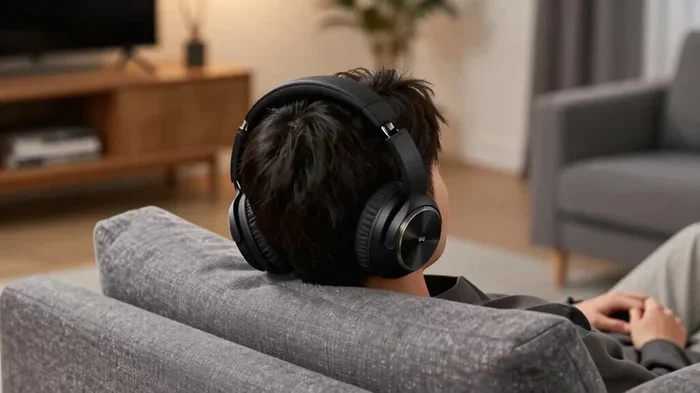
There is something magical about settling into your favorite couch and diving into a movie or show without the sound bothering anyone else in the house. Pairing Bluetooth headphones to your LG TV makes that possible. Whether you are a late-night viewer, a light sleeper sharing a wall with a partner, or someone who simply prefers private audio, wireless headphones open up a whole new way to enjoy your entertainment.
The good news is that connecting Bluetooth headphones to an LG TV is not as complicated as it might seem. Most modern LG Smart TVs come with built-in Bluetooth support. And even if your TV is older, there are simple and affordable workarounds that get the job done. In this guide, we will explore every method, every setting, and every tip you need to know. By the end, you will be ready to enjoy crystal-clear wireless audio from your LG TV in no time.
Key Takeaways
- Built-in Bluetooth: Many newer LG Smart TVs have native Bluetooth support for easy headphone pairing.
- Bluetooth Transmitter: Older LG TVs can use a Bluetooth adapter to enable wireless headphone connectivity.
- Multiple Methods: You can pair via TV settings, a Bluetooth transmitter, or even through a soundbar with Bluetooth.
- Low Latency Matters: Choosing the right Bluetooth codec reduces audio delay and keeps sound in sync with video.
- Troubleshooting Is Simple: Most connection issues can be fixed by resetting Bluetooth, updating firmware, or adjusting TV settings.
📑 Table of Contents
- Can I Pair Bluetooth Headphones To My Lg Tv? The Short Answer
- How to Pair Bluetooth Headphones to Your LG TV (Built-in Method)
- What If Your LG TV Does Not Have Built-in Bluetooth?
- Using a Soundbar as a Bluetooth Bridge
- Common Problems and How to Fix Them
- Expert Tips for the Best Wireless Audio Experience
- Comparison: Built-in Bluetooth vs. Bluetooth Transmitter
- Can I Use Any Bluetooth Headphones With My LG TV?
- How to Disconnect or Unpair Bluetooth Headphones from Your LG TV
- Frequently Asked Questions
- Final Thoughts
Can I Pair Bluetooth Headphones To My Lg Tv? The Short Answer
The short answer is yes. You can pair Bluetooth headphones to most LG TVs, but the method depends on your TV model and year. LG Smart TVs released from 2018 onward generally include native Bluetooth functionality. This means you can go straight into your TV settings and start pairing without any extra equipment.
However, if you own an older LG TV, you might not have built-in Bluetooth. Do not worry. You can still achieve wireless headphone connectivity using a Bluetooth transmitter or adapter. These small devices plug into your TV and add Bluetooth capability instantly. We will cover both methods in detail below, so no matter what kind of LG TV you have, you will find a working solution.
Why People Love Wireless Headphones With Their LG TV
Before we dive into the how-to, let us talk about why this is such a popular setup. Wireless headphones offer a level of freedom that wired headphones simply cannot match. You can move around the room, make a snack, or even take a nap on the couch without losing your place in the audio. Here are some of the top reasons people choose this setup:
- Private listening: Watch late-night shows without waking up household members.
- No cable clutter: Say goodbye to tangled wires across your living room.
- Better comfort: Wireless headphones are often lighter and more comfortable for long viewing sessions.
- Volume control: Adjust your personal volume without affecting the TV speakers for others.
- Freedom of movement: Walk around the house and still follow your movie or show.
These benefits make Bluetooth audio streaming from an LG TV a genuinely worthwhile upgrade to your viewing experience. Now let us get into the specifics of how to make it happen.
How to Pair Bluetooth Headphones to Your LG TV (Built-in Method)
If your LG TV has built-in Bluetooth, this is the easiest and most convenient way to connect your headphones. The process is straightforward, but the exact steps can vary slightly depending on your TV model and the webOS version it runs. Let us walk through the general process.
Step-by-Step Pairing Guide
Follow these steps to connect your Bluetooth headphones to your LG Smart TV using the built-in feature:
- Turn on your Bluetooth headphones and put them in pairing mode. Most headphones have a dedicated button or a long-press combination to activate pairing mode. Check your headphone manual if you are unsure.
- Press the Home button on your LG TV remote to open the main menu.
- Navigate to Settings. This is usually represented by a gear icon at the top or bottom of the screen.
- Select Sound or All Settings, depending on your TV model. On newer LG TVs, look for the “Sound” section first.
- Choose Sound Out or Audio Output. This is where you control where your TV sends audio.
- Select Bluetooth Speaker. Your TV will start searching for nearby Bluetooth devices.
- Find your headphones in the list of available devices and select them.
- Wait for the connection. Once paired, your TV audio will route to your headphones automatically.
That is it. Your LG TV Bluetooth headphones are now connected. You should hear a confirmation sound, and the TV screen will typically show a Bluetooth icon to indicate the active connection.
Adjusting Volume and Audio Settings
Once your headphones are paired, you may want to tweak a few settings for the best experience. Bluetooth volume sync is an important feature on LG TVs. This setting ensures that the volume on your headphones matches the TV volume level. Without it, you might find your headphones too loud or too quiet compared to what you expect.
To adjust this, go to Settings > Sound > Sound Out > Bluetooth Speaker and look for volume sync options. You can also adjust the overall TV volume using your remote, and it will control your headphone volume as well when Bluetooth is active.
Supported Bluetooth Codecs on LG TVs
Not all Bluetooth connections sound the same. Bluetooth codecs are the compression standards that determine audio quality and latency. Most LG TVs support the standard SBC codec, which works fine for general viewing. Some newer models also support AAC or aptX codecs, which offer better sound quality and lower delay.
If you are an audiophile or a serious gamer, look for headphones that support low-latency Bluetooth codecs. This reduces the annoying delay between what you see on screen and what you hear. Audio latency can be especially noticeable during sports broadcasts or fast-action scenes, so choosing the right codec makes a real difference.
What If Your LG TV Does Not Have Built-in Bluetooth?
Not every LG TV comes with native Bluetooth support. Older models, budget TVs, or certain regional variants may lack this feature entirely. Do not let this stop you. There is a simple and reliable solution: a Bluetooth transmitter.
What Is a Bluetooth Transmitter?
A Bluetooth transmitter is a small device that connects to your TV and sends audio wirelessly to your headphones. Think of it as a bridge between your non-Bluetooth TV and your wireless headphones. These transmitters typically plug into your TV using one of the following connections:
- 3.5mm audio jack: The most common and universal connection option.
- Optical audio output: Found on most LG TVs and offers digital audio quality.
- RCA audio outputs: Older connection type found on some LG TV models.
- USB power: Many transmitters draw power from a USB port on the TV.
Best Bluetooth Transmitters for LG TVs
Choosing the right transmitter can make or break your wireless audio experience. Here are some popular and well-reviewed options that work great with LG TVs:
- Avantree Oasis Plus: Supports aptX Low Latency and connects via optical or analog. Great for TV viewing.
- TaoTronics TT-BA07: Budget-friendly option with good range and solid sound quality.
- 1Mii B06 Plus: Supports multiple codecs including aptX and offers a long 30-meter range.
- Avantree DG80: Compact design with USB charging and optical input for clean digital audio.
When shopping for a transmitter, look for one that supports low-latency Bluetooth and has a compatible input for your LG TV. Most transmitters in the $30 to $80 range will serve you well for everyday TV watching.
How to Set Up a Bluetooth Transmitter with Your LG TV
Setting up a Bluetooth transmitter is simple. Plug the transmitter into your TV audio output. Connect it to power using the USB cable or a wall adapter. Put your headphones in pairing mode. Press the pairing button on the transmitter. Once connected, your TV audio will stream wirelessly to your headphones through the transmitter. It really is that easy.
Using a Soundbar as a Bluetooth Bridge
Here is a clever trick that many LG TV owners do not know about. If you already own a Bluetooth soundbar, you can use it as a middleman to connect your wireless headphones. Some LG soundbars allow you to connect headphones through their own Bluetooth settings while the soundbar receives audio from the TV.
This method works well if you already have a soundbar and do not want to buy a separate transmitter. Check your soundbar manual for headphone pairing options. Not all soundbars support this feature, but many mid-range and high-end models do. It is a great way to get wireless audio from your LG TV without adding extra hardware to your setup.
Common Problems and How to Fix Them
Even with the simplest setups, you might run into occasional issues. Bluetooth connectivity problems with LG TVs are common and usually easy to fix. Here are the most frequent issues and their solutions.
Headphones Not Showing Up in TV Settings
If your headphones do not appear in the Bluetooth device list, try these steps:
- Make sure your headphones are in pairing mode and within close range of the TV.
- Turn Bluetooth off and back on from the TV settings.
- Restart your LG TV completely and try again.
- Check if another device is already connected to your headphones and disconnect it.
- Reset your headphones by holding the power button for 10 seconds.
Audio Delay or Lag
Audio latency is one of the most common complaints with Bluetooth headphone TV setups. If you notice the sound is out of sync with the video, try these fixes:
- Use a Bluetooth transmitter that supports aptX Low Latency codec.
- Move closer to the TV or transmitter to strengthen the Bluetooth signal.
- Reduce interference by keeping other wireless devices away from your TV area.
- Check for TV firmware updates that may improve Bluetooth performance.
- Lower the audio delay setting in your LG TV if available under Sound settings.
Audio Keeps Cutting Out
If your audio drops in and out, the Bluetooth connection may be unstable. Here is what to do:
- Stay within the recommended Bluetooth range, usually 10 to 30 feet.
- Remove physical obstacles between your TV and headphones.
- Check for Wi-Fi interference, as 2.4GHz Wi-Fi and Bluetooth share the same frequency band.
- Re-pair the headphones by forgetting the device on your TV and pairing fresh.
- Update the firmware on both your TV and your headphones.
Volume Not Syncing Properly
If your headphone volume feels too high or too low compared to the TV volume, check the Bluetooth volume sync setting in your LG TV audio options. You can also adjust the volume directly on your headphones, as most wireless headphones have their own volume controls built in.
Expert Tips for the Best Wireless Audio Experience
Want to get the most out of your wireless headphones with your LG TV? Here are some expert-backed tips that make a noticeable difference:
- Keep your TV firmware updated. LG regularly releases updates that improve Bluetooth performance and add new features. Check for updates under Settings > All Settings > Support > Software Update.
- Charge your headphones fully before pairing. Low battery can cause connection instability and audio dropouts.
- Use the right Bluetooth codec. If your TV and headphones both support aptX or aptX Low Latency, enable it in the settings for the best audio quality and minimal delay.
- Minimize Bluetooth interference. Keep your router and other wireless devices away from your TV area to maintain a strong, stable connection.
- Reset regularly. If you notice connection issues, resetting both your TV Bluetooth settings and your headphones often solves the problem quickly.
- Consider a dedicated transmitter. For the most reliable and highest-quality wireless audio, a standalone Bluetooth transmitter outperforms built-in TV Bluetooth in most cases.
Comparison: Built-in Bluetooth vs. Bluetooth Transmitter
Not sure which method is right for you? Here is a quick comparison to help you decide:
| Feature | Built-in Bluetooth | Bluetooth Transmitter |
|---|---|---|
| Compatibility | Newer LG Smart TVs only | Works with any LG TV |
| Setup Difficulty | Very easy, no extra devices | Simple, requires plugging in a device |
| Audio Quality | Good, depends on TV hardware | Excellent with aptX support |
| Latency | Standard, may have slight delay | Low latency with aptX LL support |
| Cost | Free, no extra purchase needed | $30 to $100 for a quality transmitter |
| Range | Standard Bluetooth range | Up to 30 meters with quality transmitters |
| Multiple Device Support | Usually limited | Many transmitters support multiple pairs |
As you can see, both methods have their strengths. If you have a newer LG Smart TV, the built-in option is convenient and free. If you have an older TV or want better audio quality and lower latency, a Bluetooth transmitter is the way to go.
Can I Use Any Bluetooth Headphones With My LG TV?
The short answer is yes, most Bluetooth headphones will work with your LG TV. Whether you use over-ear headphones, on-ear earbuds, or true wireless earbuds, they should all connect as long as they support the standard Bluetooth profile for audio (A2DP). However, there are a few things to keep in mind:
- Codec support: Headphones that support aptX or aptX Low Latency will deliver better sound and less delay.
- Battery life: For long movie sessions, choose headphones with at least 20 hours of battery life.
- Comfort: If you plan to wear headphones for extended periods, over-ear models are generally more comfortable.
- Microphone quality: If you plan to use your headphones for calls or voice commands, check the microphone quality before purchasing.
Some popular Bluetooth headphones that work well with LG TVs include models from brands like Sony, Bose, JBL, Sennheiser, and Samsung. Any Bluetooth-compatible wireless headphones should pair successfully with your LG TV following the steps outlined above.
How to Disconnect or Unpair Bluetooth Headphones from Your LG TV
When you are done using wireless headphones with your LG TV, you may want to disconnect them to free up the Bluetooth connection or switch back to TV speakers. Here is how:
- From Settings: Go to Settings > Sound > Sound Out > Bluetooth Speaker. Select your headphones and choose “Disconnect” or “Unpair.”
- Turn off your headphones: Simply turning off your headphones will also disconnect the Bluetooth connection.
- Turn off Bluetooth on TV: You can disable Bluetooth entirely from the TV settings if you are not using wireless audio.
If you want to pair a different pair of headphones later, just repeat the pairing process. Your LG TV can remember multiple Bluetooth devices, so switching between headphones is quick and easy.
Frequently Asked Questions
Can I connect multiple Bluetooth headphones to my LG TV at the same time?
Most LG TVs do not support connecting multiple Bluetooth headphones simultaneously through the built-in Bluetooth feature. However, some Bluetooth transmitters do support multi-device pairing, allowing two or more pairs of headphones to connect at once. If you need to share audio with a partner, look for a transmitter with this capability.
Why is there a delay between the video and audio when using Bluetooth headphones?
Audio delay, also called latency, happens because Bluetooth compresses and transmits audio data, which takes a small amount of time. This delay is usually unnoticeable for movies and shows but can be more apparent during gaming or sports. Using a transmitter with aptX Low Latency support or enabling low-latency mode on your LG TV can significantly reduce this issue.
Do I need any special equipment to pair Bluetooth headphones with my LG TV?
If your LG TV has built-in Bluetooth, you do not need any extra equipment. Just put your headphones in pairing mode and connect through the TV settings. If your TV lacks Bluetooth, you will need a Bluetooth transmitter, which plugs into your TV’s audio output and creates the wireless connection for you.
Can I use wireless headphones with my LG TV while also using the TV speakers?
Generally, when you connect Bluetooth headphones to your LG TV, the TV audio routes exclusively to the headphones and the TV speakers go quiet. This is the standard behavior for most TVs. If you want both headphones and TV speakers to play audio simultaneously, you would need a more advanced audio setup, such as a Bluetooth transmitter with dual output capabilities.
Will using Bluetooth headphones affect my LG TV’s picture quality?
No, using Bluetooth headphones has no effect on your TV picture quality. Bluetooth only handles audio transmission. Your video signal remains completely unaffected whether you use Bluetooth headphones, TV speakers, or an external sound system.
What is the best Bluetooth range for watching TV with headphones?
Standard Bluetooth has a range of about 10 to 30 feet (3 to 10 meters). This is more than enough for most living room setups. If you want to walk further away, consider a Bluetooth transmitter with an extended range of up to 50 meters. Just keep in mind that walls and obstacles can reduce the effective range significantly.
Final Thoughts
Pairing Bluetooth headphones to your LG TV is one of the simplest upgrades you can make to your home entertainment setup. Whether your TV has built-in Bluetooth or needs a transmitter to add wireless capability, the process is straightforward and the results are fantastic. You get private, high-quality audio without any cables or clutter.
Remember to check your TV model for Bluetooth support first. If your LG TV does not have it natively, a Bluetooth transmitter is an affordable and effective solution. Choose headphones that support low-latency codecs for the best sync between picture and sound. And do not hesitate to troubleshoot using the tips we covered if you run into any connection issues.
Wireless audio from your LG TV is not a luxury anymore, it is a standard feature that most modern TVs support. Take a few minutes to set it up, and you will wonder how you ever watched TV without it. Happy listening, and enjoy your private cinema experience.