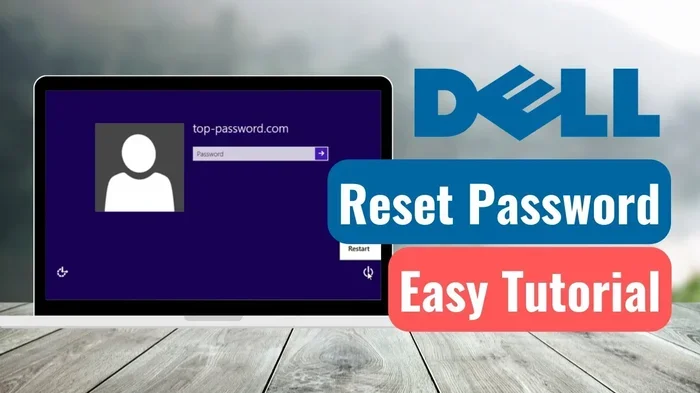
Dell Administrator Password Problems and How to Fix Them
Dell administrator password problems can lock you out of your own computer and cause major frustration. Whether your Dell admin login is stuck, forgotten, or corrupted, this guide walks you through every reliable fix. You will learn step-by-step methods to reset Dell admin password on Windows 10 and 11, tackle BIOS locks, and prevent future issues. No expensive tools or tech degree needed.
You sit down at your Dell laptop, ready to start your day. You type in your Dell administrator password and hit Enter. Nothing happens. The screen blinks back. You try again. Still nothing. That sinking feeling hits you. You are locked out of your own computer.
Dell administrator password problems are more common than most people think. They happen to students, professionals, and everyday users. Maybe you changed your password and forgot it. Maybe a system update scrambled your Dell admin login. Or perhaps someone else set up the machine and never gave you the Dell admin credentials. Whatever the reason, you are stuck. And you need a way out.
The good news is that you have options. You do not need to throw your Dell laptop or desktop into the trash. You do not need to pay hundreds of dollars to a repair shop. This guide gives you every practical method to fix Dell administrator password problems on your own. We cover Windows password resets, BIOS password recovery, and even preventive steps so this never happens again.
Let us walk through each solution together. By the end, you will know exactly what to do. You will have the confidence to handle Dell laptop password recovery like a pro. So grab your Dell machine, and let us get started.
Key Takeaways
- Multiple fixes available: You can recover or reset your Dell admin password using built-in Windows tools, command prompt methods, and BIOS resets.
- No data loss required: Most methods let you regain access without wiping your Dell laptop or desktop.
- BIOS password problems need special steps: Dell power-on passwords and BIOS setup locks require different approaches than Windows admin locks.
- Prevention is simple: Creating a password reset disk and keeping your Dell service tag handy saves huge headaches later.
- Know when to call a pro: Some complex Dell admin login issues, especially motherboard-level locks, need professional service.
- Safe mode is your friend: Booting into Safe Mode often lets you bypass standard admin login screens on Dell machines.
- Dell Support resources help: Your Dell service tag unlocks access to official recovery tools and support.
📑 Table of Contents
Understanding Dell Administrator Password Problems
Before you fix anything, it helps to understand what went wrong. Dell administrator password problems come in different shapes and sizes. Each type needs a different fix. Let us break them down so you can identify your exact situation.
Types of Dell Admin Password Locks
Not all password problems are the same. Here are the main types you might face with your Dell machine:
- Windows admin password forgotten: You know your Dell service tag and everything else, but the Windows login password escapes you. This is the most common issue.
- Administrator account locked: You typed the wrong password too many times. Windows now blocks the administrator account for safety reasons.
- Dell BIOS password locked: This is the password you enter before Windows even starts. It protects your BIOS settings and is harder to bypass.
- Power-on password on Dell: Similar to BIOS but sometimes tied to the motherboard. Your Dell will not even turn on without it.
- Hard drive password on Dell: Some Dell models encrypt the hard drive with a separate password. Even swapping the drive to another computer will not help.
Knowing which type you have changes everything. A Windows password lock is much easier to fix than a BIOS-level lock. So take a moment and figure out where you stand.
Why Dell Password Problems Happen
Password problems on Dell computers do not appear out of nowhere. There is always a reason. Here are the most common causes:
- Forgotten passwords: Simple human error. We all forget things. Especially if you use many different passwords for different accounts.
- System updates gone wrong: Windows updates sometimes reset or corrupt Dell admin login settings. This is frustrating but fixable.
- Accidental key presses: Kids or pets typing on your keyboard can trigger lockouts. It happens more often than you think.
- Corrupted user profiles: Sometimes the user profile itself gets damaged, making your password appear wrong even when it is correct.
- Previous owner did not reset: Buying a used Dell laptop? The previous owner might still hold the Dell administrator password.
Understanding the root cause helps you pick the right fix. It also helps you avoid the same problem in the future.
Common Causes of Dell Admin Password Issues
Let us dig deeper into the causes. When you understand why these problems happen, you become better equipped to solve them. You also learn how to prevent them from striking again.
User Error and Forgetting Passwords
This is the number one cause of Dell administrator password problems. People create complex passwords for security. Then they forget them a week later. It is a vicious cycle. You make a strong password, you feel safe, and then you cannot log in.
The fix here is straightforward. You use a Dell password reset method to regain access. We cover several of those methods below. But prevention is even better. Write your password down in a secure place. Use a password manager. Or set up a password reset disk on a USB drive before you ever need one.
Windows Update Glitches
Windows updates are supposed to make your Dell computer better. Sometimes they do the opposite. A botched update can corrupt your user profile. It can reset permissions on your administrator account. It can even make your old password stop working entirely.
This type of Dell admin login issue is surprisingly common. If your Dell password stopped working right after a Windows update, the update is likely the culprit. The good news is that most Windows update-related lockouts can be fixed through the methods we share in the next section.
Previous Owner Traps
Buying a used Dell laptop or desktop? Beware. The previous owner may have set an administrator password and never removed it. Some even set BIOS passwords that survive a Windows reinstall. These Dell password problems are tricky because they are not your fault, but they are still your problem to solve.
If you bought a used Dell, always ask the seller for the Dell admin credentials. If they cannot provide them, you will need to perform a full reset. We will show you how.
Malware and Security Software Conflicts
Sometimes security software or malware causes Dell administrator password problems. A rogue program might block your login screen. It might prevent the Dell command prompt password reset from working. In rare cases, malware changes your password without your knowledge.
If you suspect malware, run a full virus scan before attempting any password reset. This ensures your Dell system recovery efforts are not undermined by an active threat.
How to Fix Dell Administrator Password Problems
Now we get to the part you have been waiting for. Here are the most effective methods to fix Dell administrator password problems. Try them in order. Start with the easiest fix and work your way down. Most people solve their problem in the first two or three methods.
Method 1: Use the Built-In Windows Password Reset
If you have a Dell password reset disk, this is your fastest path. A password reset disk is a USB drive you create ahead of time. When you forget your Dell Windows password, the reset disk walks you through the process.
- Plug your password reset USB into the Dell computer.
- On the login screen, click “Reset password.”
- Follow the wizard to create a new administrator password.
- Log in with your new password.
This method works great for Dell Windows 10 and Dell Windows 11 machines. The only catch? You must have created the reset disk before you got locked out. If you did not, move on to the next method.
Method 2: Reset Password Through Command Prompt
The command prompt method is powerful. It works even when you cannot log into Windows. Here is how to do it on your Dell computer:
- Boot your Dell laptop from a Windows installation USB or recovery drive.
- Select “Repair your computer” when the setup screen appears.
- Choose “Troubleshoot,” then “Advanced options.”
- Click “Command Prompt.”
- Type net user administrator newpassword and press Enter.
- Replace “newpassword” with your desired new password.
- Remove the USB drive and restart your Dell.
This Dell command prompt password reset method has saved countless users. It bypasses the login screen entirely. You do not need the old password. Just type the new one and you are back in.
Quick Tip: Be careful typing the command. A typo will cause an error. Copy and paste if you can. Make sure there is a space between “administrator” and the new password.
Method 3: Boot Into Safe Mode
Safe Mode loads only the essential drivers and services on your Dell computer. It often lets you bypass a broken Dell admin login. Here is how to access Safe Mode:
- Force-restart your Dell laptop three times during boot. This triggers Windows Recovery Environment.
- Select “Troubleshoot,” then “Advanced options,” then “Startup Settings.”
- Click “Restart.”
- Press F5 or 5 to boot into Safe Mode with Networking.
- Once in Safe Mode, go to Control Panel and change the administrator password.
Safe Mode is a lifesaver. It works on most Dell laptops and desktops running Windows 10 or Windows 11. It is especially helpful when your normal Windows login is completely frozen.
Method 4: Use Dell Factory Reset
If nothing else works, a factory reset will almost certainly fix your Dell administrator password problems. But be warned: this method erases everything on your hard drive. Use it only as a last resort.
Here is how to factory reset a Dell computer:
- Boot into Windows Recovery Environment (use the force-restart trick described above).
- Select “Troubleshoot,” then “Reset this PC.”
- Choose “Remove everything” for a full clean reset.
- Follow the on-screen prompts to reinstall Windows.
- Set up a new administrator account with a password you will remember.
Before you factory reset, try to back up any important files if you can access them through Safe Mode or a USB Linux live drive. A factory reset should always be your final option, not your first one.
Dell BIOS Password Solutions
BIOS passwords are a different beast entirely. They lock your Dell computer at the hardware level, before Windows even starts. If you are facing a Dell BIOS password problem, the methods above will not help. You need specialized approaches.
What Is a Dell BIOS Password?
A BIOS password protects your Dell computer’s basic input/output system. It controls what happens when you first turn on the machine. There are two types:
- Supervisor password: Prevents changes to BIOS settings. Only someone with this password can enter the BIOS setup utility.
- Power-on password: Required every time you turn on the Dell computer. Without it, the machine will not boot.
Both types of Dell BIOS password locks are serious. They are designed to be hard to bypass. But they are not impossible to fix.
How to Clear a Dell BIOS Password
Clearing a BIOS password on a Dell computer usually involves one of these approaches:
- Use the Dell BIOS master password: Some Dell models have a universal master password. You can find these by entering your Dell service tag on Dell’s support page or through third-party BIOS password generators.
- Clear CMOS: This involves opening your Dell computer and removing or shorting the CMOS battery on the motherboard. This resets BIOS settings to factory defaults, clearing the password.
- Contact Dell Support: Dell’s official support team can sometimes provide a master password or arrange a motherboard replacement if the lock is hardware-level.
Expert Insight: Clearing the CMOS should only be done if you are comfortable opening your computer. If you are not, contact Dell Support or a professional technician. Forcing the wrong method can damage your Dell motherboard.
Dell Service Tag and Password Recovery
Your Dell service tag is a unique identifier printed on your Dell computer. It is usually found on the bottom of a laptop or the back of a desktop. You can use this tag to look up your specific model on Dell’s support website.
Dell’s support page sometimes provides BIOS master passwords for older models. It also offers official recovery tools that can help with Dell power-on password issues. Always start here before trying any hardware-level fixes.
Preventing Future Dell Password Problems
Fixing Dell administrator password problems is a hassle. Preventing them is even better. Here are simple steps to keep your Dell computer accessible and secure.
Create a Password Reset Disk
On any Windows computer, you can create a password reset disk using a USB flash drive. This small step saves hours of frustration later.
- Plug a USB drive into your Dell computer.
- Go to Control Panel and search for “Create a password reset disk.”
- Follow the wizard and store the USB drive in a safe place.
Once you have a reset disk, you will never be completely locked out again. It is one of the best Dell password recovery tools you can set up in five minutes.
Use a Password Manager
Stop trying to remember every password in your head. Use a password manager like Bitwarden, LastPass, or the built-in Windows password manager. These tools store your Dell admin credentials securely and auto-fill them when needed.
A password manager also encourages you to use strong, unique passwords. That means better security for your Dell computer and all your other accounts too.
Keep Your Dell Service Tag Accessible
Write down your Dell service tag and keep it somewhere safe. If you ever face a BIOS lock or need Dell support, this tag is your golden ticket. It identifies your exact Dell model and unlocks access to official recovery tools.
Update Windows Regularly
Keeping your Dell computer updated reduces the risk of Dell admin login issues caused by software glitches. Windows updates fix bugs, patch security holes, and improve overall stability. Set your Dell to install updates automatically so you never fall behind.
Set Up a Backup Admin Account
If you are the only user of your Dell computer, consider creating a second administrator account. Give it a simple, memorable password. If your primary account gets locked, you can log in through the backup and fix the problem.
When to Seek Professional Help for Dell Password Issues
Most Dell administrator password problems can be solved at home. But some situations call for professional help. Knowing when to stop DIY troubleshooting and call in an expert saves you time, money, and potential damage to your Dell computer.
Signs You Need Professional Dell Support
- Motherboard-level locks: If your Dell computer has a hardware-level password tied to the motherboard, no software method will work. You need Dell-certified technicians.
- Hard drive password locks: Some Dell models use hard drive encryption passwords that cannot be bypassed without the original credentials. Contact Dell Support immediately.
- Repeated failed attempts: If you have already tried multiple reset methods and keep getting locked out, further attempts might make things worse.
- Physical damage: If your Dell computer has been dropped or damaged, the password issue might be related to hardware failure, not just a forgotten password.
Common Mistakes: Do not try to short-circuit your Dell motherboard to clear a BIOS password unless you know exactly what you are doing. Many people have fried their Dell computers by attempting this without proper knowledge. When in doubt, contact Dell Support or a certified repair technician.
Dell’s official support line and online chat are excellent resources. They can often provide model-specific guidance for Dell password bypass and recovery. Keep your Dell service tag handy when you call, as support representatives will ask for it right away.
Key Takeaways
- Identify your password type first: Windows admin lock, BIOS lock, and hard drive lock each require different solutions.
- Start with the easiest fix: Try Safe Mode or the command prompt method before attempting a factory reset.
- Use your Dell service tag: It is your key to official Dell recovery tools, BIOS master passwords, and support resources.
- Prevention beats cure: Create a password reset disk, use a password manager, and keep a backup admin account.
- Do not force hardware fixes: Clearing CMOS or shorting the motherboard should only be done by experienced users.
- Call Dell Support when stuck: Professional help is always available and often free for password-related issues.
- Back up your data: Before any major reset, try to recover your files to avoid permanent data loss.
Conclusion
Dell administrator password problems are stressful, but they are almost always fixable. You have multiple paths to regain access to your Dell computer. From simple Windows resets to BIOS-level recovery, the right method depends on the type of lock you are facing. Start with the easiest solutions, work your way down, and never be afraid to reach out to Dell Support when you need backup.
The best defense against future Dell admin login issues is preparation. Create a password reset disk. Use a password manager. Keep your Dell service tag recorded safely. These small habits make a huge difference when problems arise.
You now have the knowledge and tools to handle Dell administrator password problems like a seasoned professional. Apply what you have learned, stay calm, and trust the process. Your Dell computer will be back up and running in no time.
Frequently Asked Questions
How do I reset my Dell administrator password if I am locked out?
The fastest way is to use the command prompt method through Windows Recovery Environment. Boot from a Windows installation USB, select “Repair your computer,” open Command Prompt, and type net user administrator newpassword. This resets your Dell admin password without losing your files in most cases.
Can I bypass a Dell BIOS password without losing data?
Yes, in most cases. Try entering your Dell service tag on Dell’s support page to find a master password. If that does not work, clearing the CMOS on the motherboard resets BIOS settings including the password. This method does not erase your data on the hard drive.
What should I do if my Dell laptop asks for a hard drive password I do not know?
Hard drive passwords on Dell laptops are tied to the drive itself, not the computer. Contact Dell Support with your Dell service tag for official guidance. In some cases, replacing the hard drive is the only option if the original password cannot be recovered.
Is it safe to use third-party Dell password reset tools?
Some third-party tools are safe and effective, but others can be risky. Only use well-known, reputable tools from trusted sources. Avoid tools that ask you to disable antivirus software or modify system files outside of standard Windows recovery methods. When in doubt, stick to the built-in Windows recovery options described in this guide.
How do I prevent Dell administrator password problems in the future?
Create a password reset disk on a USB drive, use a reliable password manager, and set up a backup administrator account. Also keep your Dell service tag written down and accessible. These simple steps will protect you from getting locked out again.
Will resetting my Dell password delete my files?
Most password reset methods do not delete your files. The command prompt method, Safe Mode access, and password reset disks all preserve your data. However, a full factory reset will erase everything on your hard drive. Always back up important files before performing a factory reset on your Dell computer.