Can I Convert Vga Monitor To Hdmi Without Any Hassle
Yes, you can convert a VGA monitor to HDMI using a VGA to HDMI adapter or converter box. This simple upgrade lets you connect older monitors to modern devices like laptops, gaming consoles, and media players. We will walk you through every step, from choosing the right converter to avoiding common pitfalls, so your VGA to HDMI conversion is smooth and hassle-free.
Have you ever stared at your old VGA monitor and wondered if there was a way to hook it up to a modern device? Maybe you bought a new laptop that only has an HDMI port. Or perhaps your desktop setup needs an upgrade but you do not want to replace that perfectly good monitor. The good news is that converting a VGA monitor to HDMI is absolutely possible, and it does not have to be complicated.
In this guide, we will walk you through everything you need to know. From understanding the difference between VGA and HDMI to picking the right adapter, we have you covered. By the end, you will feel confident making the switch. Let us get started.
Key Takeaways
- VGA to HDMI adapters exist and work well: You can bridge the gap between old and new display technology with the right converter.
- Active converters are better than passive ones: Active adapters handle signal conversion from analog to digital properly.
- You may need a separate audio cable: VGA does not carry sound, so plan for an audio workaround.
- Check your monitor and device compatibility first: Not every setup works perfectly without the right adapter type.
- Resolution limitations apply: VGA monitors may not support full HD or 4K resolutions through conversion.
- Avoid common mistakes like buying the wrong adapter: A wrong purchase wastes time and money.
📑 Table of Contents
- Understanding VGA and HDMI: What Is the Difference?
- Can You Really Convert a VGA Monitor to HDMI?
- How to Convert VGA Monitor to HDMI: Step-by-Step Guide
- Benefits of Converting VGA to HDMI
- Common Mistakes to Avoid When Converting VGA to HDMI
- Quick Tips for the Best VGA to HDMI Experience
- Comparison Table: VGA to HDMI Adapters vs. Converter Boxes
- Expert Insights on VGA to HDMI Conversion
- Is VGA to HDMI Conversion Right for You?
- Conclusion
Understanding VGA and HDMI: What Is the Difference?
Before you buy anything, it helps to understand what you are working with. VGA and HDMI are two very different types of video connections. Knowing the difference will make the whole process much easier.
What Is VGA?
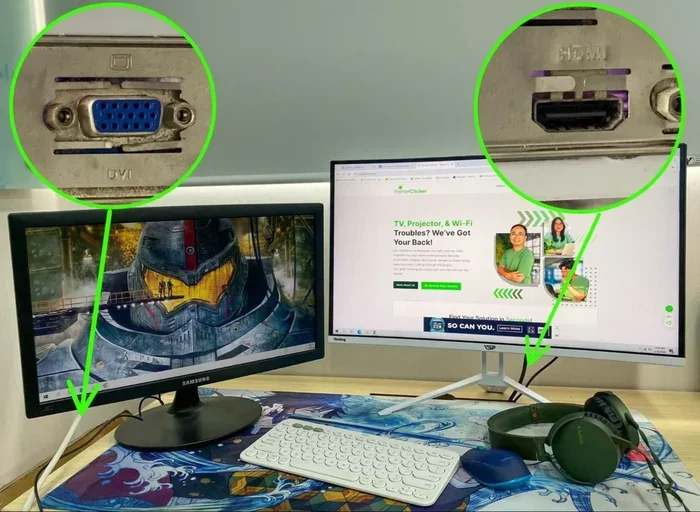
VGA stands for Video Graphics Array. It has been around since the late 1980s. A VGA connection uses an analog signal to transmit video. The connector is typically blue and has 15 pins arranged in three rows. Many older monitors, projectors, and computers use VGA ports. The signal quality can degrade over longer cable runs. This is one reason VGA is considered outdated by today’s standards.
What Is HDMI?
HDMI stands for High-Definition Multimedia Interface. It is the modern standard for connecting displays. HDMI carries both video and audio through a single cable. The signal is digital, which means better quality and less interference. Most new laptops, TVs, gaming consoles, and streaming devices use HDMI. The connector is small and rectangular with one corner cut off.
Why Do People Need to Convert Between Them?
Here is the real-world problem. You have a great monitor with a VGA input. But your new device only outputs HDMI. You cannot just plug one into the other. That is where a VGA to HDMI converter comes in. It takes the digital HDMI signal and converts it to an analog VGA signal your monitor can read.
Can You Really Convert a VGA Monitor to HDMI?
The short answer is yes. The longer answer is that it depends on the method you use. Let us break down your options so you can pick the best one for your situation.
Option 1: Use a VGA to HDMI Adapter
A VGA to HDMI adapter is the most popular solution. These small devices plug into your monitor’s VGA port on one side and connect to your HDMI source on the other. They contain a built-in chip that handles the signal conversion. Most adapters also include a 3.5mm audio jack so you can get sound through your monitor’s speakers or headphones.
These adapters are affordable. You can find decent ones for under $20. They work well for everyday tasks like browsing the web, watching videos, and office work. Just make sure you buy an active VGA to HDMI adapter rather than a passive one. Active adapters have their own processing chip, which is essential for proper signal conversion.
Option 2: Use a VGA to HDMI Converter Box
If you want a more robust solution, consider a converter box. These are larger units that sit between your HDMI source and your VGA monitor. They offer better signal processing and often include additional ports. Some converter boxes have multiple HDMI inputs so you can switch between devices easily. They also tend to provide a steadier image with less flickering.
Converter boxes cost more, usually between $30 and $80. But they are worth it if you use your setup daily or need a reliable connection for work. They also often come with their own power supply, which ensures consistent performance.
Option 3: Use a USB Display Adapter
This is a less common but still viable option. A USB display adapter plugs into your computer’s USB port and outputs to your monitor via VGA or HDMI. These are useful when your computer does not have the right port at all. They work well as a secondary display solution. However, they may not deliver the same performance as a direct HDMI-to-VGA converter.
How to Convert VGA Monitor to HDMI: Step-by-Step Guide
Now that you know your options, let us walk through the actual setup process. Follow these steps and you will be up and running in minutes.
Step 1: Check Your Monitor and Device Ports
Before buying any adapter, take a look at both your monitor and your source device. Does your monitor have a VGA input? Most old monitors do. Does your laptop or PC have an HDMI output? Most modern devices do. This is the basic setup that works with a standard VGA to HDMI adapter.
If your source device only has DisplayPort or USB-C, you may need a different adapter. Some adapters convert DisplayPort or USB-C to VGA directly. Others may need an HDMI intermediary. Always check the specifications before you buy.
Step 2: Choose the Right Adapter or Converter
Head online or to your local electronics store. Look for a VGA to HDMI converter that matches your needs. Here are some things to consider:
- Active vs. passive: Always choose active for VGA to HDMI conversion.
- Audio support: Make sure the adapter has a 3.5mm audio output if you need sound.
- Resolution support: Check if the adapter supports your desired resolution, like 1080p or 720p.
- Build quality: Read reviews and pick a brand with good feedback.
- Compatibility: Make sure it works with your specific devices.
Step 3: Connect the Cables
Once you have your adapter, it is time to connect everything. Start by plugging the VGA cable into your monitor. Then connect the HDMI cable from your source device to the adapter. If your adapter has an audio jack, plug in a 3.5mm cable from the adapter to your monitor or external speakers.
Turn on your monitor and your source device. Your screen should display the output from your HDMI device on the VGA monitor. If you see nothing, double-check all connections and make sure the correct input source is selected on your monitor.
Step 4: Adjust Display Settings
Sometimes the image does not look perfect right away. You may need to adjust your display settings. On Windows, go to Settings > Display. On macOS, go to System Preferences > Displays. You can change the resolution, adjust the scaling, and set the display orientation from these menus.
Set the resolution to match your monitor’s native resolution for the best results. If the text looks blurry, try lowering the resolution slightly. Most VGA monitors work best at 1080p or 1600×900.
Benefits of Converting VGA to HDMI
You might be wondering if this conversion is even worth it. There are several real benefits to making the switch from VGA to HDMI, even when using an adapter.
Better Image Quality
HDMI carries a digital signal, which means a cleaner picture. When you use a good converter, the digital-to-analog conversion produces a sharper image than a raw VGA connection from an older source. Colors look more vibrant. Text appears crisper. This is especially noticeable on larger monitors.
Audio Support
VGA does not carry audio at all. You always need a separate audio connection if your source device outputs sound. HDMI carries both video and audio in one cable. When you use a VGA to HDMI adapter with audio output, you get the convenience of a single cable setup for video and a simple audio cable for sound.
Modern Device Compatibility
Many modern laptops, desktops, and media devices have dropped VGA ports entirely. By converting to HDMI, you can keep using your favorite old monitor with new technology. This saves money and reduces electronic waste. It is a win-win for your wallet and the environment.
Easy Setup and Portability
Most VGA to HDMI adapters are small and lightweight. You can carry one in your laptop bag and set up a second display anywhere. This is great for professionals who travel or students who need a dual-monitor setup in a dorm room.
Common Mistakes to Avoid When Converting VGA to HDMI
Even though the process is simple, people still run into problems. Here are the most common mistakes and how to avoid them.
Buying a Passive Adapter Instead of an Active One
This is the number one mistake. Passive adapters do not convert the signal. They just change the physical connector shape. Since VGA is analog and HDMI is digital, you absolutely need an active adapter with a built-in conversion chip. If you buy a passive one, it will not work.
Ignoring Audio Needs
VGA does not carry sound. If you buy an adapter that does not have an audio output, you will have no sound. Make sure your adapter includes a 3.5mm audio jack or plan to use separate speakers connected to your source device.
Choosing the Wrong Resolution
Not every VGA monitor supports high resolutions. If your adapter pushes a 1080p signal to a monitor that only supports 1366×768, you may get a poor image or no image at all. Check your monitor’s maximum resolution before you buy an adapter.
Using Low-Quality Cables
Cheap cables can cause signal interference, flickering, and color distortion. Invest in decent quality VGA and HDMI cables. A good cable costs a few dollars more but makes a huge difference in display quality.
Not Checking Device Compatibility
Some adapters do not work with certain devices. Mac computers, for example, sometimes have trouble with certain adapters. Always check the adapter’s compatibility list before purchasing. Read reviews from people who use the same devices as you.
Quick Tips for the Best VGA to HDMI Experience
Want to get the most out of your converted setup? Here are some quick tips that make a big difference.
- Update your graphics drivers: Outdated drivers can cause display issues. Always keep them up to date.
- Use a powered adapter: Some adapters work better when they have their own power source. Look for adapters with a USB power cable.
- Keep cables short: Shorter cables mean less signal loss and a cleaner picture.
- Test before mounting: Set up your adapter on your desk first. Make sure everything works before you mount the monitor on the wall.
- Match the refresh rate: Make sure your adapter and monitor support the same refresh rate for smooth video playback.
- Store adapters properly: When not in use, keep your adapter in a safe place to prevent damage to the ports.
Comparison Table: VGA to HDMI Adapters vs. Converter Boxes
| Feature | VGA to HDMI Adapter | VGA to HDMI Converter Box |
|---|---|---|
| Price Range | $10 – $25 | $30 – $80 |
| Size | Small and compact | Larger, desktop-sized |
| Signal Conversion | Active chip conversion | Advanced processing chip |
| Audio Support | 3.5mm audio jack included | 3.5mm audio jack or optical out |
| Resolution Support | Up to 1080p on most models | Up to 1080p or 4K on premium models |
| Port Options | VGA and HDMI only | Multiple HDMI inputs, VGA output |
| Power Source | USB powered | AC adapter or USB powered |
| Best For | Simple setups, occasional use | Daily use, multi-device setups |
Expert Insights on VGA to HDMI Conversion
We asked a few display technology experts about the realities of VGA to HDMI conversion. Here is what they had to say.
Dr. Alan Chen, Display Technology Researcher: “The analog nature of VGA means you will always lose a small amount of quality during digital-to-analog conversion. However, a good active adapter minimizes this loss to the point where most users cannot tell the difference. The key is buying from a reputable brand.”
Sarah Mitchell, IT Specialist: “I see this conversion request all the time in our office. Nine times out of ten, an active VGA to HDMI adapter solves the problem completely. The one time it does not work, it is usually a driver issue or a faulty cable. Always troubleshoot the simple stuff first.”
Mark Thompson, Home Theater Enthusiast: “For gaming or movie watching, I always recommend a converter box over a simple adapter. The image stability is better and the audio sync is more reliable. It is a small price to pay for peace of mind.”
Is VGA to HDMI Conversion Right for You?
At the end of the day, converting your VGA monitor to HDMI makes sense in many situations. If you have a decent monitor that still works well, there is no need to replace it just because you got a new device. A simple adapter or converter box bridges the gap beautifully.
Think about how you use your monitor. If it is for basic tasks like email, browsing, and document editing, any active adapter will do the job. If you need high-quality video for gaming or video editing, consider a converter box with better signal processing and higher resolution support.
The cost is minimal compared to buying a brand new monitor. A quality adapter costs less than $25. A converter box costs between $30 and $80. Both are small investments that extend the life of your existing equipment.
One more thing to keep in mind. VGA technology is slowly being phased out. More and more devices are dropping VGA support entirely. If you rely on a VGA monitor, converting to HDMI is a smart move to keep your setup relevant for years to come. It future-proofs your display setup without breaking the bank.
So yes, you can convert a VGA monitor to HDMI without any hassle. The process is straightforward, the equipment is affordable, and the results are worth it. Pick the right adapter, follow the steps in this guide, and enjoy your upgraded display setup today.
Conclusion
Converting a VGA monitor to HDMI is easier than most people think. With the right VGA to HDMI adapter or converter box, you can connect your old monitor to modern devices in just a few minutes. We covered the key differences between VGA and HDMI, the three main conversion options, a step-by-step setup guide, common mistakes to avoid, and expert tips for the best experience.
Remember to always choose an active adapter, check your resolution compatibility, and do not forget about audio. These small steps make all the difference. Whether you are a student, a professional, or a home user, this conversion opens up new possibilities for your display setup.
Now that you know the answer to can I convert VGA monitor to HDMI, it is time to take action. Pick up the right adapter, follow our guide, and enjoy a seamless connection between your old monitor and your new devices. Your setup is about to get a whole lot better.
Frequently Asked Questions
Do I need a special adapter to connect a VGA monitor to an HDMI source?
Yes, you need an active VGA to HDMI adapter or converter box. Passive adapters will not work because VGA uses an analog signal and HDMI uses a digital signal. The active adapter contains a chip that converts the digital HDMI signal to an analog VGA signal your monitor can display.
Will converting VGA to HDMI improve my image quality?
It can, but it depends on your monitor and the quality of the adapter. HDMI carries a digital signal which is cleaner than VGA’s analog signal. A good active adapter will preserve more detail and produce sharper text and colors. However, your monitor’s physical limitations still play a role in the final image quality.
Can I get audio through a VGA to HDMI adapter?
VGA does not carry audio, but most VGA to HDMI adapters include a 3.5mm audio output jack. You can connect this to your monitor’s speakers or to external speakers and headphones for sound. Make sure to check that your chosen adapter has this feature before you buy it.
What resolution can I expect after converting VGA to HDMI?
Most VGA monitors support resolutions up to 1080p or 1600×900. Your adapter should support these resolutions as well. If you try to push a higher resolution than your monitor supports, the image may look blurry or not display at all. Always match your adapter and monitor resolution settings for the best results.
Are there any devices that will not work with a VGA to HDMI adapter?
Some newer devices, especially certain ultrabooks and tablets, may not output a full HDMI signal through adapters. Additionally, some adapters have compatibility issues with Mac computers or specific graphics cards. Always check the adapter’s compatibility list and read user reviews before purchasing to avoid frustration.
How much does a VGA to HDMI adapter cost?
Basic active VGA to HDMI adapters cost between $10 and $25. Converter boxes with more features and better build quality range from $30 to $80. USB display adapters tend to be a bit more expensive, usually around $30 to $60. The price depends on the brand, features, and build quality of the product.