How Do I Clear My Device Cache to Fix Slow Problems
Clearing your device cache is one of the fastest ways to speed up a slow phone or computer. Cached data builds up over time and can cause apps to freeze, browsers to lag, and devices to run sluggishly. This guide walks you through clearing cache on every major device and browser step by step. You will learn safe methods that protect your saved passwords and personal files.
This is a comprehensive guide about How Do I Clear My Device Cache.
Key Takeaways
- Clearing cache frees up storage space: Temporary files pile up fast and eat into your device memory.
- It fixes many common speed problems: A full cache often causes apps to crash or load slowly.
- The process is different for each device: Phones, computers, and browsers all have unique steps.
- You will not lose important data: Clearing cache removes only temporary files, not your saved passwords or photos.
- Regular cache clearing keeps devices running smooth: Making it a habit prevents future slowdowns.
- Both Android and iPhone offer built-in tools: You do not need third-party apps to clear your cache safely.
- Browser cache is the biggest culprit: Web browsers store the most cached data of any app on your device.
[FEATURED_IMAGE_PLACEHOLDER]
What Is Device Cache and Why Does It Slow Things Down?
Your device cache is a storage area that holds temporary files. These files help apps and websites load faster the next time you visit them. When you open a website, your device cache saves images, scripts, and other small pieces of data. This way, the site does not need to download everything again.
That sounds helpful, right? And it is. But here is the problem. Over time, these temporary cache files build up. They take up valuable storage space and can actually slow your device down. Think of it like a junk drawer. At first, it helps you find things quickly. But after months of filling it up, you cannot find anything anymore.
When your cached data becomes outdated or corrupted, it causes conflicts. Apps may freeze, websites may not load properly, and your device performance drops. This is why clearing cache is such an important maintenance task. It gives your device a fresh start and removes the digital clutter that holds things back.
Many people do not realize how much temporary files they accumulate. A single browsing session can create dozens of cache entries. Multiply that by weeks or months of regular use, and you have a serious storage problem. The good news is that fixing it is simple and fast.
How to Clear Cache on Android Phones
Clear App Cache Individually
On Android phones, you can clear the cache for specific apps. This is useful when one app is running slow or acting strange. Open your Settings app and look for Apps or Applications. Find the app you want to clean and tap on it. You will see a button labeled Storage or Storage Usage. Tap that, and then select Clear Cache. The process removes only temporary files, so your login info and settings stay safe.
You can repeat this for any app that is giving you trouble. Social media apps like Facebook and Instagram tend to store a lot of app cache data. Streaming apps like Netflix and YouTube do the same. If your phone feels slow after using these apps, clearing their cache often helps right away.
Clear All App Cache at Once
Want to clean everything at once? Android has a built-in way to clear all cached data. Go to Settings, then Storage, and tap Cached Data. A confirmation pop-up will appear. Tap OK, and your phone will wipe all temporary files across every app. This is a quick and easy way to free up space without losing any personal data.
Keep in mind that after clearing all cache, some apps may take a moment to reload images and data. This is normal. They will rebuild the cache as you use them again. Your phone should feel noticeably faster after this.
How to Clear Cache on iPhone and iPad
Apple devices handle cache differently than Android. iPhones do not have a simple Clear Cache button for individual apps. Instead, you need to use different methods depending on what you are trying to clean. The good news is that iOS manages cache memory pretty well on its own. But sometimes you need to give it a helping hand.
For Safari browser cache, go to Settings, then Safari, and tap Clear History and Website Data. This removes cached files, cookies, and browsing history. It will not delete your bookmarks or saved passwords, but it will sign you out of some websites.
For other apps, the best approach is to offload or reinstall them. Go to Settings, then General, and tap iPhone Storage. Find the app, and select Offload App. This removes the app but keeps your data. When you reinstall it, the fresh cache files start from scratch. You can also delete the app completely and reinstall it from the App Store.
Regularly restarting your iPhone also helps clear temporary files. Apple recommends restarting your device at least once a week for best device performance. A simple restart clears out a lot of the built-up clutter that slows things down.
How to Clear Cache on Computers and Laptops
Windows PC Cache Clearing
On a Windows computer, you can clear cache through your web browser and through the system itself. For browser cache, open Chrome, Edge, or Firefox. Press Ctrl + Shift + Delete on your keyboard. A menu will appear where you can select Cached Images and Files. Choose the time range, and click Clear Data. This is one of the most effective ways to clear browser cache and make your web browsing faster.
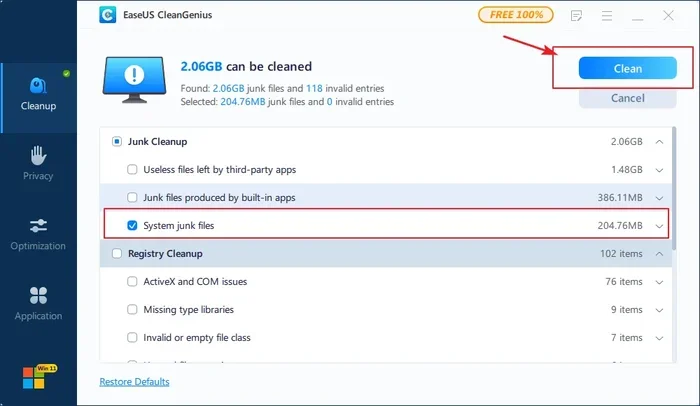
You can also clear the Windows system cache. Open the Settings app, go to System, and tap Storage. Turn on Storage Sense, which automatically removes temporary files. You can also run Disk Cleanup by searching for it in the Start menu. It scans your drive and shows you how much storage space you can recover by deleting temporary and cached files.
Mac Cache Clearing
Mac users have a few options too. The easiest is to clear browser cache through Safari or Chrome settings. In Safari, go to Preferences, then Privacy, and click Manage Website Data. Remove any sites you no longer need, or clear everything for a fresh start.
You can also clear system cache manually. Open Finder, click Go, and select Go to Folder. Type /Library/Caches and press Enter. This folder contains system cache files. You can delete the contents, but be careful not to remove the folders themselves. Only delete the files inside them. If you are not comfortable doing this, using a trusted cleanup tool is a safer option.
Another great tip for Mac users is to restart your computer regularly. Restarting clears RAM and resets many temporary processes. It is one of the simplest ways to maintain good device speed without any technical knowledge.
How to Clear Cache in Popular Web Browsers
Your web browser stores more cached data than almost any other app on your device. Every website you visit saves files to your browser cache. Over time, this adds up and can cause pages to load slowly or display incorrectly. Clearing your browser cache regularly is one of the best habits you can build for better device performance.
In Google Chrome, click the three dots in the top right corner. Go to Settings, then Privacy and Security, and select Clear Browsing Data. Choose the time range and check Cached Images and Files. Click Clear Data, and you are done. Chrome also lets you set up automatic cache clearing, which is a great option if you want zero hassle.
In Mozilla Firefox, click the three lines in the top right. Go to Settings, then Privacy and Security. Under Cookies and Site Data, click Clear Data. Check the Cached Web Content box and confirm. Firefox also offers a shortcut: press Ctrl + Shift + Delete to open the clear data window directly.
For Microsoft Edge, click the three dots and go to Settings. Under Privacy and Search, choose Clear Browsing Data. Select what you want to delete and click Clear Now. Edge also has a feature called Sleeping Tabs that helps reduce cache buildup while you browse.
Each browser handles cached data a little differently, but the basic process is the same. Find the clear browsing data option, select cached files, and confirm. It only takes a few seconds and can make a big difference in your browsing speed.
How Often Should You Clear Your Cache?
There is no single right answer to this question. It depends on how you use your device. If you browse the web heavily every day, clearing your browser cache once a week is a good habit. If you use your phone for streaming and social media, clearing app cache every two weeks helps keep things running smoothly.
For most people, a monthly cache clear is enough to maintain good device speed. But if you notice your device slowing down, apps crashing, or websites not loading properly, it is time to clear your cache right away. These are clear signs that your temporary files have built up too much.
Some people clear their cache every single day. While this will not hurt your device, it is not necessary for most users. Doing it too often means your apps and websites will take longer to load the first time you open them each day. They need cache files to load quickly. The key is finding a balance that works for you.
If you are dealing with a specific problem, like a website not displaying correctly, clearing cache for that browser gives the site a fresh start. This is one of the first troubleshooting steps tech support recommends. It solves more problems than most people realize.
Common Mistakes People Make When Clearing Cache
One of the biggest mistakes is clearing the wrong thing. When you open the clear data menu in your browser, you will see options for cache, cookies, and browsing history. These are not the same. Clearing cookies will sign you out of websites and remove your saved preferences. Clearing browsing history removes your visited sites list. Only clear Cached Images and Files if you want to speed up your device without losing your settings.
Another mistake is using third-party cache cleaning apps. Many of these apps are unnecessary and some even contain malware. Your device already has built-in tools for cache clearing. On Android, you have the Storage settings. On iPhone, you have Offload App. On computers, you have Disk Cleanup and browser settings. These tools are safe and effective.
Some people also worry that clearing cache will delete their saved passwords. This is not true. Cache files are temporary data like images and scripts. Your passwords are stored separately in your browser or password manager. However, clearing cookies might log you out of some sites. Just make sure you know your passwords before you clear everything.
A final mistake is never clearing cache at all. Many people let months of cached data build up without ever cleaning it. This leads to slow performance, low storage, and frustrating app crashes. Making cache clearing a regular part of your device maintenance routine keeps everything running at its best.
Expert Tips to Keep Your Device Running Fast
Clearing cache is just one part of keeping your device fast. Here are some expert tips that go hand in hand with regular cache maintenance. First, restart your device at least once a week. This clears RAM and resets background processes. It is the simplest thing you can do for better device performance.
Second, keep your operating system and apps updated. Updates often include performance improvements and bug fixes that help your device run smoother. Third, delete apps you no longer use. Unused apps still take up space and sometimes run background processes that slow things down.
Fourth, monitor your storage regularly. Most devices perform best when you have at least 10 to 15 percent of storage free. If your storage is almost full, clearing cache and deleting old files will make a noticeable difference. If you need more storage space, consider moving photos and videos to cloud storage.
Fifth, avoid using your device in extreme temperatures. Heat causes your device to throttle performance, which feels like a slow device even when your cache is clean. Keep your phone and laptop in cool, well-ventilated spaces for the best results.
Finally, if your device is still slow after clearing cache, there may be a deeper issue. Consider checking for malware, resetting your device, or upgrading your hardware. Sometimes a simple cache reset is all you need, but other times the problem needs a different solution.
Conclusion
Clearing your device cache is one of the easiest and most effective ways to fix slow performance. It takes just a few minutes and does not require any technical skills. Whether you use an Android phone, an iPhone, a Windows PC, or a Mac, the steps are straightforward and safe. You will not lose your important files or saved passwords when you do it correctly.
Make cache clearing a regular habit. Once a month is enough for most users. But if you notice your device slowing down, do not wait. Clear your cache right away and feel the difference. Your device will run faster, apps will load quicker, and your browsing experience will be smoother.
Start today. Pick one device or browser and follow the steps in this guide. Once you see how much faster your device runs, you will make it part of your routine. A little maintenance goes a long way toward keeping your technology working at its best. If you want to learn more about keeping your devices in top shape, check out how to reboot your smart TV for similar performance boosts. Also, consider reading about what to do with an old laptop if your current device is struggling. And for more on keeping your laptop running smoothly, look into whether you can add too much RAM to your laptop for optimal performance.
Frequently Asked Questions
Will clearing my cache delete my saved passwords?
No, clearing your cache will not delete your saved passwords. Cache files are temporary data like images and scripts. Your passwords are stored separately in your browser or password manager. However, clearing cookies might log you out of some websites, so make sure you remember your passwords before you proceed.
How long does it take to clear device cache?
Clearing your cache takes only a few minutes on any device. On phones, you can clear app cache in under a minute through Settings. On computers, clearing browser cache takes just a few clicks. A full system cache clear might take a few extra minutes, but it is still a quick process.
Is it safe to clear cache every day?
It is safe but not necessary for most users. Clearing cache too often means your apps and websites will take longer to load initially because they need to rebuild cache files. Once a month or whenever you notice slowdowns is usually enough to keep your device running smoothly.
What is the difference between cache and cookies?
Cache stores temporary files like images and scripts to help websites load faster. Cookies store your preferences and login information for websites. Clearing cache removes temporary files, while clearing cookies signs you out of websites and removes saved preferences. Both can be cleared separately in your browser settings.
Can clearing cache fix a frozen app?
Yes, clearing cache can often fix a frozen or crashing app. Corrupted cache files sometimes cause apps to malfunction. After you clear the cache, the app rebuilds fresh temporary files, which often resolves the issue. If the app still freezes after clearing cache, you may need to update or reinstall it.
Do I need a special app to clear cache on my phone?
No, you do not need any special app. Both Android and iPhone have built-in tools for clearing cache. On Android, go to Settings and tap Storage or Apps. On iPhone, use the Offload App feature in Settings. Your device already has everything you need to clear cache safely without downloading anything extra.