Can I Put Too Much Ram In My Laptop And What Happens
You can absolutely install more RAM than your laptop needs, and it usually just sits unused. Putting too much RAM in a laptop won’t damage your hardware, but it can waste money if your system can’t recognize the extra memory. The real limits come from your motherboard, operating system, and available RAM slots.
Can I put too much RAM in my laptop? This is a question many people ask before upgrading their computer. The short answer is yes, you can physically install more RAM than your laptop actually needs. But the real question is what happens when you do. Will it break anything? Will it slow things down? Or is it just a waste of money? Let’s walk through everything you need to know about laptop memory limits and what really happens when you push past them.
RAM, or random access memory, is one of the most important parts of any laptop. It handles everything your computer is doing right now. From browsing the web to running heavy software, RAM keeps all those tasks moving smoothly. But there is a limit to how much your laptop can actually use. Understanding that limit saves you time, money, and frustration. This guide breaks it all down in plain, simple terms.
Key Takeaways
- Too much RAM won’t break your laptop: Your system simply won’t use memory it can’t address.
- Your operating system sets a hard limit: A 32-bit OS can only use about 4GB total, while 64-bit systems support much more.
- Motherboard compatibility matters most: Check your laptop model’s maximum RAM support before buying.
- Unused RAM has zero benefit: You won’t gain speed from memory your system can’t access.
- Matching RAM modules is important: Use the same type, speed, and size for best dual-channel performance.
- More RAM isn’t always better: Diminishing returns kick in once you exceed your typical workload needs.
- Check your BIOS and system specs first: These tools tell you exactly what your laptop can handle.
📑 Table of Contents
- What Is RAM and Why Does It Matter?
- Can You Actually Put Too Much RAM in a Laptop?
- What Happens When You Install Too Much RAM?
- How to Find Your Laptop’s Maximum RAM Capacity
- How to Choose the Right RAM for Your Laptop
- Common Mistakes People Make When Upgrading Laptop RAM
- Expert Insights on RAM Upgrades
- Key Takeaways on Installing Too Much RAM
- Key Takeaways
- Conclusion
What Is RAM and Why Does It Matter?
Before we dive into whether you can overdo it, let’s quickly cover what RAM actually does. Think of RAM as your laptop’s short-term memory. When you open a program, your laptop loads it from your hard drive or SSD into RAM. This makes everything run much faster. Without enough RAM, your laptop slows down. Programs take longer to open. Your system starts swapping data to your storage drive, which is way slower.
Here’s a simple way to think about it. RAM is like your desk at work. A bigger desk lets you spread out more papers and work on several things at once. But if your desk is already big enough, a bigger desk won’t help you work any faster. It just takes up more room. That’s exactly how laptop memory works too.
How RAM Affects Everyday Performance
Most people use between 4GB and 16GB of RAM capacity for daily tasks. Web browsing, office work, and streaming video run fine on 8GB. But if you edit videos, play games, or run virtual machines, you might need 16GB or even 32GB. The key is matching your RAM upgrade to what you actually do. Buying more than you need doesn’t give you a speed boost. It just sits there doing nothing.
Different types of RAM also matter. Older laptops use DDR3 memory. Newer ones use DDR4 or the latest DDR5 standard. Each type has different speeds and power requirements. Mixing incompatible types can cause problems. So always check what your laptop supports before you buy anything.
Can You Actually Put Too Much RAM in a Laptop?
The honest answer is yes, but not in the way most people fear. You cannot physically damage your laptop by putting in too much RAM. Your hardware won’t melt, fry, or break. Instead, your laptop simply ignores the extra memory it can’t use. The RAM utilization caps out at whatever your system allows. Everything beyond that goes to waste.
There are three main limits that determine how much RAM your laptop can actually use. Each one plays a role. Let’s look at them one by one.
Limit 1: Your Operating System
Your operating system sets the biggest barrier. A 32-bit operating system can only address about 4GB of RAM total. Even if you install 32GB, a 32-bit Windows system will only recognize roughly 3.2GB of it. The rest is completely invisible to your laptop.
On the other hand, a 64-bit operating system can handle vastly more memory. Windows 10 64-bit supports up to 128GB or more depending on the edition. Windows 11 64-bit is similar. macOS also supports high amounts of memory on compatible MacBooks. Linux distributions vary, but most handle 64GB or more without issues.
So if you’re running a 32-bit OS and trying to install 16GB of RAM, you’re wasting most of it. Always check your system type first. You can find this in your system settings under About or System Information.
Limit 2: Your Motherboard and Laptop Design
Your laptop’s motherboard has a maximum RAM capacity built into its design. This is the hardest physical limit. Most consumer laptops support between 8GB and 64GB of total memory. Some high-end workstation laptops can handle 128GB or more. But the average everyday laptop tops out at 16GB or 32GB.
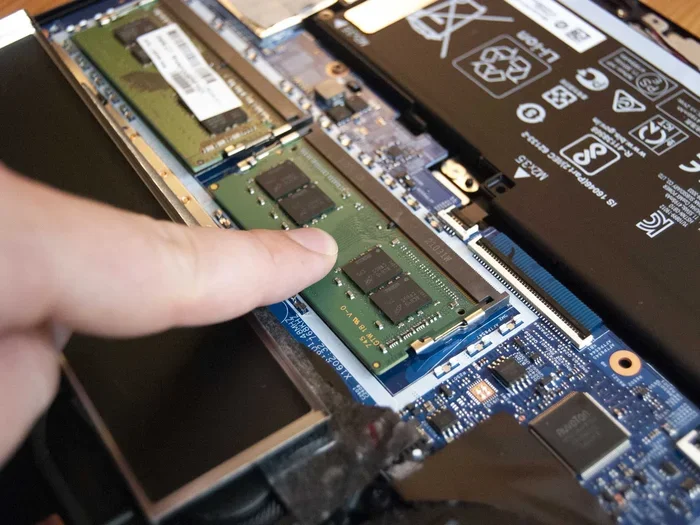
Your laptop also has a set number of RAM slots. Many slim laptops have soldered memory, which means you can’t upgrade at all. Others have one or two slots. If your laptop has two slots and each supports 16GB sticks, your maximum is 32GB. Trying to install a 32GB stick in a slot that only supports 16GB won’t work. The system simply won’t boot properly.
Limit 3: Your BIOS and Firmware
Your laptop’s BIOS controls how it recognizes hardware. Sometimes the BIOS has its own memory limit that’s lower than what the motherboard could theoretically support. This is rare on modern laptops but does happen with older models. Updating your BIOS can sometimes fix these issues and allow your system to recognize more memory.
If you install RAM and your laptop doesn’t recognize all of it, check your BIOS settings first. You might also need to update your firmware. Most laptop manufacturers provide BIOS update tools on their support websites.
What Happens When You Install Too Much RAM?
So what actually happens when you go over your laptop’s limit? The outcomes are surprisingly mild. Let’s walk through the most common scenarios.
Scenario 1: The System Just Ignores the Extra RAM
This is the most common outcome. You install 32GB of RAM in a laptop that maxes out at 16GB. Your system boots up and reports only 16GB. The other 16GB sits in the slots completely unused. Nothing bad happens. Your laptop runs exactly the same as it would with 16GB installed. You just spent extra money for no benefit.
Scenario 2: The Laptop Won’t Boot
Sometimes installing incompatible or oversized RAM modules causes boot failures. Your laptop might not turn on at all. Or it might turn on, show a black screen, and restart in a loop. This usually happens when the RAM type doesn’t match what the motherboard expects. For example, putting DDR5 RAM in a slot that only supports DDR4 won’t work.
In these cases, you just remove the wrong RAM and restart with compatible modules. Nothing is permanently damaged. Your laptop will work fine once you use the right memory speed and type.
Scenario 3: The System Runs Slower (Rare)
In very rare cases, having mismatched RAM modules can cause performance issues. If one stick runs at 2666MHz and another at 3200MHz, both will downclock to the slower speed. This is called memory bottleneck. Your system doesn’t crash, but it doesn’t run at peak performance either.
To avoid this, always install RAM in matching pairs. Same brand, same size, same speed rating, and same latency if possible. This ensures your dual channel memory configuration works properly and your laptop runs at full speed.
Scenario 4: No Real-World Performance Gain
Even if your laptop recognizes all the RAM you installed, you might not notice any difference. If you normally use 8GB out of your 32GB, adding more RAM changes nothing. Your system performance stays exactly the same. You only notice a difference when you consistently use more than 80% of your available memory. For most people, that threshold is well below 16GB.
How to Find Your Laptop’s Maximum RAM Capacity
Before you buy any RAM, find out exactly what your laptop supports. Here’s how to do it in just a few minutes.
Method 1: Check Your Laptop’s Manual or Website
The easiest way is to look up your laptop model on the manufacturer’s website. Search for your exact model number. Look for the specifications or technical details page. You’ll find the maximum supported RAM, the number of slots, and the type of RAM required. Most manufacturers list this clearly.
Method 2: Use a System Information Tool
On Windows, type System Information in your search bar and open the app. Look for Installed Physical Memory (RAM). This shows what your system currently recognizes. To find the maximum, you’ll still need to check your laptop model’s specs online.
On macOS, click the Apple menu and choose About This Mac. The Memory tab shows your current RAM and some upgrade options.
Method 3: Check Your BIOS
Restart your laptop and enter the BIOS by pressing the appropriate key during startup (usually F2, F12, Del, or Esc). Look for memory or system information in the BIOS menu. It may show the maximum supported capacity and the number of memory slots available.
Method 4: Use Third-Party Tools
Tools like Crucial’s System Scanner or Kingston’s Memory Search tool automatically detect your laptop model and recommend compatible RAM. These are free and very reliable. They also tell you the maximum capacity your system supports.
How to Choose the Right RAM for Your Laptop
Now that you know your limits, let’s talk about picking the right RAM upgrade. Choosing correctly saves you money and avoids headaches.
Match the RAM Type
Your laptop needs a specific type of RAM. DDR3, DDR4, and DDR5 are all physically different and not interchangeable. Check your laptop’s specs to confirm which type you need. Putting the wrong type in will not work at all.
Match the Speed
RAM speed is measured in megahertz (MHz). Higher numbers mean faster data transfer. But your laptop runs at the speed of its slowest module. If your existing RAM is 2666MHz and you add 3200MHz sticks, everything runs at 2666MHz. Match the speed for consistent performance.
Match the Capacity
If you’re adding RAM to existing modules, try to buy the same size. For example, if you have 8GB installed, add another 8GB stick for a total of 16GB. This enables dual channel mode, which improves memory bandwidth and overall system performance.
Consider Your Workload
Think about what you actually do with your laptop. Here’s a quick guide.
- Basic use (web, email, documents): 8GB is plenty.
- Moderate use (multitasking, light photo editing): 16GB hits the sweet spot.
- Heavy use (video editing, gaming, virtual machines): 32GB or more makes sense.
- Professional workstations: 64GB or more for specialized tasks.
Buying more than your workload requires is the most common reason people end up with too much RAM. Be honest about your needs before you spend money.
Common Mistakes People Make When Upgrading Laptop RAM
Even with good intentions, people make mistakes when upgrading their laptop memory. Here are the most common ones to avoid.
Buying RAM Without Checking Compatibility
This is the number one mistake. Not all RAM works in all laptops. Even if the type matches (DDR4, for example), the specific form factor matters. Many laptops use SO-DIMM modules, which are smaller than desktop RAM. Buying standard desktop DIMMs won’t fit in your laptop at all.
Ignoring the Operating System Limit
Some people install 16GB of RAM on a 32-bit Windows system and wonder why only 3.2GB shows up. Always confirm your OS is 64-bit before investing in large amounts of memory. This single check can save you from a very expensive mistake.
Mixing Different RAM Brands and Speeds
While it sometimes works, mixing RAM brands and speeds is risky. Different modules may have different timings and voltages. This can cause instability, crashes, and performance drops. Stick with matched pairs whenever possible.
Forgetting to Ground Yourself
Static electricity can damage RAM modules and other components. Always touch a metal surface before handling RAM. Work on a hard, non-carpeted surface if possible. These small precautions protect your hardware.
Assuming More RAM Fixes Everything
If your laptop is slow, more RAM isn’t always the answer. A full hard drive, an old processor, or a slow SSD can all cause performance problems. Diagnose the real issue before spending money on an upgrade.
Expert Insights on RAM Upgrades
Hardware experts consistently recommend checking three things before any RAM upgrade. First, confirm your laptop supports memory upgrades at all. Many modern ultrabooks have soldered RAM that cannot be changed. Second, verify the maximum capacity and RAM type your laptop supports. Third, assess your actual memory usage before buying more.
If you’re unsure, use a free tool like Task Manager on Windows or Activity Monitor on macOS to check your current RAM utilization. If you regularly see less than 70% usage, you probably don’t need more memory. If you’re consistently above 90%, an upgrade will make a noticeable difference.
Also keep in mind that virtual memory can supplement physical RAM. When your physical RAM fills up, your laptop uses a portion of your storage drive as overflow memory. This is called a page file or swap space. It’s much slower than real RAM, but it prevents crashes when you run out of physical memory.
Key Takeaways on Installing Too Much RAM
Key Takeaways
- Too much RAM won’t break your laptop: Your system simply won’t use memory it can’t address.
- Your operating system sets a hard limit: A 32-bit OS can only use about 4GB total, while 64-bit systems support much more.
- Motherboard compatibility matters most: Check your laptop model’s maximum RAM support before buying.
- Unused RAM has zero benefit: You won’t gain speed from memory your system can’t access.
- Matching RAM modules is important: Use the same type, speed, and size for best dual-channel performance.
- More RAM isn’t always better: Diminishing returns kick in once you exceed your typical workload needs.
- Check your BIOS and system specs first: These tools tell you exactly what your laptop can handle.
Conclusion
So, can I put too much RAM in my laptop? Yes, technically you can. But it won’t cause any hardware damage. Your laptop will simply use what it can and ignore the rest. The real risk is wasting money on RAM your system can’t utilize. That’s the only real downside.
The best approach is simple. Know your laptop’s limits. Check your operating system type. Confirm your motherboard’s maximum capacity. Then buy only what you actually need. A RAM upgrade is a great way to breathe new life into an older laptop. But buying more than your system can handle just wastes your hard-earned money.
Take the time to research your specific laptop model before you shop. A few minutes of research saves hours of frustration and potentially hundreds of dollars. Your laptop will thank you with better performance, and your wallet will thank you for not overspending.
Upgrading your laptop memory is one of the easiest and most cost-effective ways to improve system performance. Just do it smartly. Match your RAM to your laptop’s specs, match it to your workload, and you’ll get the best results possible. Happy upgrading!
Frequently Asked Questions
Can putting too much RAM damage my laptop?
No, putting too much RAM cannot physically damage your laptop. Your system will simply recognize only the amount it supports and ignore the rest. The extra modules will sit unused without causing any harm to your hardware.
How do I know if my laptop supports more RAM?
Check your laptop model’s specifications on the manufacturer’s website. You can also look up your model number online or use a tool like Crucial’s System Scanner. These resources tell you the maximum RAM capacity, number of slots, and RAM type your laptop supports.
Will extra RAM make my laptop faster?
Only if your laptop is currently using most of its installed RAM. If you already have enough memory for your tasks, adding more won’t improve speed. The performance boost only happens when you consistently run out of available memory during your daily work.
What happens if I mix different RAM sticks in my laptop?
Mixing different RAM sticks can work, but it’s not ideal. Your system will run at the speed of the slowest module. Mismatched sticks may also prevent dual-channel mode from activating, which can reduce memory bandwidth. For best results, use identical RAM modules.
Do I need a 64-bit operating system to use more than 4GB of RAM?
Yes, absolutely. A 32-bit operating system can only address about 4GB of RAM total. To use 8GB, 16GB, or more, you need a 64-bit operating system. You can check your system type in your operating system’s settings under System or About.
Is 32GB of RAM too much for a laptop?
For most people, yes. 32GB is overkill for everyday tasks like browsing, email, and office work. However, if you do video editing, 3D rendering, run virtual machines, or play demanding games, 32GB can make a real difference. Match your RAM to your actual workload needs.