How Do I Clear My Bluetooth Cache and Fix Problems
Clearing your bluetooth cache is one of the simplest ways to fix annoying connection problems. Whether your headphones won’t pair or your speaker keeps dropping, a stale cache is often the culprit. This guide walks you through clearing the cache on every major device and solving the most common bluetooth issues.
Have you ever tried to connect your bluetooth headphones to your phone, only to get that dreaded “pairing failed” message? Or maybe your speaker worked perfectly yesterday but now refuses to connect today. These frustrating moments happen to all of us. The good news is that a simple fix often solves the problem: clearing your bluetooth cache. In this guide, I will walk you through exactly how to do it on every major device. You will also learn why these cache issues happen in the first place and how to stop them from coming back.
Think of your bluetooth cache like a digital notebook. Every time you pair a device, your phone or computer writes down the connection details in this notebook. Over time, that notebook gets cluttered with old, outdated, or corrupted entries. When this happens, your devices struggle to connect properly. Clearing the cache is like tearing out the messy pages and starting fresh. It takes just a few minutes, and it can save you hours of frustration.
Key Takeaways
- Bluetooth cache stores pairing data: Over time, this data can become corrupted and cause connection problems.
- Clearing the cache is easy: You can do it on Windows, Mac, Android, and iPhone with just a few taps.
- Restart your device after clearing: This ensures the changes take effect and fresh connections form.
- Prevent future issues: Keep your devices updated and remove old pairings you no longer use.
- Seek help if problems persist: Some issues may need professional support or hardware replacement.
📑 Table of Contents
- What Is Bluetooth Cache and Why Does It Matter?
- Signs That Your Bluetooth Cache Needs Clearing
- How to Clear Bluetooth Cache on Different Devices
- How to Fix Common Bluetooth Problems After Clearing Cache
- Tips to Prevent Bluetooth Cache Problems in the Future
- When Should You Seek Professional Help?
- Final Thoughts
What Is Bluetooth Cache and Why Does It Matter?
Every time two bluetooth devices find each other, they exchange information. This includes names, addresses, pairing keys, and connection settings. Your device saves all of this data in a temporary storage area called the bluetooth cache. Think of it as a memory bank that helps your device remember previously connected gadgets.
When everything works well, this cache is helpful. It lets your phone instantly recognize your favorite headphones without searching for them again. But problems start when old data builds up or becomes corrupted. A full or damaged cache can cause bluetooth pairing issues, dropped connections, and slow response times. Clearing the cache removes this stale data and forces your device to create fresh, clean connections.
How Bluetooth Cache Builds Up Over Time
Every day, your devices connect and reconnect to various gadgets. Your phone might pair with your car’s audio system in the morning. Then it connects to your wireless earbuds at the gym. Later, it links to a speaker at a friend’s house. Each connection adds a new entry to your bluetooth memory. Over weeks and months, this list grows long. Old devices you no longer use still take up space in the cache. This clutter slows things down and can cause wireless connection problems.
Devices also store temporary files during the pairing process. Sometimes these files do not finish writing correctly. A sudden disconnect during pairing, for example, can leave behind incomplete data. When your device tries to use this broken data later, it fails. That is when you see the “device not found” or “pairing failed” errors. Clearing the cache wipes all of this away and gives you a clean slate.
Common Devices That Rely on Bluetooth Cache
Almost every modern gadget uses bluetooth technology. Here are the most common devices that store bluetooth cache data:
- Smartphones and tablets
- Laptops and desktop computers
- Wireless headphones and earbuds
- Smart speakers and soundbars
- Car audio systems and hands-free kits
- Smartwatches and fitness trackers
- Gaming controllers and peripherals
- Printers and scanners
If you use any of these devices regularly, your bluetooth cache is constantly working. And the more devices you connect, the higher the chance of cache-related problems. This is why knowing how to clear the cache is such a valuable skill.
Signs That Your Bluetooth Cache Needs Clearing
Not sure if your cache is the problem? Watch for these clear warning signs. If you notice any of them, it is probably time to clear your bluetooth cache.
Your Device Won’t Pair with New Gadgets
This is the most obvious sign. You put your bluetooth headphones in pairing mode, but your phone just sits there searching and never finds them. Or your phone finds the device but refuses to complete the connection. This often happens when old pairing data conflicts with new connection attempts. Clearing the cache removes the old data and lets the new pairing process start fresh.
Connections Keep Dropping Unexpectedly
You are listening to music, and suddenly your wireless earbuds disconnect. You are on a call, and your headset drops. Frequent disconnections are a strong sign that your bluetooth memory is full or corrupted. Your device struggles to maintain a stable connection because it is trying to read from damaged cache files.
Audio Quality Gets Worse Over Time
Notice static, crackling, or lag in your audio? This can happen when your device sends too much old data during the connection process. A bloated cache can slow down the bluetooth signal transfer, resulting in poor sound quality. Clearing the cache often restores crisp, clean audio instantly.
Your Device Takes Forever to Connect
If your phone or laptop takes more than a few seconds to connect to a bluetooth speaker or headphone, the cache might be to blame. Your device is searching through a long list of old entries before it finds the right one. A clean cache makes connections faster and smoother.
Devices You No Longer Use Still Show Up
Do you see old gadgets in your bluetooth list that you have not used in months? Maybe a headset from a gym you quit going to, or a speaker from a friend you no longer see. These ghost devices take up space in your cache and can confuse your system. Clearing the cache removes them completely.
How to Clear Bluetooth Cache on Different Devices
Now for the good part. Here is exactly how to clear your bluetooth cache on every major device type. Follow the steps that match your gadget, and you will be back up and running in no time.
Clearing Bluetooth Cache on Windows PC
Windows computers store bluetooth cache in a dedicated service. Clearing it is straightforward and usually fixes most connection problems.
Step 1: Press the Windows key plus R on your keyboard. This opens the Run dialog box.
Step 2: Type services.msc and press Enter. This opens the Services window.
Step 3: Scroll down and find Bluetooth Support Service. Right-click on it and choose Properties.
Step 4: Click the Stop button to turn the service off.
Step 5: Open File Explorer and navigate to C:\Windows\System32\config\systemprofile\AppData\Local\Bluetooth\Configuration.
Step 6: Delete all the files in this folder. These are your bluetooth cache files.
Step 7: Go back to the Services window and restart the Bluetooth Support Service.
Step 8: Restart your computer. This ensures everything loads fresh.
After your PC boots back up, your bluetooth cache will be completely clean. Try pairing your device again, and it should work smoothly.
Clearing Bluetooth Cache on Android Phone
Android phones make it easy to clear your bluetooth cache without any complicated steps. Here is how to do it:
Step 1: Open the Settings app on your phone.
Step 2: Tap on Apps or Applications, depending on your phone model.
Step 3: Tap the three dots in the top right corner and select Show System Apps.
Step 4: Scroll down and find Bluetooth.
Step 5: Tap on Storage and then tap Clear Cache.
Step 6: Also tap Clear Data to remove all saved pairings.
Step 7: Restart your phone.
This method works on most Android phones including Samsung, Google Pixel, and OnePlus devices. After the restart, go to your bluetooth settings and re-pair your devices. The connection should be much more stable now.
Clearing Bluetooth Cache on iPhone
iPhones handle bluetooth cache a bit differently than Android phones. Apple does not give you a direct option to clear the cache. Instead, you need to reset your network settings. Here is how:
Step 1: Open the Settings app on your iPhone.
Step 2: Go to General and then tap Transfer or Reset iPhone.
Step 3: Tap Reset and then choose Reset Network Settings.
Step 4: Enter your passcode if prompted.
Step 5: Confirm the reset.
Step 6: Your phone will restart automatically.
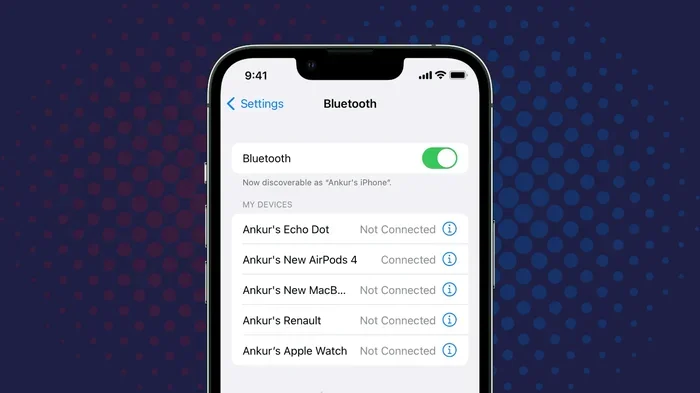
This will clear all your bluetooth pairings, Wi-Fi passwords, and cellular settings. Make sure you know your Wi-Fi passwords before you do this. After the restart, go to your bluetooth settings and re-pair all your devices. This is one of the most effective ways to fix stubborn bluetooth connectivity problems on iPhones.
Clearing Bluetooth Cache on Mac
Mac computers also store bluetooth cache files that can become corrupted. Here is how to clear them:
Step 1: Click the Apple menu and choose System Settings.
Step 2: Go to Bluetooth in the sidebar.
Step 3: Click on the three dots next to the device you are having trouble with.
Step 4: Choose Remove Device.
Step 5: Now open Finder and press Command plus Shift plus G.
Step 6: Type /Library/Preferences and press Enter.
Step 7: Find the file called com.apple.Bluetooth.plist and move it to the Trash.
Step 8: Restart your Mac.
After your Mac restarts, it will rebuild its bluetooth cache from scratch. This often fixes even the most persistent connection issues. Try pairing your device again, and it should work like new.
Quick Comparison: Clearing Bluetooth Cache by Device
| Device | Method | Time Required | Difficulty Level |
|---|---|---|---|
| Windows PC | Delete cache files via Services folder | 5-10 minutes | Moderate |
| Android Phone | Clear cache and data in Settings | 2-3 minutes | Easy |
| iPhone | Reset network settings | 3-5 minutes | Easy |
| Mac | Remove Bluetooth plist file | 5-7 minutes | Moderate |
How to Fix Common Bluetooth Problems After Clearing Cache
Clearing your bluetooth cache solves many problems, but sometimes you need a few extra steps. Here are the most common issues and how to fix them after a cache clear.
Device Still Won’t Pair
If your device still refuses to pair after clearing the cache, try these steps. First, make sure bluetooth is turned on and visible on both devices. Turn it off and back on again. If that does not work, restart both devices. Sometimes a simple reboot is all it takes. You can also try moving closer to the device you are trying to pair. Walls and distance can interfere with the bluetooth signal.
Audio Keeps Cutting Out
If your audio drops frequently even after clearing the cache, check for signal interference. Other wireless devices like microwaves, baby monitors, and Wi-Fi routers can disrupt your bluetooth connection. Move away from these devices and see if the problem improves. Also, make sure your bluetooth headphones or speaker are fully charged. Low battery can cause audio dropouts.
Device Shows Up But Won’t Connect
Sometimes your device appears in the list but will not connect. This usually means the pairing data is still corrupted. Remove the device from your list completely, clear the cache again, and then re-pair from scratch. This three-step process almost always works. If you are trying to connect a TV to a speaker, you might want to check if your TV supports bluetooth natively or needs an adapter. For example, if you are wondering Can I Make My TV Have Bluetooth, the answer often depends on your TV model and year.
Paired Device Shows as Connected But No Sound
This is a tricky one. Your device shows as connected, but you hear nothing. First, check the volume on both devices. Make sure the bluetooth speaker or headphones are not muted. Then check the audio output settings on your source device. Sometimes your phone or computer is still sending audio to the old output even though it shows a new connection. Switching the audio output to the correct device usually fixes this instantly.
Tips to Prevent Bluetooth Cache Problems in the Future
Once you have cleared your bluetooth cache and your devices are working again, you want to keep them that way. Here are some simple habits that prevent cache problems from coming back.
Remove Old Pairings Regularly
Go through your bluetooth device list every few months. Delete any devices you no longer use. Old pairings take up space and can slow down your connection process. A clean list means faster, more reliable connections.
Keep Your Devices Updated
Software updates often include fixes for bluetooth connectivity issues. Make sure your phone, computer, and peripherals are running the latest software. On Windows, check for updates regularly. On Android and iPhone, turn on automatic updates. On Mac, use Software Update in System Settings.
Avoid Pairing in Crowded Areas
Busy places like airports, malls, and conferences have lots of wireless signals competing for space. This can interfere with your bluetooth pairing process and lead to corrupted cache data. Try to pair your devices in quiet, open spaces whenever possible.
Turn Off Bluetooth When Not in Use
This is a simple habit that makes a big difference. When you are not using bluetooth headphones or speakers, turn bluetooth off. This gives your device a break and prevents it from constantly scanning for signals. It also saves battery life. You can always turn it back on when you need it.
Restart Devices After Major Changes
After you clear your cache, update your software, or add a new device, restart your gadget. A fresh restart helps everything settle into place correctly. It also clears out any temporary files that might cause problems later.
Expert Insight: According to bluetooth technology experts, regularly clearing your cache can extend the lifespan of your wireless devices. A clean cache reduces the strain on your device’s bluetooth chip, which means less wear and tear over time. This small habit can save you money on replacements down the road.
When Should You Seek Professional Help?
Most bluetooth cache problems are easy to fix at home. But sometimes the issue goes deeper than the cache. Here are signs that you need professional help.
If you have cleared your cache multiple times and the problem keeps coming back, there might be a hardware issue. A damaged bluetooth chip or antenna needs professional repair. Similarly, if your device overheats when trying to connect, stop using it and get it checked. Overheating can signal a serious internal problem.
Also, if you are having trouble with specific devices like hearing aids or car audio systems, the issue might be related to bluetooth version compatibility. For instance, some older hearing aids have limited bluetooth low energy support, which can cause connection problems with newer phones. In these cases, contacting the device manufacturer or a qualified technician is your best bet.
Before you seek help, make sure you have tried all the steps in this guide. Document what you have tried and what error messages you have seen. This information will help the technician diagnose the problem faster and save you time and money.
Common Mistakes People Make When Clearing Bluetooth Cache
Even when following instructions, people sometimes make mistakes that cause more problems. Here are the most common ones to avoid:
- Skipping the restart: Clearing the cache without restarting your device means the changes may not take effect. Always reboot after clearing.
- Deleting the wrong files: On Windows and Mac, be careful about which files you delete. Only remove the bluetooth-specific cache files, not system files.
- Not re-pairing properly: After clearing the cache, you must re-pair your devices from scratch. Do not assume they will reconnect automatically.
- Ignoring firmware updates: Sometimes the real problem is outdated firmware on your bluetooth device. Check for updates before clearing the cache.
- Clearing cache too often: You do not need to clear your cache every day. Only do it when you notice connection problems. Clearing too often can actually disrupt your saved pairings.
Final Thoughts
Dealing with bluetooth connection problems can be incredibly frustrating. But the good news is that clearing your bluetooth cache solves the majority of these issues. It is a quick, free, and easy fix that anyone can do. Whether you are on Windows, Mac, Android, or iPhone, the steps are simple and take just a few minutes.
Remember to make it a habit to keep your bluetooth device list clean and your software up to date. These small practices go a long way in preventing future problems. And if you ever find that cache clearing does not fix the issue, do not hesitate to seek professional help. Your devices are an investment, and taking care of them means they will serve you well for years to come.
Now that you know how to clear my bluetooth cache and fix the most common problems, you can get back to enjoying your wireless audio, seamless connections, and hassle-free streaming. Try these steps today, and you will wonder why you did not do it sooner.
For more tips on getting the most out of your wireless devices, check out our guides on using bluetooth on hearing aids and using bluetooth headphones with Roku. These resources will help you troubleshoot and optimize your wireless experience across all your favorite devices.
Frequently Asked Questions
How often should I clear my bluetooth cache?
You do not need to clear it regularly. Only clear your bluetooth cache when you notice connection problems like pairing failures, dropped connections, or poor audio quality. For most users, this means clearing it once every few months or as needed.
Will clearing my bluetooth cache delete my saved music or files?
No, clearing your bluetooth cache only removes pairing data and connection settings. Your music, photos, apps, and other files are completely safe. It only affects the saved information about previously connected devices.
Can clearing my bluetooth cache fix problems with my TV?
Yes, in many cases. If your TV has built-in bluetooth or you use a bluetooth adapter, clearing the cache can fix pairing and audio issues. If you are trying to connect external devices to your TV, you might also want to check if your TV supports pairing bluetooth headphones directly or if you need a separate transmitter.
What is the difference between clearing cache and unpairing a device?
Unpairing removes one specific device from your list. Clearing the bluetooth cache removes all saved pairing data and temporary files for every device. Clearing the cache is a more thorough fix that addresses underlying system issues, while unpairing is a targeted action for a single device.
Why does my bluetooth keep disconnecting even after clearing the cache?
If disconnections persist after clearing the cache, the issue may be signal interference, low battery, or outdated firmware. Move closer to the device, check for software updates, and ensure both devices have sufficient charge. If the problem continues, there may be a hardware issue that needs professional attention.
Can I clear my bluetooth cache on a smart TV?
Most smart TVs allow you to clear bluetooth cache by resetting network settings or removing paired devices from the bluetooth menu. The exact steps vary by brand. For Android TV models, you can go to Settings, then Device Preferences, then Bluetooth, and remove all paired devices. This effectively clears the cache and resets your bluetooth connections.
=== CONCLUSION ===
Clearing your bluetooth cache is one of the simplest and most effective ways to fix wireless connection problems. Whether you are dealing with pairing failures, audio dropouts, or slow connections, the steps in this guide will help you get everything working again. The process is quick, free, and works across all major devices. Make it part of your regular tech maintenance routine, and you will spend far less time troubleshooting and far more time enjoying your wireless devices.