Does Hp Victus Have Wifi And How To Set Up Connection
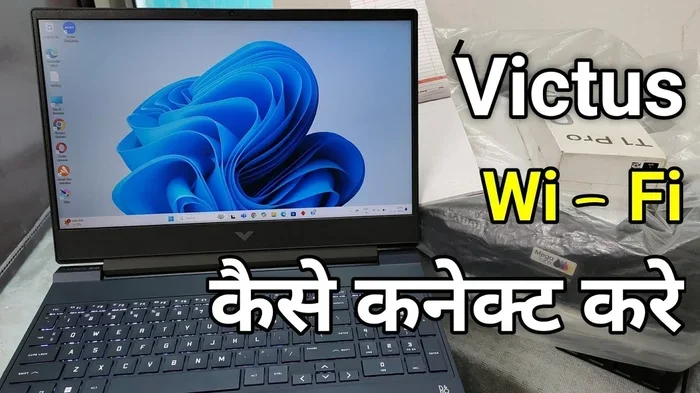
Yes, the HP Victus comes with built-in WiFi capability, making it easy to connect to wireless networks right out of the box. Setting up the connection is straightforward, but you may need to update your WiFi driver or adjust network settings for the best performance. This guide walks you through everything from initial setup to common troubleshooting steps.
Are you wondering does HP Victus have WiFi? The short answer is yes. Every HP Victus laptop comes with a built-in wireless adapter that lets you connect to WiFi networks without any extra accessories. Whether you just unboxed your new machine or you are trying to fix a stubborn connection issue, this guide has you covered.
Setting up WiFi on an HP Victus is not complicated, but there are a few things worth knowing. From checking your wireless adapter to updating drivers and optimizing your signal, we will walk through every step. You will also learn how to troubleshoot common problems and get your wireless connection running smoothly.
HP designed the Victus line for everyday users and gamers who need reliable internet connectivity. That means the WiFi hardware is solid, but the software side sometimes needs a little attention. Let us dive into the details and make sure your HP Victus is connected and performing at its best.
Key Takeaways
- HP Victus laptops include built-in WiFi: You do not need any extra hardware to connect to wireless networks.
- WiFi setup is simple and fast: Just a few clicks in Windows settings get you online.
- Driver updates matter: Outdated WiFi drivers are a common cause of connection problems.
- Dual-band support is standard: Most HP Victus models support both 2.4 GHz and 5 GHz bands for better speed and range.
- Troubleshooting is easy: Basic steps like restarting your router or resetting network settings solve most issues.
- External WiFi options exist: If your internal adapter fails, you can use a USB WiFi dongle or extender as a backup.
📑 Table of Contents
- Does HP Victus Have WiFi Built In?
- How To Set Up WiFi on Your HP Victus
- Updating WiFi Drivers on HP Victus
- Troubleshooting Common WiFi Problems on HP Victus
- Optimizing WiFi Performance on HP Victus
- Can You Add External WiFi to an HP Victus?
- HP Victus WiFi vs Other Laptops
- Final Thoughts on HP Victus WiFi
Does HP Victus Have WiFi Built In?
The answer is a clear yes. HP Victus laptops ship with integrated wireless adapters that support modern WiFi standards. You do not need to buy a separate WiFi card or dongle to get online. The wireless capability is part of the laptop’s core design.
What WiFi Standards Does the HP Victus Support?
Most HP Victus models support WiFi 5 (802.11ac) and some newer versions even support WiFi 6 (802.11ax). This means you get fast wireless speeds and stable connections. Here is a quick look at what you can expect:
- WiFi 5 (802.11ac): Found on most mid-range Victus models. Offers speeds up to 867 Mbps on the 5 GHz band.
- WiFi 6 (802.11ax): Available on newer Victus laptops. Delivers faster speeds and better performance in crowded networks.
- Dual-band support: Nearly all Victus laptops connect to both 2.4 GHz and 5 GHz frequencies. This gives you flexibility for range or speed.
To check which WiFi standard your specific model supports, open the Device Manager in Windows and expand the Network Adapters section. Look for your wireless adapter name. You can also visit the HP Support website and enter your laptop’s serial number for exact specs.
Does HP Victus Have Bluetooth and WiFi Together?
Yes, the HP Victus includes both Bluetooth and WiFi in a single combo adapter. This is standard across most modern laptops. The Bluetooth feature lets you connect wireless mice, keyboards, headphones, and other peripherals without using a USB port. The wireless performance of both Bluetooth and WiFi runs smoothly side by side without major interference.
If you ever need to disable Bluetooth temporarily, you can do so through Windows Settings or the HP Command Center. But for most users, leaving both enabled works perfectly fine.
How To Set Up WiFi on Your HP Victus
Getting your HP Victus connected to a wireless network takes just a few minutes. The process is the same whether you are at home, at a coffee shop, or in a hotel room. Here is a step-by-step guide that anyone can follow.
Step 1: Make Sure WiFi Is Turned On
First, check that your wireless radio is enabled. On most HP Victus laptops, you will find a physical WiFi toggle on the keyboard or side panel. Some models use a function key combination, usually Fn + F12, to turn WiFi on or off. Look for the airplane icon on your keyboard to confirm which key controls it.
You can also check the Windows taskbar. Click the network icon in the bottom-right corner. If you see a flight mode icon or no networks listed, WiFi might be turned off. Toggle it on from the quick settings panel.
Step 2: Connect to Your Wireless Network
Once WiFi is on, follow these simple steps:
- Click the network icon in the taskbar.
- You will see a list of available wireless networks nearby.
- Select your network name (SSID).
- Click Connect.
- Enter your WiFi password when prompted.
- Wait a few seconds for the connection to establish.
That is it. Your HP Victus should now be online. If you are connecting to a new router for the first time, make sure the router is powered on and broadcasting a signal. You can usually find the network name and password on a sticker at the bottom of the router.
Step 3: Verify Your Connection
After connecting, open your web browser and visit any website. If the page loads normally, you are good to go. You can also check your connection speed by visiting a speed test site like fast.com or speedtest.net.
To view detailed network info, right-click the network icon and select Open Network and Sharing Center. This shows your signal strength, IP address, and connection type. A strong signal means you are close to the router. A weak signal might mean you need to move closer or use a WiFi extender to boost the range.
Updating WiFi Drivers on HP Victus
If your HP Victus has WiFi hardware but cannot find or connect to networks, an outdated driver might be the culprit. The wireless adapter needs the right software to communicate with your operating system. Keeping drivers up to date ensures smooth and stable wireless connectivity.
How To Check Your Current WiFi Driver
Open the Device Manager by right-clicking the Start button and selecting Device Manager. Expand the Network Adapters section. Look for an entry that mentions “Wireless,” “WiFi,” or “WLAN.” Right-click it and select Properties. The Driver tab shows the version date and number.
How To Update the Driver
Updating your WiFi driver is easy with these steps:
- Right-click the wireless adapter in Device Manager.
- Select Update Driver.
- Choose Search Automatically for Drivers.
- Windows will search online and install the latest version.
- Restart your laptop after the update completes.
For the most reliable driver, visit the HP Support website directly. Enter your Victus model number and download the latest wireless LAN driver. This method gives you the exact driver designed for your specific laptop model.
Some users also use HP’s built-in support app, HP Support Assistant, which automatically checks for driver updates. It is a handy tool if you want to keep all your HP software current without manual work.
When To Reinstall the WiFi Driver
If updating does not fix your connection issues, try uninstalling and reinstalling the driver. In Device Manager, right-click the wireless adapter and select Uninstall Device. Restart your laptop. Windows will automatically reinstall the default driver during boot. If that does not work, download the driver manually from the HP website and install it fresh.
Troubleshooting Common WiFi Problems on HP Victus
Even with built-in WiFi hardware, you can run into connection issues from time to time. The good news is that most problems have simple fixes. Let us go through the most common issues and how to solve them.
WiFi Not Showing Up on HP Victus
If your HP Victus does not detect any wireless networks, start with the basics. Make sure WiFi is turned on using the physical toggle or function key. Check that Airplane Mode is off in Windows quick settings. Also verify that your wireless adapter is enabled in Device Manager.
Sometimes a simple restart of your laptop and router fixes the problem. Power down both devices, wait 30 seconds, and turn them back on. This refreshes the network connection and clears temporary glitches.
Slow WiFi Speeds on HP Victus
Slow wireless speeds can be frustrating, especially if you are gaming or streaming. Here are the most common causes:
- Distance from the router: The farther you are, the weaker the signal. Move closer to see if speeds improve.
- Interference from other devices: Microwaves, cordless phones, and baby monitors can disrupt WiFi signals.
- Using the 2.4 GHz band: Switch to the 5 GHz band for faster speeds if you are close to the router.
- Too many connected devices: A crowded network slows things down for everyone.
- Outdated router firmware: Check your router settings and update its firmware if available.
If your home has dead zones or weak coverage in certain rooms, consider using a mesh WiFi system or a WiFi range extender. You can also look into whether you can connect a WiFi 6 mesh system to your existing router for better whole-home coverage.
HP Victus Keeps Disconnecting from WiFi
Frequent disconnections are a common complaint. Here is what you can try:
- Update your WiFi driver using the steps above.
- Go to Settings > Network & Internet > WiFi and toggle WiFi off and on.
- Forget the network and reconnect by entering the password again.
- Check your router’s power management settings. Some routers put WiFi adapters to sleep to save energy.
- Run the Windows Network Troubleshooter by going to Settings > System > Troubleshoot > Other Troubleshooters.
If none of these work, your internal wireless adapter might be failing. In that case, a USB WiFi adapter can serve as a temporary replacement. You can also explore options to use a Deco unit as a WiFi extender to strengthen your signal if the router itself is the issue.
Can Not Connect to a Specific WiFi Network
If your HP Victus connects to some networks but not others, the problem is usually with the router or network settings. Try these steps:
- Restart the router or modem you are trying to connect to.
- Make sure you are entering the correct WiFi password. Passwords are case-sensitive.
- Check if the router is using MAC filtering. You may need to add your laptop’s MAC address to the allowed list.
- Try connecting on the 2.4 GHz band if the 5 GHz band is not working.
Optimizing WiFi Performance on HP Victus
Once you have a working connection, you can take steps to improve your wireless performance. A few small adjustments can make a big difference in speed and stability.
Choose the Right WiFi Band
The 2.4 GHz band offers wider coverage but slower speeds. The 5 GHz band provides faster speeds but shorter range. For the best experience on your HP Victus, connect to the 5 GHz band when you are near the router. Use the 2.4 GHz band when you are farther away or through walls.
Keep Your Laptop Updated
Windows updates often include improvements to network settings and wireless performance. Go to Settings > Windows Update and check for the latest patches. HP also releases BIOS updates that can improve hardware compatibility, including WiFi stability.
Position Your Router Wisely
Place your router in a central location in your home. Avoid putting it in closets, behind furniture, or near metal objects. The signal travels best through open air. If you have a large home, you might want to explore options to extend your WiFi coverage to areas with weak signals.
Manage Background Apps
Some apps use bandwidth in the background without you noticing. Go to Settings > Privacy > Background Apps and turn off apps you do not need running constantly. This frees up bandwidth for the tasks that matter most.
Can You Add External WiFi to an HP Victus?
While the HP Victus has built-in WiFi, there are times when you might want or need an external adapter. Maybe your internal WiFi card stopped working, or you need a newer WiFi standard that your laptop does not support.
A USB WiFi adapter is the easiest solution. You plug it into a USB port, install the driver, and you are connected. These adapters are affordable and widely available. Some even support WiFi 6 for faster speeds.
Another option is an internal WiFi card upgrade. If you are comfortable opening your laptop, you can replace the existing card with a newer model. This is more advanced but gives you a permanent upgrade. Just make sure the new card is compatible with your HP Victus model.
Keep in mind that adding external WiFi is usually not necessary. The built-in adapter on the HP Victus handles most users needs just fine. Only consider an upgrade if you are experiencing persistent hardware issues or need a specific WiFi feature.
HP Victus WiFi vs Other Laptops
How does the WiFi performance of the HP Victus compare to other laptops in its price range? The Victus holds its own quite well. It uses the same type of wireless hardware found in many competing brands at similar price points.
For the most part, you can expect comparable internet connectivity to laptops from Dell, Lenovo, and Asus in the same category. The key differentiator is usually the software layer, including HP’s WiFi management tools and driver support.
If you are curious about how long HP laptops last in general, you might find our article on whether an HP laptop can last 8 years helpful. It covers durability and long-term performance expectations for HP machines.
One thing to keep in mind is that WiFi performance depends as much on your router and environment as it does on the laptop. A great wireless adapter on the HP Victus will still struggle if your router is outdated or placed in a poor location.
Final Thoughts on HP Victus WiFi
So, does HP Victus have WiFi? Absolutely. It comes with reliable built-in wireless connectivity that handles browsing, streaming, gaming, and work with ease. The setup process is simple, and the dual-band support gives you flexibility for different situations.
Most users will never need to do anything beyond the basic setup steps outlined in this guide. But knowing how to update drivers, troubleshoot issues, and optimize your connection puts you ahead. You will spend less time dealing with problems and more time enjoying your laptop.
Take care of your wireless adapter by keeping drivers updated and your laptop software current. If you ever run into trouble, the troubleshooting steps in this article should help you get back online quickly. And remember, external options like USB adapters and WiFi extenders are always there if you need them.
With the right setup, your HP Victus delivers a strong and stable wireless connection for everything you do. Enjoy the freedom of going cable-free and make the most of your laptop’s built-in WiFi capabilities.
Frequently Asked Questions
Does Every HP Victus Model Come With WiFi?
Yes, every HP Victus laptop includes a built-in wireless adapter as a standard feature. You do not need to purchase or install any additional WiFi hardware. Whether you buy a basic model or a higher-end configuration, WiFi capability is always included.
Why Is My HP Victus Not Finding Any WiFi Networks?
This usually happens when WiFi is turned off or Airplane Mode is enabled. Check your keyboard function keys and Windows quick settings first. If those are not the issue, try updating your WiFi driver through Device Manager or the HP Support website.
Can I Use My HP Victus WiFi For Gaming?
Yes, the HP Victus WiFi is capable of handling online gaming. For the best experience, connect to the 5 GHz band and make sure your drivers are up to date. If you experience lag, check your internet speed and consider moving closer to your router for a stronger signal.
How Do I Know Which WiFi Band My HP Victus Is Using?
You can check this by clicking the network icon in your taskbar. The network name often includes “5G” or “2.4G” to indicate the band. You can also go to Settings > Network & Internet > WiFi and click on your connected network to see detailed information about the band and signal strength.
Is It Safe To Connect To Public WiFi With My HP Victus?
Connecting to public WiFi is convenient but comes with risks. Always use a VPN when on public networks to protect your data. Avoid accessing sensitive accounts or entering passwords on unsecured networks. Your HP Victus has the hardware to stay secure, but your browsing habits matter too.
Can I Improve My HP Victus WiFi Signal Without Buying New Equipment?
Yes, there are several free ways to boost your signal. Move your router closer to your laptop, reduce interference from other electronics, switch to the 5 GHz band, and keep your WiFi drivers updated. Sometimes simply repositioning your laptop or router makes a noticeable difference in signal strength.
=== CONCLUSION ===
The HP Victus is well-equipped with built-in WiFi that covers everything from basic browsing to high-speed gaming and streaming. Setting up your connection is quick and easy, and keeping it running smoothly comes down to a few simple habits like updating drivers and managing your network settings. If you ever run into trouble, the troubleshooting steps in this guide should help you get back online fast.
Remember that your WiFi experience depends on both your laptop and your router. Take care of both, and you will enjoy a fast, reliable wireless connection every time. Now that you know does HP Victus have WiFi and how to get the most out of it, you are ready to connect and get to work.