Can I Reboot My Smart Tv To Solve Streaming Problems
Yes, you can reboot your smart tv to solve most streaming problems. A simple restart clears cache, fixes frozen apps, and restores your internet connection. Whether your screen freezes, buffers endlessly, or apps refuse to load, rebooting your smart tv is the fastest and easiest fix. This guide walks you through every method, from a basic power cycle to factory resets, so you can get back to watching your favorite shows without frustration.
There is nothing more annoying than settling in for a movie night and then watching your smart tv freeze, buffer, or crash mid-stream. You are not alone. Millions of people deal with streaming problems on their smart tv every single day. The good news is that most of these issues have a simple fix. And the first thing you should try is a reboot.
So, can you reboot your smart tv to solve streaming problems? The short answer is yes. A reboot clears temporary data, refreshes your connection, and often fixes the exact problem you are facing. In this guide, we will walk you through every way to restart your smart tv, explain why it works, and share tips to prevent issues from coming back.
Whether you own a Samsung, LG, Sony, TCL, or any other brand, this guide applies to you. We will cover soft resets, hard resets, network fixes, and everything in between. By the end, you will know exactly what to do when your streaming acts up again.
Key Takeaways
- Rebooting fixes most issues: A simple restart resolves buffering, frozen apps, and connectivity problems on your smart tv.
- Multiple reboot methods exist: You can use the remote, unplug the tv, or access the settings menu to restart.
- Soft reset vs factory reset: A soft reset clears temporary glitches, while a factory reset wipes everything back to defaults.
- Check your network first: Sometimes the problem is your wifi, not the tv itself.
- Prevent future issues: Regular updates, clearing cache, and stable internet keep your smart tv running smoothly.
- When to call for help: If rebooting doesn’t work, the issue may be hardware-related or require professional support.
📑 Table of Contents
- Why Does Your Smart Tv Have Streaming Problems?
- How to Reboot Your Smart Tv The Easy Way
- Soft Reset vs Factory Reset What Is the Difference
- Why Rebooting Your Smart Tv Fixes Streaming Problems
- Common Streaming Problems and How Rebooting Helps
- How Often Should You Reboot Your Smart Tv
- Tips to Prevent Streaming Problems on Your Smart Tv
- When Rebooting Is Not Enough
- Conclusion
Why Does Your Smart Tv Have Streaming Problems?
Before we dive into the fix, it helps to understand what causes streaming problems in the first place. Smart tvs rely on a few key things working together. Your internet connection, your apps, your tv software, and your home network all play a role.
When one of these pieces fails, your streaming suffers. Here are the most common reasons your smart tv might struggle with streaming:
- Weak wifi signal: If your tv is far from your router, the signal may be too weak for smooth streaming.
- Outdated tv software: Old firmware can cause apps to crash or buffer constantly.
- Full cache memory: Over time, your smart tv stores temporary data that can slow things down.
- Too many apps running: Background apps eat up memory and processing power.
- Internet speed issues: Streaming needs a certain amount of bandwidth. If your speed drops, so does your quality.
- Server problems: Sometimes the issue is not your tv at all but the streaming service itself.
Understanding the cause helps you pick the right fix. And in most cases, a simple reboot solves the problem without any deeper troubleshooting.
How to Reboot Your Smart Tv The Easy Way
Rebooting a smart tv is easier than most people think. You do not need any special tools or technical skills. There are three main ways to restart your tv. Let us walk through each one.
Method 1: Use the Remote Control
The simplest way to reboot your smart tv is through the remote. Most modern tvs have a built-in restart option. Here is how to do it:
- Press the Home button on your remote.
- Navigate to Settings or the gear icon.
- Look for System or General Settings.
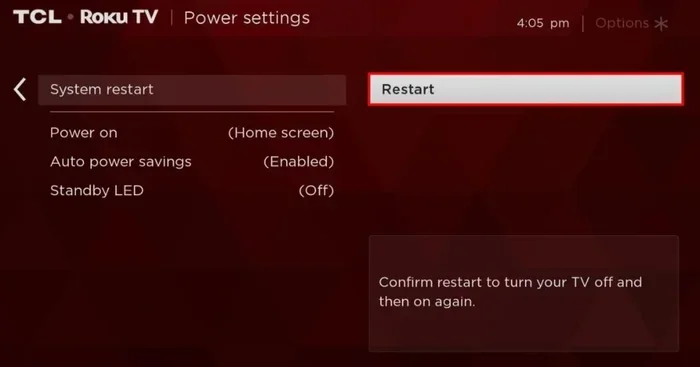
- Select Restart or Power Restart.
- Confirm your choice and wait for the tv to turn off and back on.
This method works on Samsung, LG, Sony, and most other brands. The exact menu names may vary slightly, but the process is very similar across all smart tvs.
Method 2: Unplug the Tv
If your remote is not working or the tv is completely frozen, you can do a hard reboot. This is also called a power cycle. Here is what to do:
- Press the power button on the tv itself to turn it off if possible.
- Unplug the power cord from the wall outlet.
- Wait at least 30 seconds. This lets the tv fully discharge.
- Plug the cord back in.
- Turn the tv on using the remote or the power button.
This method is powerful because it clears everything from the tv’s temporary memory. It is like giving your smart tv a fresh start. Many people find that this simple step fixes their streaming problems immediately.
Method 3: Use the Tv Settings Menu
Some smart tvs let you restart directly from the settings without using the remote’s home button. This method is great if your tv is acting slow but not completely frozen.
- Go to Settings on your tv.
- Find the Support or Help section.
- Tap on Self Diagnosis or Device Preferences.
- Choose Restart or Reboot.
This approach is clean and does not require you to physically unplug anything. It is the go-to method for many tv owners who want a quick restart without hassle.
Quick Tip: Always wait at least 30 seconds before plugging your tv back in. This ensures the internal capacitors fully discharge and the reboot is complete.
Soft Reset vs Factory Reset What Is the Difference
When people talk about rebooting a smart tv, they often confuse a soft reset with a factory reset. These are two very different things, and understanding the difference matters.
What Is a Soft Reset
A soft reset is simply restarting your tv. It turns the device off and back on again. It clears temporary files and refreshes the system without touching your settings, apps, or saved data. Think of it like restarting your phone. Nothing gets deleted. Everything just gets a fresh run.
A soft reset fixes most common streaming issues. It clears frozen apps, resets your wifi connection, and gives your tv a performance boost. This is the first thing you should try whenever streaming problems appear.
What Is a Factory Reset
A factory reset is much more drastic. It wipes your smart tv back to its original settings, just like it was when you first took it out of the box. All your apps, logins, picture settings, and preferences get deleted.
You should only use a factory reset when nothing else works. Here is when it makes sense:
- Your tv is running extremely slowly and nothing else helps.
- Apps keep crashing even after a soft reset.
- You are selling or giving away your tv.
- Your tv has a serious software bug that will not go away.
To factory reset most smart tvs, go to Settings, then General or System, then Reset. You will usually need to enter a PIN. The default PIN is often 0000 or 1234, but check your tv manual to be sure.
| Feature | Soft Reset | Factory Reset |
|---|---|---|
| Deletes your data | No | Yes |
| Time to complete | 1-2 minutes | 5-15 minutes |
| Fixes streaming issues | Yes, most cases | Yes, all cases |
| Requires re-setup | No | Yes |
| Risk level | None | Low (data loss) |
Expert Insight: Always try a soft reset first. A factory reset should be your last resort. Most streaming problems do not require wiping your tv entirely. A simple reboot smart tv session solves the issue 90% of the time.
Why Rebooting Your Smart Tv Fixes Streaming Problems
Now that you know how to reboot, you might wonder why it actually works. Understanding the mechanics helps you trust the process and feel more confident about fixing issues on your own.
When your smart tv runs for hours or days, it accumulates temporary files in its memory. These files include cached data from streaming apps, background processes, and connection logs. Over time, this buildup slows down your tv and can cause apps to malfunction.
A reboot clears this temporary data. It also refreshes your network connection. When your tv reconnects to your wifi, it establishes a fresh link to your router. This often fixes connectivity issues that were causing buffering or lag.
Here is what happens inside your smart tv when you reboot:
- Memory gets cleared: Temporary files and cached data are wiped clean.
- Apps restart fresh: Any frozen or glitching apps close and reopen properly.
- Network connection resets: Your tv reconnects to your wifi with a clean slate.
- Software refreshes: The tv operating system reloads and runs more efficiently.
- Background processes stop: Any rogue processes that were eating up resources get terminated.
Think of it like restarting your computer when it starts running slow. The same principle applies to your smart tv. A reboot smart tv session gives the system a clean slate and often eliminates the exact problem you are facing.
Common Streaming Problems and How Rebooting Helps
Different streaming problems need different approaches. But rebooting your smart tv can help with a surprising number of them. Let us look at the most common issues and how a reboot addresses each one.
Problem 1: Constant Buffering
Buffering is the number one complaint among smart tv users. You press play, the loading circle spins, and nothing happens. This usually means your tv is struggling to keep up with the data stream.
A reboot helps here because it refreshes your internet connection. It also clears any cached data that might be slowing down the streaming app. After a reboot, your tv reconnects to your router and often picks up a stronger, more stable signal.
Problem 2: Apps Freezing or Crashing
Have you ever opened Netflix or Hulu only to have it freeze on the loading screen? This happens when an app gets stuck or when too much cached data builds up.
Rebooting your smart tv closes all running apps and clears the memory. When you reopen the app, it starts fresh without the corrupted data that was causing the crash. This fix works for almost every streaming app on any brand of smart tv.
Problem 3: Poor Video Quality
If your picture looks fuzzy, pixelated, or laggy, your internet connection might be the culprit. A reboot can help by resetting your wifi adapter and forcing your tv to reconnect to the strongest available signal.
After rebooting, check your streaming quality settings. Most apps let you choose between Auto, High, Medium, and Low. Setting it to Auto usually gives you the best experience based on your current internet speed.
Problem 4: Tv Won’t Connect to Wifi
A wifi connection problem can make it impossible to stream anything. Before you call your internet provider, try rebooting your smart tv. The restart forces the tv to forget the old connection and create a new one.
For even better results, reboot your router too. Unplug it for 30 seconds, then plug it back in. This combo reboot of your tv and router solves most wifi-related streaming issues.
How Often Should You Reboot Your Smart Tv
You do not need to reboot your smart tv every day. In fact, doing it too often can cause more problems than it solves. But there is a sweet spot that keeps your tv running at its best.
Most experts recommend restarting your smart tv once a week. This clears out accumulated cache and keeps the system running smoothly. If you notice streaming problems, reboot immediately. Do not wait and hope the issue fixes itself.
Here are some signs that it is time to reboot:
- Apps are loading slower than usual.
- Your tv takes longer than normal to start up.
- You notice frequent buffering during playback.
- The remote is not responding properly.
- Apps open but display a black or blank screen.
Making rebooting a regular habit is one of the simplest things you can do to maintain your smart tv performance. It takes less than two minutes and can save you hours of frustration.
Tips to Prevent Streaming Problems on Your Smart Tv
Rebooting is a great fix, but prevention is even better. Here are some practical tips to keep your smart tv streaming smoothly without constant reboots.
Keep Your Tv Software Updated
Smart tv manufacturers release regular updates that fix bugs and improve performance. Go to Settings, then Support, then Software Update, and check for updates. Turn on automatic updates if your tv supports it.
Improve Your Wifi Signal
Place your router close to your tv if possible. If that is not practical, consider a wifi extender or a mesh network system. A stronger signal means fewer streaming problems and less need to reboot.
Clear App Cache Regularly
Most smart tvs let you clear individual app cache. Go to Settings, find the app, and select Clear Cache. This prevents data buildup that slows down your streaming experience.
Limit Background Apps
Close apps you are not using. Many smart tvs keep apps running in the background, which eats up memory and processing power. A quick reboot smart tv session handles this, but manually closing apps helps too.
Use an Ethernet Connection
If your tv supports it, connect directly to your router with an ethernet cable. A wired connection is faster, more stable, and less prone to the issues that cause buffering. This single change can eliminate the need for frequent reboots.
Quick Tip: If your smart tv keeps having the same streaming problem even after multiple reboots, write down what happens. Note the time, the app, and what you were watching. This information helps you or a technician diagnose the real issue faster.
When Rebooting Is Not Enough
Sometimes, rebooting your smart tv does not fix the problem. If you have tried a soft reset and a hard reboot and streaming still does not work, it is time to dig deeper. Here are some signs that the issue goes beyond a simple restart:
- Your tv screen shows lines or artifacts: This could be a hardware display issue.
- Sound and video are out of sync: This might indicate a processing or firmware problem.
- Your tv overheats: Overheating can cause streaming to fail and may require professional repair.
- No response to any input: If the tv does not respond at all, even after a power cycle, there may be a deeper hardware failure.
- Streaming works on other devices but not your tv: The problem is likely specific to your tv, not your internet connection.
In these cases, consider contacting the manufacturer’s support team. Most brands offer free troubleshooting support. You can also check online forums where other users share solutions for specific tv models.
Remember, a reboot smart tv session is your first line of defense. But it is not a cure for every problem. Knowing when to escalate to professional help saves you time and prevents further damage to your device.
Conclusion
So, can you reboot your smart tv to solve streaming problems? Absolutely. A reboot is the simplest, fastest, and most effective first step you can take when your streaming acts up. Whether you use the remote, unplug the tv, or access the settings menu, restarting your smart tv clears memory, refreshes connections, and fixes most common issues.
Make rebooting a regular part of your tv maintenance routine. A weekly restart keeps things running smoothly and prevents many problems before they start. And when issues do arise, you now know exactly what to do.
Do not let streaming problems ruin your movie night or binge-watching session. A quick reboot smart tv session takes less than two minutes and solves most issues instantly. Try it the next time your tv acts up, and you will wonder why you did not do it sooner.
Share this guide with friends and family who struggle with their smart tv streaming. Sometimes the simplest fix is the one everyone needs but nobody thinks to try first.
Frequently Asked Questions
How long does it take to reboot a smart tv?
A soft reset usually takes about one to two minutes. A hard reboot where you unplug the tv takes around two to three minutes including the waiting time. The entire process is quick and does not require any technical skills.
Will rebooting my smart tv delete my apps or settings?
No. A regular reboot does not delete anything. Your apps, settings, and saved data all stay intact. Only a factory reset wipes your tv back to its original state. Always try a simple reboot first before considering a factory reset.
How often should I reboot my smart tv to prevent streaming issues?
Once a week is a good routine for most users. If you notice buffering, slow app loading, or connectivity problems, reboot immediately. Regular restarts keep your tv’s memory clear and your streaming smooth.
Can rebooting fix a smart tv that will not connect to wifi?
Yes, in most cases. A reboot refreshes your tv’s network adapter and forces it to reconnect to your wifi. For even better results, reboot your router at the same time. This combo often fixes wifi connectivity issues completely.
What is the difference between restarting and rebooting a smart tv?
Not much. Both terms mean turning the tv off and back on again. Some brands use one term over the other in their menus. A restart and a reboot both clear temporary data and refresh the system in the same way.
Should I reboot my smart tv after a firmware update?
Yes, always reboot after updating your tv firmware. The update installs new software files, and a reboot ensures everything loads properly. Skipping the reboot can sometimes cause glitches or incomplete updates that lead to streaming problems.