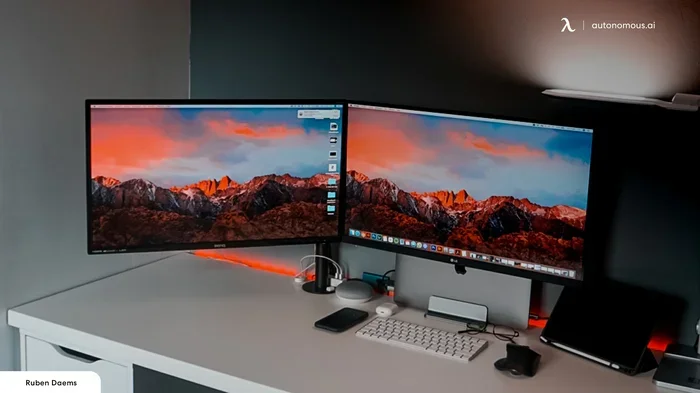
Can I Just Use A Hdmi Splitter For Dual Monitors Now
Many people wonder if they can use a HDMI splitter for dual monitors and get two separate screens. The short answer is no — a standard HDMI splitter mirrors the same image to both displays. If you want an extended desktop across two monitors, you need a different solution like a USB-C docking station, a DisplayPort MST hub, or a second output on your graphics card. We break down exactly why splitters don’t work for extending, what actually does work, and how to choose the right option for your needs.
This is a comprehensive guide about Can I Just Use A Hdmi Splitter For Dual Monitors.
Key Takeaways
- HDMI splitters mirror content: They send the same signal to both monitors, they don’t extend your desktop.
- You need a different hardware solution: A USB-C docking station or DisplayPort MST hub is the real way to run dual monitors.
- Your graphics card matters: Check how many video outputs your GPU has before buying anything.
- Resolution and refresh rate drop: Splitters often reduce quality when sending signals to two screens.
- Active splitters vs passive splitters: Both mirror, but active splitters may include signal boosting for longer cable runs.
- Software solutions exist: Some tools let you extend a single output, but they have limitations.
- Match your setup to your needs: A docking station or MST hub is the best path for a true extended desktop experience.
[FEATURED_IMAGE_PLACEHOLDER]
Can I Just Use A HDMI Splitter For Dual Monitors?
Here is the honest truth. If you are sitting at your desk right now with one computer and two monitors, and you are thinking about grabbing a cheap HDMI splitter from Amazon to make it work — stop right there. A standard HDMI splitter will not give you the dual monitor setup you are dreaming of. It will give you two screens showing the exact same thing. That is it. That is all a basic splitter does.
Now, does that mean you are completely stuck? Not at all. There are real, working solutions for running two monitors from one computer. You just need to understand the difference between mirroring and extending. Once you know that, the right path becomes clear. Let us walk through it together.
What Does a HDMI Splitter Actually Do?
A HDMI splitter takes one video input and copies it to two or more outputs. Think of it like a photocopier for your screen. You put one image in, and it spits out the same image two or more times. Both monitors show the same desktop, the same window, the same everything.
This is called mirroring. It is useful in some situations. For example, you might want to show a presentation on a big TV while keeping your laptop screen for your notes. Or you might want to display the same content in a store window and at the register. But for actual productivity with two separate screens, mirroring is not what you need.
Here is a quick look at what a basic HDMI splitter offers:
- One input, multiple outputs — typically two, sometimes four
- Mirrors the same image to every connected display
- No desktop extension — you cannot spread windows across screens
- Resolution may drop — many splitters cap at 1080p even if your monitors support 4K
- No signal boosting in passive models — longer cables can cause signal loss
Why a HDMI Splitter Won’t Extend Your Desktop
The core reason comes down to how video signals work. A HDMI splitter duplicates the signal. It does not create a second, independent output. Your computer sees one display. The splitter just copies that one display to two screens. Your operating system — whether it is Windows, macOS, or Linux — also sees only one display.
When you want an extended desktop, your computer needs to recognize two separate displays. Each display gets its own unique space. You can drag windows from one screen to the other. You can have different apps open on each screen. This requires two separate video outputs from your graphics card, not a copy of one output.
The Difference Between Mirroring and Extending
Let us make this really simple. Imagine your computer desktop is a big piece of paper.
Mirroring is like holding that paper up to two windows. Both windows show the same paper. You cannot cut the paper in half and put one piece on each window.
Extending is like taking two pieces of paper and taping them together side by side. Now you have one big workspace. You can draw on the left side and write on the right side. That is what you want for dual monitors.
A HDMI splitter can only do mirroring. It physically cannot extend. So if your goal is to spread your workspace across two screens for productivity, gaming, or video editing, you need something entirely different.
What You Actually Need for Dual Monitors
So if a splitter is not the answer, what is? There are several real solutions depending on your computer’s hardware and your budget. Let us go through them one by one.
Option 1: Use Two Outputs on Your Graphics Card
The easiest and most reliable way to run dual monitors is to use two separate video outputs on your graphics card. Most modern GPUs come with multiple ports. You might see HDMI, DisplayPort, DVI, or USB-C outputs all on the same card.
Here is what to do:
- Check the back of your computer or your GPU
- Look for two different video output ports
- Connect one monitor to each port
- Go to your display settings and choose “Extend these displays”
That is it. No extra hardware needed. This is the cleanest and most affordable solution. Most desktop graphics cards support this out of the box. Even many laptops have at least two outputs — one HDMI and one USB-C or DisplayPort.
Quick Tip: If your laptop only has one HDMI port and one USB-C port, you are in luck. USB-C can carry video signals with the right adapter or cable. Just plug in your second monitor via USB-C and set it to extend.
Option 2: Use a USB-C Docking Station
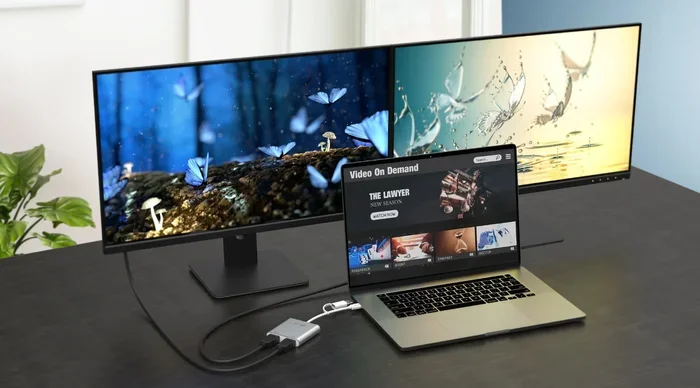
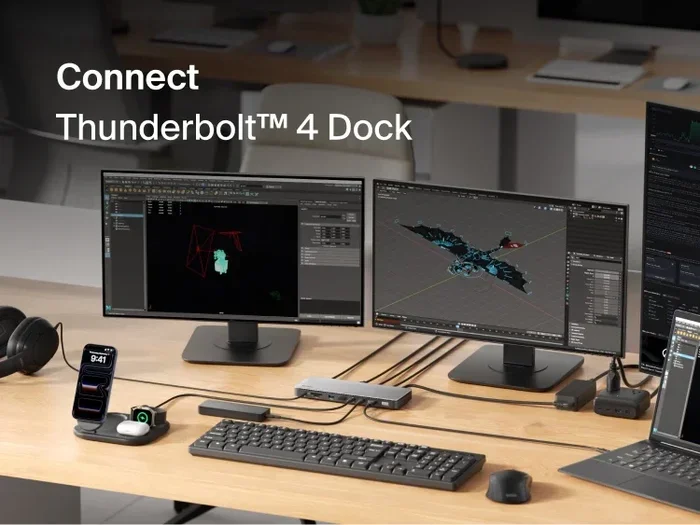
If your computer has limited video outputs, a USB-C docking station is a fantastic option. These devices connect to a single USB-C or Thunderbolt port and provide multiple video outputs. Many docking stations offer two or even three HDMI or DisplayPort connections.
Here is why docking stations are popular:
- One cable connection to your laptop — keeps things clean
- Multiple ports for monitors, USB devices, and charging
- Support for extended desktop across two or more screens
- Plug and play on most modern operating systems
- Portable — easy to disconnect and take with you
Popular brands like CalDigit, Anker, and Belkin make reliable docking stations. Prices range from around $100 to $300 depending on the features. If you use a laptop as your main computer, a docking station is probably your best bet for a clean dual monitor setup.
Option 3: Use a DisplayPort MST Hub
If your graphics card has a DisplayPort output, you can use something called an MST hub, which stands for Multi-Stream Transport. This is a small device that takes one DisplayPort connection and splits it into multiple independent displays.
Here is the key difference from an HDMI splitter: an MST hub actually creates separate display streams. Your computer sees two or three individual monitors. You get a true extended desktop. This is the closest thing to what an HDMI splitter does — but for extending instead of mirroring.
MST hubs work great when:
- Your GPU has a DisplayPort output
- Your monitors support DisplayPort input
- You want to connect two or three screens from one port
- You need a clean desk setup with minimal cables
Expert Insight: MST hubs are not as common as HDMI splitters, so you may need to search a bit to find a good one. Look for “DisplayPort MST hub” or “DisplayPort splitter” — but make sure it supports MST, not just mirroring.
Option 4: Add a Second Graphics Card
For desktop users who need serious multi-monitor power, adding a second graphics card is an option. This is more common in workstation setups, video editing rigs, and multi-monitor gaming builds. You install a second GPU in your motherboard’s PCIe slot and connect monitors to both cards.
This is overkill for most people, but it is worth mentioning. If you are running four, six, or more monitors, a second graphics card might be exactly what you need.
Common HDMI Splitter Mistakes People Make
Let us talk about the mistakes that trip people up. These are the things we see over and over again when people try to use a HDMI splitter for dual monitors.
Assuming All Splitters Are the Same
Not all splitters are created equal. There are active splitters and passive splitters. A passive splitter just splits the signal with no power source. An active splitter has its own power supply and can boost the signal. Neither one will extend your desktop, but active splitters tend to work better with longer cable runs and higher resolutions.
Here is a quick comparison:
| Feature | Passive Splitter | Active Splitter |
|---|---|---|
| Needs external power | No | Yes |
| Signal boosting | No | Yes |
| Resolution support | Often limited | Usually better |
| Price | Lower | Higher |
| Extends desktop | No | No |
| Best for | Short cable runs, mirroring | Longer runs, mirroring |
Buying a Splitter Without Checking Your Monitor Specs
Another common mistake is buying a HDMI splitter without checking what your monitors can handle. If your monitors support 4K at 60Hz but your splitter only supports 1080p, you will be stuck with lower quality. Always check the resolution and refresh rate specs of both your splitter and your monitors before making a purchase.
Ignoring Cable Quality
Cheap HDMI cables can cause signal problems, especially with splitters. A low-quality HDMI cable can lead to flickering, signal loss, or no display at all. Invest in good cables that match your resolution needs. For 4K, look for cables rated as “Ultra High Speed HDMI.”
When a HDMI Splitter Makes Sense
Now, I do not want to leave you thinking splitters are completely useless. They serve a real purpose in the right situation. Here is when a HDMI splitter actually makes sense:
- Presenting to a group — mirror your laptop screen onto a projector or TV
- Digital signage — show the same content on multiple screens in a store or office
- Watching the same content — share a movie or game with someone on a second screen
- Testing displays — quickly check how content looks on a different screen
So if your goal is mirroring, a splitter works fine. Just do not expect it to extend your desktop. That is simply not what the technology is designed to do.
How to Set Up Dual Monitors the Right Way
Ready to set up your dual monitor configuration properly? Here is a step-by-step guide that works for most setups.
Step 1: Check Your Graphics Card Outputs
Look at the back of your computer or GPU. Count how many video outputs you have. If you have at least two (any combination of HDMI, DisplayPort, or USB-C), you are good to go.
Step 2: Connect Both Monitors
Plug each monitor into a separate output on your graphics card. Use the best cable your monitors and GPU support. For the best experience, use DisplayPort or HDMI 2.1 for high resolution and refresh rates.
Step 3: Configure Display Settings
On Windows, right-click your desktop and select “Display settings.” On macOS, go to System Settings and click “Displays.” Choose the option to “Extend these displays” rather than “Mirror.” You can then drag the monitor icons to match the physical arrangement on your desk.
Step 4: Adjust Resolution and Orientation
Make sure each monitor is set to its native resolution. You can also set one monitor to portrait mode if you prefer a vertical screen for reading or coding. These small adjustments make a big difference in your daily workflow.
Expert Tips for the Best Dual Monitor Experience
Here are some practical tips that will help you get the most out of your dual monitor setup:
- Match your monitors — using two identical monitors gives you a seamless viewing experience with consistent color and brightness
- Use a monitor arm — frees up desk space and lets you adjust height and angle easily
- Keep cables short — shorter HDMI cables and DisplayPort cables reduce signal loss
- Update your graphics drivers — outdated drivers can cause display issues and poor performance
- Use the right refresh rate — set both monitors to their supported refresh rate for smooth visuals
- Consider a USB-C hub — if you are using a laptop, a good hub solves both video and connectivity needs
Quick Tip: If you are using Windows, press the Windows key plus P to quickly switch between mirror and extend modes. It is a fast shortcut that saves time.
Conclusion
So, can you just use a HDMI splitter for dual monitors? The answer is no if you want an extended desktop. A splitter mirrors the same image to both screens, and that is all it does. It is a great tool for mirroring, presentations, and digital signage, but it is not the solution for a true dual monitor workspace.
Instead, look at your options. Use two outputs on your graphics card, grab a USB-C docking station, or invest in a DisplayPort MST hub. Each of these solutions gives you a real extended desktop where you can spread your windows across two separate screens and boost your productivity.
The right setup depends on your computer, your monitors, and your budget. But now you know exactly what works and what does not. You are ready to make the right choice and get your dual monitor setup running the way it should.
Take a look at your ports. Figure out your needs. And then pick the solution that fits. Your future self — the one with two fully functional screens — will thank you.
Frequently Asked Questions
Can a HDMI splitter be used to extend a desktop across two monitors?
No, a standard HDMI splitter only mirrors the same image to both displays. It cannot extend your desktop. For an extended desktop, you need two separate video outputs from your graphics card, a USB-C docking station, or a DisplayPort MST hub.
Will a HDMI splitter reduce the resolution on my monitors?
It can. Many HDMI splitters cap the output resolution, often at 1080p even if your monitors support 4K. Check the specs of your splitter before purchasing to make sure it supports your desired resolution and refresh rate.
What is the difference between an active and passive HDMI splitter?
A passive splitter splits the signal without any external power and is best for short cable runs. An active splitter has its own power supply and boosts the signal, making it better for longer cables and higher resolutions. Neither type will extend your desktop — both only mirror.
Can I use a USB-C to HDMI adapter instead of a splitter for dual monitors?
Yes, if your computer has a USB-C port that supports video output, you can connect one monitor directly via HDMI and the second monitor via USB-C to HDMI. This gives you two independent outputs and allows you to extend your desktop across both screens.
Do I need a special graphics card to run dual monitors?
Not necessarily. Most modern graphics cards come with at least two video outputs. Even integrated graphics on many processors support dual displays. Check the back of your computer or look up your GPU specs to confirm before buying additional hardware.
Is a DisplayPort MST hub better than a HDMI splitter for dual monitors?
Yes, if your goal is to extend your desktop. A DisplayPort MST hub creates separate display streams for each monitor, allowing true extension. A HDMI splitter only mirrors content. For productivity and extended workspaces, an MST hub is the far better choice.
Frequently Asked Questions
What is Can I Just Use A Hdmi Splitter For Dual Monitors?
Can I Just Use A Hdmi Splitter For Dual Monitors is an important topic with many practical applications.