Can You Plug A Thunderbolt Dock Into Any Usb C Port
You can plug a Thunderbolt dock into a USB C port, but not all USB C ports are created equal. The connection might work physically, but you may not get full Thunderbolt speeds or features. Understanding the difference between Thunderbolt and standard USB C saves you from frustration, wasted money, and slow performance. This guide breaks down everything you need to know.
Have you ever sat down at your desk, plugged in a new dock, and wondered if you were getting the most out of it? You are not alone. A lot of people buy a Thunderbolt dock thinking it will work perfectly with any USB C port. The truth is a little more complicated than that.
The short answer is yes, you can physically plug a Thunderbolt dock into a USB C port. But the real question is whether you will get the full performance and features you paid for. That is what this article is all about. We will walk through everything you need to know about Thunderbolt compatibility, what happens when you mix and match ports and docks, and how to make sure you are not leaving speed or features on the table.
Key Takeaways
- Thunderbolt docks need Thunderbolt ports: A Thunderbolt dock will only deliver full speeds when plugged into a Thunderbolt-enabled USB C port.
- Physical fit does not mean full function: A Thunderbolt dock can plug into a regular USB C port, but you will lose Thunderbolt features.
- Thunderbolt 3 and Thunderbolt 4 share the same connector: Both use the USB C shape, which causes a lot of confusion.
- Data transfer speeds drop significantly: Without a Thunderbolt port, your dock will run at USB speeds, not Thunderbolt speeds.
- Check your device specs before buying: Look for the lightning bolt icon or verify Thunderbolt support in your laptop or desktop specs.
- Not all USB C docks are Thunderbolt docks: A regular USB C hub and a Thunderbolt dock are different products.
- Power delivery and display support vary: Thunderbolt docks offer better charging and multi-monitor support than standard USB C hubs.
📑 Table of Contents
- What Is a Thunderbolt Dock and How Does It Work?
- Can You Plug a Thunderbolt Dock Into Any USB C Port?
- Thunderbolt 3 vs Thunderbolt 4: What Is the Difference?
- What Happens When You Plug a Thunderbolt Dock Into a Regular USB C Port?
- Which Devices Are Compatible With Thunderbolt Docks?
- How to Choose the Right Thunderbolt Dock for Your Setup
- Common Mistakes People Make With Thunderbolt Docks
- Expert Insights on Thunderbolt Dock Compatibility
- Key Takeaways
- Conclusion
What Is a Thunderbolt Dock and How Does It Work?
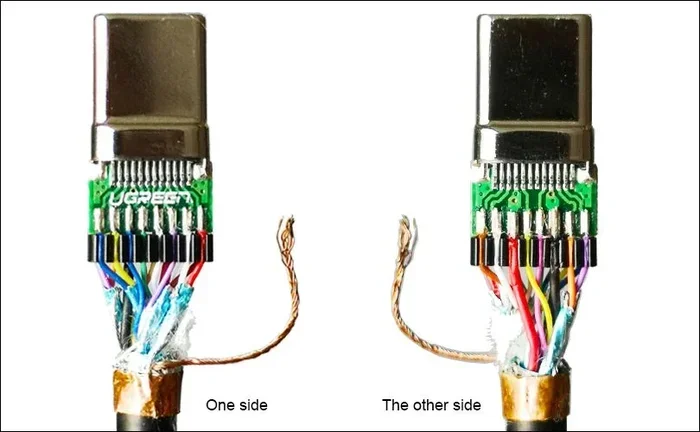
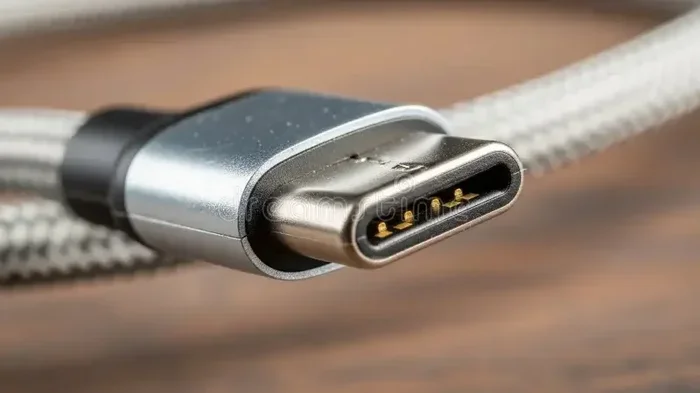
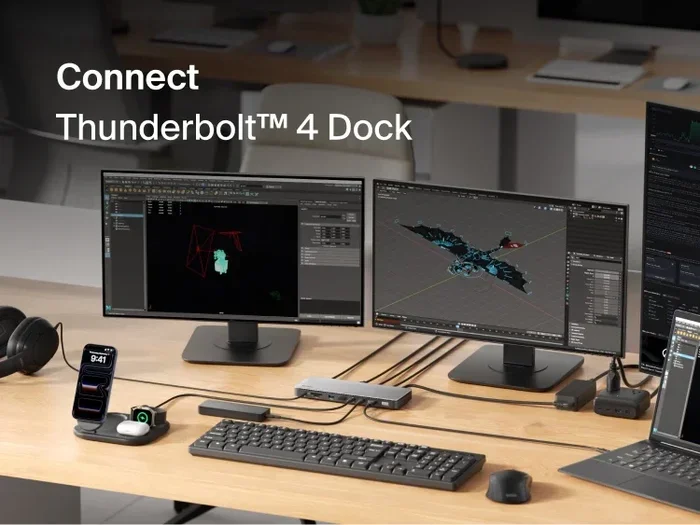
A Thunderbolt dock is a docking station that uses the Thunderbolt protocol to connect your laptop or desktop to external devices. It lets you plug in monitors, external hard drives, keyboards, and more through a single cable. The dock connects to your computer using a USB C connector, which is the small, reversible oval-shaped port you see on most modern laptops.
How Thunderbolt Technology Works
Thunderbolt technology was developed by Intel and Apple. It combines data, video, and power into one cable. The original Thunderbolt port used a different shape, but Thunderbolt 3 and Thunderbolt 4 both use the USB C connector. This is where the confusion starts for many people.
Thunderbolt uses a protocol called PCIe (Peripheral Component Interconnect Express) to move data at very high speeds. It also supports DisplayPort Alt Mode, which lets you send video signals to external monitors. On top of that, Thunderbolt can deliver up to 100 watts of power delivery to charge your laptop.
Key Features of a Thunderbolt Dock
- High data transfer speeds: Thunderbolt 3 offers up to 40 Gbps, and Thunderbolt 4 guarantees at least 40 Gbps.
- Multi-monitor support: You can connect two or more 4K displays through a single dock.
- Fast charging: Most Thunderbolt docks support USB Power Delivery up to 100W.
- Daisy chaining: You can connect up to six Thunderbolt devices in a chain from one port.
- Low latency: Thunderbolt is great for external GPUs and professional storage devices.
Now that you know what a Thunderbolt dock brings to the table, let us answer the big question.
Can You Plug a Thunderbolt Dock Into Any USB C Port?
Here is the part that trips up a lot of people. A Thunderbolt dock will physically fit into almost any USB C port. The connector shape is the same. But just because it fits does not mean it will work at full Thunderbolt speed. Think of it like putting a premium fuel into a car that only runs on regular. It goes in, but it does not give you the extra performance.
The Difference Between Thunderbolt Ports and Regular USB C Ports
A USB C port is just a shape. It describes the physical connector, not the technology inside. Many laptops have USB C ports that only support USB 3.0, USB 3.1, or USB 3.2. These ports do not support Thunderbolt at all. On the other hand, a Thunderbolt port also uses the USB C shape, but it has extra hardware and controller chips inside.
Here is a simple way to tell the difference. Look at the port on your computer. If you see a lightning bolt icon next to it, that is a Thunderbolt port. If you do not see the lightning bolt, it is probably just a standard USB C port.
What Happens When You Plug a Thunderbolt Dock Into a Regular USB C Port?
When you plug a Thunderbolt dock into a regular USB C port, the dock will still work. But it will fall back to USB speeds. That means your data transfer rates will drop from 40 Gbps down to 10 Gbps (for USB 3.2 Gen 2) or even 5 Gbps (for USB 3.0). You might also lose access to some Thunderbolt-specific features like daisy chaining and dual 4K display support.
Some docks handle this gracefully and adjust automatically. Others might not work at all if they require Thunderbolt-specific firmware handshakes. It really depends on the brand and model of the dock.
Can You Use a Thunderbolt Cable With a USB C Port?
Yes, you can. A Thunderbolt cable will physically plug into a standard USB C port. But just like the dock, the connection will only run at USB speeds. The cable itself is capable of Thunderbolt speeds, but the port on your computer is the bottleneck. You cannot get Thunderbolt performance without a Thunderbolt port on both ends.
Thunderbolt 3 vs Thunderbolt 4: What Is the Difference?
If you are shopping for a dock, you have probably seen both Thunderbolt 3 and Thunderbolt 4 mentioned. Both use the same USB C connector, so the physical connection is identical. But there are important differences under the hood.
Thunderbolt 3 Overview
Thunderbolt 3 was introduced in 2015. It offers up to 40 Gbps of bandwidth. It supports dual 4K displays or a single 5K display. It also delivers up to 100W of power delivery. Thunderbolt 3 docks are widely available and work with most modern laptops that have Thunderbolt 3 ports.
Thunderbolt 4 Overview
Thunderbolt 4 came out in 2020. It also offers up to 40 Gbps of bandwidth. But it has stricter requirements. Every Thunderbolt 4 dock must support dual 4K displays or a single 8K display. It also must support wake-from-sleep functionality and security features like Intel VT-d-based direct memory access protection.
Which One Should You Choose?
If your laptop has a Thunderbolt 4 port, you should choose a Thunderbolt 4 dock to get the full benefits. If your laptop only has a Thunderbolt 3 port, a Thunderbolt 3 dock will work just fine. The good news is that Thunderbolt 4 docks are backward compatible with Thunderbolt 3 ports.
| Feature | Thunderbolt 3 | Thunderbolt 4 |
|---|---|---|
| Max Bandwidth | 40 Gbps | 40 Gbps |
| Display Support | Dual 4K or Single 5K | Dual 4K or Single 8K |
| Power Delivery | Up to 100W | Up to 100W |
| Wake from Sleep | Optional | Required |
| Security Features | Basic | Intel VT-d DMA Protection |
| Daisy Chaining | Yes (up to 6 devices) | Yes (up to 6 devices) |
What Happens When You Plug a Thunderbolt Dock Into a Regular USB C Port?
This is the scenario that causes the most confusion. You plug your Thunderbolt dock into a USB C port on your laptop, and nothing seems different at first glance. But underneath, things are not working the way they should.
Reduced Data Transfer Speeds
The most noticeable difference is speed. A Thunderbolt connection running at 40 Gbps is incredibly fast. But when it drops down to a standard USB 3.2 Gen 1 connection, your speeds will max out at 5 Gbps. That is an 8x reduction. If you are transferring large video files or backing up from an external SSD, you will feel the difference immediately.
Limited Display Support
Many Thunderbolt docks can drive two or more external monitors when connected to a Thunderbolt port. When plugged into a regular USB C port, you might only get one display, or the resolution might be limited. This is because the dock cannot access the full DisplayPort Alt Mode capabilities without Thunderbolt support.
Power Delivery Limitations
Most Thunderbolt docks deliver up to 100W of charging power, but this depends on the USB Power Delivery protocol being negotiated properly. In some cases, when connected to a non-Thunderbolt USB C port, the power delivery negotiation might fail or fall back to a lower wattage. Your laptop might charge more slowly or not charge at all while in use.
Loss of Daisy Chaining
One of the best features of Thunderbolt is the ability to daisy chain multiple devices. You can connect a dock, then a hard drive, then a monitor all in a line from one port. Without a Thunderbolt port, this feature disappears. Each device needs its own connection back to the computer.
Which Devices Are Compatible With Thunderbolt Docks?
Not every computer with a USB C port supports Thunderbolt. Compatibility depends on the hardware inside your device. Here is a breakdown of what to look for.
Laptops With Thunderbolt Support
Most modern laptops from major brands support Thunderbolt. Here are some examples:
- Apple MacBook Pro and MacBook Air (2016 and newer)
- Dell XPS 13, XPS 15, and XPS 17 (select models from 2018 onward)
- Lenovo ThinkPad X1 Carbon, ThinkPad T series (Thunderbolt-enabled models)
- HP EliteBook and HP Spectre (select models with Thunderbolt ports)
- Microsoft Surface Laptop (Surface Laptop Studio and newer)
Desktops With Thunderbolt Support
Desktop support for Thunderbolt is less common but growing. Some desktop motherboards come with built-in Thunderbolt headers. You can also add a Thunderbolt expansion card to a desktop PC. Apple Mac Studio and Mac Mini models also feature Thunderbolt ports.
How to Check If Your Device Has Thunderbolt
Do not guess. Here are three ways to confirm your USB C port supports Thunderbolt:
- Look for the lightning bolt icon: Check next to the port on your laptop or desktop.
- Check your device specs: Visit the manufacturer website and look up your exact model number.
- Use system information tools: On Windows, open Device Manager and look under “System devices” for Thunderbolt entries. On Mac, click the Apple menu, choose About This Mac, and look for Thunderbolt in the overview.
How to Choose the Right Thunderbolt Dock for Your Setup
Not all Thunderbolt docks are the same. Before you spend money, you need to know what you actually need from your dock.
Consider Your Connectivity Needs
Think about what devices you connect every day. Do you need two monitors for your workflow? Do you use an external hard drive for backups? Do you need Ethernet for a stable internet connection? Make a list of your must-have ports before shopping.
Check the Power Delivery Rating
If you want the dock to charge your laptop, check the USB PD (Power Delivery) rating. Most laptops need at least 60W to charge while in use. Some gaming laptops or mobile workstations need 85W or even 100W. Make sure the dock you choose can deliver enough wattage.
Look for Good Build Quality and Brand Reputation
Not all docks are created equal. Cheap, no-name docks might use lower-quality components that overheat or fail after a few months. Stick with reputable brands that have good reviews and solid warranty support. Popular brands include CalDigit, OWC, Belkin, Anker, and Dell.
Quick Tips for Choosing the Right Dock
- Match your Thunderbolt version: If you have Thunderbolt 4, get a Thunderbolt 4 dock.
- Count your ports: Make sure the dock has enough USB ports, HDMI or DisplayPort outputs, and an Ethernet jack if you need them.
- Check the included cable: Some docks come with a short Thunderbolt cable. You might need a longer one.
- Read real user reviews: Pay attention to comments about reliability, heat, and display compatibility.
- Verify your laptop model: Double-check that your laptop supports Thunderbolt before purchasing.
Common Mistakes People Make With Thunderbolt Docks
Even experienced tech users make mistakes when setting up a Thunderbolt dock. Here are some common pitfalls to avoid.
Assuming All USB C Ports Support Thunderbolt
This is the number one mistake. Just because your laptop has a USB C port does not mean it supports Thunderbolt. Many budget laptops and Chromebooks use USB C ports that only support basic USB functionality. Always verify before you buy.
Using a Non-Thunderbolt Cable
A regular USB C cable will not deliver Thunderbolt speeds. You need a cable that is specifically rated for Thunderbolt. Look for cables that are labeled “Thunderbolt 3” or “Thunderbolt 4.” Using a cheap or uncertified cable can limit your performance or cause connection issues.
Overloading the Dock With Too Many Devices
While Thunderbolt supports daisy chaining, there are limits. If you connect too many power-hungry devices at once, you might run into bandwidth issues or power delivery problems. Spread devices across multiple ports if needed, or use a powered hub.
Ignoring Firmware and Driver Updates
Thunderbolt docks sometimes need firmware updates to work properly with newer operating systems. Check the manufacturer website periodically for updates. On Windows, also make sure you have the latest Thunderbolt drivers installed through Windows Update or the manufacturer website.
Expert Insights on Thunderbolt Dock Compatibility
We spoke with a few tech professionals who work with docking stations daily. Here is what they had to say.
Mark, IT Support Specialist: “I see this all the time at the office. Someone buys a Thunderbolt dock for their new laptop, plugs it in, and complains that the second monitor does not work. Nine times out of ten, the laptop has a regular USB C port, not a Thunderbolt port. Always check the specs first.”
Sarah, Video Editor: “For my workflow, I need a Thunderbolt 4 dock because I run two 4K monitors and edit 4K video from an external SSD. I would never use a regular USB C hub for this. The bandwidth difference is night and day. If you do professional work, invest in Thunderbolt.”
James, College Student: “I just needed something to connect my laptop to a monitor and a printer at my dorm desk. A basic USB C hub was perfect. I did not need Thunderbolt at all. It is important to know what you actually need before spending extra money.”
These insights highlight a key point: Thunderbolt docks are not for everyone. They are a premium solution for users who need maximum bandwidth, multiple displays, and fast data transfer. If your needs are basic, a standard USB C hub might be all you need.
Key Takeaways
- Thunderbolt docks need Thunderbolt ports: A Thunderbolt dock will only deliver full speeds when plugged into a Thunderbolt-enabled USB C port.
- Physical fit does not mean full function: A Thunderbolt dock can plug into a regular USB C port, but you will lose Thunderbolt features.
- Thunderbolt 3 and Thunderbolt 4 share the same connector: Both use the USB C shape, which causes a lot of confusion.
- Data transfer speeds drop significantly: Without a Thunderbolt port, your dock will run at USB speeds, not Thunderbolt speeds.
- Check your device specs before buying: Look for the lightning bolt icon or verify Thunderbolt support in your laptop or desktop specs.
- Not all USB C docks are Thunderbolt docks: A regular USB C hub and a Thunderbolt dock are different products.
- Power delivery and display support vary: Thunderbolt docks offer better charging and multi-monitor support than standard USB C hubs.
Conclusion
So, can you plug a Thunderbolt dock into any USB C port? Yes, physically you can. But getting the full Thunderbolt experience requires a Thunderbolt-enabled port on your computer. When you connect a Thunderbolt dock to a standard USB C port, you will still get a working connection, but with reduced speeds, limited display support, and fewer features.
The best approach is simple. Before you buy a dock, check your laptop or desktop specs. Look for the lightning bolt icon next to your USB C ports. If you have Thunderbolt, you can enjoy the full power of a Thunderbolt dock. If you do not, a standard USB C hub might be a better and more affordable choice.
Do not let the confusion over USB C and Thunderbolt stop you from building the perfect workspace. Take a few minutes to understand your ports, choose the right dock, and enjoy a seamless, high-performance setup. Your future self will thank you every time you plug in and everything just works.
Frequently Asked Questions
Can I use a Thunderbolt dock with a non-Thunderbolt USB C laptop?
Yes, you can plug a Thunderbolt dock into a non-Thunderbolt USB C laptop. However, the dock will operate at standard USB speeds rather than Thunderbolt speeds. You may also lose features like dual monitor support and daisy chaining. It is best to check your laptop specs before assuming full compatibility.
How do I know if my USB C port supports Thunderbolt?
Look for a lightning bolt icon next to the port on your device. You can also check your device specifications on the manufacturer website. On Windows, open Device Manager and look for Thunderbolt entries. On Mac, click the Apple menu and check the system overview for Thunderbolt details.
Will a Thunderbolt cable work with a regular USB C port?
A Thunderbolt cable will physically fit into a regular USB C port. However, it will not deliver Thunderbolt speeds. The connection will fall back to standard USB speeds. To get Thunderbolt performance, both the cable and the port must support Thunderbolt.
Is a Thunderbolt dock worth the extra cost over a regular USB C hub?
It depends on your needs. If you work with large files, need multiple 4K monitors, or use professional external storage, a Thunderbolt dock is worth the investment. If you only need basic connectivity like one monitor and a keyboard, a regular USB C hub is more affordable and sufficient.
Can I connect multiple Thunderbolt devices in a chain from a Thunderbolt dock?
Yes, Thunderbolt supports daisy chaining. You can connect up to six Thunderbolt devices in a chain from a single Thunderbolt port. This includes your dock, external hard drives, monitors, and more. This feature only works when both the port and the dock support Thunderbolt.
Do all Thunderbolt docks support charging through USB Power Delivery?
Most Thunderbolt docks support USB Power Delivery, but the wattage varies. Some docks deliver up to 100W, while others may only provide 60W or less. Check the dock specifications to make sure it can charge your laptop at the speed you need while connected.
=== CONCLUSION ===
Understanding the difference between a Thunderbolt dock and a standard USB C port is essential for getting the best performance out of your setup. While you can physically connect a Thunderbolt dock to any USB C port, you will only unlock its full potential when paired with a Thunderbolt-enabled port. Take the time to verify your device compatibility, choose the right dock for your workflow, and enjoy a seamless, high-speed connection every time you sit down at your desk.