Can I Plug A Usb C Cable Into A Usb A Port And Will It Work
Yes, you can plug a USB C cable into a USB A port, but you need an adapter to make the physical connection work. This guide explains exactly how USB C to USB A adapters function, what data speeds you can expect, and when you might need a different cable setup. We will also cover common mistakes and quick tips to keep your devices safe.
Key Takeaways
- You can connect them with an adapter: You can plug a USB C cable into a USB A port using a simple adapter. The oval shape fits into the adapter, and the adapter fits into the rectangular port.
- Data speeds are limited by the old port: Your data transfer rate will match the slowest device in the chain. If your USB A port is USB 2.0, your speed will be slow.
- Charging will be slower: The USB A port delivers less power. Your device will charge at a standard, slow rate instead of a fast rate.
- Never force the connection: The shapes are different. Forcing a cable can break the pins and damage your devices. Always use the correct adapter.
- Buy quality adapters: Cheap adapters can overheat or lose connection. Spend a little extra on a trusted brand to keep your gear safe.
- USB C is the future: New devices are dropping USB A ports. Getting used to the reversible USB C connector is a great long-term plan.
📑 Table of Contents
- Can I Plug A Usb C Cable Into A Usb A Port And Make It Work?
- How Do You Connect A USB C Cable To A USB A Port?
- Power Delivery And Charging Speeds
- Common Mistakes To Avoid When Mixing Cable Types
- When Should You Use A Different Cable Type?
- Comparison: USB C To USB A Adapter vs Direct Connection
- Expert Insights On USB Compatibility
- Key Takeaways
- Conclusion
Can I Plug A Usb C Cable Into A Usb A Port And Make It Work?
Many people ask this question every single day. Can I Plug A Usb C Cable Into A Usb A Port? The short answer is yes. But you need the right tool to make it work. You cannot just push the cable straight in. The shapes are completely different. One is oval. The other is flat and rectangular. So, how do you connect them? You use an adapter. This guide will explain everything you need to know. We will talk about adapters, data speeds, and power. You will learn exactly what happens when you mix these two cable types. Let us dive right in and explore this simple connection!
What Does A USB A Port Look Like?
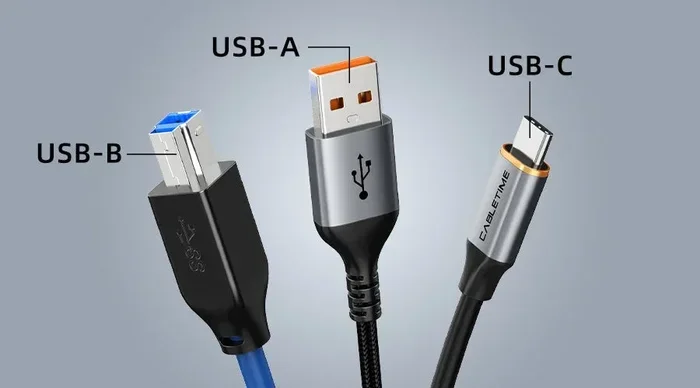
The USB A port is the classic port. You have seen it on old computers, TVs, and chargers for years. It looks like a flat rectangle. The top is open. The bottom has the metal pins inside. This port has been around for a very long time. It was the standard for many, many years. Many older devices still use this port today. It is very common and very reliable. You can find it on almost every desktop computer. Laptops also use it often. Even some modern TVs and game consoles have it. So, what makes it so special? It is reliable. It is everywhere. But it is not the newest design on the market. It is a tried and true connector type. People trust it for basic tasks. It has served us well for decades. It is a rectangular port that you can find in almost any room.
What Makes A USB C Cable Different?
The USB C cable looks totally different from the old style. It has a sleek oval shape. It is much smaller than the USB A port. You will also notice it is reversible. This means you can plug it in either way. There is no wrong side up. This is a huge improvement over older cables. The USB C connector supports many new standards. It can carry data very fast. It can carry a lot of power. It can even carry video signals to your monitor. People love the USB C design because it is so simple. You do not have to flip the cable back and forth. Just plug it in and go. It is truly a plug and play experience. The reversible design saves so much time and frustration. It is a small change that makes a big difference in your daily tech life. You will never have to worry about plugging it in upside down again.
How Do You Connect A USB C Cable To A USB A Port?
So, how do you actually make the physical connection? You cannot put the USB C cable directly into the USB A port. The shapes do not match at all. The oval USB C plug will not fit into the flat USB A slot. You need a bridge between them. This bridge is called an adapter. A USB C to USB A adapter is a small device. One end has a USB C female port. The other end has a USB A male plug. You plug the adapter into your older device first. Then, you plug your USB C cable into the adapter. Now you have a working connection. This setup is very common today. Many people use it every day at home and at work. It is a simple way to connect new cables to old ports. It bridges the gap between two different eras of technology. You can keep using your favorite USB C cables on older gear. This is a great solution for people who have a mix of old and new devices.
The Adapter Solution Explained
Adapters are small and cheap. You can buy them almost anywhere. They come in many shapes and sizes. Some adapters are just a simple plug. Others have a short cable attached to them. This cable gives you more flexibility. You can place your device closer to the wall outlet or the desk. When you buy an adapter, check the build quality carefully. A good adapter will last a long time. A cheap adapter might feel loose or wobbly. It might not make good electrical contact inside. You want a snug and secure fit. The connection should feel firm when you push it in. A loose connection can cause data errors. It can also cause the cable to fall out easily by accident. Always choose a trusted brand for your adapters. Look for well-reviewed products online. Spending a few extra dollars is always worth it for safety. You want your gear to work perfectly every single time.
Does This Setup Support Data Transfer?
Yes, you can transfer data with this setup. But the speed depends on the older port. The USB A port limits the data transfer rate. If you have a fast USB C cable, it will slow down. It has to match the slowest part of the connection. Think of it like a water pipe. The water can only flow as fast as the narrowest pipe allows. If your USB A port is USB 2.0, your speed will be slow. You will only get about 480 megabits per second. That is fine for small files like documents. If your USB A port is USB 3.0, you will get much faster speeds. USB 3.0 can reach 5 gigabits per second. But remember, the USB C cable is still part of the chain. It will only go as fast as the port allows. Always check the specs of both your cable and your port before you start a big file transfer. You do not want to wait hours for a large file to copy over.
Power Delivery And Charging Speeds
Charging your device is another big topic. People want to know if their phone or laptop will charge properly. The answer is yes, but with some limits. The USB A port can deliver power to your device. But it does not deliver as much power as a modern USB C port. The standard USB A port usually provides about 2.5 watts of power. This is enough for small accessories. It can charge a phone slowly over a long time. It can power a mouse or keyboard just fine. But it will struggle with bigger, hungrier devices. A modern laptop needs much more wattage to charge quickly. It needs a strong power delivery source. The old USB A port simply cannot provide that much power. You will notice the battery icon blinking or charging very slowly. It is not the cable’s fault. It is the port’s limitation. The old port was not designed for fast charging.
How Fast Will Your Device Charge?
When you use a USB C cable with a USB A port, charging is slow. You will notice this right away when you plug it in. Your device will take longer to fill up the battery. Standard USB A ports do not support fast charging protocols. They just provide a steady, low amount of power. If you have a phone that supports quick charge, you will not get that speed. The USB A port simply cannot push enough power through the adapter. It will charge your device at a normal, slow rate. You might need to leave it plugged in for hours to get a full battery. This is fine if you are just topping off your battery overnight. But it is not great if you are in a hurry and need a quick boost. Plan your charging times accordingly so you are not caught with a dead battery. Always plug in your device when you have free time if you are using this adapter setup.
Power Limitations Of The USB A Port
The USB A port has strict power limits built into its design. It was made for simple accessories back in the day. Think about flash drives and computer mice. These devices do not need a lot of power. They work perfectly fine with the low power output. But high-power devices need much more energy. External hard drives sometimes need extra power to spin up. They might not work right if you plug them into a USB A port with a USB C cable. The power delivery is just not strong enough for them. You might see an error message pop up on your screen. The device might disconnect and reconnect by itself. This is a common issue people face. They try to use a new cable with an old port. The power mismatch causes these frustrating problems. Always check the power needs of your device before you connect it. If the device needs more power than the port can give, you will have issues. You might need a separate power cable for high-power devices.
Common Mistakes To Avoid When Mixing Cable Types
Mixing cable types can lead to some simple mistakes. Everyone makes them sometimes. The good news is that you can easily avoid them. Just follow a few basic rules. This will keep your devices safe. It will also keep your data secure. Here are the most common mistakes people make every single day when they try to connect these two different connector types.
Forcing The Cable In
Never force a cable into a port. The USB C plug will not fit into a USB A port directly. It is physically impossible because of the different shapes. If you try to push it, you will damage the port. You might bend the tiny pins inside the connector. You could also break the adapter itself. Always use the correct adapter first. Make sure the shapes match before you push anything in. If it does not fit, stop immediately. Do not use any force at all. Take a deep breath and check the adapter orientation. Then try again gently. Your ports will last much longer if you are gentle with them. Treat your tech gear with care and it will serve you well for many years. Gentle handling goes a long way in protecting your investment.
Using Cheap, Low-Quality Adapters
Cheap adapters might seem like a good deal at the store. They cost just a few dollars. But they can cause big problems later on. A poor-quality adapter might not make good electrical contact. It might overheat when you use it for long periods. It could even damage your expensive devices permanently. You want an adapter that is built well and safe. Look for adapters from trusted brands. Read online reviews before you buy one. A slightly more expensive adapter is always better in the long run. It will protect your gear from harm. It will also give you a stable and reliable connection. Do not risk your precious data for a cheap piece of plastic. Spend a little extra money and do it right the first time. Your devices will thank you for it. Quality adapters are a small price to pay for peace of mind.
Ignoring The Cable Specification
Not all cables are created equal. Some USB C cables are only for power. They cannot carry data at all. This is a very common mistake. People buy a cable and expect it to work for everything. It does not work that way. Before you buy a cable, read the label carefully. Look for the USB 3.0 or USB 3.1 logo on the connector. This ensures your cable can handle data transfer properly. A basic power-only cable will not work for moving files. You need a full-featured cable for that task. This is a very important step that many people skip. Many people buy the wrong cable by accident. Do not be one of them. Take five minutes to check the specs before you buy. It will save you hours of frustration later on when you try to transfer your files. Knowing your cable spec is half the battle.
When Should You Use A Different Cable Type?
Sometimes the USB C to USB A setup is not the best choice for your needs. You need to know when to use a different cable type. Different situations need different tools and solutions. If you want the best performance, you need the right cable for the job. Here are some times when you should avoid the adapter setup and find a better alternative.
When You Need High Data Speeds
If you need to move big files fast, do not use this adapter setup. The USB A port will slow you down significantly. You will not get the full speed of your fast USB C cable. If you are editing 4K video files, you need fast speeds. You need to transfer huge photo libraries quickly and efficiently. In these cases, find a device with a native USB C port. Or, look for a USB C hub. A hub gives you modern ports on an older computer. It is a much better solution for high-speed tasks. You will save a lot of time and frustration. Your workflow will be much smoother and more productive. You will get your work done faster and with less waiting. Do not let an old port slow down your creative process.
When You Are Using New Devices
New devices often come with USB C ports only. Many modern laptops do not have USB A ports anymore. They rely entirely on the USB C connector type. If you have a brand-new laptop, you might not need this adapter at all. Check your device first. Look at the ports on the side carefully. If you only see oval USB C ports, you do not need an adapter. You can just plug your USB C cable straight in. This gives you the best speed and the best power delivery. You also get the benefit of a reversible plug. It is the easiest and fastest way to connect your modern gear. Embrace the new standard when you can. It is designed to make your life easier. The new connector type is here to stay and it makes everything simpler.
Comparison: USB C To USB A Adapter vs Direct Connection
To help you understand the differences, here is a quick comparison table. It shows what you gain and lose when you use an adapter. This will help you decide if the setup is right for you.
| Feature | Direct USB C Connection | USB C Cable To USB A Adapter |
|---|---|---|
| Physical Connection | Plug and play, no extra parts needed | Requires an adapter to bridge the gap |
| Data Speed | Full speed supported by the cable | Limited by the older USB A port speed |
| Power Delivery | Full power delivery supported | Limited to standard USB A power output |
| Reversibility | Fully reversible plug | Reversible cable, but adapter plug is not |
| Best For | New devices and high-speed tasks | Using new cables with older devices |
Expert Insights On USB Compatibility
We asked some tech experts about mixing these cable types. They gave us some great advice. Their tips can save you a lot of headaches and time. Here is what the professionals have to say about USB C and USB A connections.
Always Check The Cable Specification
Not all USB C cables are the same. Some cables are very basic and simple. They only carry power from point A to point B. They cannot carry data at all. Before you buy a cable, read the label carefully. Look for the USB 3.0 or USB 3.1 logo on the connector. This ensures your cable can handle data transfer properly. A basic power-only cable will not work for moving files. You need a full-featured cable for that task. This is a very important step that many people skip. Many people buy the wrong cable by accident. Do not be one of them. Take five minutes to check the specs before you buy. It will save you hours of frustration later on when you try to transfer your files. Knowing your cable spec is half the battle.
The Future Is USB C
The tech world is moving very fast. The USB C connector is becoming the new standard for almost everything. Almost every new gadget uses it now. Phones, tablets, and laptops all use it today. Even game consoles and e-readers use it. The old USB A port is fading away slowly. It is still on many devices today. But soon, it will be quite rare to find. You should start getting used to the USB C design now. Buy adapters now if you still need them for your older gear. Keep a few in your bag or desk drawer. This way, you will always be ready for any connection situation. Being ready for the future is always a smart move. It keeps you from getting stuck with the wrong cable at the wrong time. The reversible oval shape is the future of connectivity.
Key Takeaways
- You can connect them with an adapter: You can plug a USB C cable into a USB A port using a simple adapter. The oval shape fits into the adapter, and the adapter fits into the rectangular port.
- Data speeds are limited by the old port: Your data transfer rate will match the slowest device in the chain. If your USB A port is USB 2.0, your speed will be slow.
- Charging will be slower: The USB A port delivers less power. Your device will charge at a standard, slow rate instead of a fast rate.
- Never force the connection: The shapes are different. Forcing a cable can break the pins and damage your devices. Always use the correct adapter.
- Buy quality adapters: Cheap adapters can overheat or lose connection. Spend a little extra on a trusted brand to keep your gear safe.
- USB C is the future: New devices are dropping USB A ports. Getting used to the reversible USB C connector is a great long-term plan.
Conclusion
So, can you plug a USB C cable into a USB A port? Can I Plug A Usb C Cable Into A Usb A Port is a question with a clear and simple answer. Yes, you can! You just need a simple adapter to bridge the gap between the old and the new. The connection works for data and power. But you must remember the limits. The older USB A port will slow down your data speeds. It will also reduce your charging power. This is just how the technology works. Always use a good quality adapter. Never force the cables together. Treat your ports with care. They will last much longer. The world of USB connections is changing fast. USB C is leading the way. It is a great, reversible, and powerful connector. But the USB A port is still everywhere. You will see it on many devices for years to come. Now you know exactly how to connect them. You can mix and match your cables with confidence. Go ahead and try it out. You will be glad you did!
Frequently Asked Questions
Why won’t my USB C cable fit into my USB A port?
The shapes are completely different. The USB C plug is oval and small. The USB A port is flat and rectangular. They are not designed to fit together. You need an adapter to connect them. The adapter has a USB C slot on one side and a USB A plug on the other. This bridge allows the two different connector types to work together safely.
Does a USB C to USB A adapter reduce data speed?
Yes, it can. The data speed will match the older USB A port. If your USB A port is USB 2.0, your speed will be slow. If it is USB 3.0, you will get faster speeds. The fast USB C cable cannot make the old port faster. The connection is only as strong as the weakest link in the chain.
Can I use a USB C cable in a USB A port for charging only?
Yes, you can. This is a very common use case. You just need the right adapter. Keep in mind that charging will be slower than with a native USB C port. The USB A port provides less power. It is fine for phones and small devices. It might not be enough for laptops or external hard drives.
Is a USB C cable better than a USB A cable?
USB C is the newer and better standard for many reasons. It is reversible, so no more flipping. It is smaller and more compact. It supports faster data speeds and more power. However, USB A cables are still useful for older devices. Both have their place in the tech world today.
What happens if I force a USB C plug into a USB A port?
Do not do this! It will not fit. Forcing it can bend the pins inside the port. It can break the adapter or the cable. It can also damage the motherboard of your device. Always use the correct adapter. If it does not fit, stop and check the orientation. Gentle handling keeps your tech safe.
Do I need a special cable for Thunderbolt?
Thunderbolt 3 and 4 use the USB C connector shape. But not all USB C cables support Thunderbolt. You need a certified Thunderbolt cable for full Thunderbolt speeds. A regular USB C cable will not work for Thunderbolt data transfer. Always check the cable label for the Thunderbolt symbol if you need those high speeds.