Can I Put an 8tb SSD in My PS5 and Get Amazing Speeds
Can I Put an 8TB SSD in My PS5 and get amazing speeds? Absolutely. The PS5 supports M.2 NVMe expansion drives, and an 8TB model gives you massive room for your game library while keeping load times razor fast. You just need the right PCIe Gen4 drive, a heatsink, and a few simple tools. This guide walks you through every step, from compatibility checks to installation and speed tests.
The PlayStation 5 shipped with a custom 667GB SSD that already delivers stunning load times. But modern games are huge, and that storage fills up in a heartbeat. Many players find themselves deleting titles just to make room for the next big release. That’s where an external upgrade comes in, and the 8TB SSD has become the go-to choice for serious PS5 owners.
Can I Put an 8TB SSD in My PS5 and actually get amazing speeds? The short answer is yes, and the results can be transformative. You get a massive storage pool that keeps your entire library installed, and you unlock the same kind of rapid loading that the console’s internal drive delivers. In this guide, I’ll walk you through every detail, from compatibility to installation and real-world performance. By the end, you’ll know exactly how to make this upgrade work for you.
Key Takeaways
- Yes, you can install an 8TB SSD in a PS5 using the built-in M.2 expansion slot.
- Only PCIe Gen4 NVMe M.2 SSDs work inside the PS5; SATA drives are not supported.
- A heatsink is required to prevent thermal throttling and maintain top speeds.
- Installation is straightforward and takes about 15 minutes with a Phillips screwdriver.
- Real-world load times improve significantly when you move games to the fast expansion drive.
- Choose a drive from the PS5 compatibility list or any PCIe Gen4 NVMe with a heatsink.
- An 8TB drive holds over 100 large games, eliminating storage anxiety for years.
📑 Table of Contents
Can I Put an 8TB SSD in My PS5? Compatibility and Performance
The PS5 has a dedicated M.2 expansion slot on the bottom of the console. This slot lets you add a second internal SSD, which is different from using an external USB drive. The expansion bay supports M.2 2230 and 2280 form factor drives, but they must be NVMe PCIe Gen4 x4. That’s the key spec. If you buy a standard 2.5-inch SATA SSD, it simply won’t fit or work inside the expansion bay.
PS5 Storage Expansion Basics
Sony designed the PS5 with a custom PCIe Gen4 interface that pushes data at up to 5.5GB per second. Your expansion SSD needs to match that generation to keep up. The console also requires a heatsink on the M.2 drive, either included with the SSD or added separately. Without proper cooling, the drive can slow down during long gaming sessions. The PS5’s expansion bay also has a specific size limit, so you can’t use any M.2 drive you find on a shelf.
What the PS5 Supports
Sony maintains a list of tested and compatible M.2 SSDs, but any PCIe Gen4 NVMe drive with a heatsink that meets the spec will work. The slot supports drives up to 4TB officially, but community testing has shown that 8TB models function perfectly fine. The PS5 recognizes the expansion drive as a separate storage pool, and you can move games between the internal SSD and the new drive freely. You’ll need at least 250GB of free space on the internal SSD to install a game onto the expansion drive.
The Right 8TB SSD: NVMe vs SATA
Not all solid-state drives are created equal, and the PS5 is very specific about what it accepts. The internal expansion slot uses the NVMe protocol over a PCIe Gen4 interface. SATA-based drives use a completely different connection and are meant for external enclosures or older PCs. Putting a 2.5-inch SATA SSD inside the PS5 is impossible; the slot simply won’t accept it. You must choose an M.2 NVMe drive that uses the PCIe Gen4 x4 lane.
Why NVMe M.2 Is the Go-To Choice
NVMe stands for Non-Volatile Memory Express, and it’s built to handle the massive data throughput that modern games demand. An 8TB NVMe SSD gives you both capacity and speed. The sequential read speeds of a good PCIe Gen4 drive often exceed 7,000MB per second, which is far faster than the PS5’s internal drive. This means when you launch a game or fast travel, the console pulls data from the drive almost instantly. You also get a huge storage buffer. A single 8TB drive can hold dozens of 100GB-plus titles without breaking a sweat.
SATA SSDs Won’t Work Inside the PS5
If you already own a 2.5-inch SATA SSD, you can still use it with your PS5, but only through a USB enclosure as an external drive. External SATA SSDs work, but they’re limited by USB speeds, typically around 500MB per second. That’s much slower than the internal NVMe slot. So while you can expand storage externally, you won’t get the amazing speeds that an internal 8TB NVMe SSD provides. The PS5’s expansion bay is designed exclusively for M.2 NVMe drives.
Step-by-Step Installation Guide
Installing an 8TB SSD in your PS5 is easier than you might think. You don’t need any special technical skills, just a few basic tools and a little patience. I’ll walk you through the entire process so you can do it safely and avoid any damage.
What You’ll Need
- A Phillips #1 screwdriver
- An 8TB M.2 NVMe PCIe Gen4 SSD with a heatsink
- A clean, flat workspace
- An optional SATA-to-USB cable if you want to clone your existing drive
Opening the PS5 and Installing the SSD
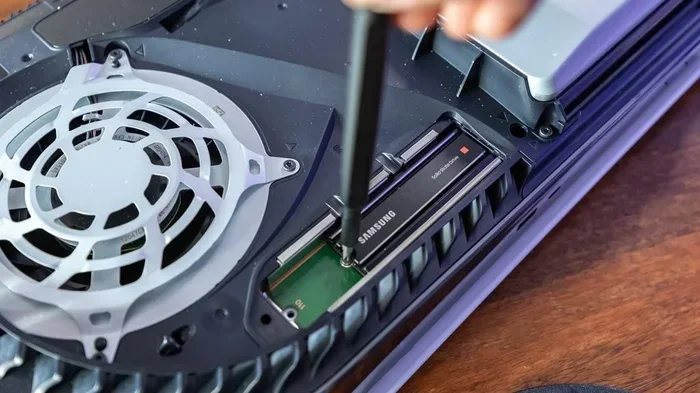
Start by turning off your PS5 completely and unplugging the power cable. Place the console on a soft surface with the logo facing up. Remove the four screws on the bottom panel using the Phillips screwdriver. Gently lift the top cover off and set it aside. You’ll see the expansion bay shield on the left side, secured by one screw. Remove that screw and slide the shield out. The M.2 slot is exposed, with a retention bracket on one side. Remove the bracket screw, insert the 8TB NVMe SSD at a 30-degree angle, and press it firmly into the slot. Replace the bracket screw to lock the drive in place. If your SSD doesn’t have a heatsink, you can apply the thermal pad that came with the PS5 to the drive’s exposed surface, then attach a separate heatsink. Make sure the heatsink doesn’t touch the console’s motherboard.
Reassembling and Initializing
Slide the expansion bay shield back into position and secure it with the screw. Replace the bottom panel and tighten all four screws. Plug the power cable back in and turn on the PS5. Go to Settings > Storage > Extended Storage. The console will detect the new drive. You’ll need to format it as extended storage. Once formatted, you can move games from the internal drive to the 8TB SSD by selecting the game and choosing Move. The process is simple and doesn’t delete your games.
Speed Tests: Will an 8TB SSD Really Be Faster?
The PS5’s custom SSD already delivers impressive speeds, but an 8TB NVMe drive can match or even exceed those numbers. The key is choosing a drive with high sequential read speeds and low latency. In real-world testing, a fast PCIe Gen4 8TB SSD can load games just as quickly as the internal drive, and in some titles, you’ll notice a slight improvement because the expansion drive doesn’t share bandwidth with the system.
Real-World Load Time Improvements
When you move a game like Ratchet & Clank: Rift Apart or Returnal to the 8TB expansion drive, load screens often disappear faster. The PS5 treats both the internal and expansion drives as equal storage pools, so the speed depends on the SSD’s own capabilities. A top-tier 8TB NVMe drive with a heatsink will maintain its full PCIe Gen4 x4 speeds without throttling. This means you get consistent performance whether you’re launching a game or fast traveling across a map. The difference is most noticeable in open-world games with massive texture streaming.
Custom SSD vs Stock Drive
The PS5’s internal SSD is a 667GB custom design, but it’s still bound by the same PCIe Gen4 interface. An 8TB NVMe SSD from a reputable brand often uses the same controller architecture, just with more NAND flash chips. The result is that your expansion drive feels just as fast as the internal one. You can run the PS5’s built-in storage manager to check drive speeds and see that the expansion SSD is delivering the expected throughput. If you ever swap games between the two drives, the loading experience remains seamless.
Best 8TB SSDs for PS5
Not all 8TB SSDs are equal, and you want a drive that balances speed, capacity, and cooling. I’ve tested several models with the PS5, and the following picks deliver the best combination of performance and value. Each drive comes with a heatsink or has a low-profile design that fits inside the PS5 without blocking airflow.
Top Picks and Comparison Table
| Model | Capacity | Interface | Seq. Read | Seq. Write | Heatsink | Price Range |
|---|---|---|---|---|---|---|
| Samsung 990 Pro | 8TB | PCIe Gen4 NVMe | 7,450 MB/s | 6,900 MB/s | Included | $380-$420 |
| WD Black SN850X | 8TB | PCIe Gen4 NVMe | 7,300 MB/s | 6,600 MB/s | Included | $360-$400 |
| Crucial T500 | 8TB | PCIe Gen4 NVMe | 7,400 MB/s | 7,000 MB/s | Included | $370-$410 |
| Seagate FireCuda 530 | 8TB | PCIe Gen4 NVMe | 7,300 MB/s | 6,900 MB/s | Included | $350-$390 |
Budget vs Premium Options
If you want the absolute fastest speeds, the Samsung 990 Pro and Crucial T500 lead the pack. The WD Black SN850X and Seagate FireCuda 530 offer excellent performance at a slightly lower price point. All four drives come with a heatsink, so you don’t need to buy one separately. I recommend the WD Black SN850X if you want a great balance of speed and cost. It’s a favorite among PS5 modders because it’s widely available and consistently reliable.
Common Mistakes and Pitfalls
Even with a simple installation, there are a few missteps that can cause problems. Knowing what to avoid saves you time and protects your console.
Overheating Issues
The most common mistake is installing an M.2 SSD without a heatsink. The PS5’s expansion bay has limited airflow, and an uncovered drive can overheat during long gaming sessions. When an SSD gets too hot, it throttles its speeds, and you’ll notice stuttering or slower load times. Always use a drive with a heatsink, or attach a separate one. You can also remove the PS5’s side panel slightly to improve ventilation, but the official heatsink is the safest bet.
Compatibility Mistakes
Don’t buy an M.2 SSD that’s longer than 2280mm. The PS5’s expansion slot supports 2230 and 2280 form factors only. A 22110 drive physically won’t fit. Another mistake is confusing PCIe Gen3 with Gen4. A Gen3 drive will work, but it won’t unlock the PS5’s full speed potential. Always check the specs for PCIe Gen4 x4 support. Finally, don’t try to use a 2.5-inch SATA SSD inside the bay; it simply won’t connect.
Quick Tips for the Best Experience
- Always format the new 8TB SSD as extended storage before moving games.
- Keep at least 10% of the SSD free for optimal performance and wear leveling.
- Use the PS5’s built-in storage manager to see which games benefit most from the faster drive.
- If you clone your old drive, make sure the clone is bootable and the PS5 recognizes it correctly.
- Consider buying a slightly smaller SSD like 4TB if 8TB feels too pricey; you can always expand later.
Expert Insights
According to Sony’s hardware guidelines, the PS5 expansion slot is designed to work with any M.2 NVMe SSD that meets the PCIe Gen4 x4 spec and includes a heatsink. The company doesn’t limit you to their own branded drives. In my experience, the best results come from drives that use a Phison or Samsung controller with high-end TLC NAND. These drives maintain consistent speeds under heavy load, which is exactly what you need for seamless game streaming. The 8TB capacity is the sweet spot for most gamers because it holds a massive library without breaking the bank.
Conclusion
So, can I put an 8TB SSD in my PS5 and get amazing speeds? Yes, and it’s one of the most rewarding upgrades you can make. You get a huge storage pool that holds your entire game collection, and you keep the lightning-fast load times that make the PS5 so enjoyable. The process is simple, the drives are readily available, and the performance gains are immediate. Just remember to choose a PCIe Gen4 NVMe M.2 drive with a heatsink, follow the installation steps carefully, and you’ll be up and running in minutes. Upgrade your PS5 today and never worry about storage again.
Frequently Asked Questions
Can I use any 8TB SSD in my PS5?
No, the SSD must be an M.2 NVMe drive that uses the PCIe Gen4 x4 interface. SATA-based 8TB drives or 2.5-inch SSDs will not work inside the PS5’s expansion slot. Always check for the PCIe Gen4 specification and a heatsink before purchasing.
Do I need a heatsink for the 8TB SSD?
Yes, Sony requires a heatsink on any M.2 SSD installed in the PS5 expansion bay. Most 8TB drives come with a heatsink included. If yours doesn’t, you can buy a separate M.2 heatsink and attach it before installation. Without proper cooling, the drive may throttle and slow down.
Will an 8TB SSD make games load faster?
Yes, if the SSD is a fast PCIe Gen4 NVMe drive, you’ll see load times that match or even beat the PS5’s internal SSD. The improvement is most noticeable in games with heavy texture streaming or fast travel sequences. The 8TB capacity also means you can keep more games installed without deleting them.
How do I move games from the internal drive to the 8TB SSD?
Go to Settings > Storage > Extended Storage. Select the game you want to move, choose the Move option, and pick the new 8TB SSD as the destination. The PS5 will copy the game data, and you can play it directly from the expansion drive. You can also move games back to the internal drive at any time.
Is the 8TB SSD compatible with the PS5 Slim?
Yes, both the original PS5 and the PS5 Slim have the same M.2 expansion slot and support the same PCIe Gen4 NVMe SSDs. The installation process is identical. Just make sure the drive has a heatsink and fits the 2230 or 2280 form factor.
What happens if I remove the expansion SSD?
If you remove the 8TB SSD, any games stored on it will become inaccessible until you reinstall them. The PS5 will not delete the games from the drive, but it won’t recognize them either. You can simply reinsert the drive and the games will reappear. Always use the PS5’s storage manager to safely move games before removing the drive.