Does Iphone Automatically Switch To Wi Fi When Available
Yes, iPhones do automatically switch to Wi-Fi when a known network is available and in range. iOS includes a feature called Wi-Fi Assist that manages this switching behavior, but it has specific rules and limitations. Understanding how this works helps you stay connected, save mobile data, and fix common connectivity issues.
Does iPhone automatically switch to Wi-Fi when available? This is a question many iPhone users ask every day. The short answer is yes. But the full story has some important details you should know.
Your iPhone is designed to be smart about wireless connections. It remembers networks you have joined before and can reconnect to them without you lifting a finger. This behavior is built into iOS and works mostly behind the scenes. But there are settings you can adjust, limitations you should understand, and occasional issues you may need to fix.
In this article, we will walk through exactly how iPhone handles Wi-Fi switching. We will cover the settings that control this behavior, the role of Wi-Fi Assist, and practical tips to make sure your iPhone connects the way you want. Whether you are at home, at work, or on the go, understanding this feature helps you stay connected and save data.
If you have ever wondered why your phone suddenly switched from cellular to Wi-Fi or vice versa, you are in the right place. Let us break it all down in simple terms.
Key Takeaways
- Auto-Switch Feature: iPhones automatically join saved Wi-Fi networks when they become available.
- Wi-Fi Assist: This iOS feature seamlessly switches to cellular data when Wi-Fi signal is weak.
- Settings Control: You can manage auto-join behavior and Wi-Fi Assist in your iPhone network settings.
- Troubleshooting Matters: Knowing how to reset network settings fixes most auto-switching problems.
- Data Awareness: Auto-switching can impact your cellular data usage if not configured properly.
- Network Management: You can remove saved networks and control which ones your iPhone prioritizes.
📑 Table of Contents
- How iPhone Automatically Connects to Wi-Fi
- Wi-Fi Assist: The Hidden Switching Feature
- Settings That Control Auto-Switching Behavior
- Common Issues With iPhone Wi-Fi Auto-Switching
- How iPhone Wi-Fi Switching Affects Your Data Usage
- iPhone Wi-Fi Switching in Different Locations
- Expert Tips for Optimizing iPhone Wi-Fi Auto-Switching
- iPhone Wi-Fi Auto-Switching vs. Android Comparison
- Conclusion
How iPhone Automatically Connects to Wi-Fi
iPhone uses a feature called auto-join to connect to Wi-Fi networks automatically. When your iPhone detects a network it has connected to before, it evaluates whether to join. This happens in the background without any action from you.
The auto-join decision depends on several factors. First, the network must be in your saved list. Second, the signal strength must be reasonable. Third, the network must not require a login that you have not completed yet. If all conditions are met, your iPhone connects within seconds of detecting the network.
What Makes a Network “Known” to Your iPhone
Your iPhone stores information about every Wi-Fi network you have ever joined. This includes the network name, password, and connection history. When a known network appears in range, your phone treats it as a trusted option.
Networks you connect to at home or work are saved permanently until you remove them. Even networks you connected to once at a coffee shop may stay in your list for a while. This is why your iPhone sometimes connects to networks you forgot you ever joined.
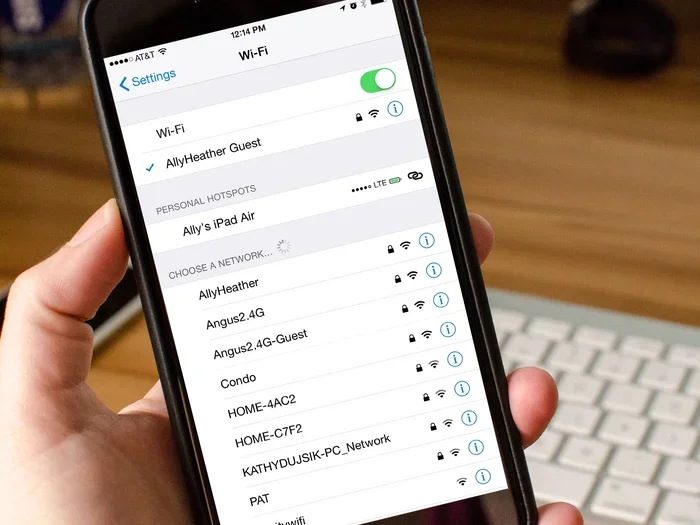
To see your list of saved networks, go to Settings > Wi-Fi. Tap on any network name to view details. You can also forget a network from this screen if you no longer want your iPhone to auto-join it.
The Role of Wi-Fi Network Priority
iPhone does not connect to every saved network equally. It uses a priority system based on your usage patterns. Networks you connect to frequently get higher priority. The iPhone also considers signal strength when choosing between multiple available networks.
If you are near your home network and a neighbor’s network, your iPhone will likely choose yours. This is because it has connected to your home network more often. The priority system makes auto-switching feel seamless and intuitive.
Wi-Fi Assist: The Hidden Switching Feature
Wi-Fi Assist is one of the most important features related to automatic Wi-Fi switching. It was introduced by Apple to improve your connectivity experience. But many people do not even know it exists.
Here is what Wi-Fi Assist does. When your iPhone is connected to Wi-Fi but the signal becomes very weak, it automatically switches to cellular data. This ensures you stay connected to the internet without interruption. You do not need to do anything manually.
For example, imagine you are at home and your Wi-Fi signal drops because you moved to a different room. Wi-Fi Assist detects the weak signal and seamlessly shifts your connection to your cellular network. You might not even notice the switch happening.
When Wi-Fi Assist Activates
Wi-Fi Assist activates under specific conditions. It only switches to cellular data when the Wi-Fi connection is poor. It does not activate if you are simply browsing a webpage with a slow connection. The switch happens when the phone detects that data delivery over Wi-Fi is failing.
Apple designed this feature to be conservative. It does not want to burn through your cellular data unnecessarily. The feature primarily targets background activities like email syncing and app updates. Active tasks like streaming video may still stay on Wi-Fi longer.
How to Turn Wi-Fi Assist On or Off
You have full control over Wi-Fi Assist. To manage this setting, follow these steps:
- Open Settings on your iPhone.
- Tap Cellular or Mobile Data.
- Scroll down to the bottom of the screen.
- Toggle Wi-Fi Assist on or off.
Turning Wi-Fi Assist off means your iPhone will stay on Wi-Fi even when the signal is weak. This can save cellular data but may result in slower or interrupted connections. It is a trade-off worth considering based on your usage habits.
Some users prefer to keep Wi-Fi Assist off if they have a limited cellular data plan. Others keep it on for the convenience of uninterrupted connectivity. The best choice depends on your needs and data allowance.
Settings That Control Auto-Switching Behavior
Your iPhone offers several settings that influence how and when it switches to Wi-Fi. Understanding these settings gives you more control over your connectivity experience.
Auto-Join Settings for Individual Networks
You can control auto-join behavior for each saved network. Go to Settings > Wi-Fi and tap the blue info icon next to a network name. You will see an option called Auto-Join. Toggle it off if you do not want your iPhone to connect to that network automatically.
This is useful for public networks or networks you only want to use occasionally. For instance, if you connect to a guest network at a friend’s house, turning off auto-join prevents your iPhone from connecting every time you visit.
Managing Saved Networks
Over time, your iPhone accumulates a long list of saved networks. Some of these networks may no longer be relevant. Managing this list helps your iPhone make better auto-switching decisions.
If a network is no longer in range or you do not want to connect to it anymore, you can forget it. Go to Settings > Wi-Fi, tap the network, and select Forget This Network. This removes it from your saved list entirely.
For help finding your Wi-Fi password, check out our guide on how to find your Wi-Fi password in settings. Keeping track of your passwords makes managing saved networks much easier.
Resetting Network Settings
If your iPhone has trouble auto-switching to Wi-Fi, resetting network settings can help. This clears all saved Wi-Fi networks, Bluetooth pairings, and VPN configurations. It gives your phone a fresh start with wireless connectivity.
To reset network settings, go to Settings > General > Transfer or Reset iPhone > Reset > Reset Network Settings. You will need to re-enter Wi-Fi passwords after the reset, but this often fixes stubborn connectivity issues.
Common Issues With iPhone Wi-Fi Auto-Switching
Even though iPhone Wi-Fi auto-switching works well most of the time, issues can happen. Understanding common problems helps you troubleshoot faster.
iPhone Does Not Connect to Known Networks
Sometimes your iPhone fails to auto-join a network it has connected to before. This can happen after a software update or if the network password changed. The first step is to delete the network and reconnect manually with the correct password.
Make sure auto-join is turned on for that network in your Wi-Fi settings. If the problem persists, restarting your iPhone often resolves temporary software glitches that affect connectivity.
iPhone Switches to Wi-Fi Too Frequently
Some users notice their iPhone jumping between Wi-Fi and cellular data more often than expected. This usually happens when Wi-Fi Assist is active and the Wi-Fi signal fluctuates. The phone may switch back and forth as the signal strength changes.
To reduce frequent switching, try moving closer to your Wi-Fi router. You can also turn off Wi-Fi Assist if the switching becomes disruptive. Check our guide on how to boost your Wi-Fi signal outside for tips on improving coverage in your home.
iPhone Connects to Wrong Networks
Your iPhone may sometimes connect to a network you did not intend to use. This happens when a network with the same name as your home network appears nearby. It could be a neighbor’s router or a public hotspot.
To prevent this, forget any networks you do not recognize. You can also check the network details before connecting. Look for the lock icon next to the network name, which indicates a secure, password-protected connection.
Slow Switching Between Networks
In some cases, the switch between Wi-Fi and cellular data feels slow or laggy. This can be caused by an overloaded router, outdated iOS software, or interference from other devices. Updating your iPhone to the latest iOS version often improves switching speed.
Restarting your router can also help. Routers sometimes need a fresh start to handle multiple device connections efficiently. If you have many devices connected, consider upgrading to a router with better range and capacity.
How iPhone Wi-Fi Switching Affects Your Data Usage
Automatic Wi-Fi switching has a direct impact on your data usage. When your iPhone switches to cellular data via Wi-Fi Assist, it consumes mobile data. Understanding this relationship helps you manage your data plan effectively.
What Uses Cellular Data When Wi-Fi Is Weak
When Wi-Fi Assist activates, several types of data usage switch to cellular. Background app refresh is one of the biggest contributors. Apps like email, social media, and news apps sync data in the background using cellular when Wi-Fi is poor.
System services also use data during the switch. iOS updates, iCloud backups, and location services may consume cellular data when Wi-Fi is unavailable. Watching this usage helps you understand how much data Wi-Fi Assist actually consumes.
Tips to Minimize Unwanted Data Usage
If you are concerned about data usage, there are several steps you can take. First, turn off Wi-Fi Assist in your cellular settings. Second, disable background app refresh for apps that use a lot of data. Third, monitor your data usage regularly in Settings.
You can also set data limits for individual apps. Go to Settings > Cellular and scroll down to see which apps use the most data. Turning off cellular data for specific apps prevents them from using data when Wi-Fi is weak.
iPhone Wi-Fi Switching in Different Locations
The auto-switching behavior changes depending on where you are. Your iPhone handles Wi-Fi connections differently at home, at work, and on the go.
At Home
At home, your iPhone likely auto-connects to your personal Wi-Fi network every time you arrive. This is the most seamless experience because the signal is usually strong and stable. Your iPhone remembers your home network and prioritizes it above all others.
If you have connected your Wi-Fi directly to your TV, your iPhone may also interact with that network for streaming. The auto-switching feature ensures your phone stays connected while your TV uses the same network for content.
At Work or School
Work and school networks often require login pages or special authentication. When your iPhone detects one of these networks, it may not auto-join. Instead, it opens a browser window for you to log in. This is a security feature, not a bug.
If your iPhone does not auto-connect to your work network, check if the network requires a password or login. You may need to connect manually the first time and then save the credentials for future auto-join.
In Public Places
Public Wi-Fi networks in cafes, airports, and hotels behave differently. Your iPhone may auto-join a public network if you have connected to it before. However, Apple encourages caution when using public networks.
For security reasons, consider turning off auto-join for public networks. This prevents your iPhone from connecting to potentially unsafe hotspots without your knowledge. Always verify the network name with the venue staff before connecting.
Expert Tips for Optimizing iPhone Wi-Fi Auto-Switching
Getting the most out of iPhone Wi-Fi auto-switching requires a few proactive steps. These tips help you maintain a smooth and reliable connection experience.
Keep Your iOS Updated
Apple regularly releases iOS updates that improve Wi-Fi connectivity and switching performance. Running the latest version ensures you benefit from bug fixes and enhancements. Check for updates in Settings > General > Software Update.
Organize Your Saved Networks
Take time to review your saved Wi-Fi networks regularly. Remove networks you no longer use or recognize. A cleaner saved network list helps your iPhone make better auto-switching decisions. This also improves security by removing old or forgotten connections.
If you need help cleaning up your network list, our article on how to delete unwanted Wi-Fi networks provides a step-by-step guide.
Use a Strong Wi-Fi Password
A strong password keeps your home network secure and prevents unauthorized devices from connecting. Use a mix of letters, numbers, and special characters. Avoid common words or simple number sequences that are easy to guess.
Restart Your iPhone Regularly
Restarting your iPhone clears temporary network caches and refreshes connectivity settings. Make it a habit to restart your phone at least once a week. This simple step prevents many minor Wi-Fi issues from becoming bigger problems.
Place Your Router Strategically
The location of your Wi-Fi router affects how well your iPhone auto-switches. Place your router in a central location in your home. Avoid placing it near walls, metal objects, or electronic devices that cause interference.
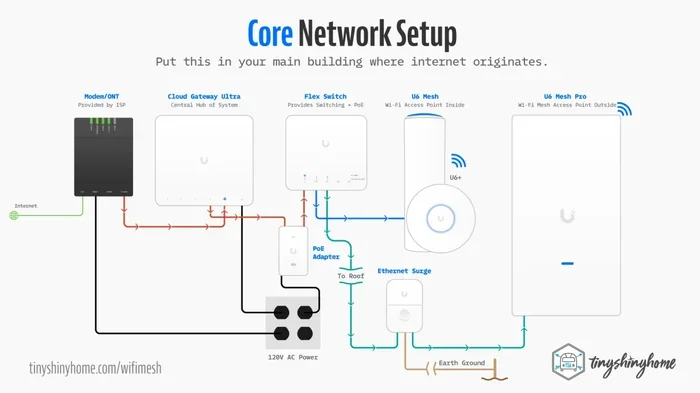
For larger homes, consider using a mesh Wi-Fi system. This extends coverage and ensures consistent signal strength throughout your space. If you want to extend Wi-Fi to an outbuilding, check our guide on extending Wi-Fi to your shed for practical solutions.
iPhone Wi-Fi Auto-Switching vs. Android Comparison
It is helpful to understand how iPhone Wi-Fi switching compares to Android devices. Both platforms offer automatic Wi-Fi connectivity, but the implementation differs.
| Feature | iPhone (iOS) | Android |
|---|---|---|
| Auto-Join Networks | Yes, for saved networks | Yes, with more customization |
| Wi-Fi Assist Equivalent | Wi-Fi Assist | Smart Network Switch |
| Manual Network Priority | Limited | More control available |
| Public Network Warning | Yes | Yes |
| Data Usage During Switch | Managed by Wi-Fi Assist | Varies by manufacturer |
| Forget Network Option | Yes | Yes |
Both platforms handle auto-switching well, but iPhone takes a more streamlined approach. Android offers more granular control for power users. The best choice depends on your preferences and how much control you want over your connectivity settings.
Conclusion
So, does iPhone automatically switch to Wi-Fi when available? Yes, it does. The auto-join feature works seamlessly in the background to keep you connected. Wi-Fi Assist adds another layer of intelligence by switching to cellular data when Wi-Fi signal is weak.
By understanding the settings and features that control this behavior, you take charge of your connectivity experience. You can adjust auto-join preferences, manage saved networks, and troubleshoot issues when they arise. These small steps make a big difference in how reliably your iPhone stays connected.
Remember to keep your iOS updated, organize your saved networks, and place your router strategically. These habits ensure smooth auto-switching every day. With the right settings and a little maintenance, your iPhone becomes a reliable Wi-Fi companion that works exactly the way you want it to.
Take a few minutes today to review your Wi-Fi settings. You might discover a simple change that improves your daily connectivity experience. Your iPhone is capable of more than you might think when it comes to managing wireless connections.