How Do I Access Google Wifi And Get Faster Internet
Accessing your Google Wifi system is straightforward once you know the right steps. This guide walks you through logging into your Google Wifi admin panel, setting up your mesh network, and fine-tuning settings for faster internet speeds. Whether you are a beginner or looking to optimize an existing setup, you will find practical tips to get the most from your Google Wifi system.
Key Takeaways
- Easy Access: You can access your Google Wifi settings through the Google Home app or a web browser on your local network.
- Faster Speeds: Proper placement of your Google Wifi points and correct DNS settings can significantly boost your internet speed.
- Mesh Network Benefits: Google Wifi creates a seamless mesh network that eliminates dead zones in your home.
- Troubleshooting Made Simple: Common access issues can be resolved with basic steps like restarting your router and checking your connection.
- Security Matters: Keeping your WiFi password strong and your firmware updated protects your home network from threats.
📑 Table of Contents
- How Do I Access Google Wifi And Get Faster Internet
- What Is Google Wifi And Why Does It Matter
- How To Access Google Wifi Settings
- Common Reasons Your Google Wifi Speed Is Slow
- How To Optimize Google Wifi For Faster Internet
- Troubleshooting Google Wifi Access Issues
- Google Wifi Security Best Practices
- Frequently Asked Questions
- Conclusion
How Do I Access Google Wifi And Get Faster Internet
Have you ever stood in your living room, staring at a buffering screen, and wondered why your internet is so slow? You are not alone. Millions of people struggle with weak WiFi signals and sluggish speeds every single day. The good news is that accessing your Google Wifi system and optimizing it for better performance is easier than you think.
Google Wifi is a mesh WiFi system designed to give you strong, reliable internet coverage throughout your entire home. But simply having the hardware is not enough. You need to know how to access the settings, adjust the configuration, and troubleshoot issues when they arise. This guide covers everything you need to know, from your first login to advanced speed-boosting techniques.
By the end of this article, you will understand exactly how to access your Google Wifi, why your speeds might be slow, and what steps you can take right now to get faster internet. Let us dive in.
What Is Google Wifi And Why Does It Matter
Google Wifi is a mesh networking system created by Google. Unlike traditional routers that send a single signal from one point, Google Wifi uses multiple points (also called nodes) that work together to blanket your home with strong WiFi. Each point connects to the others, forming a mesh network that routes your data through the fastest path available.
This matters because a single router often cannot reach every corner of a home. Walls, floors, and furniture all weaken your signal. With Google Wifi, each point acts as a wireless access point, extending your coverage without the lag you get from a traditional WiFi extender.
How Mesh Networks Work
A mesh network is like a team of runners passing a baton. Each Google Wifi point passes your internet signal to the next. If one point gets crowded or slow, the network automatically reroutes your data through another point. This is very different from a standard router setup where every device connects to one central source.
When you access Google Wifi settings, you can see how each point is performing, which devices are connected, and where your signal might be weakest. This visibility is one of the biggest advantages of a mesh system over a basic router.
How To Access Google Wifi Settings
Getting into your Google Wifi settings is the first step toward faster internet. There are two main ways to do this: through the Google Home app on your phone or through a web browser on a computer connected to your network.
Method 1: Using The Google Home App
The Google Home app is the easiest way to manage your Google Wifi. Here is how to get started:
- Make sure your phone is connected to your Google Wifi network.
- Open the Google Home app on your device.
- Tap on your Google Wifi device from the home screen.
- Tap the gear icon in the top right corner to open Settings.
- From here, you can adjust WiFi settings, view connected devices, run speed tests, and more.
The app gives you a clean, simple interface that makes it easy to see what is happening on your network. You can also use the app to check for firmware updates, which are important for keeping your system secure and running at peak performance.
Method 2: Using A Web Browser
If you prefer a computer or want more advanced options, you can access your Google Wifi through a web browser. Here is what to do:
- Connect your computer to your Google Wifi network.
- Open any web browser (Chrome, Safari, Firefox, etc.).
- Type 192.168.86.1 into the address bar and press Enter.
- You will be taken to the Google Wifi admin page.
- Log in with your Google account credentials.
Once you are in, you will see options for network settings, device management, and advanced configurations. This method is especially useful if you want to change DNS settings or port forwarding rules.
Keep in mind that if you have ever changed your router settings before, you might also be interested in how to change your WiFi router settings for different configurations. The process for Google Wifi is similar but streamlined through the Google Home app.
Common Reasons Your Google Wifi Speed Is Slow
You have accessed your Google Wifi settings, but your internet still feels slow. That is frustrating. Let us look at the most common reasons this happens and what you can do about each one.
1. Router Placement
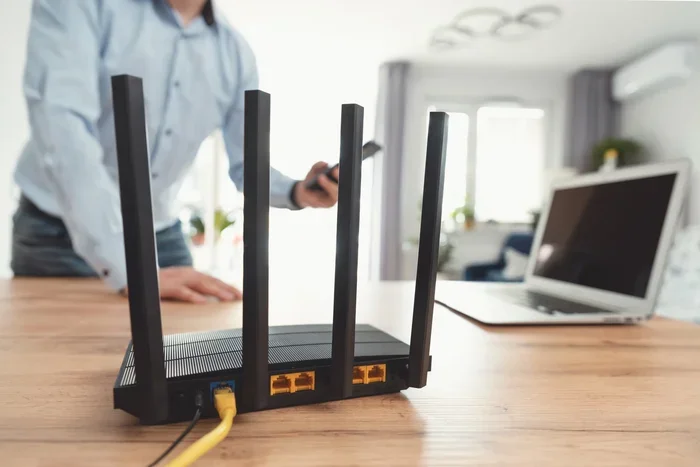
The location of your Google Wifi router matters a lot. If you hide it behind a TV, inside a closet, or on the floor, the signal has to fight through walls and furniture. The best practice is to place your router in a central, open area of your home.
Think of your WiFi signal like light from a lamp. If you put the lamp behind a curtain, the room stays dark. The same thing happens with a buried router. Elevate it, keep it in the open, and center it in your home for the best coverage.
2. Too Many Devices On One Band
Google Wifi uses dual-band technology, which means it broadcasts on both 2.4 GHz and 5 GHz frequencies. The 2.4 GHz band travels farther but is slower. The 5 GHz band is faster but has a shorter range.
If too many devices are crammed onto the 2.4 GHz band, your speeds will drop. Check your Google Wifi settings to see which devices are on which band and try to move high-bandwidth devices (like streaming boxes and game consoles) to the 5 GHz band whenever possible.
3. Outdated Firmware
Google regularly releases firmware updates that improve performance and fix bugs. If your system is running outdated software, you might be missing out on speed improvements and security patches. Always check for updates when you access Google Wifi settings.
4. Interference From Other Devices
Microwaves, baby monitors, cordless phones, and even Bluetooth devices can interfere with your WiFi signal. This is especially true for the 2.4 GHz band. If you notice slow speeds at certain times of the day, interference might be the culprit.
How To Optimize Google Wifi For Faster Internet
Now that you know what slows things down, let us talk about how to speed things up. These tips will help you get the most out of your Google Wifi system.
Change Your DNS Settings
DNS (Domain Name System) is like the phonebook of the internet. When you type a website address, DNS translates it into an IP address your router can understand. By default, your internet provider assigns DNS servers, but they are not always the fastest.
Switching to a faster DNS service like Google DNS (8.8.8.8) or Cloudflare DNS (1.1.1.1) can noticeably improve your browsing speed. You can change these settings from the Google Wifi admin page under Network Settings.
Position Your Mesh Points Strategically
The beauty of Google Wifi is the mesh system, but only if you place your points correctly. Each point should be within good range of the router and at least one other point. A good rule of thumb is to place them in rooms where you use the internet the most.
Avoid placing mesh points in basements, attics, or behind thick walls. These locations weaken the signal between points and reduce the overall speed of your network.
Run Regular Speed Tests
The Google Home app lets you run a speed test directly from your device settings. Make it a habit to run a test once a week. This helps you spot trends and catch problems early. If your speeds are consistently lower than what your internet plan promises, it is time to dig deeper.
Enable QoS (Quality Of Service)
QoS is a setting that prioritizes certain types of traffic on your network. For example, you can tell your Google Wifi to prioritize video streaming or gaming over background downloads. This ensures that the activities you care about most always get the bandwidth they need.
You can find QoS settings in the Google Home app under your device settings. It is a simple change that can make a big difference, especially in households with multiple users.
Troubleshooting Google Wifi Access Issues
Sometimes the problem is not speed but actually getting into your Google Wifi settings in the first place. Here are the most common access issues and how to fix them.
Cannot Connect To 192.168.86.1
If typing the IP address into your browser does not work, try these steps:
- Make sure your device is connected to the Google Wifi network.
- Check that you are using the correct IP address. Some Google Wifi models use different addresses.
- Try clearing your browser cache or using a different browser.
- Restart your Google Wifi router and try again.
Forgot Your Google Account Password
If you cannot log into the Google Wifi admin page because you forgot your credentials, you can reset your Google account password through Google’s account recovery page. Once reset, use the new password to log into your Google Wifi settings.
Google Wifi App Not Detecting Your Device
If the Google Home app cannot find your Google Wifi device, try the following:
- Make sure Bluetooth is enabled on your phone.
- Check that your phone is connected to the same network as your Google Wifi.
- Restart both your phone and your Google Wifi device.
- Remove the device from the app and re-add it.
For more WiFi troubleshooting tips, you can also check our guide on finding your WiFi password in settings, which covers related connectivity issues.
Google Wifi Security Best Practices
Accessing your Google Wifi is not just about speed. It is also about keeping your home network safe. A poorly secured WiFi network can leave you vulnerable to hackers, data theft, and unauthorized use of your internet connection.
Use A Strong WiFi Password
Your WiFi password should be long, unique, and complex. Avoid using easy-to-guess passwords like “password123” or your street address. A strong password combines uppercase letters, lowercase letters, numbers, and special characters.
You can change your WiFi password from the Google Home app or the web admin page. Always save your new password in a secure place so you do not forget it.
Keep Your Firmware Updated
Firmware updates often include security patches that fix known vulnerabilities. Google automatically pushes updates to Google Wifi devices, but it is a good idea to check manually from time to time. Simply go to your device settings in the Google Home app and look for the firmware version.
Disable Guest Network If Not In Use
Google Wifi allows you to set up a guest network for visitors. While this is a great feature, an unused guest network is an open door for potential attackers. If you do not need a guest network, turn it off to reduce your exposure.
If you are concerned about your overall home network security, you might also want to learn about using WiFi and Bluetooth together safely, as both wireless technologies can introduce vulnerabilities if not properly managed.
Frequently Asked Questions
How do I log into my Google Wifi router?
You can log into your Google Wifi router by opening the Google Home app on your phone or by typing 192.168.86.1 into a web browser. Make sure your device is connected to the Google Wifi network first. Then enter your Google account credentials to access the admin panel and adjust your settings.
Why can I not access my Google Wifi settings?
The most common reason is that your device is not connected to the Google Wifi network. Double-check your WiFi connection and try again. If the problem persists, restart your Google Wifi device and your router. Clearing your browser cache or switching to a different browser can also resolve access issues.
How can I make my Google Wifi faster?
You can make your Google Wifi faster by repositioning your router and mesh points in central, open locations. Switch to the 5 GHz band for high-speed devices, update your firmware, change your DNS to Google DNS or Cloudflare DNS, and enable Quality of Service to prioritize important traffic. Running regular speed tests helps you track improvements.
Is Google Wifi better than a regular router?
Google Wifi is a mesh system, which means it uses multiple points to spread your WiFi signal evenly throughout your home. A regular router sends signal from one location, which often leaves dead zones in larger homes. Google Wifi eliminates this problem by creating a seamless mesh network that adapts to your home layout and device usage.
Can I access Google Wifi settings from any device?
Yes, you can access Google Wifi settings from any device connected to your Google Wifi network. This includes smartphones, tablets, laptops, and desktop computers. The Google Home app works on both Android and iOS devices, while the web admin page works from any browser on any operating system.
How often should I update my Google Wifi firmware?
Google automatically updates Google Wifi firmware in the background. However, it is a good practice to check for updates manually every few weeks. Open the Google Home app, go to your device settings, and look for any available updates. Keeping your firmware current ensures you get the latest speed improvements and security patches.
Conclusion
Accessing your Google Wifi and optimizing it for faster internet does not have to be complicated. With the right steps, you can take control of your home network, eliminate slow speeds, and enjoy a seamless browsing experience in every room. From using the Google Home app to adjusting DNS settings and positioning your mesh points correctly, each small change adds up to a big improvement.
Remember that a strong WiFi network starts with good habits. Keep your firmware updated, use strong passwords, and regularly check your network performance. These simple steps will keep your Google Wifi running smoothly for years to come.
Now that you know how to access Google Wifi and get faster internet, it is time to put these tips into action. Open your Google Home app today, explore your settings, and start enjoying the speed your internet plan deserves. Your home network is only as good as the effort you put into managing it.