Do Smart Devices Slow Down Your Home Wifi Connection
Do smart devices slow down your wifi? The short answer is yes, but it depends on how many devices you have and what they do. Smart home gadgets like cameras, thermostats, and speakers all share your network bandwidth, which can cause wifi slowdowns and network congestion. The good news is that a few simple tweaks can restore your wifi speed and keep your home running smoothly.
Have you ever noticed your internet feeling sluggish right after adding a new smart gadget to your home? Maybe your video calls started lagging, or your favorite show kept buffering. You are not alone. Many people ask the same question: do smart devices slow down wifi? The answer is more common than you might think.
Today, the average home has more connected devices than ever before. Smart speakers, thermostats, doorbell cameras, and even smart refrigerators all connect to your wifi. Each one uses a piece of your total bandwidth. When too many devices share the same network, things slow down. This article explains why that happens and what you can do about it.
We will cover the devices that use the most data, how to test your speed, and easy fixes that actually work. By the end, you will know exactly how to keep your home wifi connection fast and reliable. Let us dive in.
Key Takeaways
- Multiple smart devices compete for bandwidth: Every connected gadget uses a share of your internet speed, which can slow things down.
- Streaming and security cameras are the biggest culprits: Devices that constantly send and receive data use the most bandwidth.
- A dual band or mesh router helps a lot: These spread traffic across frequencies or nodes to reduce network congestion.
- You can test your speed easily: Use free tools to check if your smart devices are causing wifi slowdowns.
- Simple fixes work: Changing wifi channels, updating firmware, and limiting device connections can make a big difference.
- Router placement matters: Where you put your router affects wifi signal strength for all your smart home devices.
📑 Table of Contents
Why Do Smart Devices Slow Down Your Wifi?
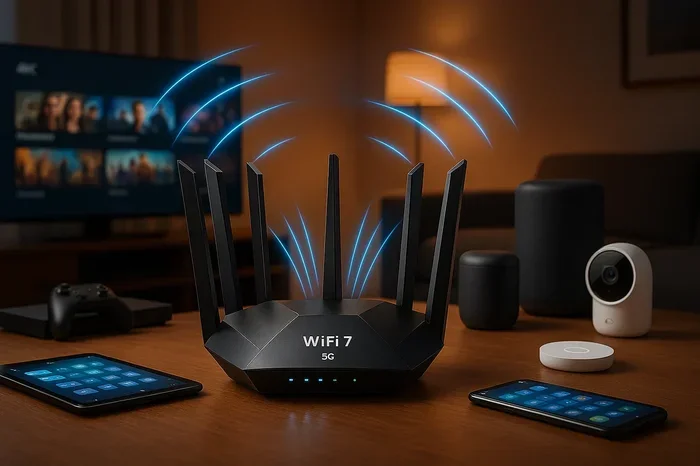
To understand the problem, you need to know how your router works. Your router is like a traffic cop for your internet. It sends data to every device in your home. When only one or two devices are online, everything runs fast. But add ten or more smart gadgets, and the traffic builds up fast.
Every device connected to your network takes up bandwidth. Bandwidth is the amount of data your internet can handle at one time. Think of it like a highway. A two-lane road handles a few cars easily. But add fifty cars, and you get a traffic jam. That is exactly what happens with network congestion in your home.
How Many Devices Are Too Many?
There is no magic number. It depends on your internet plan and what your devices do. A basic plan with 25 Mbps can handle about five to ten light-use devices. These include smart bulbs and temperature sensors. But if you add smart cameras or streaming boxes, you need more speed.
Here are some rough guidelines to keep in mind:
- 5 or fewer devices: Most home plans handle this easily with no issues.
- 6 to 15 devices: You may notice slowdowns during peak hours, especially with streaming.
- 16 or more devices: A stronger router or mesh system becomes essential for smooth performance.
The key is to know what your devices are doing. A smart plug that turns a lamp on and off uses almost no data. But a smart camera streaming 24/7 uses a lot. Device management is the first step to fixing slow wifi.
Which Smart Devices Use the Most Bandwidth?
Not all smart gadgets are equal. Some barely touch your network, while others eat up your data. Here are the devices most likely to cause wifi slowdowns.
Smart Security Cameras
Security cameras are the biggest bandwidth hogs in most homes. A single camera streaming high-definition video can use 2 to 4 Mbps of data constantly. If you have four cameras, that is 8 to 16 Mbps just for video. Add a two-person household browsing the web, and your wifi speed drops fast.
Cloud-based cameras are worse than local storage cameras because they upload video nonstop. If you notice your internet crawling when you are away from home, your cameras might be the cause.
Smart TVs and Streaming Boxes
Netflix, YouTube, and Disney Plus all demand high speeds. A 4K stream uses about 15 to 25 Mbps. If someone is watching a movie while another person is on a video call, your network feels the strain. Add a smart speaker playing music in the background, and you are pushing your limits.
Smart Doorbells
Video doorbells work like security cameras. They stream live video and send alerts to your phone. Even when nobody is at the door, many doorbells stay active. This constant connection adds to your network traffic and can reduce wifi signal strength for other devices.
Smart Thermostats and Lighting
These devices use very little data. A smart thermostat sends small updates every few minutes. Smart bulbs send even less. They are not the main problem in most homes. But when you add dozens of them together, they still contribute to the overall load.
How to Test If Your Smart Devices Are Slowing Down Wifi
You do not have to guess. There are simple ways to check if your smart gadgets are hurting your connection. Testing your internet speed takes just a few minutes.
Run a Speed Test
Go to a free speed test site like Speedtest.net. Run the test with no smart devices actively using the network. Write down the results. Then run it again while your smart camera is recording and your TV is streaming. Compare the two numbers.
If your download speed drops by more than 30%, your smart devices are likely the problem. This simple test gives you hard proof of bandwidth hogging.
Check Your Router Dashboard
Most modern routers let you see which devices are connected and how much data they use. Log into your router through your browser. Look for a section called “Connected Devices” or “Traffic Meter.” You will see exactly which gadgets are using the most data.
This helps you spot the troublemakers. Once you know which devices cause the most strain, you can take action.
Watch for These Warning Signs
Your devices will tell you when something is wrong. Look out for these common signs:
- Videos keep buffering even though they used to play smoothly.
- Video calls freeze or your voice sounds robotic.
- Smart home commands take longer than usual to respond.
- Your internet latency feels high, making games lag.
- Some rooms have weak or no signal, also known as wifi dead zones.
If you notice these issues, your smart devices might be overloading your network.
Tips to Improve Wifi Speed with Smart Devices
The good news is that you do not need to get rid of your smart gadgets. A few smart changes can bring your speed back. Here are the best tips that actually work.
Move Your Router to a Central Location
Where your router sits matters a lot. If it is hidden in a closet or basement, the signal has to fight through walls and furniture. Place it in a central, open area of your home. This improves wifi signal strength for every room.
Keep it away from microwaves, baby monitors, and cordless phones. These devices send signals on the same frequency as your wifi and cause wireless interference.
Switch to a Dual Band Router
Most modern routers offer two frequency bands: 2.4 GHz and 5 GHz. The 2.4 GHz band reaches farther but is slower. The 5 GHz band is faster but has a shorter range. Smart devices like thermostats and plugs work fine on 2.4 GHz. But your TV and streaming boxes should use the 5 GHz band.
This simple separation reduces network congestion and keeps your heavy-use devices running fast.
Change Your Wifi Channel
Your wifi signal travels on a channel, just like a radio station. If your neighbors are on the same channel, your signal gets crowded. Use a free app like Wifi Analyzer to find the least busy channel. Then log into your router and switch to it.
Changing your wifi channels is one of the easiest ways to boost speed without buying new equipment.
Update Your Router Firmware
Router makers release updates that fix bugs and improve performance. Check your router settings for a firmware update option. Keeping your router current ensures it handles connected devices as efficiently as possible.
Set Up a Guest Network
Most routers let you create a separate guest network. Put all your smart home devices on the guest network. Keep your phones, laptops, and computers on the main network. This way, your smart gadgets cannot slow down your personal browsing and streaming.
Consider a Mesh Network System
If your home is large or has many walls, a single router may not be enough. A mesh network uses multiple nodes placed around your home. Each node spreads the signal evenly. This eliminates wifi dead zones and gives every device a strong connection.
Mesh systems are especially helpful in homes with 15 or more smart devices. They handle the load much better than a single router.
Common Mistakes That Make the Problem Worse
Some habits make wifi slowdowns worse without you realizing it. Avoid these common mistakes to keep your network running smoothly.
Leaving Old Devices Connected
Old smart gadgets that you no longer use still connect to your network. A forgotten smart plug or unused camera still takes up a spot and uses a small amount of data. Go through your connected devices list and remove anything you do not need anymore.
Placing the Router Near Metal Objects
Metal blocks wifi signals. Do not put your router behind a TV, inside a metal cabinet, or near a large appliance. These objects block the signal and create weak spots in your home.
Ignoring Password Security
An open or weak wifi password lets neighbors and passersby use your network. This adds unknown devices to your connection and steals your bandwidth. Always use a strong password and WPA3 encryption if your router supports it.
Overloading One Band
If all your devices connect to the 2.4 GHz band, it gets crowded fast. Spread your devices across both bands. This one change can noticeably improve your wifi speed and reduce lag.
When Should You Call a Professional?
Most wifi issues can be fixed with the tips above. But sometimes, the problem goes deeper. You might need professional help if:
- Your internet speed is slow even with no smart devices active.
- Your router is more than five years old and cannot handle modern demands.
- You have tried a mesh system and still experience constant dropouts.
- Your internet service provider is delivering speeds far below what you pay for.
A network expert can run a full diagnostic on your home setup. They can recommend the right equipment and configuration for your specific needs. Sometimes a simple plan upgrade or a new router performance upgrade solves everything.
Final Thoughts
So, do smart devices slow down wifi? Yes, they can. But now you know why, and more importantly, you know how to fix it. From network congestion to bandwidth hogging, the culprits are easy to identify. And the solutions do not have to be expensive or complicated.
Start with a speed test. Check your router dashboard. Move your router to a better spot. Separate your devices onto different bands. These small steps add up to a faster, more reliable connection.
Your smart home should make life easier, not slower. With the right setup, you can enjoy all your gadgets without sacrificing wifi speed. Take action today and feel the difference in your home network.
Frequently Asked Questions
How many smart devices can my wifi handle before it slows down?
Most home routers handle 10 to 15 light-use devices comfortably. If you add streaming cameras or smart TVs, that number drops. A dual band or mesh router can support 20 or more devices without noticeable slowdowns.
Do smart plugs and bulbs really slow down wifi?
individually, they barely use any data. But when you have 20 or more of them, they add up. They also keep your network busy with small constant signals, which contributes to overall network congestion.
Can I put smart devices on a separate network?
Yes. Most routers let you create a guest network. Put all your smart home gadgets on the guest network. This keeps them separate from your main devices and prevents bandwidth hogging on your personal connection.
Will a better router fix slow wifi caused by smart devices?
Often, yes. A modern dual band or mesh router handles many connected devices much better than an old single-band model. It improves router performance and spreads traffic more efficiently across your home.
How can I check which smart device is using the most bandwidth?
Log into your router dashboard and look for a “Connected Devices” or “Traffic Meter” section. This shows you which gadgets are using the most data and helps you identify the ones causing wifi slowdowns.
Does turning off unused smart devices help wifi speed?
Absolutely. Every device connected to your network takes up a small share of bandwidth. Removing unused gadgets from your network frees up capacity and reduces internet latency for the devices you actually use.
=== CONCLUSION ===
Do smart devices slow down wifi? They can, but you have the power to fix it. Understanding how your gadgets use bandwidth is the first step. From security cameras to smart TVs, each device plays a role in your home’s internet speed. Use the tips in this guide to test your connection, spot the problem devices, and apply the right fixes.
Small changes like moving your router, switching bands, and creating a guest network make a huge difference. And if your setup still struggles, a mesh system or a router upgrade can transform your experience. Your smart home and your fast internet can coexist. Start making these changes today and enjoy a smoother, faster connection in every room of your home.