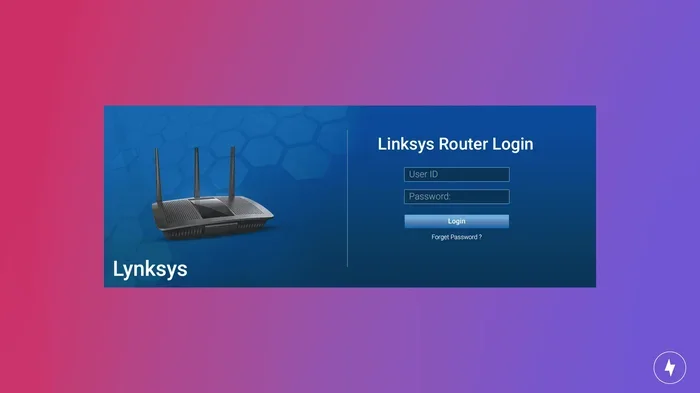
Find Out How Can I Access My Router Without Admin Password
Finding out how can I access my router without admin password is easier than you think. You can use default login details, press the reset button, or access settings through your command line. This guide walks you through every method so you can regain control of your network quickly and safely.
Key Takeaways
- Default credentials work on most routers: Check the label on your device for the router username password.
- A factory reset router restores full access: Press the reset button for 10 to 30 seconds to wipe custom settings.
- Command-line tools offer a hidden path: Use Terminal or Command Prompt to find your router IP and log in.
- Always change your default password: This keeps your network secure and prevents future lockouts.
- Preventive steps save time: Store your router admin credentials in a safe place after setup.
📑 Table of Contents
- Find Out How Can I Access My Router Without Admin Password
- Understanding Your Router Admin Password
- Methods to Access My Router Without Admin Password
- Step-by-Step Guide to Resetting Your Router
- How to Set Up a New Admin Password
- Preventing Future Lockouts
- When to Contact Your Internet Service Provider
- Conclusion
Find Out How Can I Access My Router Without Admin Password
Ever stared at your router’s login screen and realized you forgot the admin password? You are not alone. Access my router without admin password is one of the most common networking questions people search for every day. Whether you moved to a new house, bought a used router, or simply forgot your custom credentials, there are several reliable ways to get back in. This guide covers every practical method you can try right now. Each step is simple and does not require advanced technical skills.
Your router controls everything on your home network. It manages your Wi-Fi signal, assigns IP addresses, and handles all traffic between your devices and the internet. Losing access to the admin panel can feel frustrating, but it is almost always fixable. Access router settings without the admin password is possible through default logins, hardware resets, and software tools. We will walk you through each option in plain language so you can get back online fast.
Before we dive in, let us talk about what you are dealing with. Every router comes with a default router password set by the manufacturer. You can find this on a sticker on the back or bottom of the device. If someone changed the password and you forgot it, a factory reset router will bring everything back to normal. This article gives you all the tools and knowledge you need to recover router password access and take full control of your network again.
Understanding Your Router Admin Password
To access my router without admin password, you first need to understand how router authentication works. Every router has two types of access: the admin panel and the Wi-Fi connection. Your Wi-Fi password lets you connect devices to the internet. The admin password lets you change settings like your network name, security type, and port forwarding rules. These are two different things, and confusing them is a common mistake.
What Is a Router Admin Password?
The router admin password is the key to the control center of your router. When you type your router’s IP address into a web browser, you see a login screen. You enter the router admin credentials here to reach the router admin panel. From there, you can adjust every setting that affects your network. Most people never touch this panel after initial setup, which is exactly why the password slips their mind.
The default router password is different from a custom one. When you first open the box, the router comes pre-configured with a generic username and password. Common combinations include “admin” and “admin,” or “admin” and “password.” Some brands use unique defaults printed on a label. Find my Wi-Fi password in settings is a related task, but the admin password is separate and controls deeper configuration options.
Why You Might Lose Access to Your Router
There are several reasons you might find yourself locked out of your router. The most common one is simply forgetting a password you changed months ago. Other times, a previous owner never updated the router default login details, and you inherited a unit with unknown credentials. In some cases, a failed firmware update can reset or corrupt the admin login, leaving you locked out unexpectedly.
Another reason is that someone in your household changed the password and did not tell you. Kids, partners, or roommates sometimes update settings without mentioning it. If you bought a used router from a secondhand store or online marketplace, the previous owner likely set their own router admin account details. Whatever the cause, the good news is that you can still regain access through the methods we will cover below.
Methods to Access My Router Without Admin Password
Now that you understand the basics, let us explore the actual ways to access my router without admin password. Each method works differently, and some are more thorough than others. We recommend trying them in order, starting with the simplest approach. Most people solve the problem within the first two methods.
Method 1: Try Default Login Credentials
The easiest way to log in is by using the factory default router password. Every router has a set of default router username password combinations printed on a label or listed in the manual. Flip your router over and look for a sticker. You will typically find the router IP address, username, and password listed there.
Here is how to do it step by step:
- Locate the sticker on the bottom or back of your router.
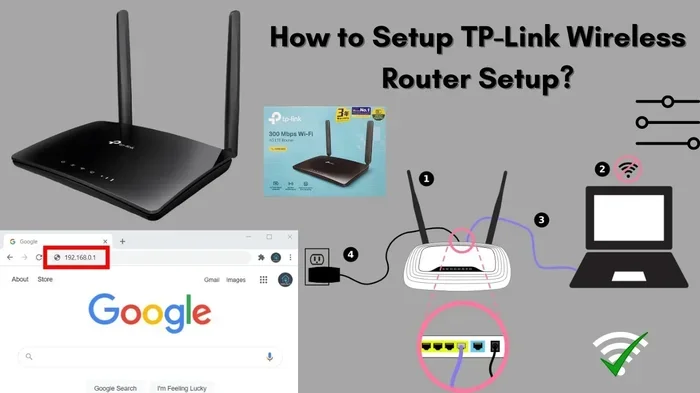
- Find the router IP address, which is often 192.168.1.1 or 192.168.0.1.
- Open a web browser and type that IP address into the address bar.
- Enter the default username and password shown on the sticker.
- If the login works, you have access router settings immediately.
Keep in mind that if the previous owner changed the defaults, this method will not work. But it is always worth trying first because it takes less than a minute. If you recently moved and the router was already set up, the previous owner might not have changed the factory settings.
Method 2: Use the Router Reset Button
If default credentials fail, the next step is to perform a factory reset router procedure. Every router has a small reset button, usually recessed into the back panel. You need a paperclip or a thin pin to press it. Holding this button for 10 to 30 seconds restores the router to its original factory settings, including the default router password.
Here is what you need to do:
- Unplug your router from the power source.
- Find the reset button on the back or bottom of the unit.
- Use a paperclip to press and hold the button.
- While holding the button, plug the router back in.
- Continue holding for 10 to 30 seconds until the lights blink.
- Release the button and wait for the router to fully restart.
After the reset, all custom settings are wiped. Your Wi-Fi name and password return to the defaults on the sticker. You will need to reconnect all your devices and reconfigure any custom settings like port forwarding or parental controls. This method is the most reliable way to recover router password access when you have no other options.
One thing to watch out for: a factory reset does not erase your internet service provider settings. Your connection to the ISP should still work after the reset. However, if you use a connect straight to modem setup, you may need to reconfigure the connection type. Check with your ISP if you are unsure about the settings.
Method 3: Access Through the Command Line
This method works well if you can still connect to the router’s network but simply cannot remember the admin password. You can use your computer’s command line to find the router’s IP address and attempt a login. This approach is especially useful when you want to access router settings without performing a full reset.
On Windows, open the Command Prompt and type ipconfig. Look for the “Default Gateway” address. On Mac, open Terminal and type netstat -nr | grep default. The address you find is your router’s router IP address. Type that address into your browser to reach the login page.
From here, you can try common default credentials or check if your browser has saved the password previously. Sometimes your browser auto-fills the router admin credentials from an earlier session. This is a quick way to access my router without admin password without losing any settings.
Method 4: Use Router Recovery Software
Some router brands offer dedicated recovery tools. For example, certain models from Netgear, TP-Link, and Asus have password recovery features built into their admin interface or companion apps. These tools let you recover router password access by answering security questions or using a registered email address.
You can also visit the router manufacturer’s website and search for your specific model. Most brands have a support page with default credentials and recovery instructions. If you plan to change your Wi-Fi router or upgrade your equipment soon, checking the manufacturer’s support site is a great first step. You might also consider boosting your Wi-Fi signal after you regain access to ensure full coverage throughout your home.
Step-by-Step Guide to Resetting Your Router
A factory reset router is the most powerful method for regaining access. But it is important to do it correctly to avoid creating more problems. Follow this detailed guide to make sure the reset goes smoothly every time.
Before You Reset
Before pressing that reset button, take a few minutes to prepare. Write down your internet service provider’s name and account number. If you have a modem-router combo unit, note the connection type your ISP uses (DSL, cable, or fiber). These details will save you time when you need to reconnect after the reset. Also, make a list of any custom settings you want to restore, like port forwarding rules or a specific network settings configuration.
It is also smart to find my Wi-Fi password in settings on a device that is currently connected. If you have a laptop or phone already connected to the network, you can check the saved password before the reset wipes everything. This way, you will know the new Wi-Fi password the router generates after the reset.
During the Reset
Press and hold the reset button firmly. Do not tap it quickly. A slow, steady hold for at least 10 seconds is what the router needs to trigger a full reset. Some models require 15 or even 30 seconds. Wait until you see the lights on the router change pattern or blink rapidly. This indicates the reset has started.
After releasing the button, give the router two to three minutes to fully reboot. Do not unplug it or press any buttons during this time. The router will restore all factory settings, including the router admin account credentials and the original wireless router setup configuration.
After the Reset
Once the router is back online, connect a computer or phone to the network using the default Wi-Fi name and password from the sticker. Open a browser and navigate to the router’s IP address. Log in with the default router username password. You should now see the full admin panel with all settings restored to factory defaults.
Now comes the important part: securing your network. Change the admin password immediately. Pick a strong, unique password that you can remember or store safely. Also update your Wi-Fi password to something only your household knows. This ensures that no one else can access my router without admin password and make changes you did not authorize.
How to Set Up a New Admin Password
Once you regain access to your router, the first thing you should do is create a new, strong admin password. This protects your network settings from unauthorized changes and keeps your home network secure. A weak or missing admin password is one of the biggest security risks in home networking.
Log into the router admin panel and navigate to the administration or security section. Look for a field labeled “Admin Password” or “Router Password.” Enter your new password and confirm it. Choose a password that is at least 12 characters long and includes a mix of letters, numbers, and symbols. Avoid using personal information like your name, birthday, or address.
Write the new password down and store it somewhere safe. A password manager app works great for this. If you share your home with others, consider whether they need admin access too. Most households only need one admin account. Everyone else can use the Wi-Fi with a standard router access point connection.
Changing the router admin credentials also protects you from network administrator-level attacks. Hackers often target default router logins because they know most people never change them. A strong, unique admin password is your first line of defense against unauthorized access to your home network.
Preventing Future Lockouts
Losing access to your router is annoying, but it is easy to prevent. A few simple habits will keep you from ever getting locked out again. These tips take minutes to set up and save you hours of frustration down the road.
- Write down your credentials: Keep a physical note with your router IP, username, and admin password in a safe place.
- Use a password manager: Store your router admin credentials in a trusted app like LastPass or 1Password.
- Change defaults immediately: Always update the factory default router password the moment you set up a new router.
- Label your router: Stick a small note on the router itself with the current admin login details.
- Enable password recovery: Many routers let you set up a recovery email. Use this feature to recover router password access if you ever forget it again.
- Update firmware regularly: Keeping your router updated ensures security patches and bug fixes are current.
Taking these precautions means you will rarely need to access my router without admin password again. Prevention is always easier than recovery. A few minutes of setup today can save you from a major headache tomorrow.
When to Contact Your Internet Service Provider
Sometimes none of the methods above work, and that is okay. If your router is a router IP address unit provided by your ISP, they may have a backdoor or master login that lets you regain access. Contact your ISP’s support team and explain that you lost the admin password. Many providers can remotely reset your router or provide the master credentials over the phone.
If you use your own equipment and the reset method did not work, the router may have a firmware issue. In that case, you might need to flash new firmware or replace the unit entirely. Buy a Wi-Fi router and not pay monthly is a smart option if you want full control over your hardware without ongoing rental fees. Just make sure to save your new router admin credentials in a safe place from day one.
Conclusion
Access my router without admin password is something almost every home network user will need to do at some point. Whether you use default credentials, press the reset button, or dig into the command line, you have multiple reliable paths back to your router’s admin panel. The key is to stay calm and work through the methods in order. Start simple, try the defaults, and only move to a factory reset if needed.
Once you regain access, take the time to secure your network with a strong new admin password and proper network settings. Prevention is the best cure for lockouts. Store your credentials safely, update your firmware regularly, and your router will serve you well for years to come. If you ever need to change your Wi-Fi router or upgrade your setup, you will be fully prepared to manage it with confidence.
The methods in this guide work for nearly all router brands and models. Whether you have a basic unit from your ISP or a premium gaming router, the same principles apply. Access router settings with confidence, and never let a forgotten password keep you offline for long.
Frequently Asked Questions
Can I access my router without admin password using my phone?
Yes, you can. If your phone is connected to the router’s Wi-Fi network, open a browser and type the router’s IP address. Try the default credentials printed on the router label. If those do not work, you can perform a factory reset using the reset button on the router itself.
What is the most common default router admin password?
The most common defaults are “admin” for both the username and password, or “admin” and “password.” Check the sticker on your router for the exact default router password for your specific model.
Will resetting my router delete my internet connection?
No, a reset restores the router to factory settings but does not erase your internet service. You will need to reconnect your devices using the default Wi-Fi name and password. Your ISP connection should remain intact after the reset.
How long does a router factory reset take?
The reset itself takes about 10 to 30 seconds of holding the reset button. The full reboot process takes an additional two to five minutes. After that, you can log in with the default router username password and reconfigure your settings.
Can I find my router admin password saved in my browser?
Yes, browsers often save router login credentials. Check your browser’s saved passwords or autofill settings. This is a quick way to access my router without admin password if you previously logged in from that browser.
Is it safe to reset a router to factory defaults?
Absolutely. A factory reset router is a safe and standard way to regain access. It simply restores the original factory settings. You will lose any custom configurations, so make sure you have your ISP details ready before resetting.