Can You Use A Regular USB Cable For External Hard Drive
Using a regular USB cable for an external hard drive might work, but it can cause slow speeds, data loss, or even damage your device. Not all USB cables are created equal, and choosing the wrong one can lead to frustrating performance issues. In this guide, we break down exactly which cables work, which ones to avoid, and how to pick the right cable for your external hard drive.
This is a comprehensive guide about Can You Use A Regular Usb Cable For External Hard Drive.
Key Takeaways
- Not all USB cables are the same: Different cables support different speeds and power levels.
- USB 3.0 or higher is best: It offers much faster data transfer than USB 2.0 for external drives.
- Cable quality matters: Cheap or damaged cables can cause data corruption and slow performance.
- Check your drive’s connector: Using the wrong connector type can prevent your drive from working at all.
- Power delivery is critical: Some external drives need more power than a basic cable can provide.
- Always match your cable to your needs: Consider speed, power, and compatibility before buying.
[FEATURED_IMAGE_PLACEHOLDER]
Can You Use A Regular USB Cable For External Hard Drive
The short answer is yes, but with important caveats. A regular USB cable can connect your external hard drive to a computer, but it might not deliver the speed, power, or reliability you need. Many people assume any USB cable will do the job, and that assumption can lead to big problems.
Whether you are trying to back up files, transfer large videos, or just keep your documents safe, the cable you use plays a huge role. A regular USB cable might work for basic tasks, but it could choke your drive’s performance or fail to power it properly. Let us dive deep into what you need to know before plugging in your drive.
Think of a USB cable like a highway. A regular cable is a two-lane road, while a USB 3.0 cable is a multi-lane freeway. Both get you from point A to point B, but one handles traffic much better. Your external hard drive stores valuable data, and you want the fastest, safest route possible.
Understanding USB Cable Types
Not every USB cable looks the same, and not every cable delivers the same performance. Before you grab any cable lying around your house, you need to understand what types exist and how they differ.
USB Type-A
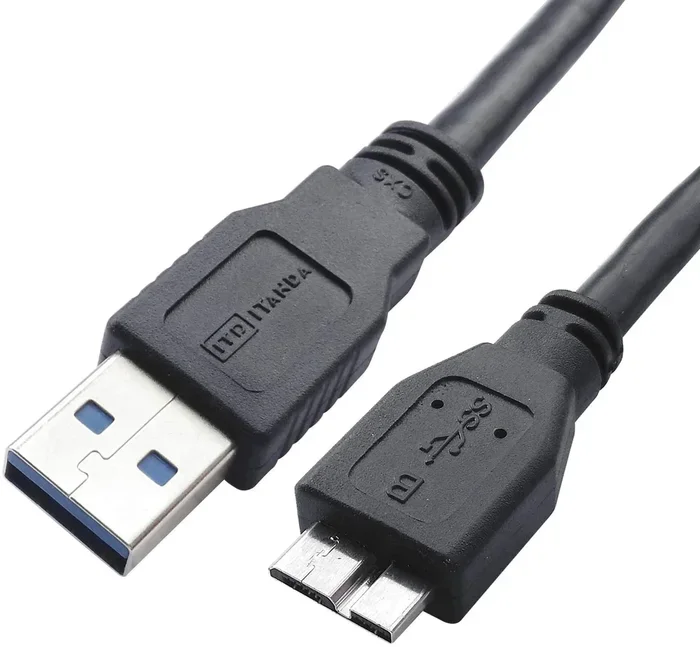
This is the classic rectangular USB plug you see on almost every computer and wall charger. USB Type-A cables are the most common and widely available. They come in different versions, including USB 2.0 and USB 3.0. A regular USB Type-A cable will physically connect to most external hard drives, but the speed depends on the version.
USB Type-B and Mini-USB
Some older external hard drives use a USB Type-B or Mini-USB connector. These square-shaped plugs are harder to find today. If your drive uses one of these, a regular modern USB cable will not work without an adapter. Always check your drive’s connector type before grabbing a cable.
USB Type-C
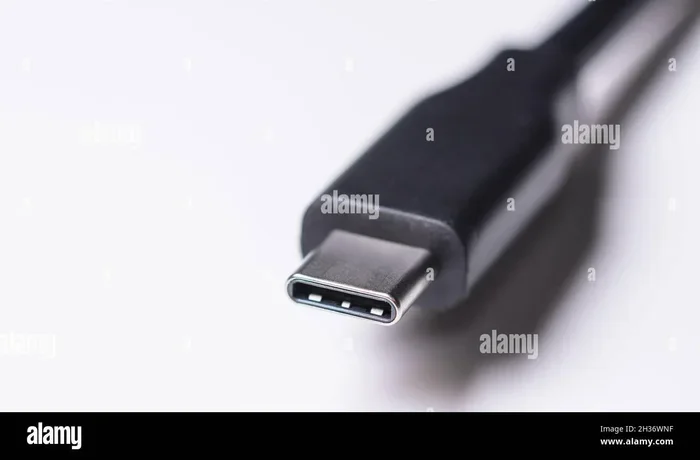
USB Type-C is the newest and most versatile connector. It is small, reversible, and supports faster data transfer and higher power delivery. Many modern external hard drives use USB-C. If your drive has a USB-C port, you need a USB-C cable, not a regular USB-A cable.
Micro USB
Some portable hard drives still use Micro USB connectors. These are common in older Android phones, but certain compact external drives also rely on them. Using a regular cable with a Micro USB drive requires the right plug shape, not just any USB cable you find.
Can Any Regular USB Cable Work With an External Hard Drive
Here is where things get tricky. A regular USB cable can physically connect to most external hard drives, but that does not mean it will work well. The cable needs to support the right data transfer protocol and provide enough power for your drive to function properly.
The Difference Between USB 2.0 and USB 3.0
This is the biggest factor people overlook. A USB 2.0 cable has a maximum transfer speed of about 480 Mbps. A USB 3.0 cable can reach speeds up to 5 Gbps. That is more than ten times faster. If you plug a modern external hard drive into a USB 2.0 cable, you will wait much longer for files to copy or transfer.
For example, transferring a 50GB video file might take 20 minutes on USB 3.0 but over three hours on USB 2.0. That is a huge difference, and it all comes down to the cable.
Does Cable Length Matter?
Yes, it does. Longer cables can cause signal loss and slower data transfer. A cable that is under 3 feet usually works great. If you need a longer cable, look for one that is shielded and high-quality. Cheap long cables often lead to dropped connections and corrupted files.
Power Delivery Concerns
Some external hard drives, especially larger desktop models, need more power than a basic cable can supply through a single USB port. If your drive keeps disconnecting or makes clicking sounds, the cable might not be delivering enough power. In these cases, a cable with dedicated power delivery or a drive with its own power adapter is essential.
Signs Your USB Cable Is Not Suitable for Your External Hard Drive
How do you know if your cable is causing problems? Watch for these warning signs:
- Slow transfer speeds: If copying files takes forever, your cable might be limiting your drive’s performance.
- Frequent disconnections: A loose or incompatible cable can cause your drive to drop off randomly.
- Drive not recognized: If your computer does not see the drive at all, the cable might be the culprit.
- Data corruption: Corrupted files or folders are a serious red flag that your cable is not transmitting data properly.
- Drive not powering on: Some drives need more power than a basic cable provides, and they simply will not turn on.
If you notice any of these issues, stop using that cable immediately. Continuing to use a faulty cable can lead to permanent data loss on your external hard drive.
How to Choose the Right Cable for Your External Hard Drive
Picking the right cable is simple once you know what to look for. Follow these steps to make sure you get the best cable for your needs.
Step 1: Check Your Drive’s Connector Type
Look at the plug on your external hard drive. Is it USB-A, USB-C, Micro USB, or something else? Match your cable to the drive’s connector. Using the wrong connector type will not work, even with an adapter in some cases.
Step 2: Check the USB Version
Look for markings on the cable or its packaging. USB 3.0, USB 3.1, or USB 3.2 cables are clearly labeled. If you see a blue insert inside the USB-A connector, it is likely a USB 3.0 cable. USB 2.0 cables usually have a black or white insert.
Step 3: Consider the Cable Length
For best performance, keep your cable under 3 feet. If you need more length, invest in a high-quality, shielded cable that maintains signal integrity over longer distances.
Step 4: Check Power Requirements
Desktop external drives often require a separate power source or a cable that supports higher wattage. Portable drives usually draw power directly from the USB connection, so a standard data cable works fine.
Step 5: Buy from Reputable Brands
Cheap, unbranded cables are a gamble. They may not meet the specifications they claim. Stick with trusted brands like Cable Matters, Anker, or Samsung for reliable performance.
Quick Tips for Cable Selection
- Always check the USB version before purchasing.
- Buy a cable that matches your drive’s connector type exactly.
- Choose shorter cables for faster, more reliable transfers.
- Avoid cables that are too thin or flimsy.
- Keep a spare cable of the correct type on hand.
Common Mistakes People Make With USB Cables and External Drives
Even experienced users make mistakes when it comes to USB cables and external hard drives. Here are the most common ones to avoid.
Using Any Cable You Find
Just because a cable fits does not mean it is right. A charging cable might power your drive but fail to transfer data properly. Always use a data-capable USB cable designed for file transfer, not just charging.
Ignoring Cable Wear and Tear
Over time, cables develop frayed ends, bent connectors, and internal damage. A worn-out cable can cause intermittent connection issues and data corruption. Replace your cables regularly, especially if you notice any physical damage.
Assuming All USB-C Cables Are Equal
Not all USB-C cables support the same speeds or power levels. Some USB-C cables are only designed for charging and support USB 2.0 speeds. Always verify that your USB-C cable supports data transfer and the speed you need.
Using Extension Cables or Hubs Without Caution
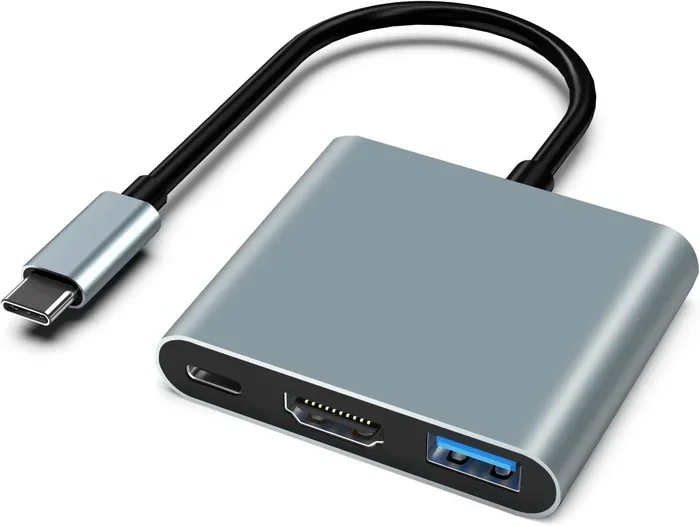
USB hubs and extension cables add extra connection points, which can reduce speed and reliability. If you must use a hub, choose a powered USB hub with good reviews to minimize performance loss.
Overlooking the Role of the USB Port on Your Computer
Even with the best cable, a slow USB port on your computer will bottleneck your transfer speed. Make sure your computer’s USB port supports the same version as your cable for optimal performance.
Expert Insights on USB Cable Compatibility
Data recovery specialists often see the aftermath of bad cable choices. Corrupted drives, lost backups, and failed transfers frequently trace back to a simple, overlooked cable issue. The best practice is to always use the cable that came with your drive or a certified replacement.
When it comes to connectivity, people often wonder about wireless options too. While 5G towers for Wi-Fi are advancing wireless data delivery, external hard drives still rely on physical cables for the most reliable and fastest connections. Wireless solutions exist, but a quality USB cable remains the gold standard for external storage performance.
Tech experts also recommend keeping your cables organized and stored properly. Coiling cables tightly or wrapping them with rubber bands can damage the internal wiring over time. Use velcro ties or cable organizers to keep them in good shape.
Comparison Table: USB Cable Types for External Hard Drives
| Cable Type | Max Speed | Power Delivery | Best For |
|---|---|---|---|
| USB 2.0 Type-A | 480 Mbps | Low | Older drives, basic file transfers |
| USB 3.0 Type-A | 5 Gbps | Medium | Most external hard drives |
| USB 3.1 Type-C | 10 Gbps | High | Modern portable drives |
| USB 3.2 Type-C | 20 Gbps | High | High-performance SSDs |
| Micro USB | 480 Mbps (USB 2.0) | Low to Medium | Older portable drives |
As you can see, the cable type you choose has a direct impact on speed and power. For most users, a USB 3.0 cable strikes the perfect balance between speed, availability, and price.
Final Thoughts
So, can you use a regular USB cable for an external hard drive? Yes, you can, but you should be careful about what “regular” means. A USB 2.0 cable might technically work, but it will slow down your drive and waste its potential. A high-quality USB 3.0 or USB 3.1 cable is the smart choice for most users.
Your external hard drive holds important files, memories, and work. Taking two minutes to check your cable could save you hours of frustration and protect your data from corruption. Always match your cable to your drive’s connector type, verify the USB version, and choose quality over price.
The next time you plug in your external drive, take a moment to look at the cable. Is it the right one? If not, swap it out and feel the difference in speed and reliability. Your drive, and your data, will thank you.
FAQs
Can I use a phone charging cable for my external hard drive?
Some phone charging cables only support charging and not data transfer. Always check that your cable supports data transfer before using it with an external hard drive. A cable that only charges your phone will not transfer files to or from your drive.
How do I know if my USB cable is USB 3.0?
Look inside the USB-A connector. If you see a blue plastic insert, it is likely a USB 3.0 cable. You can also check the cable packaging or markings for “SS” (SuperSpeed) or “USB 3.0” labeling.
Will a longer USB cable slow down my external hard drive?
Longer cables can cause slight signal loss, especially over 6 feet. For best performance, use a cable under 3 feet. If you need a longer cable, choose a high-quality, shielded option to minimize speed loss.
Can a bad USB cable damage my external hard drive?
A bad cable is unlikely to physically damage your drive, but it can cause data corruption and connection issues. Repeated disconnections or corrupted transfers can make files unusable. Always replace damaged cables promptly.
Do all USB-C cables work with all USB-C external hard drives?
No. Not all USB-C cables support the same speeds or data transfer protocols. Some USB-C cables are designed only for charging. Check that your USB-C cable supports data transfer and the speed standard you need.
What is the best USB cable for a portable external hard drive?
A USB 3.0 Type-A to Type-B or USB-C cable is usually the best choice for portable external hard drives. Look for cables from reputable brands that support at least 5 Gbps transfer speeds for reliable performance.
Frequently Asked Questions
What is Can You Use A Regular Usb Cable For External Hard Drive?
Can You Use A Regular Usb Cable For External Hard Drive is an important topic with many practical applications.