Can You Go From USB 30 to USB C Heres What You Need
Yes, you can go from USB 3.0 to USB C with the right adapter or cable. USB 3.0 and USB-C are different connector types, but they work together using a simple USB-A to USB-C adapter. This guide covers everything you need to know about USB cable compatibility, data transfer speeds, and making the switch smoothly.
Have you ever looked at your old USB 3.0 flash drive and your shiny new laptop with a USB-C port and thought, “Can I use these together?” You are not alone. Thousands of people face this exact situation every day as technology keeps moving forward. The good news is that you can go from USB 3.0 to USB C without buying a whole new setup.
But there are a few things you need to know first. Not every cable or adapter works the same way. And some choices can slow you down or even damage your devices if you pick the wrong one. This guide walks you through everything step by step. You will learn what USB 3.0 and USB-C actually are, how they compare, and exactly what you need to make them work together.
Key Takeaways
- USB 3.0 and USB-C are different things: USB 3.0 refers to a data transfer standard, while USB-C is a connector shape.
- You need an adapter: A USB-A to USB-C cable or adapter lets you connect USB 3.0 devices to USB-C ports.
- Speed stays the same: Using an adapter won’t boost your speed beyond what USB 3.0 supports.
- USB-C offers more power: USB-C supports USB Power Delivery, which charges devices faster.
- Check your device specs: Not all USB-C ports support the same speeds or protocols.
- Backward compatibility works both ways: USB-C is backward compatible with older USB standards.
📑 Table of Contents
Understanding USB 3.0 and USB-C
Before you buy anything, it helps to understand what each of these terms really means. People often confuse USB 3.0 and USB-C because they sound similar. But they are two completely different things.
What Is USB 3.0?
USB 3.0 is a data transfer standard. It was introduced back in 2008 and brought a big speed boost over USB 2.0. With USB 3.0, you can transfer data at up to 5 gigabits per second. That is ten times faster than USB 2.0.
USB 3.0 also uses a specific connector shape. Most USB 3.0 cables have a standard rectangular plug on one end, which is called USB-A. The other end might be a Type-B plug, which is square-shaped and often used for printers or external hard drives.
When people say “USB 3.0,” they are talking about the protocol or the speed capability. It does not describe the shape of the plug. This is a key point that trips up a lot of people.
What Is USB-C?
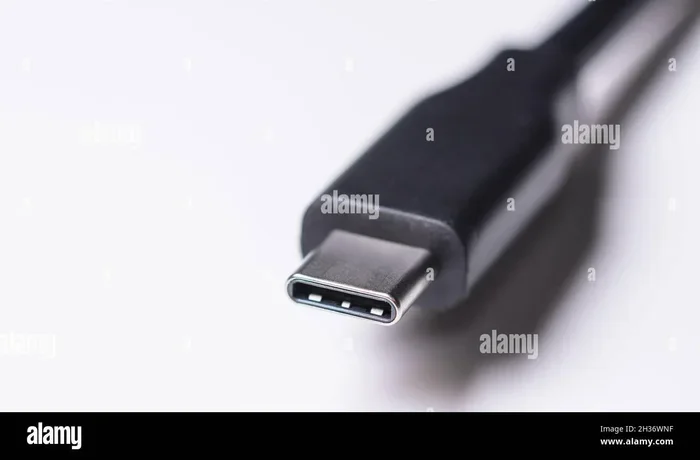
USB-C is a connector type. It is a small, oval-shaped plug that is reversible. That means you can flip it around and plug it in either way. No more flipping the cable three times to get it right.
USB-C can support different USB standards. A USB-C port might support USB 3.0, USB 3.1, USB 3.2, or even USB4. It all depends on the device and the port. USB-C is also used for USB Power Delivery, which allows faster and more efficient charging.
Here is an easy way to think about it. USB 3.0 is like the engine under the hood. USB-C is like the shape of the steering wheel. They are related but not the same thing.
Can You Connect USB 3.0 Devices to USB-C Ports?
The short answer is yes. You can connect a USB 3.0 device to a USB-C port. But you need the right USB adapter or cable to do it. Let us break down how this works.
Using a USB-A to USB-C Cable
The simplest way to connect a USB 3.0 device to a USB-C port is with a USB-A to USB-C cable. One end plugs into your USB 3.0 device, and the other end plugs into the USB-C port on your computer or laptop.
This works great for things like:
- External hard drives
- USB flash drives
- Printers
- Webcams
- Keyboards and mice
The cable carries the USB 3.0 data signal from your device to the USB-C port. Your device will still run at USB 3.0 speeds, which is up to 5 Gbps. You will not get faster speeds just because you are using a USB-C port.
Using a USB 3.0 Adapter
If your device has a USB 3.0 Type-B port (the square one), you can use a USB 3.0 to USB-C adapter. These small adapters plug into your device and give you a USB-C output. You then connect a USB-C cable from the adapter to your computer.
These adapters are handy when you do not want to replace your existing cables. They are also affordable. You can find good ones for under fifteen dollars online.
What About USB-C to USB-C Cables?
If both your device and your computer have USB-C ports, you can use a USB-C to USB-C cable. But here is the catch. Your device must actually support USB 3.0 speeds over its USB-C port. Not all USB-C devices do.
Some cheap USB-C cables only support USB 2.0 speeds. That means even if your device is technically USB 3.0, the cable will limit it to 480 Mbps. That is a huge drop from the 5 Gbps you should be getting.
Speed and Performance: What to Expect
One of the most common questions people ask is whether switching to USB-C will make their USB 3.0 device faster. The honest answer is no. Not automatically, anyway.
USB 3.0 Speed Limits
USB 3.0 has a maximum data transfer speed of 5 Gbps. That is about 625 megabytes per second. When you use an adapter or a USB-A to USB-C cable, your speed stays at this limit.
The USB protocol determines the speed, not the connector shape. So even though USB-C looks modern and sleek, it does not magically make older devices faster.
When USB-C Can Boost Speed
Here is where it gets interesting. If you upgrade your device to one that supports USB 3.1 or USB 3.2 over a USB-C port, you can see real speed improvements.
- USB 3.1 Gen 2: 10 Gbps
- USB 3.2 Gen 2×2: 20 Gbps
- USB4: Up to 40 Gbps
So USB-C itself does not make things faster. But the USB standards that USB-C can support do. This is why many people make the switch to USB-C. They want access to these faster protocols.
Thunderbolt and USB-C
Some USB-C ports support Thunderbolt technology. Thunderbolt 3 and Thunderbolt 4 use the USB-C connector and offer speeds up to 40 Gbps. These ports are found on many modern laptops and desktops.
If you have a Thunderbolt 3 or 4 port, your USB 3.0 devices will still work. They just will not run at Thunderbolt speeds. The connection will default to the highest speed that both devices support, which in this case is USB 3.0.
What You Need to Make the Switch
Ready to connect your USB 3.0 devices to a USB-C setup? Here is a simple shopping list of what you need.
1. The Right Cable
You need a USB-A to USB-C cable that supports USB 3.0 speeds. Look for cables that are labeled “SuperSpeed USB 5 Gbps” or “USB 3.0.” Avoid cables that only say “USB 2.0” unless you are okay with slower speeds.
Good cables usually have the USB 3.0 logo, which looks like a blue trident. If the cable has a blue insert inside the USB-A connector, that is another good sign.
2. A Quality Adapter
If your device has a USB 3.0 Type-B port, get a USB 3.0 to USB-C adapter. Make sure the adapter supports USB 3.0 speeds and not just USB 2.0. Cheap adapters sometimes cut corners and limit your speed.
Look for adapters from trusted brands. A reliable adapter usually costs between ten and twenty dollars. Spending a little extra here saves you from frustration later.
3. A USB-C Hub (Optional but Helpful)
If you have multiple USB 3.0 devices, a USB-C hub can be a game changer. A hub gives you several ports in one USB-C connection. You can plug in your USB 3.0 drives, keyboard, and mouse all at once.
Some hubs also support USB Power Delivery, which means they can charge your laptop while you use your devices. This is a great all-in-one solution for people who work on the go.
4. Check Your Device Manual
This is an easy step that many people skip. Check your device manual or the manufacturer’s website to confirm what USB standards your USB-C port supports. This saves you from buying the wrong cable or adapter.
Common Mistakes to Avoid
Making the switch from USB 3.0 to USB-C comes with a few pitfalls. Here are the most common mistakes and how to avoid them.
Buying a USB-C Cable Without Checking the Speed
Not all USB-C cables are created equal. Some only support USB 2.0, which is very slow. Always check the product description for the speed rating. If it does not mention USB 3.0 or higher, assume it is USB 2.0.
Assuming All USB-C Ports Are the Same
Different devices have different USB-C capabilities. A USB-C port on a budget laptop might only support USB 2.0. A USB-C port on a high-end laptop might support Thunderbolt 4. Always check before you assume.
Using Damaged or Low-Quality Cables
Cheap cables from unknown brands can cause problems. They might not transfer data reliably, and some can even damage your devices. Stick with reputable brands and avoid cables that look poorly made.
Ignoring Power Delivery
USB-C supports USB Power Delivery, which allows up to 100 watts of charging power. If you are using an adapter or hub, make sure it supports the power level your device needs. A weak power delivery setup can lead to slow charging or devices that keep disconnecting.
Expert Tips for a Smooth Transition
Switching from USB 3.0 to USB-C does not have to be stressful. Here are some tips from people who have been through it.
Start Small
You do not need to replace everything at once. Start with one or two cables and see how they work for you. Once you are comfortable, you can slowly replace more of your old cables and adapters.
Label Your Cables
Once you have a mix of USB-A and USB-C cables, things can get confusing. Use small labels or colored tags to mark which cables support USB 3.0 and which ones are USB 2.0. This small step saves a lot of time later.
Keep Your Old Cables
Just because you are switching to USB-C does not mean you should throw away your old USB 3.0 cables. You will still need them for older devices. Keep a small box of legacy cables for backup.
Test Your Setup
After you set up your new cables and adapters, test them. Transfer a large file and check the speed. If it seems slow, double-check that your cable supports USB 3.0. A quick test now saves headaches later.
Is It Worth Making the Switch?
At this point, you might be wondering if the switch from USB 3.0 to USB-C is worth it. The answer depends on your situation.
If you are buying a new laptop or device, USB-C is the future. Most modern devices use USB-C now. Getting used to it early makes sense. And with USB Power Delivery and faster speeds, USB-C offers real advantages.
If you have older USB 3.0 devices that still work fine, you do not need to replace them. A simple adapter or cable lets you keep using them with your new USB-C devices. There is no need to upgrade everything at once.
The best approach is a gradual transition. Replace cables and adapters as you need them. Over time, your setup will naturally shift to USB-C without breaking the bank.
Final Thoughts
So, can you go from USB 3.0 to USB C? Absolutely. With the right USB adapter or cable, your existing USB 3.0 devices work perfectly with USB-C ports. The key is knowing what you need and avoiding cheap, low-quality cables that limit your speed.
Remember that USB 3.0 and USB-C are two different things. One is a speed standard, and the other is a connector shape. Understanding this difference helps you make smart buying decisions and get the most out of your devices.
Take your time, check your specs, and invest in good-quality cables and adapters. A smooth transition to USB-C is easier than you think. And once you make the switch, you will wonder why you did not do it sooner.
Frequently Asked Questions
Do I need a special cable to connect USB 3.0 to USB-C?
You need a USB-A to USB-C cable that supports USB 3.0 speeds. Look for cables labeled “SuperSpeed USB 5 Gbps.” A standard USB 2.0 USB-C cable will work but will be much slower.
Will using a USB-C adapter slow down my USB 3.0 device?
A good quality adapter will not slow down your device. It will maintain USB 3.0 speeds of up to 5 Gbps. However, a cheap or low-quality adapter might limit speeds to USB 2.0 levels.
Can I use a USB-C cable with my USB 3.0 external hard drive?
Only if the hard drive has a USB-C port or you use a USB 3.0 to USB-C adapter. Most older USB 3.0 external hard drives use a USB-A or Type-B connector, so you will need an adapter or a USB-A to USB-C cable.
Is USB-C faster than USB 3.0?
USB-C is not inherently faster. USB-C is just a connector shape. The speed depends on the USB standard the port supports. USB 3.0 over USB-C still runs at 5 Gbps. But USB-C can support faster standards like USB 3.1 and USB 3.2.
Can I charge my laptop with a USB-C cable while using USB 3.0 devices?
Yes. USB-C supports USB Power Delivery, which can charge your laptop while you use USB 3.0 devices through an adapter or hub. Just make sure your hub or adapter supports power delivery.
Are all USB-C cables the same?
No, they are definitely not all the same. Some USB-C cables only support USB 2.0, while others support USB 3.0, USB 3.1, or even Thunderbolt 3 and 4. Always check the specifications before buying.
=== CONCLUSION ===
Going from USB 3.0 to USB C is simple and affordable. You just need the right USB adapter or cable. Understanding the difference between USB 3.0 as a speed standard and USB-C as a connector type helps you make smart choices. With the tips and recommendations in this guide, you can set up a smooth, reliable connection between your older USB 3.0 devices and your new USB-C equipment.
Take it one step at a time. Check your device specs, buy quality cables, and enjoy the benefits of a modern USB-C setup. Your old devices are not obsolete. They just need the right adapter to keep up with the future.