Can I Run Linux From A Usb Stick Without Any Installation
Yes, you can run Linux from a usb stick without any installation. This method lets you carry a full portable operating system wherever you go. You can boot your computer directly from the flash drive and use a complete linux environment. It is perfect for system rescues, privacy, or trying out open source software safely.
Have you ever wondered if you can carry a whole computer in your pocket? Can I Run Linux From A Usb Stick without making any changes to my hard drive? The answer is a big yes. You can take your operating system with you wherever you go. This guide will show you exactly how to do it. You do not need to be a tech expert to make this work. Running a portable operating system from a flash drive is incredibly useful. It lets you use any computer and have your own custom setup. You can boot from usb on almost any modern laptop or desktop. This is perfect for trying out open source software without any risk. You can also use it for system rescue when your main computer fails. Let us dive into how this works and why you should try it today.
There are many reasons people want a no installation needed setup. Maybe you are traveling and need your own operating system. Maybe you just want to test a new linux distribution like ubuntu or linux mint. Whatever the reason, you can run Linux from a usb stick safely. You do not have to worry about breaking your current setup. The whole process is simpler than you might think. In the next few sections, we will walk you through everything. You will learn what a live environment is, how to make your drive, and how to get the best speed. By the end, you will be ready to run anywhere with your own flash drive os.
Key Takeaways
- No Installation Required: You can run a full operating system straight from your removable media.
- Portable Computing: Carry your desktop, files, and settings on a small flash drive.
- Live USB vs Persistent Storage: Learn the difference between temporary and saved sessions.
- Easy Setup: Creating a bootable drive is simple and fast with the right tools.
- System Rescue: A portable os is a great tool for fixing broken computers.
- Privacy on the Go: Keep your data secure by using an open source operating system anywhere.
📑 Table of Contents
- What Does It Mean to Run Linux From A Usb Stick?
- Why Would You Want to Run Linux Without Installing?
- How to Create a Bootable Linux Usb Drive
- Live USB vs Persistent Storage: What Is the Difference?
- Quick Tips for the Best Performance
- Common Mistakes to Avoid
- Expert Insights on Portable Operating Systems
- Conclusion
What Does It Mean to Run Linux From A Usb Stick?
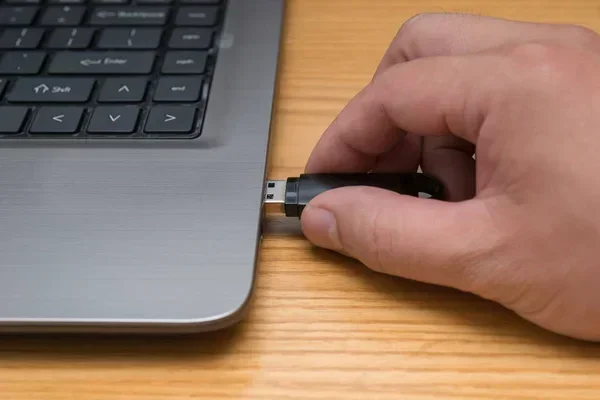
When you run Linux from a usb stick, you are using a removable drive as your main hard drive. The computer loads the operating system straight from the flash drive. This is called a live usb environment. You do not touch your internal hard drive at all. Everything runs from the small drive you plug into the side of your laptop. It is like having a portable computer inside a tiny stick. The computer treats the usb drive just like its internal hard drive. It reads the system files and loads them into the memory. This allows you to use a complete desktop environment with all the features you need. You can browse the web, write documents, and even play games. All of this happens directly from the usb stick at computer startup.
The Magic of a Live USB
A live usb is like a mini computer inside a stick. When you turn on your PC, you tell it to boot from the usb. The computer reads the Linux files on the drive. It then loads the entire desktop right into your memory. You get a full working system with a web browser, office tools, and games. When you turn off the computer, the usb stick just stops working. You can pull it out and go. Nothing is saved to your internal hard drive. This makes it perfect for quick tasks or testing software. You get a complete linux live environment without any permanent changes. The beauty of this method is that you are completely safe. You cannot accidentally delete important files on your main computer. The live system runs in a temporary space called RAM. Once you power off, that space is cleared. This is why so many people love using a live usb for safe computing.
Why Would You Want to Run Linux Without Installing?
There are many great reasons to use a no installation needed approach. You do not have to worry about breaking your main system. You can try something new without any commitment. Let us look at the top reasons people use this method for their removable media. Having a portable system gives you incredible flexibility. You are not tied to a single machine anymore.
- Test Drive New Software: You can try out a linux distribution before you decide to install it fully. This saves a lot of time and hassle.
- Rescue Broken Computers: If your main system fails to boot, a rescue drive can save the day. You can access your files and fix the problem.
- Travel Light: You do not need to carry a heavy laptop. Just plug into any computer and you are ready to work.
- Stay Anonymous: You can leave no trace of your work on public or shared computers. This is great for privacy conscious users.
Testing a New Operating System
Maybe you are curious about linux distributions like Ubuntu or Linux Mint. You want to see what all the fuss is about. But you do not want to erase your current Windows setup. A boot from usb method lets you test the waters safely. You can see if you like the look and feel of the software. You can check if your hardware works with it. If you do not like it, you just remove the drive and restart. Your computer is right back to normal. This is the safest way to explore a full linux installation before you commit. You get all the features of a modern desktop without any risk. It is the perfect way to see if Linux is right for you.
System Rescue and Recovery
Sometimes your main computer gets sick. It might have a virus or a broken update. You cannot even start Windows anymore. This is where a system rescue live USB shines. You can boot into a fresh Linux environment. From there, you can fix your broken Windows install. You can also rescue your important files. You can use tools to repair your hard drive. It is like having a toolbox for your computer in your pocket. Many IT professionals carry a rescue drive everywhere they go. They know that a live usb can save hours of frustration. You can clone a hard drive, reset passwords, and even recover deleted data. It is an essential tool for any tech toolkit.
Privacy and Security on the Go
Do you worry about your privacy when using public computers? Maybe you need to check email at a hotel or library. Using a portable operating system keeps you safe. You leave no trace of your work on that public machine. All your data stays on the usb stick. You can even encrypt the drive for extra safety. This is a great way to protect your personal files. You can run anywhere without leaving a digital footprint behind. Since the system runs entirely from the drive, the host computer never touches your private data. You are in complete control of your own digital life.
How to Create a Bootable Linux Usb Drive
Making your own bootable usb is easier than you think. You do not need expensive software. You just need a free tool and a flash drive. Let us walk through the process step by step. You will be surprised how fast you can get a working system up and running.
Choosing the Right Linux Distribution
First, you need to pick a linux distribution. This is just a fancy word for a version of Linux. Some are easy for beginners. Others are for advanced users. Ubuntu is a great choice for first-timers. Linux Mint is another popular option. They both come with lots of pre-installed software. You can download the .iso file from their official websites. Make sure you pick the version that matches your computer type, like 64-bit. Picking the right linux distribution ensures a smooth experience. If you have an older computer, you might want to try Lubuntu. It is a lighter version that runs well on low-end hardware.
Tools You Need to Make the Drive
You need two main things to get started. First, you need a usb flash drive. An 8GB drive is usually enough. You can use a larger one too. But remember, this process will erase everything on the drive. Second, you need a tool to put the Linux files onto the stick. Rufus is a very popular choice for Windows users. Etcher is another great tool that works on Mac and Windows. Both are free and safe to use. They make creating a live usb a breeze. Another great option is Ventoy. Ventoy lets you put multiple .iso files on one drive. You can then choose which Linux version to boot from a simple menu. This is perfect if you want to test several linux distributions at once.
Step-by-Step Creation Process
Once you have your drive and tool, follow these simple steps. First, plug your usb drive into your computer. Open your tool of choice. Click the button to select your downloaded Linux .iso file. Choose your usb drive from the list. Make sure you pick the right one so you do not erase your main hard drive. Click the Start or Flash button. Wait for the process to finish. It usually takes a few minutes. You now have a working linux live environment ready to go. You can use this drive on any compatible computer. Just restart the computer, enter the boot menu, and select the usb drive. Your portable system will spring to life.
Live USB vs Persistent Storage: What Is the Difference?
When you run Linux from a usb stick, you have two main choices. You can use a live mode or a persistent mode. They work very differently. Understanding this helps you pick the right setup for your needs. Each mode has its own unique advantages depending on what you want to accomplish.
Understanding Live Mode
In live mode, the usb drive works like a read-only disc. You can use the operating system perfectly fine. You can browse the web and open documents. But here is the catch. When you turn off the computer, everything disappears. Your saved files, your browser history, and your settings are all gone. The next time you boot, you start fresh. This is great for one-time rescue tasks or quick testing. It keeps your usb drive very clean and safe. It is the simplest way to get a linux live environment running immediately. You do not have to configure anything special. Just boot and start working. It is incredibly convenient for quick jobs.
Unlocking Persistent Storage
Persistent storage changes the game completely. It lets you save files and settings directly to the usb drive. When you turn off the computer, your work stays there. You boot up next time, and everything is right where you left it. You can even install new software. This turns your flash drive into a true personal computer. You get the full power of a full linux installation without touching your hard drive. You just need to set aside part of the usb space for this feature during the creation process. This is the best way to have a true flash drive os. You can carry your entire digital life in your pocket and access it from any machine in the world.
Here is a quick look at how they compare:
| Feature | Live Mode | Persistent Mode |
|---|---|---|
| Data Saving | No, all data is lost on shutdown | Yes, all data is saved on the drive |
| Software Installation | Not possible | Possible, but limited by drive space |
| Best For | Quick testing and system rescue | Daily portable use and backup |
| Setup Speed | Very fast and simple | Requires extra setup steps |
Quick Tips for the Best Performance
Using a linux distribution from a flash drive can be super fast. But you need to follow a few simple rules. These tips will make your experience much better. Nobody likes a slow computer, and usb drives can sometimes be the bottleneck. Follow these quick tips to get the most out of your setup.
- Use a High-Speed Flash Drive: Not all usb drives are created equal. A cheap, slow drive will make your system feel sluggish. Look for drives that claim high read and write speeds. USB 3.0 or USB 3.1 drives are much faster than older USB 2.0 sticks. The speed of your drive directly affects how fast your computer boots and how quickly apps open.
- Check Your Bios Settings: Before you can boot from usb, you must tell your computer to look at the right place. When you turn on your PC, press the BIOS key. This is usually F2, F12, DEL, or ESC. It depends on your computer brand. Go to the boot order settings. Move your usb drive to the top of the list. Save the changes and exit.
- Keep Your Drive Clean: Since you are using removable media for your whole system, keep it safe. Always use the safe remove option before pulling the drive out. This prevents data corruption. Also, run antivirus scans on your main computer regularly.
- Add More RAM if Needed: A linux live environment relies heavily on your computer’s memory. If your computer has very little RAM, the system might run slowly. Adding more memory can dramatically improve performance.
Common Mistakes to Avoid
Even with the best intentions, people make mistakes when setting up a bootable usb. Avoiding these common pitfalls will save you a lot of frustration. Here is what you need to watch out for. Learning from others’ errors is the fastest way to succeed.
Using a Slow or Fake Usb Drive
Many cheap usb drives on Amazon are fake. They claim to be 64GB but actually have very little memory inside. They also write data very slowly. This will make your operating system run painfully slow. Always buy from trusted brands and reputable sellers. Check reviews before you buy. A genuine, fast drive makes all the difference in the world. Do not let a cheap drive ruin your experience.
Forgetting to Back Up Your Data
The process of making a drive bootable will erase everything on it. If you have important files on that usb stick, you will lose them forever. Always back up your data to your hard drive first. Double-check that you selected the correct drive in your flashing tool. Nothing is worse than accidentally wiping your main hard drive instead of the usb stick. Take two minutes to back up your files. It will save you hours of regret later.
Ignoring Computer Hardware Limits
Older computers might struggle with newer linux distributions. They may not support USB 3.0 or have enough RAM. Check the minimum requirements for the Linux version you want to use. If your computer is very old, you might need a lighter version. Lubuntu or Puppy Linux are great for older machines. They use less memory and run much smoother on weak hardware. This ensures you can run anywhere without technical headaches. Do not expect a 15-year-old computer to run a modern heavy desktop perfectly.
Expert Insights on Portable Operating Systems
Many tech experts rely on a live usb every single day. They use it to fix friends’ computers or to work securely from anywhere. The beauty of an open source software ecosystem is that you are never locked in. You can try different linux distributions until you find the one that fits you perfectly. It is a fantastic way to learn how computers really work under the hood. Plus, you never have to worry about paying for expensive software licenses. The whole world of computing is right there on a tiny stick. It is truly a dual boot alternative that requires zero permanent changes to your machine. You get the freedom of a full desktop with the convenience of a tiny drive. You can transform any old computer into a fast, clean machine just by plugging in your drive.
Conclusion
So, can you run Linux from a usb stick without any installation? Absolutely. It is a simple, powerful, and free way to get a portable computer. You can test new software, rescue broken systems, or just browse the web safely. All you need is a usb drive and a little bit of time. You now know how to create your own bootable usb and the difference between live and persistent modes. You also know the common mistakes to avoid. Try it out for yourself and see how easy it is. Your portable operating system is just a flash drive away. Start your journey with a live usb today and experience the freedom of open source software. The world of portable computing is waiting for you. Just plug in and go.
Frequently Asked Questions
Is it legal to run Linux from a usb stick?
Yes, it is completely legal. Linux is open source software, which means anyone can use and distribute it for free. You can run a linux distribution from a usb drive without violating any laws. It is a great way to try out the software before you decide to install it on your hard drive.
Will running Linux from a usb stick damage my computer?
No, it will not damage your computer at all. When you run Linux from a usb stick in live mode, the system only reads from the drive. It does not touch your internal hard drive or your existing Windows installation. You can safely test the operating system without any risk to your main system.
How long does a linux live usb last?
The lifespan depends on the quality of your flash drive. A good quality usb flash drive can last for several years of daily use. However, usb drives have a limited number of write cycles. If you use persistent storage, you will be writing data constantly. Using a high-quality drive will ensure your portable operating system lasts a long time.
Can I run Linux from a usb stick on any computer?
Most modern computers can boot from usb without any issues. However, very old computers might not support booting from a usb drive. You need to check your computer’s BIOS or UEFI settings to make sure it allows booting from removable media. Most computers made in the last 15 years will work perfectly fine.
Do I need internet access to use a live USB?
No, you do not need the internet to use a linux live environment. The entire operating system runs from the usb stick. You can browse files, use office applications, and even play offline games. However, if you want to browse the web or update the system, you will need to connect to a Wi-Fi network.
What is the best usb drive for running Linux?
The best flash drive os requires a fast and reliable drive. Look for usb 3.0 or usb 3.1 drives with high read and write speeds. Brands like SanDisk, Samsung, and Kingston are great choices. A drive with at least 16GB of storage is recommended to accommodate a full linux distribution and your personal files.