Can You Connect To A Monitor With A Usb To Vga Cable
Yes, you can connect a monitor using a USB to VGA cable. This simple adapter converts a USB signal into a VGA video output, making it possible to use older monitors with modern computers. Whether you are a student, remote worker, or home user, a USB to VGA cable offers a quick and affordable display solution.
Have you ever wondered if you can connect a monitor to your computer using a USB to VGA cable? The short answer is yes, and it is simpler than you might think. A USB to VGA cable lets you turn any spare monitor into an external display without needing a dedicated graphics port. Whether you are setting up a dual-screen workstation or connecting an older monitor to a modern laptop, this adapter makes it possible. In this guide, we will walk you through everything you need to know about using a USB to VGA cable for your display setup.
Connecting a monitor to your computer used to be straightforward. You just plugged in an HDMI or VGA cable, and you were good to go. But today, many laptops and newer computers have dropped traditional VGA ports entirely. This is where a USB to VGA cable comes in handy. It bridges the gap between modern USB ports and older VGA-equipped monitors. There are a few things you should know before you buy one. Not every USB to VGA cable works the same way. Some require driver installation, while others are plug and play. Let us break down exactly how this works and what you need to get started.
Key Takeaways
- USB to VGA cables work with most computers: They convert USB data into a VGA video signal for external monitors.
- Plug and play options exist: Some adapters need no driver installation and work instantly.
- Check compatibility first: Not every USB port supports video output, so verify your system requirements.
- Resolution may be limited: USB to VGA adapters typically max out at 1080p or lower depending on the model.
- Driver installation matters: Many adapters require specific software for best performance.
- Great for secondary displays: These cables are ideal for extending or mirroring your laptop screen.
📑 Table of Contents
- What Is a USB to VGA Cable and How Does It Work
- Can You Actually Connect a Monitor Using a USB to VGA Cable
- Step-by-Step Setup Guide
- Common Issues and How to Fix Them
- USB to VGA Cable vs Other Connection Options
- Best Use Cases for USB to VGA Cables
- Quick Tips for the Best Experience
- Common Mistakes to Avoid
- Expert Insights on USB to VGA Connectivity
- Frequently Asked Questions
- Final Thoughts
What Is a USB to VGA Cable and How Does It Work
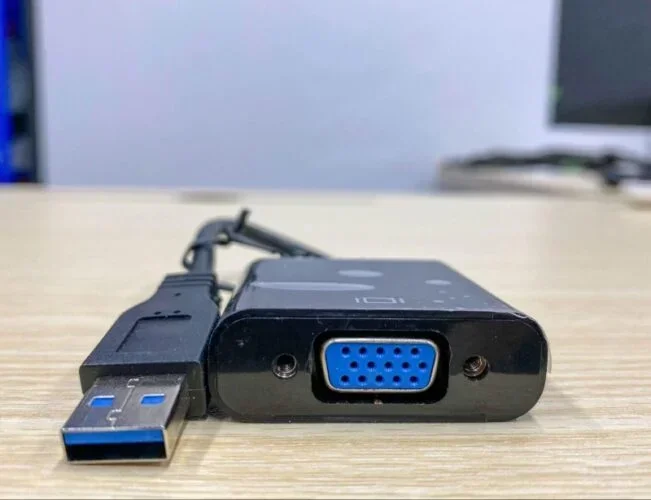
A USB to VGA cable is a display adapter that takes a video signal from a USB port and converts it into an analog VGA signal. This allows you to connect a monitor that only has a VGA input to a computer that may only have USB ports available. The adapter contains a small chip that handles the signal conversion from digital USB data to an analog video output.
Understanding USB and VGA Connections
USB ports are designed primarily for data transfer and powering peripherals. VGA ports, on the other hand, carry analog video signals specifically for display output. A USB to VGA cable acts as a translator between these two different technologies. The USB side sends data to the adapter, and the adapter processes it into a format the monitor can understand.
Most USB to VGA cables use USB 2.0 or USB 3.0 connections. USB 3.0 adapters generally offer better performance and smoother video playback. However, USB 2.0 adapters still work for basic tasks like reading documents or browsing the web. The key difference is in how much data can be transferred per second.
Can You Actually Connect a Monitor Using a USB to VGA Cable
The answer is yes, but with some important caveats. Not every computer supports video output through USB. Your system needs to have the right hardware and software support for a USB to VGA cable to work properly. Let us look at what you need to check before making a purchase.
Compatibility Check
Before buying a USB to VGA cable, check if your computer supports USB video output. Most Windows computers from the last decade do support this feature. Mac computers, however, often have more limited compatibility. Here is what you should verify:
- Operating System: Make sure your OS supports USB display adapters. Windows 10 and 11 generally work well. macOS support varies by adapter model.
- USB Port Type: USB 3.0 ports provide better video performance than USB 2.0 ports. Check your computer’s ports before buying.
- Graphics Card: Some computers may already have a dedicated graphics card that limits USB video output. Check your display settings first.
- Monitor Input: Make sure your monitor has a VGA input port. If it only has HDMI or DisplayPort, you need a different display cable or adapter.
What You Need to Get Started
Setting up a USB to VGA cable requires just a few items. You do not need expensive equipment or technical skills. Here is a simple list of what you need:
- A USB to VGA cable or USB to VGA adapter
- A computer with an available USB port
- A monitor with a VGA input
- The correct driver software (if required)
- A power source for the adapter (some models need external power)
Once you have these items, you are ready to set up your external display. The process is straightforward and takes only a few minutes. Many users find that a USB to VGA cable is the easiest and most affordable way to add a second screen to their setup.
Step-by-Step Setup Guide
Setting up your USB to VGA cable is a simple process. Follow these steps to get your external monitor running quickly.
Step 1: Install the Driver Software
Many USB to VGA cables require driver installation before they work. Check the manufacturer’s website for the latest driver. Download and install it before connecting the cable. Some adapters are plug and play and do not need any software. But installing the driver first ensures the best performance.
Step 2: Connect the Cable
Plug the USB end of the USB to VGA cable into an available port on your computer. Then connect the VGA end to your monitor using the VGA connector. Make sure both connections are secure. A loose connection can cause display issues or no signal at all.
Step 3: Configure Display Settings
Once connected, go to your computer’s display settings. On Windows, right-click the desktop and select Display Settings. You can choose to extend or mirror your screen. Extending gives you more workspace. Mirroring shows the same image on both screens.
Step 4: Adjust Resolution and Settings
Set the screen resolution to match your monitor’s native resolution. A USB to VGA cable typically supports up to 1920×1080 (1080p). Adjust the refresh rate if needed. Higher refresh rates provide smoother video but may reduce compatibility with some adapters.
Common Issues and How to Fix Them
Even with the right setup, you may run into problems. Here are the most common issues users face with USB to VGA cables and how to solve them.
No Display Signal
If your monitor shows no signal, first check all cable connections. Make sure the VGA connector is firmly seated in the monitor port. Try a different USB port on your computer. If the USB to VGA cable needs external power, ensure it is plugged in and turned on.
Blurry or Low-Quality Image
A blurry image often means the resolution is set incorrectly. Go to your display settings and adjust the screen resolution to match your monitor. Also, check that you are using the correct driver version. Outdated drivers can cause poor video signal quality.
Flickering or Intermittent Display
Flickering usually points to a loose connection or a USB port that is not providing enough power. Try a different USB port, preferably a USB 3.0 port directly on the computer. Avoid using USB hubs, as they can reduce the power and data available to the display adapter.
Driver Not Recognized
If your computer does not recognize the adapter, reinstall the driver software. Download the latest version from the manufacturer’s website. Uninstall the old driver first, then install the new one. Restart your computer after installation. This resolves most cable compatibility issues.
USB to VGA Cable vs Other Connection Options
A USB to VGA cable is just one way to connect an external monitor. Let us compare it with other popular options so you can choose the best one for your needs.
| Connection Type | Max Resolution | Ease of Use | Cost | Best For |
|---|---|---|---|---|
| USB to VGA Cable | 1080p | Easy | Low | Older monitors, basic setups |
| HDMI Cable | 4K | Very Easy | Low | Modern displays, high quality |
| DisplayPort | 4K+ | Easy | Medium | Gaming, professional use |
| USB-C to HDMI | 4K | Easy | Medium | Modern laptops, versatile |
| Wireless Display (Miracast) | 1080p | Very Easy | Low | Cable-free setups, presentations |
The USB to VGA cable holds its own as a budget-friendly option. It is perfect for users who have older monitors but modern computers. While it does not match the resolution of HDMI or DisplayPort, it gets the job done for everyday tasks. If you need high-resolution gaming or professional video work, you may want to consider a USB-C to HDMI adapter instead.
Best Use Cases for USB to VGA Cables
A USB to VGA cable is not just a backup plan. It has several practical uses that make it a valuable accessory for many users.
Extending Your Laptop Display
If you work from home, a second monitor can boost your productivity. A USB to VGA cable lets you connect a desktop monitor to your laptop without needing an extra graphics port. This is especially useful for older laptops that only have USB ports available.
Setting Up a Dual-Screen Workstation
Students and professionals benefit from dual-screen setups. You can have your research on one screen and your writing on the other. A USB to VGA cable makes this affordable and easy to set up. No expensive hardware is needed.
Using a Monitor for Cord-Cutting and Streaming
Many people are cutting the cord on traditional cable TV. If you want to use your monitor as a TV replacement, a USB to VGA cable can help you set up a simple display. For those exploring cord-cutting options, you might also want to explore alternatives to Dish Network and DirectTV to find affordable streaming solutions that work well with monitor setups. This combination gives you flexibility without the high monthly bills.
Presentations and Meetings
A USB to VGA cable is a great tool for business presentations. You can connect your laptop to a projector or conference room monitor quickly. Most meeting rooms still have VGA inputs. This makes the USB to VGA cable a reliable choice for professionals on the go.
Reviving Old Monitors
Do you have an old monitor sitting in a closet? A USB to VGA cable can bring it back to life. Instead of buying a new monitor, you can use your existing one with a modern computer. This is an eco-friendly and cost-effective solution. It also reduces electronic waste.
Quick Tips for the Best Experience
Here are some quick tips to get the most out of your USB to VGA cable:
- Always use the latest drivers: Updated drivers improve performance and fix bugs.
- Use USB 3.0 ports when possible: They provide more bandwidth for smoother video.
- Keep cables short: Longer cables can weaken the video signal and reduce quality.
- Check your monitor’s native resolution: Match it in your display settings for the clearest image.
- Avoid USB hubs: Plug the adapter directly into your computer for reliable power and data transfer.
- Update your operating system: OS updates often improve compatibility with display adapters.
Common Mistakes to Avoid
Avoid these common mistakes when using a USB to VGA cable:
- Skipping driver installation: Many users plug in the cable and expect it to work instantly. Without the right driver, performance suffers.
- Using a low-quality adapter: Cheap USB adapters may overheat or produce poor image quality. Invest in a reputable brand.
- Ignoring power requirements: Some adapters need external power. If your monitor flickers, check if the adapter needs its own power source.
- Forcing the VGA connector: The VGA connector should fit snugly but not forcefully. Forcing it can damage the pins.
- Expecting 4K resolution: Most USB to VGA cables max out at 1080p. Do not expect 4K quality from this type of connection.
Expert Insights on USB to VGA Connectivity
According to display technology experts, USB to VGA cables have improved significantly in recent years. Modern adapters offer much better performance than older models. The key is choosing a quality adapter from a trusted manufacturer. Look for adapters that support UVC (USB Video Class) for plug and play functionality.
Experts also recommend checking your display setup before purchasing. If your computer already has an HDMI or DisplayPort output, use those connections first. Reserve the USB to VGA cable for situations where those options are not available. This ensures the best possible video output quality.
Another expert tip is to use a docking station if you need multiple connections. Many docking stations include USB to VGA capabilities along with other ports. This gives you a clean, organized setup with all your peripherals connected in one place.
Frequently Asked Questions
Can any USB port support a USB to VGA cable?
Not all USB ports support video output. USB 3.0 ports generally work best for USB to VGA cables. USB 2.0 ports can work but may have lower performance. Check your computer’s specifications to confirm USB video output support before purchasing.
Do USB to VGA cables need drivers?
Many USB to VGA cables require driver installation for optimal performance. Some models are plug and play and work without drivers. Always check the product specifications and download the latest driver from the manufacturer’s website before setting up your connection.
What is the maximum resolution for a USB to VGA cable?
Most USB to VGA cables support up to 1920×1080 resolution (1080p). Some high-end models may support slightly higher resolutions. However, USB bandwidth limits the maximum resolution. For 4K displays, consider using an HDMI or DisplayPort connection instead.
Can I use a USB to VGA cable with a Mac computer?
Some USB to VGA cables work with Mac computers, but compatibility varies by model. Apple MacBooks often have limited support for USB video adapters. Check the adapter manufacturer’s website for macOS compatibility before purchasing. You may need to install additional software for Mac support.
Is a USB to VGA cable good for gaming?
A USB to VGA cable is not ideal for gaming. The USB connection has limited bandwidth, which can cause lag and lower frame rates. The analog VGA signal also does not support the high refresh rates needed for smooth gaming. For gaming, use a direct HDMI or DisplayPort connection.
Can I connect multiple monitors using USB to VGA cables?
Yes, you can connect multiple monitors using separate USB to VGA cables. Each monitor will need its own adapter connected to a USB port. Make sure your computer has enough USB ports and processing power to handle multiple external displays. A docking station can simplify this setup.
Final Thoughts
A USB to VGA cable is a practical and affordable solution for connecting monitors to computers without VGA ports. Whether you are extending your laptop display, reviving an old monitor, or setting up a presentation station, this adapter gets the job done. The key is to choose a quality adapter, install the right drivers, and manage your expectations regarding resolution and performance.
While a USB to VGA cable will not replace a direct HDMI or DisplayPort connection, it fills an important niche. It makes older monitors compatible with modern computers. It gives users flexibility in their display setup. And it offers a simple, no-fuss way to add an external display when you need one most.
If you are looking for additional connectivity options or exploring cord-cutting solutions, consider checking out alternatives to Dish Network and DirectTV for affordable streaming and display options that complement your monitor setup. The right combination of hardware and services can transform how you work and entertain yourself at home.
Now that you know how to connect a monitor with a USB to VGA cable, you are ready to set up your own external display. Grab the right adapter, follow the steps in this guide, and enjoy your expanded screen space. Happy connecting!