Can I Plug Usb A Into Usb C Everything You Need To Know
Yes, you can plug USB A into USB C, but you need the right adapter or cable. This guide covers everything about connecting USB-A devices to USB-C ports, including compatibility, data speeds, power delivery, and the best adapters to buy. Whether you have an older flash drive, keyboard, or external hard drive, you will find clear answers here.
You have a USB-A cable in your hand and a shiny USB-C port on your new laptop. You try to plug it in. It does not fit. You wonder, can I plug USB A into USB C? The short answer is yes, but not directly. You need an adapter or a special cable to make the connection work.
This is one of the most common questions people ask today. USB-A has been around for decades. USB-C is the new standard. The two connectors look completely different. The shapes are not the same. The pin layouts are different too. But thanks to backward compatibility and smart adapter design, you can absolutely connect your older USB-A devices to modern USB-C ports.
In this guide, we will walk through everything you need to know. We will cover how the connection works, what adapters to use, data transfer speeds, power delivery, common mistakes, and expert tips. By the end, you will feel confident plugging in any USB-A device to any USB-C port.
Key Takeaways
- USB A fits into USB C with an adapter: You cannot plug USB A directly into USB C without a converter cable or adapter.
- Data speeds depend on the USB standard: USB 3.0, 3.1, and 3.2 offer different transfer rates, and your cable matters.
- Power delivery varies: USB-C supports up to 100W with USB Power Delivery, while USB-A typically delivers much less.
- Backward compatibility is real: USB-C is designed to work with older USB-A devices through adapters and cables.
- Not all USB-C ports are equal: Some support Thunderbolt, others do not, and this affects what you can connect.
- Cheap adapters cause problems: Low-quality adapters can lead to data loss, slow speeds, or damaged ports.
- Cable orientation is not an issue with USB-C: The reversible connector is a major upgrade over USB-A.
📑 Table of Contents
- Understanding USB-A and USB-C Connectors
- Can You Plug USB A Directly Into USB C?
- How to Connect USB-A Devices to USB-C Ports
- Data Transfer Speeds and Power Delivery
- Common Mistakes When Connecting USB-A to USB-C
- Best Adapters and Cables for USB-A to USB-C Connections
- What the Future Holds for USB-A and USB-C
- Final Thoughts
Understanding USB-A and USB-C Connectors
Before you buy any adapter, it helps to understand what makes these two connector types different. They are not interchangeable by design. Each has a unique shape, pin configuration, and purpose in the USB ecosystem.
What Is a USB-A Connector?
USB-A is the classic rectangular connector. You have probably seen it on computers, wall chargers, and game consoles for years. It has a flat, broad shape. The connector only fits one way. You have to orient it correctly every time you plug something in. This can be frustrating, especially in the dark or when you are in a hurry.
USB-A supports several USB standards. USB 2.0 is the oldest and slowest. USB 3.0 offers faster speeds. USB 3.1 and USB 3.2 push performance even further. Most USB-A ports you encounter today support USB 2.0 or USB 3.0. The port shape has stayed the same since the late 1990s. That is why millions of devices still use it.
What Is a USB-C Connector?
USB-C is the modern connector. It is small, oval-shaped, and reversible. You can plug it in either way. No more flipping the cable three times to find the right orientation. This is one of the biggest improvements over USB-A.
USB-C supports faster data transfer protocols. It also supports USB Power Delivery, which means it can charge devices at much higher wattages. USB-C can handle video signals too. Some USB-C ports support Thunderbolt 3 or Thunderbolt 4. These ports can connect to external displays, eGPUs, and high-speed storage devices.
USB-A vs USB-C: Key Differences at a Glance
| Feature | USB-A | USB-C |
|---|---|---|
| Shape | Rectangular, flat | Oval, small |
| Reversible | No | Yes |
| Max Data Speed (USB 3.x) | 5 Gbps (USB 3.0) | 10 Gbps (USB 3.1 Gen 2) or 20 Gbps (USB 3.2 Gen 2×2) |
| Max Power Delivery | Up to 15W typically | Up to 100W with USB PD |
| Video Output | No (without adapters) | Yes (via DisplayPort Alt Mode) |
| Common Devices | Older laptops, printers, flash drives | Modern laptops, phones, tablets |
As you can see from the table above, USB-C is far more versatile. But that does not mean USB-A is obsolete. Millions of devices still rely on USB-A ports and cables. That is exactly why the question can I plug USB A into USB C comes up so often.
Can You Plug USB A Directly Into USB C?
No, you cannot plug a USB-A connector directly into a USB-C port. The physical shapes are completely different. USB-A is wide and rectangular. USB-C is small and oval. They simply do not match. Trying to force a USB-A plug into a USB-C port will not work and could damage the port or the cable.
However, you can easily bridge the gap with the right accessory. An adapter cable or a USB-A to USB-C adapter makes the connection possible. These small devices have a USB-A plug on one end and a USB-C plug on the other. You plug the USB-A end into your device and the USB-C end into your port. It is simple and effective.
How Backward Compatibility Works
USB standards are designed to be backward compatible. This means newer USB-C ports can work with older USB-A devices. The USB Implementers Forum (USB-IF) ensures that USB-C ports support legacy USB-A connections through adapters. When you use a proper adapter, the port and device negotiate the best connection speed and power level automatically.
This plug and play behavior is one of the best things about USB technology. You do not need special drivers or software. You just plug in the adapter, connect your USB-A device, and it works. Most operating systems recognize the device instantly.
When Direct Connection Does Not Work
There are a few situations where plugging USB A into USB C through an adapter may not work as expected. Some USB-C ports on older laptops only support USB 2.0 speeds. If you connect a USB 3.0 USB-A device through an adapter, the speed will be limited to USB 2.0. Also, some cheap USB-C ports do not support power delivery. Your USB-A device may not charge properly through an adapter in these cases.
How to Connect USB-A Devices to USB-C Ports
Now that you know direct connection is not possible, let us look at the best ways to make USB-A work with USB-C. There are several options depending on what you are trying to do.
Option 1: USB-A to USB-C Adapter Cable
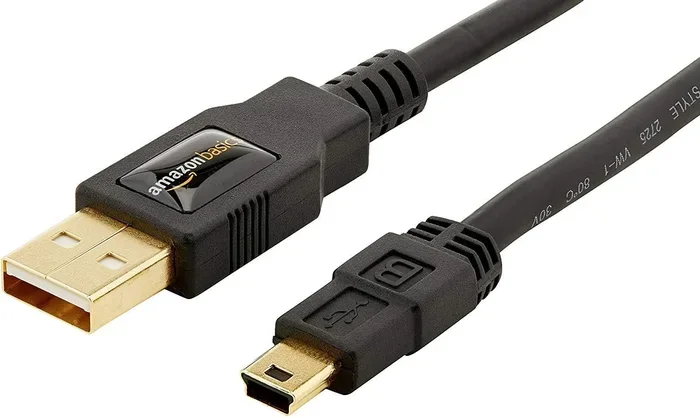
This is the simplest solution. You buy a cable that has a USB-A plug on one end and a USB-C plug on the other. You plug the USB-A end into your USB-A device (like a flash drive or external hard drive) and the USB-C end into your laptop or phone.
These cables are inexpensive and widely available. You can find them online or at any electronics store. Look for cables that support USB 3.0 or higher if you need fast data transfer speeds. A USB 2.0 adapter cable will work, but it will be much slower.
Here are some quick tips when choosing an adapter cable:
- Check the USB standard rating on the cable packaging. Look for USB 3.0, 3.1, or 3.2.
- Choose a cable length that suits your needs. Six feet is usually enough for most setups.
- Buy from reputable brands. Anker, Cable Matters, and Belkin are reliable choices.
- Avoid ultra-cheap cables from unknown sellers. They may not support the data speeds they claim.
Option 2: USB-A to USB-C Adapter Dongle
An adapter dongle is a small plastic device with a USB-A female port on one side and a USB-C male plug on the other. You plug the dongle into your USB-C port, and then plug your USB-A device into the dongle. This is handy if you have multiple USB-A devices you want to connect one at a time.
Dongles are great for travel. They are small and lightweight. You can keep one in your laptop bag and use it whenever you need to connect an older device. Some dongles also include additional ports, like an SD card reader or an HDMI output.
Option 3: USB-C Hub with USB-A Ports
If you need to connect several USB-A devices at once, a USB-C hub is the best choice. A hub plugs into your USB-C port and gives you multiple USB-A ports, plus often other ports like HDMI, SD card slots, and Ethernet. This turns one USB-C port into a full docking station.
USB hubs are especially useful for people who work from home. You can connect your USB-A keyboard, mouse, external hard drive, and printer all at the same time through one hub. Just make sure the hub supports USB 3.0 or higher for the best performance.
Option 4: Docking Station for Permanent Setups
For a permanent desk setup, consider a USB-C docking station. These are larger than hubs and offer more features. Many docking stations support power delivery, meaning they can charge your laptop while also connecting all your USB-A peripherals. This eliminates cable clutter and keeps your workspace clean.
When choosing a docking station, look for these features:
- At least two USB-A ports for your older devices.
- USB Power Delivery of 60W or more if you need to charge a laptop.
- Thunderbolt 3 or Thunderbolt 4 support if you need the fastest speeds.
- HDMI or DisplayPort output if you want to connect an external monitor.
Data Transfer Speeds and Power Delivery
One of the most important things to understand about plugging USB A into USB C is that your data transfer speed depends on several factors. It is not just about the connector type. The USB standard, the cable quality, and the device capabilities all play a role.
USB Standards and Their Speeds
Here is a quick breakdown of the main USB standards and what speeds they support:
- USB 2.0: Up to 480 Mbps. This is the slowest standard. Most USB-A devices from before 2008 use this.
- USB 3.0 (also called USB 3.2 Gen 1): Up to 5 Gbps. This is five times faster than USB 2.0.
- USB 3.1 (also called USB 3.2 Gen 2): Up to 10 Gbps. Common in USB-C devices made after 2015.
- USB 3.2 Gen 2×2: Up to 20 Gbps. Found on newer USB-C devices and cables.
- Thunderbolt 3: Up to 40 Gbps. Uses the USB-C connector but is a different protocol entirely.
- Thunderbolt 4: Up to 40 Gbps with stricter certification requirements. The latest and best option.
When you connect a USB-A device to a USB-C port through an adapter, the speed will be limited by the slowest device in the chain. If your USB-A flash drive only supports USB 2.0, the data transfer will be USB 2.0 speed, no matter how fast your USB-C port is. This is an important thing to keep in mind.
Power Delivery Through USB-C
USB Power Delivery (USB PD) is a game-changer. USB-C ports can deliver up to 100 watts of power. This is enough to charge most laptops, tablets, and even some desktop monitors. USB-A ports typically deliver 5 to 15 watts. That is a huge difference.
When you use an adapter to connect a USB-A device to a USB-C port, the power delivery depends on the adapter. Most USB-A to USB-C adapter cables do not pass through USB PD power. They usually provide standard 5V/0.5A or 5V/0.9A charging, which is 2.5W to 4.5W. This is fine for things like USB-A flash drives or keyboards, but it may not be enough to charge a phone or power bank quickly.
Expert Insight: If you need to charge a USB-A device through a USB-C port, look for a USB-C charger that includes a USB-A port built in. This way, you get proper power delivery without needing an adapter at all. Many multi-port USB-C chargers from Anker, Belkin, and Baseus include USB-A ports alongside USB-C ports.
Common Mistakes When Connecting USB-A to USB-C
Even though the process is simple, people make mistakes all the time. Here are the most common ones and how to avoid them.
Using a Low-Quality Adapter
This is the number one mistake. Cheap, unbranded adapters from unknown sellers often do not meet USB specification standards. They may have poor contact, unreliable data transfer, and even safety risks. A bad adapter can damage your devices or cause data corruption. Always buy from reputable brands and read reviews before purchasing.
Assuming All USB-C Ports Are the Same
Not every USB-C port is created equal. Some only support USB 2.0 data speeds. Some do not support power delivery at all. Some USB-C ports are dedicated to video output only. Before buying an adapter, check what your USB-C port actually supports. Look at your device specifications or the manufacturer website.
Ignoring Cable Orientation With USB-A
USB-C is reversible, which is wonderful. But USB-A is not. You still have to plug the USB-A end in the right way. The connector has a top and a bottom. If it does not fit, flip it over. Do not force it. Forcing the connector can bend the pins inside and ruin the port.
Expecting USB 3.0 Speeds With a USB 2.0 Adapter
Some USB-A to USB-C adapter cables only support USB 2.0. If you buy one of these and expect fast file transfers, you will be disappointed. Always check the spec sheet. Look for the USB 3.0 or USB 3.1 logo on the cable or adapter packaging.
Forgetting About Driver Support
Most USB-A devices work plug and play on modern operating systems. But some specialized USB-A devices, like certain audio interfaces or drawing tablets, may need specific drivers. Check the manufacturer website for driver support before connecting through an adapter.
Best Adapters and Cables for USB-A to USB-C Connections
Not all adapters are created equal. Here are some of the best options on the market right now. These recommendations are based on reliability, speed, and value.
Top Pick for Most Users
The Cable Matters USB-A to USB-C adapter cable is a solid choice. It supports USB 3.0 speeds up to 5 Gbps. It is well-built and affordable. The cable is about 3 feet long, which works well for most setups. It comes in a pack of two, which is great value.
Best Premium Option
The Anker USB-C to USB-A 3.1 cable offers excellent build quality and supports speeds up to 5 Gbps. Anker is a trusted brand in the charging and cable space. Their cables are durable and the connectors last a long time. This is a great choice if you use your adapter cable every day.
Best for Multiple Devices
If you need more than one USB-A port, the Satechi USB-C Slim Multiport Adapter is an excellent pick. It includes two USB-A 3.0 ports, an HDMI output, an SD card reader, and a USB-C charging port. It is slim enough to carry in a laptop bag. This is perfect for professionals who travel frequently.
Best Budget Option
The Ugreen USB-A to USB-C cable is a reliable budget choice. It supports USB 3.0 speeds and costs very little. Ugreen is a well-known brand that makes quality accessories at affordable prices. This cable is great for everyday use where you do not need premium features.
What the Future Holds for USB-A and USB-C
USB-C is becoming the universal standard. New laptops, phones, tablets, and peripherals are increasingly shipping with USB-C only. Apple dropped USB-A from the MacBook in 2015. Many modern Windows laptops now have only USB-C ports. Even gaming consoles like the Nintendo Switch use USB-C for charging and data.
USB-A is not going away overnight. Millions of USB-A devices are still in use. Printers, keyboards, mice, flash drives, and external hard drives with USB-A connectors are everywhere. The transition will take years. In the meantime, adapters and adapter cables remain essential tools for anyone who uses USB-A devices with USB-C computers.
The USB-IF organization continues to update the USB standard. USB4 is the latest specification, and it is built on the USB-C connector. USB4 supports speeds up to 40 Gbps and is fully compatible with Thunderbolt 3 and Thunderbolt 4 devices. As USB4 becomes more widespread, USB-A will slowly become a legacy connector. But for now, knowing how to bridge the gap between USB-A and USB-C is a valuable skill.
Final Thoughts
So, can I plug USB A into USB C? Yes, you can. You just need the right adapter or cable. The process is simple and works reliably when you use quality accessories. Whether you need a basic adapter cable, a USB hub, or a full docking station, there is an option that fits your needs and budget.
Remember to check the USB standard of your devices and cables. Choose adapters from reputable brands. Avoid cheap no-name products that may damage your equipment. And keep in mind that data transfer speeds and power delivery depend on the weakest link in the chain. With the right setup, connecting your USB-A devices to USB-C ports is quick, easy, and hassle-free.
Take a few minutes today to stock up on the right adapters. You will save yourself a lot of frustration the next time you need to connect an older device to a modern computer. Technology evolves fast, but with the right tools, you can keep all your devices working together seamlessly.
Frequently Asked Questions
Can I plug a USB-A flash drive directly into a USB-C port without an adapter?
No, you cannot plug a USB-A flash drive directly into a USB-C port. The connector shapes are physically different. You need a USB-A to USB-C adapter cable or a USB-C hub with USB-A ports to make the connection. The adapter is inexpensive and widely available.
Will my USB-A device work at full speed when connected to a USB-C port through an adapter?
It depends on the USB standard of your device and the adapter. If both your USB-A device and the adapter cable support USB 3.0, you will get full USB 3.0 speeds. If either the device or the adapter is USB 2.0, the speed will be limited to USB 2.0. Always check the specifications of both the device and the adapter.
Can I charge my phone using a USB-A to USB-C adapter?
Yes, you can charge a phone through a USB-A to USB-C adapter, but the charging speed may be slower. USB-A ports typically deliver less power than USB-C ports with USB Power Delivery. For faster charging, use a USB-C charger directly with a USB-C to USB-C cable instead of an adapter.
Are all USB-C ports the same?
No, not all USB-C ports are the same. Some USB-C ports only support USB 2.0 data speeds. Some support USB 3.0, USB 3.1, or USB 3.2. Some support Thunderbolt 3 or Thunderbolt 4. Some support video output, and some do not. Check your device specifications to know exactly what your USB-C port supports.
Do I need to install drivers to use a USB-A device with a USB-C port?
Most USB-A devices work plug and play on Windows, macOS, and Linux without any driver installation. However, some specialized devices like audio interfaces, drawing tablets, or certain external GPUs may require drivers. Check the manufacturer website for driver support if your device does not work automatically.
Can a USB-C hub damage my USB-A devices?
A quality USB-C hub will not damage your USB-A devices. However, a cheap or faulty hub can cause issues like slow data transfer, intermittent connections, or in rare cases, electrical damage. Always buy hubs from reputable brands that are certified by the USB Implementers Forum (USB-IF). Read reviews and check for warranty coverage before purchasing.