Can You Get A HDMI To DVI Cable Here Is The Full Guide
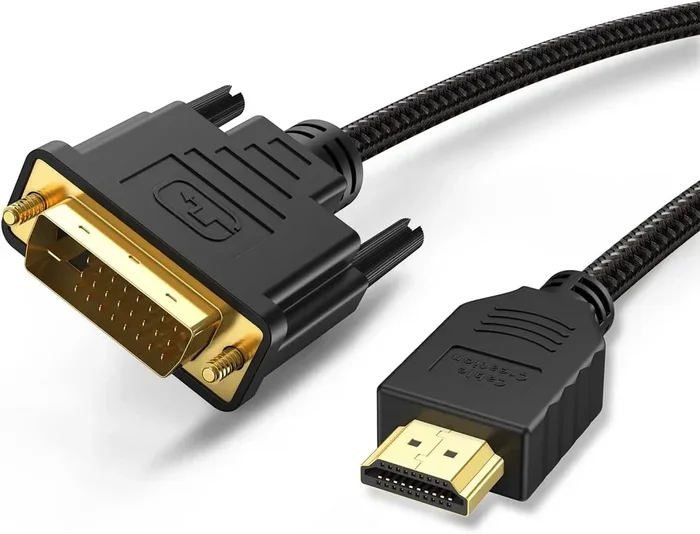
Yes, you can absolutely get an HDMI to DVI cable, and it is one of the most useful adapters for connecting modern devices to older displays. This guide covers everything you need to know about HDMI to DVI cables, including the different types, how to choose the right one, and step by step setup instructions. You will also learn about signal quality, audio considerations, and common mistakes to avoid. Whether you are connecting a laptop to a monitor or a streaming device to a flat screen, this guide has you covered.
Have you ever grabbed an HDMI cable and a DVI cable and thought, “There has to be an easier way to connect these two?” You are not alone. Millions of people face this exact problem every day. The good news is that you can get an HDMI to DVI cable that bridges the gap between these two popular connection types. Whether you are setting up a home office, connecting a gaming console, or hooking up a streaming device, understanding how HDMI to DVI cables work can save you time, money, and frustration.
The world of cables and adapters can feel confusing at first. There are so many types, so many brands, and so many claims about quality and performance. But the truth is, the basics are straightforward. An HDMI to DVI cable simply converts the HDMI signal from your device into a signal that a DVI display can understand. That is really all there is to it. Once you understand the fundamentals, everything else falls into place. In this guide, we will walk you through every detail you need to know.
Before we dive deeper, let us talk about why this topic matters so much. Many people still use older monitors, projectors, and televisions that only have DVI inputs. Meanwhile, almost every modern device, from laptops to streaming sticks, uses HDMI output. This mismatch creates a real need for reliable HDMI to DVI adapters and cables. And because the technology is widely used, there are plenty of affordable options available. You just need to know what to look for.
Key Takeaways
- HDMI to DVI cables exist and work well: They let you connect HDMI devices to DVI displays without any hassle.
- Two main types of DVI connections are available: Single link and dual link DVI offer different resolution support.
- Audio may not transfer through DVI: You may need a separate audio cable depending on your setup.
- Adapter quality matters a lot: Cheap adapters can cause signal loss, flickering, or no signal at all.
- Resolution support depends on your DVI type: Dual link DVI supports higher resolutions than single link.
- Setup is simple and plug and play: Most HDMI to DVI connections require no software or drivers.
📑 Table of Contents
- What Is an HDMI to DVI Cable and Why Do You Need One
- Types of HDMI to DVI Cables and Adapters Available
- How to Choose the Right HDMI to DVI Cable for Your Setup
- Step by Step Guide to Setting Up Your HDMI to DVI Connection
- Common Problems and Solutions with HDMI to DVI Cables
- Expert Tips to Get the Best Performance from Your HDMI to DVI Cable
What Is an HDMI to DVI Cable and Why Do You Need One
An HDMI to DVI cable is a specialized cable or adapter that connects an HDMI output to a DVI input. HDMI stands for High Definition Multimedia Interface, and DVI stands for Digital Visual Interface. These two standards were developed by different organizations at different times, but they share a common goal. Both are designed to deliver high quality video signals from a source device to a display.
HDMI has been the dominant standard for years. It carries both audio and video signals through a single cable. DVI, on the other hand, was developed earlier and focuses primarily on video. This difference is one of the most important things to understand about HDMI to DVI connections. You will get excellent video quality, but you may need a separate cable for audio.
The History of HDMI and DVI
DVI was introduced in 1999 by the Digital Display Working Group. It was one of the first digital video interfaces to hit the consumer market. For many years, DVI was the go to standard for connecting computers to monitors. HDMI arrived in 2003 and quickly became the preferred choice for home entertainment devices. Today, HDMI is everywhere, from smart TVs to game consoles to Blu ray players.
Despite HDMI taking over the consumer market, DVI has not disappeared. Many business monitors, projectors, and older flat panel TVs still use DVI inputs. This is exactly why HDMI to DVI cables remain so popular. They let you use modern devices with older displays without replacing your entire setup.
How HDMI to DVI Signal Conversion Works
When you plug an HDMI to DVI cable into your devices, the adapter or cable handles the signal conversion on the fly. The HDMI source sends a digital video signal, and the DVI end receives it in a compatible format. The process is automatic. You do not need to install any drivers or software in most cases.
However, not all DVI connections are the same. There are two main types of DVI connectors: single link and dual link. Single link DVI supports resolutions up to 1920 x 1200 at 60 Hz. Dual link DVI can handle higher resolutions, including 2560 x 1600 at 60 Hz. This difference matters a lot if you are connecting a high resolution monitor or a 4K capable device. Always check your display specifications before purchasing an HDMI to DVI adapter.
Types of HDMI to DVI Cables and Adapters Available
When shopping for an HDMI to DVI cable, you will find several options on the market. Each type serves a slightly different purpose, and knowing the differences helps you make the right choice. Let us break down the most common types you will encounter.
HDMI to DVI-D Cables
DVI D stands for digital only. This is the most common type of DVI connection you will find on modern displays. An HDMI to DVI-D cable converts the HDMI signal to a digital DVI signal. This is the best option for most users because it delivers a clean, digital video connection without any quality loss.
Most people looking for an HDMI to DVI cable will want the DVI D variant. It works great with LCD monitors, LED TVs, and projectors that have a DVI D input. The connection is straightforward and reliable.
HDMI to DVI-A Cables
DVI A stands for analog. These cables are much less common today because most modern displays use digital signals. DVI A cables are designed for older CRT monitors and some very old flat panel displays. If you have a really old monitor that only accepts analog input, you might need an HDMI to DVI-A adapter along with a VGA cable for the analog output.
For most people, DVI A cables are not the right choice. Unless you are specifically working with legacy equipment, stick with DVI D for the best results.
HDMI to DVI-I Cables
DVI I stands for integrated, meaning it supports both digital and analog signals. An HDMI to DVI-I cable is versatile because it can work with both types of DVI displays. However, these cables are less common and often more expensive than their DVI D counterparts.
If you are unsure which type of DVI your display uses, DVI I is a safe bet. It covers both digital and analog scenarios. Just be aware that not all devices support DVI I, so double check compatibility before buying.
Adapter vs Cable: What Is the Difference
This is a question many people ask. An HDMI to DVI adapter is a small box or dongle that converts the signal between the two connectors. A cable has HDMI on one end and DVI on the other. Both serve the same purpose, but adapters are often more flexible. You can use an adapter with any HDMI cable you already own.
Cables, on the other hand, are neater and more convenient. There is no extra dongle hanging off your device. If you want a clean, simple setup, a dedicated HDMI to DVI cable is the way to go. If you already have favorite HDMI cables, an adapter might be the better choice.
How to Choose the Right HDMI to DVI Cable for Your Setup
Choosing the right cable might seem simple, but there are a few important factors to consider. The wrong choice can lead to poor picture quality, no signal, or audio problems. Let us walk through the key considerations.
Check Your Device Compatibility
Before buying anything, check the ports on both your source device and your display. Does your laptop have an HDMI output? Does your monitor have a DVI input? Are both ports the same version? These questions matter because HDMI and DVI have evolved over the years, and newer versions support higher resolutions and refresh rates.
Also, make sure your devices are compatible with each other. Most modern HDMI devices work fine with DVI displays, but some older equipment may not. If you are setting up a home entertainment system, consider whether you need an HDMI to DVI cable or a completely different connection approach. Sometimes the simplest solution is not always the best one.
Consider Resolution and Refresh Rate
Your display resolution is a big factor in choosing the right cable. If you are using a 1080p monitor, almost any HDMI to DVI cable will work fine. But if you are using a 1440p or 4K display, you need to be more careful. Single link DVI limits you to about 1920 x 1200 resolution. If you need higher resolution, you will need a dual link DVI connection or a different adapter altogether.
Refresh rate is another consideration. Most HDMI to DVI cables support 60 Hz, which is fine for everyday use and most gaming. If you are a competitive gamer who needs 144 Hz or higher, a standard DVI connection might not be enough. In that case, you might want to explore alternatives like DisplayPort or look into alternative display and connectivity solutions that better suit high performance setups.
Cable Length and Build Quality
Cable length might seem like a minor detail, but it affects signal quality. Longer cables are more prone to signal degradation. For most setups, a 3 to 6 foot HDMI to DVI cable works perfectly. If you need a longer run, consider getting a higher quality cable or an active signal booster.
Build quality also matters. Cheap cables with thin shielding can introduce interference and signal loss. Look for cables with braided shielding, gold plated connectors, and solid construction. A well made cable will last longer and deliver better performance over time.
Does the Cable Support Audio
Here is an important point that many people overlook. DVI does not carry audio signals. When you use an HDMI to DVI cable, the video signal passes through, but the audio does not. You will need a separate audio connection, such as a 3.5mm cable or an optical audio cable, to get sound from your device to your speakers or display.
This is not a deal breaker for most people. Many monitors and TVs have built in speakers or audio outputs. But if you are relying on a single cable for both audio and video, an HDMI to DVI cable alone will not do the job. Plan accordingly and have an audio solution ready.
Step by Step Guide to Setting Up Your HDMI to DVI Connection
Setting up an HDMI to DVI cable is surprisingly easy. Most people can complete the process in just a few minutes. Here is a simple walk through to get you started.
- Identify the ports on both devices. Find the HDMI output on your source device and the DVI input on your display.
- Choose the right cable or adapter. Decide whether you want a direct cable or an adapter with your own HDMI cable.
- Connect the HDMI end to your source device. Plug it in firmly until it clicks into place.
- Connect the DVI end to your display. Make sure the connector is fully seated.
- Connect an audio cable separately if needed. Use a 3.5mm cable or optical cable to route audio to your speakers.
- Power on both devices. Switch on your source device and your display.
- Select the correct input source. Use your display or monitor controls to select the DVI input.
- Adjust display settings if necessary. Go to your device display settings to configure resolution and orientation.
That is it. In most cases, the connection works immediately with no additional setup. Your HDMI to DVI cable should deliver a clear, sharp video signal right out of the box. If you run into any issues, check the connections first. Loose cables are the most common cause of problems.
Quick Tips for a Smooth Setup
- Always power off both devices before connecting cables.
- Use a cable that is no longer than 6 feet for best signal quality.
- If you experience flickering, try a different cable or a higher quality adapter.
- Update your device drivers if the display does not show up right away.
- Keep your cables away from power cords to avoid electromagnetic interference.
Common Problems and Solutions with HDMI to DVI Cables
Even with the best setup, you might run into some issues from time to time. Here are the most common problems people face with HDMI to DVI cables and how to fix them.
No Signal or Black Screen
A black screen is the most frustrating problem, but it is usually easy to fix. First, check that both ends of the cable are firmly connected. A loose connection is the number one cause of no signal issues. If the connections are secure, try unplugging the cable and plugging it back in. Sometimes the devices need a fresh handshake to recognize each other.
If you still see no signal, try a different port on your display. Some monitors and TVs have multiple DVI inputs, and the wrong input selection can cause a black screen. Also, make sure your source device is outputting video through the correct port. On laptops, you may need to use a function key to toggle the display output.
Poor Picture Quality or Flickering
Flickering or poor image quality often points to a cable quality issue. Cheap, poorly shielded cables can pick up interference from nearby power cords or electronic devices. Upgrade to a better quality HDMI to DVI cable with proper shielding and gold plated connectors. This alone fixes the problem in most cases.
Another cause of flickering is an incompatible cable type. Make sure you are using a DVI D cable if your display has a DVI D port. Using the wrong DVI type can result in a weak or unstable signal.
No Audio Through the DVI Connection
Remember, DVI does not carry audio. If you are not hearing any sound, this is normal. You need to connect a separate audio cable from your source device to your speakers, soundbar, or display audio output. A simple 3.5mm aux cable works in most situations. If your devices support optical audio, that is another great option for delivering high quality sound.
Resolution Not Matching Your Display
If your display looks blurry or the resolution seems wrong, go to your device display settings and adjust the output resolution. Make sure it matches the native resolution of your monitor or TV. If your HDMI to DVI cable is connected to a single link DVI port, the maximum resolution will be limited. Switching to a dual link DVI connection or a different cable type can resolve this.
Expert Tips to Get the Best Performance from Your HDMI to DVI Cable
Once you have your HDMI to DVI cable set up, there are a few pro tips that can help you get the most out of your connection. These small adjustments can make a big difference in performance and reliability.
- Use short cables whenever possible. Shorter cables maintain better signal integrity and reduce the chance of interference.
- Invest in a dual link DVI connection for high resolution displays. This gives you the headroom you need for 1440p and beyond.
- Keep your firmware updated. Both your source device and display may have firmware updates that improve compatibility with HDMI to DVI adapters.
- Avoid daisy chaining adapters. Using multiple adapters in a row increases the chance of signal loss and compatibility issues.
- Test your setup with different content. Try playing a high resolution video or running a game to see how the connection handles demanding content.
The bottom line is that an HDMI to DVI cable is a simple, effective solution for bridging the gap between modern devices and older displays. As long as you choose the right cable type, check your compatibility, and handle the audio separately, you will enjoy a reliable and high quality connection for years to come.
If you are looking for more ways to simplify your home entertainment setup, consider exploring alternatives to traditional cable and satellite TV services that work well with HDMI and DVI connected displays. Many modern streaming solutions pair perfectly with these types of connections.
Whether you are a casual user, a home office professional, or a gaming enthusiast, understanding your connection options puts you in control. The right HDMI to DVI cable gives you the flexibility to use any device with any display. It is a small investment that pays off in convenience and performance every single day.
Frequently Asked Questions
Can I use an HDMI to DVI cable for audio?
No, DVI does not carry audio signals. You will need a separate audio cable, such as a 3.5mm aux cable or an optical audio cable, to get sound from your source device to your speakers or display.
What is the difference between single link and dual link DVI?
Single link DVI supports resolutions up to 1920 x 1200 at 60 Hz, while dual link DVI can handle higher resolutions like 2560 x 1600 at 60 Hz. Dual link has more pins and offers greater bandwidth for demanding displays.
Do I need drivers for an HDMI to DVI cable?
In most cases, no. HDMI to DVI cables and adapters are plug and play. Your devices should recognize the connection automatically without any additional software or driver installation.
Can I connect a 4K device to a DVI monitor?
Standard single link DVI does not support 4K resolution. You would need a dual link DVI connection for 1440p at most. For true 4K support, consider using a DisplayPort or HDMI to DisplayPort adapter instead.
Are expensive HDMI to DVI cables worth it?
For most users, a moderately priced cable with good shielding and gold plated connectors is perfectly sufficient. Very expensive cables do not offer significantly better performance for typical home and office use. Focus on build quality and proper certification rather than price alone.
Can I use an HDMI to DVI cable with a streaming device like a Roku or Fire Stick?
Yes, you can. Most streaming devices have HDMI outputs and work fine with an HDMI to DVI cable or adapter. Just remember to connect a separate audio cable since DVI does not transmit audio. This setup works great for connecting streaming devices to older monitors or projectors.
=== CONCLUSION ===
Getting an HDMI to DVI cable is one of the easiest and most practical upgrades you can make for your home or office setup. These cables bridge the gap between modern HDMI devices and older DVI displays, giving you flexibility and saving you money. Whether you are connecting a laptop to a monitor, a gaming console to a flat screen, or a streaming device to a projector, the right HDMI to DVI cable makes it all work seamlessly.
Remember to check your device compatibility, choose the right DVI type, handle audio separately, and invest in a quality cable. With these simple steps, you will enjoy a reliable and high quality video connection for years to come. The technology may be older, but HDMI to DVI cables remain a smart and relevant solution in today’s world of mixed devices and displays.