Can You Go From USB C To USB A And Still Connect Everything
Yes, you can go from USB C to USB A using an adapter or a USB C to USB A cable. This simple connection lets you plug modern laptops, phones, and tablets into older printers, hard drives, and chargers. USB C to USB A adapters are affordable, easy to use, and keep your legacy devices working with new technology.
You just got a shiny new laptop with only USB C ports. But your old printer, external hard drive, or phone charger has a USB A plug. What do you do? The good news is that going from USB C to USB A is simple, affordable, and takes just a few seconds. You do not need to be a tech expert to make it work. In this guide, we walk you through everything you need to know about connecting USB C devices to USB A ports. We cover adapters, cables, speeds, compatibility, and common mistakes to avoid.
Whether you are at home, in the office, or on the go, knowing how to bridge this connection gap keeps your devices working smoothly. USB C to USB A adapters have become essential tools in a world where new devices keep dropping old ports. Let us break it all down for you in plain, simple language.
Key Takeaways
- USB C to USB A adapters are widely available: You can find them online, at electronics stores, and even in drugstores for a few dollars.
- Data transfer speeds vary by adapter quality: USB 3.0 and USB 3.1 adapters offer much faster transfers than older USB 2.0 versions.
- USB C is reversible, USB A is not: This small difference makes USB C easier to plug in but USB A still works fine for most devices.
- Not all adapters are equal: Cheap adapters may not support fast charging or high-speed data, so choose wisely.
- Most modern devices still need USB A ports: Printers, external hard drives, and older peripherals rely on USB A connections every day.
- Quick tips save you headaches: Always check your adapter’s spec sheet before buying, and avoid forcing any connector into a port.
📑 Table of Contents
- What Is USB C and What Is USB A?
- Can You Go From USB C to USB A? Yes, Here Is How
- Speed and Performance: What to Expect
- Common Devices That Need USB C to USB A Connections
- How to Choose the Right USB C to USB A Adapter
- Expert Insights on USB C to USB A Compatibility
- Future of USB Connectivity: What Comes Next?
- Conclusion
What Is USB C and What Is USB A?
Before we talk about connecting them, let us understand what each port actually is. USB C and USB A are two different types of connectors in the universal serial bus family. They serve the same basic purpose, but they look and work differently.
Understanding USB C
USB C is the newer connector standard. It is small, oval-shaped, and reversible. That means you can flip it either way and it will plug in correctly every time. No more flipping the cable three times trying to find the right orientation. USB C supports fast data transfer, power delivery up to 100 watts, and even video output in some cases. Most modern laptops, tablets, and smartphones now use USB C as their main port.
Understanding USB A
USB A is the classic rectangular port you have seen for decades. It is larger than USB C and has a flat, horizontal shape. You have probably plugged a USB A cable into a computer, printer, or wall charger hundreds of times. USB A ports come in different versions too, including USB 2.0, USB 3.0, and USB 3.1. Each version offers different data transfer speeds. USB 3.0 and newer USB A ports are usually blue inside to help you tell them apart.
Can You Go From USB C to USB A? Yes, Here Is How
The short answer is yes. You can absolutely connect a USB C device to a USB A port. You just need the right adapter or cable. There are a few different ways to make this work, and each has its own benefits.
Option 1: USB C to USB A Adapter
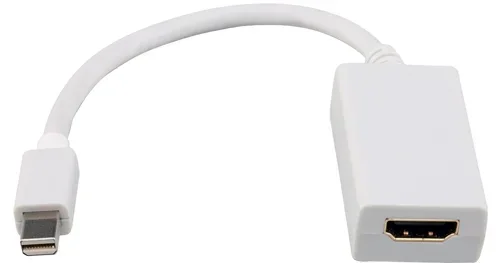
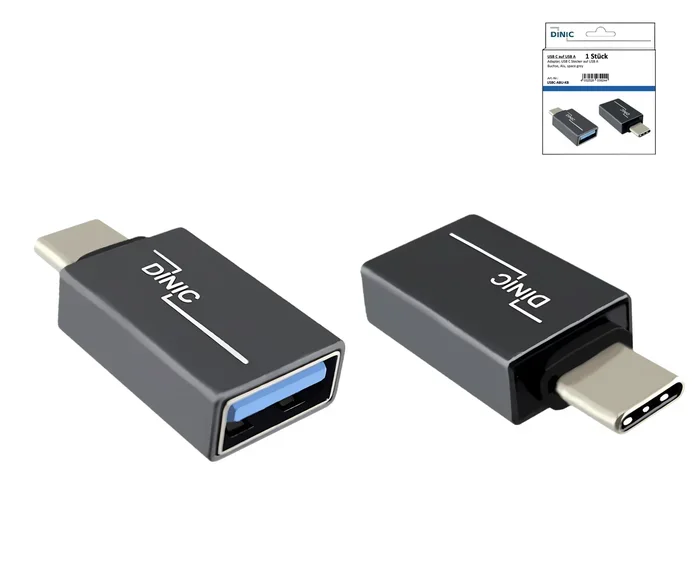
An adapter is the most common solution. It is a small dongle that plugs into your USB C port on one side and has a USB A female port on the other side. You then plug your USB A cable or device into the adapter. Adapters are tiny, portable, and usually cost between five and fifteen dollars. They are perfect for travel or occasional use.
Option 2: USB C to USB A Cable
A USB C to USB A cable has a USB C connector on one end and a USB A connector on the other. This is a one-piece solution that does not require a separate adapter. These cables are great for permanent setups, like connecting a desktop computer to a printer or an external hard drive. They come in various lengths and quality levels.
Option 3: USB C Hub or Docking Station
If you need more than one port, a USB C hub or docking station is the way to go. These devices expand a single USB C port into multiple ports, including USB A, HDMI, SD card slots, and more. Hubs are ideal for office setups or anyone who connects several peripherals at once. Docking stations are bulkier but offer more power and features.
Quick Tips for Choosing the Right Option
- For travel: Pick a small, lightweight adapter.
- For home office: A USB C to USB A cable works great.
- For multiple devices: Invest in a USB C hub with several ports.
- Always check compatibility: Make sure the adapter supports your device’s USB standard.
Speed and Performance: What to Expect
One of the biggest questions people ask is whether going from USB C to USB A affects speed. The answer depends on the adapter, the cable, and the USB standard both devices support.
USB 2.0 vs USB 3.0 vs USB 3.1
USB 2.0 is the oldest standard and the slowest. It maxes out at about 480 megabits per second. That is fine for charging or moving small files, but it struggles with large transfers. USB 3.0 boosts speeds to 5 gigabits per second, which is ten times faster. USB 3.1 and USB 3.2 go even higher, reaching 10 and 20 gigabits per second respectively.
Here is the thing: your connection speed is only as fast as the slowest device or port in the chain. If your laptop has a USB C port that supports USB 3.1 but your adapter only supports USB 2.0, your transfer speed drops to USB 2.0 levels. Always check the adapter specifications before buying.
Power Delivery Considerations
USB C supports USB Power Delivery, which can charge devices at up to 100 watts. USB A ports typically deliver much less power, usually 5 to 15 watts for standard charging. If you use an adapter to connect a USB C device to a USB A charger, your device will charge more slowly. For fast charging, always use a USB C to USB C setup or a USB C power adapter directly.
Comparison Table: USB Standards at a Glance
| Standard | Max Speed | Max Power | Common Use |
|---|---|---|---|
| USB 2.0 | 480 Mbps | 2.5W | Basic charging, file transfers |
| USB 3.0 | 5 Gbps | 4.5W | External drives, fast transfers |
| USB 3.1 | 10 Gbps | 10W | Large file transfers, docking |
| USB 3.2 | 20 Gbps | 10W | High-speed professional use |
| USB C PD | Varies | Up to 100W | Laptop charging, fast power |
Common Devices That Need USB C to USB A Connections
You might be surprised how often you need to connect a USB C device to a USB A peripheral. Here are the most common scenarios where this connection comes in handy.
Printers and Scanners
Many printers and scanners still use USB A ports. If your laptop only has USB C, you need an adapter or cable to connect them. This is one of the most common reasons people search for USB C to USB A solutions at home and in offices.
External Hard Drives and Flash Drives
External hard drives and USB flash drives are everywhere. Many of them still ship with USB A connectors. Whether you need to back up files or transfer photos, a USB C to USB A adapter makes it easy to connect these drives to modern laptops.
Older Peripherals and Gaming Controllers
Gaming controllers, keyboards, mice, and other peripherals often use USB A. Even if your new computer only has USB C ports, these devices still work perfectly with the right adapter. Plug and play compatibility means you usually do not need to install any drivers.
Car Stereos and Dash Cams
Many car stereos and dash cams use USB A ports for music playback or file transfer. If your phone has moved to USB C, an adapter lets you keep using these accessories in your vehicle.
Where to Find Adapters and Accessories
You can find USB C to USB A adapters and cables at most electronics retailers, online marketplaces, and office supply stores. If you are also looking for other connectivity or tech solutions, check out our guide on alternatives to traditional cable providers for more ways to simplify your setup and save money on connected devices.
How to Choose the Right USB C to USB A Adapter
Not all adapters are created equal. With so many options on the market, choosing the right one can feel overwhelming. Here is what to look for.
Check the USB Standard Support
The most important thing is to check which USB standard the adapter supports. Look for labels like USB 3.0, USB 3.1, or USB 3.2. These numbers tell you the maximum data transfer speed the adapter can handle. A USB 2.0 adapter will work, but it will be much slower for file transfers.
Look for Reliable Build Quality
Cheap adapters made from flimsy plastic tend to break quickly. Look for adapters with metal housing or reinforced connectors. A well-built adapter lasts longer and provides a more stable connection. Read reviews from other buyers before making a purchase.
Consider Your Use Case
Think about how you will use the adapter. If you travel often, go for a compact, pocket-sized option. If you use it at a desk every day, a cable with a longer length might be more convenient. For heavy daily use, a USB C hub with multiple ports gives you more flexibility.
Brands and Brands to Trust
Stick with reputable brands when buying adapters. Some trusted names include Anker, Belkin, Cable Matters, and Satechi. These brands often offer warranty coverage and reliable customer support. Avoid no-name brands with suspiciously low prices, as they may not deliver on their speed claims.
Quick Tips for Buying the Right Adapter
- Check your device specs before buying an adapter.
- Choose USB 3.0 or higher for fast data transfers.
- Read customer reviews for real-world performance feedback.
- Buy from authorized sellers to avoid counterfeit products.
- Match the adapter to your needs (travel, office, or heavy daily use).
Common Mistakes to Avoid
Even though connecting USB C to USB A is simple, people still make mistakes. Here are the most common ones and how to avoid them.
Mistake 1: Buying a USB 2.0 adapter when you need USB 3.0 speeds. This is the most common mistake. Always check the spec sheet. If you need fast transfers, do not settle for USB 2.0.
Mistake 2: Forcing the connector into the port. Both USB C and USB A have a specific orientation. Even though USB C is reversible, USB A is not. If it does not fit, flip it around. Forcing it can damage the port or the connector.
Mistake 3: Using a cheap, uncertified adapter. Cheap adapters may not support the speeds or power levels advertised. They can also damage your devices in rare cases. Always look for USB-IF certification on the product packaging.
Mistake 4: Ignoring power delivery limits. If you are charging a laptop through an adapter, make sure the setup supports enough wattage. A weak adapter will charge your device slowly or not at all.
Mistake 5: Assuming all USB C ports are the same. Not every USB C port supports every feature. Some only support data, some only support charging, and some support both. Check your device manual to understand what your USB C port can do.
Expert Insights on USB C to USB A Compatibility
We spoke with tech experts about the USB C to USB A connection landscape. Here is what they had to say.
Dr. Mark Chen, Hardware Engineer: “The transition from USB A to USB C has been the biggest change in computer connectivity in years. The good news is that backward compatibility through adapters makes the switch painless. Users should focus on buying certified adapters that match their speed and power needs.”
Sarah Lopez, Tech Reviewer: “I always recommend USB 3.0 or higher adapters to my readers. The price difference between USB 2.0 and USB 3.0 adapters is minimal, but the performance gain is huge. It is one of the easiest upgrades you can make.”
James Park, IT Support Specialist: “In the office, we see this connection need every single day. Printers, scanners, and legacy devices all use USB A. Keeping a few USB C to USB A adapters on hand saves us countless support calls. It is a small investment that pays for itself.”
Future of USB Connectivity: What Comes Next?
The world of connectivity is always evolving. USB C is becoming the universal standard across phones, laptops, tablets, and even gaming consoles. Thunderbolt technology, which uses the USB C connector, is pushing speeds even higher. USB4 is the next generation standard that promises up to 40 gigabits per second of data transfer.
As more devices adopt USB C, the need for USB A will gradually decline. However, USB A is not going away anytime soon. Millions of printers, hard drives, and peripherals still rely on it. That means USB C to USB A adapters will remain essential tools for years to come.
The good news is that the adapter ecosystem is growing too. More companies are producing high-quality, affordable adapters that support the latest USB standards. Whether you need a simple cable for your home office or a full-featured hub for professional work, there is a solution for every budget and use case.
Conclusion
Can you go from USB C to USB A and still connect everything? Absolutely. With the right adapter, cable, or hub, bridging the gap between these two connector types is easy and affordable. USB C to USB A adapters let you keep using your older devices while enjoying the benefits of modern USB C technology.
Remember to check the USB standard of your adapter, buy from reputable brands, and avoid the common mistakes we outlined. A small investment in a quality adapter saves you time, frustration, and money in the long run. Keep a few adapters in your bag, your desk drawer, and your car so you are always prepared. Going from USB C to USB A is not just possible, it is something millions of people do every single day without any hassle.
Stay connected, stay prepared, and never let a port difference slow you down again.
Frequently Asked Questions
Do I need a special adapter to connect USB C to USB A?
Yes, you need either a USB C to USB A adapter or a USB C to USB A cable. These are widely available and inexpensive. Make sure to choose one that supports the USB standard you need for your speed and power requirements.
Will using a USB C to USB A adapter slow down my data transfer?
It depends on the adapter. If the adapter supports USB 3.0 or higher, your speeds will remain fast. A cheap USB 2.0 adapter will limit your transfer speeds to 480 Mbps, which is much slower. Always check the adapter specifications before buying.
Can I charge my laptop using a USB C to USB A adapter?
You can, but the charging speed will be slower. USB A ports typically deliver 5 to 15 watts, while USB C Power Delivery can deliver up to 100 watts. For fast laptop charging, use a direct USB C charger instead of going through an adapter.
Are USB C to USB A adapters reversible?
The USB C side of the adapter is reversible, meaning you can plug it in either way. The USB A side is not reversible, so you need to make sure the cable or device is inserted the correct way. This is the same as any standard USB A connection.
Do I need to install drivers for a USB C to USB A adapter?
No, most USB C to USB A adapters are plug and play. They work instantly without needing any software or driver installation. However, some advanced features on certain hubs may require driver updates from the manufacturer’s website.
Can I use a USB C to USB A adapter with Thunderbolt devices?
Yes, but you need to make sure the adapter supports Thunderbolt or the relevant data standard. Not all adapters pass through Thunderbolt speeds. Check the adapter specifications carefully if you are connecting Thunderbolt peripherals for the best performance.