Can You Use A USB 3 In A USB 3 2 Port Without Issues
Can You Use A USB 3 In A USB 3 2 Port without any problems? The short answer is yes, it works perfectly. When you plug a USB 3 device into a USB 3 2 port, it will function normally, though it might operate at the older USB 3 speed rather than the faster USB 3 2 speed.
Have you ever plugged in a USB 3 flash drive and wondered if it would work in a shiny new USB 3 2 port? It is a very common question. People often worry that older devices will not fit or work in newer ports. The good news is that you can use a USB 3 in a USB 3 2 port without a lot of hassle. Let us look at exactly what happens when you do this.
When you connect a USB 3 device to a USB 3 2 port, the connection is usually smooth. Your computer will recognize the device right away. However, the speed might not be as fast as it could be. This is because of how backward compatibility works in the world of computer ports. Understanding this helps you avoid frustration and get the best results from your gear. You do not need a degree in computer science to figure this out either. It is actually quite simple once you know the basics.
In this guide, we will walk you through everything you need to know. We will cover the basics of each USB type. We will answer the big question about using older gear in new ports. We will also look at speed differences, cable types, and common problems. By the end, you will feel confident about all your USB connections. You will know exactly what to expect and how to get the best performance. Whether you are backing up photos or moving game files, this guide has you covered.
Key Takeaways
- Backward Compatible: A USB 3 device works fine in a USB 3 2 port.
- Speed Limits: The device will run at the slower USB 3 speed, not the faster USB 3 2 speed.
- Physical Fit: USB-A and USB-C connectors may differ, so check your cable.
- Plug and Play: No drivers are usually needed for basic functionality.
- Cable Quality: Using a bad cable can cause slow speeds or connection drops.
- Power Delivery: Charging speeds might be limited by the older port standard.
📑 Table of Contents
Understanding USB 3 and USB 3 2 Basics
Before we dive into the details, let us clear up the basics. USB stands for Universal Serial Bus. It is the standard way to connect devices to computers. Over the years, USB has gotten faster and better. But the names can get confusing very fast. This is because the naming rules changed a few times. The people who set these standards wanted to make them clearer, but it caused more confusion instead.
Think of USB like a highway. The older the highway, the slower the traffic. Newer USB standards are like wider highways. They can handle more data at once. But old cars can still drive on the new highways. They just cannot go as fast as the new sports cars. This simple idea is the key to understanding your ports. No matter what the label says, the physical connection is what makes it work.
What Is USB 3?
USB 3 is a specific version of the USB standard. It is also known as SuperSpeed USB. When it first came out, it brought a big jump in data transfer speed. Before USB 3, USB 2 was the norm. USB 2 was much slower for large files. USB 2 was okay for small documents. But it took forever to move big video files or huge photo libraries. USB 3 made it much easier to move big videos or backups. It offers speeds up to 5 gigabits per second. This is ten times faster than USB 2.
Most external hard drives and older flash drives use USB 3. They have a blue insert inside the port or connector. This blue color helps you tell them apart from USB 2 ports. Even though USB 3 is older now, millions of devices still use it every day. You probably have at least one USB 3 device sitting in a drawer right now. They are very reliable and still do a great job. Many people use USB 3 for their daily backups. It is a proven and trusted technology. Gamers also use USB 3 for fast loading times on external storage.
What Is USB 3 2?
USB 3 2 is the newer version of the USB standard. It builds on the USB 3 foundation. The name USB 3 2 actually covers two different speed tiers. The first tier is called USB 3 2 Gen 1. This is just the old USB 3 renamed. It still runs at 5 gigabits per second. The second tier is USB 3 2 Gen 2. This one doubles the speed to 10 gigabits per second. The newest tier, USB 3 2 Gen 2×2, hits 20 gigabits per second. These speeds are incredible for moving large files. Video editors love the fast speeds of USB 3 2.
So when people say USB 3 2 port, they usually mean a port that can handle these faster speeds. The physical port might look the same as an older USB 3 port. This is why it can be tricky to know what you are actually getting. Sometimes the port is marked with a little logo. But many ports do not have any marks at all. You might have to check your computer manual to be sure. The good news is that the physical shape of the port has not changed much. A USB-A port still looks like a USB-A port. A USB-C port still looks like a USB-C port. This consistency makes it easy to mix and match devices.
Can You Use A USB 3 In A USB 3 2 Port?
The direct answer to this question is yes. You can absolutely use a USB 3 device in a USB 3 2 port. The connector will fit into the port. The computer will recognize the device. It will just not run at the fastest possible speed. This is the magic of backward compatibility. It is one of the best features of the USB standard.
The Short Answer: Yes, It Works
When you plug in a USB 3 drive, it talks to the USB 3 2 port. The port and the device agree on the fastest speed they both support. Since your USB 3 device only goes up to 5 gigabits per second, it will cap the connection at that speed. The USB 3 2 port is smart enough to lower its speed to match the device. You do not need to do anything special to make this work. It happens automatically every time you plug it in.
This is great news if you have older gear. You do not have to throw away your USB 3 flash drives just because you bought a new computer. They will still do their job. You will just not get the super-fast speeds of the new port. Think of it like putting a regular engine in a sports car. The car can still drive. It just cannot go as fast as it could with the right engine. You can still get to your destination. It just takes a little longer. You can use your USB 3 controller to play games on a new PC without any issues.
How Backward Compatibility Works
Backward compatibility means new tech can still work with old tech. USB standards are built this way on purpose. The designers want you to keep using your old devices. They also want you to buy new ones without throwing away the old ones. This saves money and reduces waste. It is also very convenient for users like you. You do not have to replace all your accessories every time you buy a new laptop.
When a USB 3 device connects to a USB 3 2 port, they shake hands. This is called a link training process. During this handshake, they figure out the best common speed. If the device only supports USB 3 speeds, the port will drop down to USB 3 speeds. Everything runs fine. The device charges and transfers files. It just does not break the speed limit of the older device. You will not see any error messages or problems. It just works quietly in the background. The computer handles all the hard work for you. This process is completely automatic and seamless for the user.
Speed Differences You Should Know
Even though your device will work, the speed difference matters a lot. If you are moving huge files, waiting around is no fun. Let us look at how the speeds compare and why your device might slow down.
USB 3 Speeds vs USB 3 2 Speeds
USB 3 runs at 5 gigabits per second. That is fast enough for most everyday tasks. You can copy a 1 gigabyte file in about two seconds. But USB 3 2 Gen 2 runs at 10 gigabits per second. That means the same file takes about one second. The newest USB 3 2 Gen 2×2 runs at 20 gigabits per second. That is four times faster than USB 3.
When you use a USB 3 device in a USB 3 2 port, you are stuck at 5 gigabits per second. You will not get the 10 or 20 gigabit speeds. The port is ready to go fast, but the device holds it back. Think of it like putting a regular engine in a race car. The car can go fast, but the engine limits the top speed. If you want the full speed of a USB 3 2 port, you need a device that supports those faster speeds. A solid state drive is a great example of a device that can use those speeds. Imagine copying a 50GB video project. On USB 3 it takes about two minutes. On USB 3 2 Gen 2 it takes about one minute. The difference adds up over time.
Why Your Device Might Slow Down
Sometimes the slowdown is not just because of the USB standard. The cable quality plays a big role. A cheap or old cable might not handle fast speeds well. It might cause errors or drop the connection. Also, the device itself matters. An old external hard drive with spinning disks cannot go as fast as a new solid state drive. Even on a USB 3 2 port, the hard drive will be the bottleneck. The drive can only read data so fast. No cable can fix that physical limit. The drive is the slow part, not the port.
Another reason for slow speeds is the port type. If your computer has a USB 3 2 port that only supports USB-C, and you use a USB-A to USB-C cable, the connection might be limited. Always check the connector type on both ends of your cable. A mismatch in connectors can limit the bandwidth and slow things down. Using the right cable makes a huge difference. It is like putting the right fuel in your car. The wrong fuel will not make the engine explode, but it will not run well either.
Physical Connectors and Cable Types
The shape of the plug matters just as much as the speed. USB 3 and USB 3 2 use different physical connectors. Knowing the difference helps you avoid buying the wrong cable. It also helps you avoid damaging your devices. A wrong cable might fit, but it will not work well. Taking a moment to check the shape can save you a lot of trouble.
USB-A vs USB-C Connectors
USB-A is the classic rectangular plug. You have probably seen it on printers and older flash drives. It is very common and very sturdy. USB-C is the small, oval-shaped plug. It is reversible, so you never have to flip it to plug it in. Many new laptops and phones use USB-C. They also use it for power delivery to charge the battery. USB-C can carry more power than USB-A too. This means you can charge your laptop faster with USB-C. You can even charge your phone from your laptop using the same port.
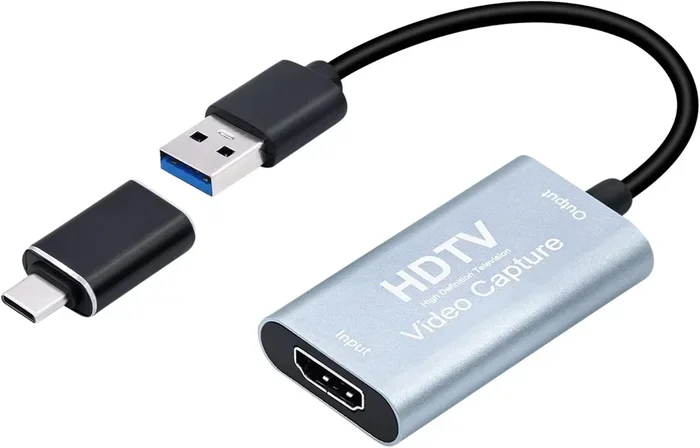
A USB 3 device might have a USB-A plug. A USB 3 2 port might be USB-C. You can still use them together. You just need an adapter or the right cable. A USB-A to USB-C cable will work perfectly fine. The data transfer speed will still be limited to USB 3 speeds, though. The cable will not magically make your old device faster. It just gives it a path to connect. The connection is still stable and reliable. You just will not see the top speeds of the new port. Adapters are cheap and easy to find online.
Choosing the Right Cable
Not all cables are created equal. A cheap cable might say USB 3 2 on the label, but it cannot actually send data that fast. To get the best bandwidth, you need a good quality cable. Look for cables that are certified by the USB Implementers Forum. These cables are tested to meet specific speed standards. They are worth the extra few dollars. A good cable lasts longer and protects your devices from power surges.
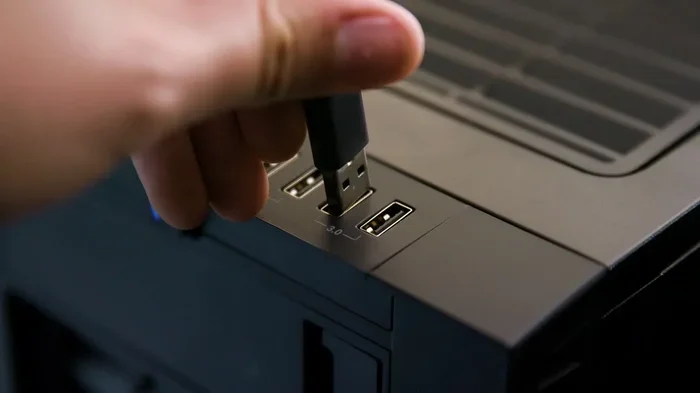
When you plug in your USB 3 flash drive, use the shortest cable possible. Longer cables can lose signal strength. This is especially true at higher speeds. A short, thick cable will give you the most reliable connection. It also helps with charging speed if you are powering a device. A good cable is one of the easiest ways to improve your setup. Do not overlook the importance of a quality cable. A five dollar cable can make a hundred dollar device work better.
Common Issues and How to Fix Them
Even with backward compatibility, you might run into problems. Most of these issues are easy to fix. You do not need to call a technician for most of them. Let us look at the common ones and what to do about them. Most problems are caused by simple things like cables or dust.
Device Not Recognized
Sometimes you plug in your USB 3 device and nothing happens. The computer does not show it. This is frustrating, but it is very common. First, try a different port. The port might be damaged or loose. Next, try a different cable. A broken cable is the number one cause of this problem. If that does not work, restart your computer. A simple reboot often fixes device compatibility glitches. Your computer just needs a fresh start to see the device. This simple step solves the problem more often than you might think. You can also check your system logs to see if there is an error message.
Slow Data Transfer Problems
If your files are copying very slowly, check a few things. First, look at the cable. Is it a high-speed cable? Old USB 2 cables will slow down a USB 3 device a lot. Second, check the drive format. Some formats work better with certain operating systems. Third, make sure no other programs are using the drive. If a backup program is running at the same time, it will slow things down. Close other apps and try again. You should see the speed pick up. Also, make sure the drive is not almost full. A nearly full drive slows down a lot. Keeping at least 20 percent free space helps the drive run smoothly.
Expert Tips for Best Performance
You do not need to be a tech expert to get great results. A few simple steps can make your USB 3 device work much better in a USB 3 2 port. Follow these tips to get the most out of your gear and enjoy a smooth experience every day.
Quick Tips for Smooth Connections
- Always use the cable that came with your device.
- Keep your ports clean. Dust can block the connection.
- Update your operating system. New updates often fix interface standard bugs.
- Plug directly into the computer. Avoid USB hubs if you can.
- Eject the device safely before unplugging it.
- Check your cable for any visible damage before plugging it in.
- Make sure the connector is fully pushed into the port.
- Avoid bending the cable sharply at the plug.
- Store your cables loosely to prevent internal wire damage.
Common Mistakes to Avoid
One big mistake is using a USB hub with too many devices. This splits the power delivery and the bandwidth. Another mistake is forcing the plug in. If it does not fit, check the connector type. You might be using the wrong cable. Never use a cable that is damaged. Frayed wires can cause data loss or even hurt your computer. Also, do not ignore warning messages. If your computer says the device is slow, it might be time for a new cable or a new drive.
Another mistake is assuming the port is faster than it is. Just because it says USB 3 2 does not mean your old drive will go 20 gigabits per second. The device sets the limit. Always check the specs of your gear before you buy. This saves you money and stops you from buying things you do not need. Reading the fine print is always a good habit. It keeps you from making expensive mistakes.
Conclusion
So, can you use a USB 3 in a USB 3 2 port? Yes, you can. It is a simple and plug and play experience. Your device will work right out of the box. You just need to accept that the speed will match the older USB 3 standard. This is the beauty of backward compatibility. You do not have to replace all your old gear when you buy a new computer. It saves you money and keeps your favorite devices working. You can keep using your trusted USB 3 devices with confidence.
Remember to use a good quality cable. Keep your ports clean. And do not worry if your USB 3 flash drive does not hit the top speeds of the new port. As long as it connects and transfers your files, it is doing its job. Enjoy your devices and the easy way they work together. Happy connecting and happy computing! Now you know exactly what to expect when you plug in your gear.
Frequently Asked Questions
Will a USB 3 device work in a USB 3 2 port?
Yes, it will work perfectly. The connection is backward compatible, so your device will be recognized. It will just operate at the older USB 3 speed instead of the faster USB 3 2 speed.
Why is my USB 3 device slow in a USB 3 2 port?
The speed is limited by the older device. A USB 3 device can only transfer data up to 5 gigabits per second. The USB 3 2 port will lower its speed to match the device.
Do I need a special cable to use USB 3 in a USB 3 2 port?
You do not need a special cable, but a good quality one helps. A standard USB-A to USB-C cable will work fine. Just make sure the cable is not damaged or too old.
Can I use a USB 3 flash drive for gaming on a USB 3 2 port?
Absolutely. You can use a USB 3 flash drive for games. The load times will be faster than with USB 2, even if it does not reach the top USB 3 2 speeds.
Is there any risk of damaging my USB 3 device in a USB 3 2 port?
There is no risk of damage. The ports are designed to be safe. The voltage and power delivery are regulated to protect your devices during the connection.
Does the connector type matter for backward compatibility?
The shape matters for fitting, but not for the speed standard. A USB-A device can connect to a USB-C port using the right cable. The speed will still be capped by the USB 3 device.