Can You Emulate Wii U Games on Your Computer or Phone
Yes, you can emulate Wii U games on both your computer and phone using free emulator software like Cemu. This guide walks you through everything you need to know about emulating Wii U games, from setup steps and hardware needs to legal tips and common fixes. Whether you are a casual gamer or a tech enthusiast, you will find clear answers and practical advice here.
Key Takeaways
- Wii U emulation is real and working: You can play Wii U titles on your PC and even on some Android devices with the right tools.
- Cemu is the top emulator for PC: It is open-source, regularly updated, and supports a wide range of Wii U games with good performance.
- Phone emulation is limited but possible: Android users can try emulators, but expect lower performance and fewer compatible titles.
- Your hardware matters a lot: A decent gaming PC with a strong CPU and GPU gives you the best experience when you emulate Wii U games.
- Legal gray areas exist: Emulators themselves are legal, but you must own the original game files to stay on the right side of the law.
- Setup is easier than you think: With step-by-step guidance, most users can get their first Wii U game running in under 30 minutes.
- Performance can be boosted: Small tweaks to graphics settings and driver updates can greatly improve your emulation experience.
📑 Table of Contents
- Can You Emulate Wii U Games on Your Computer or Phone?
- What Is a Wii U Emulator and How Does It Work?
- Can You Run Wii U Games on PC? A Step-by-Step Guide
- Is It Possible to Emulate Wii U Games on a Phone?
- System Requirements for Smooth Wii U Emulation
- Common Problems and How to Fix Them
- Is Emulating Wii U Games Legal and Safe?
- Tips to Get the Best Experience When You Emulate Wii U Games
- Conclusion
Can You Emulate Wii U Games on Your Computer or Phone?
The Nintendo Wii U was a fun console. It had great games like Super Mario 3D World and The Legend of Zelda: Breath of the Wild. But the console is no longer sold. Many fans want to play these games again. The big question is simple: can you emulate Wii U games on your computer or phone?
The short answer is yes. You can run Wii U games on modern hardware using emulator software. Emulators copy the Wii U system on your device. This lets you play Wii U titles without needing the actual console. In this guide, we explain how it works, what you need, and what to watch out for.
Emulation has come a long way in recent years. The Wii U emulator scene is now very active. You can find free tools that run Wii U games smoothly on a good PC. Phone emulation is also possible, though it has more limits. We will cover all of this in detail below.
Why People Want to Emulate Wii U Games
There are many reasons fans want to emulate Wii U games. Some people no longer have their Wii U console. Others want to play on a bigger screen. Some just want the convenience of using a keyboard or mouse. No matter the reason, emulation opens up a lot of possibilities for retro gaming fans.
What Is a Wii U Emulator and How Does It Work?
An emulator is a program that mimics another device. A Wii U emulator tricks your computer into thinking it is a Wii U console. It reads the game files and runs them just like the original hardware would. This is called emulation accuracy, and it is key to a good gaming experience.
The Wii U has a unique design. It uses a PowerPC-based CPU and an AMD GPU. These chips are very different from the Intel or AMD chips in most PCs. So the emulator has to translate Wii U instructions into PC-friendly code on the fly. This process is called dynamic recompilation, or dynarec for short.
The most popular Wii U emulator for PC is called Cemu. It is open-source, which means anyone can check its code. Cemu has been in development since 2015. It has grown fast and now supports hundreds of Wii U titles. Other emulators exist too, but Cemu is by far the most polished and widely used.
How Emulation Differs from Original Hardware
When you play a game on the real Wii U, the console handles everything. When you emulate Wii U games on a PC, your computer does the heavy lifting. This means your CPU and GPU take the place of the Wii U chips. A powerful gaming PC can often run games better than the original console. You can even boost the game resolution to 1080p or 4K for sharper visuals.
However, emulation is not perfect. Some games may have small glitches. Audio sync issues can happen. And not every single Wii U title is fully supported yet. Despite this, the compatibility list for Cemu is very impressive and grows with each update.
Can You Run Wii U Games on PC? A Step-by-Step Guide
The short answer is yes. You can run Wii U games on a PC using Cemu. Here is a simple walkthrough of what you need to do.
Step 1: Download Cemu
Go to the official Cemu website and download the latest version. Cemu is free to use. It works on Windows 10 and Windows 11. Make sure you download it from the official source to avoid malware or fake builds.
Step 2: Get Your Game Files
Wii U games come in special file formats. The most common are WUD and WUX files. You can also use ISO or RPX formats. These files are called ROM files or disc images. You need to own the original game to legally use these files.
To load a game in Cemu, simply drag and drop the game file into the emulator window. Cemu will read the file and prepare the game for play.
Step 3: Set Up Your Controller
You can use many types of controllers with Cemu. A Xbox controller works great out of the box. PlayStation controllers also work with a small plugin. You can even use the Wii U gamepad controller if you still have one. To set it up, go to Cemu’s input settings and map your buttons.
Step 4: Adjust Graphics Settings
Cemu lets you tweak graphics settings for the best experience. You can increase the resolution, turn on anti-aliasing, and adjust shader detail. Start with the default settings. Then slowly boost them to find the sweet spot for your hardware.
Quick Tips for PC Setup
- Update your GPU drivers before you start. This helps with performance optimization and avoids crashes.
- Close background apps while gaming. This frees up RAM and CPU power.
- Use a solid-state drive (SSD) for faster game loading times.
- Check the Cemu compatibility list online before downloading a game file.
Common Mistakes During PC Setup
One big mistake is downloading Cemu from fake websites. Always use the official source. Another mistake is using outdated GPU drivers. This can cause graphical glitches or low frame rates. Some users also skip setting up their controller properly, which leads to a poor gaming experience. Take your time with setup and you will have a smooth ride.
Is It Possible to Emulate Wii U Games on a Phone?
Phone emulation of Wii U games is possible, but it comes with limits. Android devices are the only phones that can realistically run Wii U emulators right now. iOS devices like iPhones and iPads do not support this type of emulation well due to Apple’s strict software rules.
Android Emulator Options
There are a few Android emulator projects that aim to run Wii U games on phones. These projects are usually in early stages. They may not support many games yet. Performance is also a big challenge. Phones have smaller chips and less cooling than a desktop PC, so they can overheat quickly.
If you want to try emulating Wii U games on Android, look for open-source projects on GitHub. Be cautious of apps that ask for too many permissions. Stick to trusted developers and read user reviews before installing anything.
What to Expect on a Phone
Do not expect phone emulation to match PC performance. Most phones will struggle with demanding Wii U titles. Simple games or older titles may run okay. But graphically heavy games will likely lag or crash. Think of phone emulation as an experimental feature, not a replacement for a proper PC setup.
Expert Insight: The Future of Mobile Wii U Emulation
Experts believe mobile emulation will improve over time. As phone chips get more powerful, we may see better Wii U performance on Android devices. For now, a PC remains the best choice for a smooth experience. If you want portability, consider a gaming laptop instead of a phone.
System Requirements for Smooth Wii U Emulation
To get the best experience when you emulate Wii U games, your hardware needs to be up to the task. Here is what you should look for in a gaming PC.
CPU Requirements
The Wii U uses a PowerPC processor. Your PC CPU has to translate all of those instructions. This is a heavy job. You need a modern multi-core processor for smooth emulation.
- Minimum: Intel Core i5-4460 or AMD FX-6300
- Recommended: Intel Core i7-8700K or AMD Ryzen 5 3600
- Ideal: Intel Core i9 or AMD Ryzen 7 for high-end titles
GPU Requirements
The GPU handles all the graphics work. A strong GPU lets you boost the game resolution and add visual effects. It also reduces input lag, which is the delay between pressing a button and seeing the action on screen.
- Minimum: NVIDIA GTX 760 or AMD Radeon R7 370
- Recommended: NVIDIA GTX 1060 or AMD RX 580
- Ideal: NVIDIA RTX 3060 or AMD RX 6700 XT or higher
RAM and Storage
You need at least 8 GB of RAM for Wii U emulation. 16 GB is better for smoother performance. For storage, use an SSD if possible. It loads games much faster than a traditional hard drive. You will also need enough space for game files, which can be 5 GB to 30 GB each.
Comparison Table: PC vs Phone for Wii U Emulation
| Feature | PC Emulation | Phone Emulation |
|---|---|---|
| Performance | Excellent on modern hardware | Limited, often laggy |
| Game Compatibility | Most titles supported | Very few titles supported |
| Graphics Quality | Up to 4K resolution possible | Lower resolution, more glitches |
| Setup Difficulty | Moderate, well-documented | Harder, fewer guides available |
| Controller Support | Full support for most controllers | Limited, often needs Bluetooth setup |
| Cost | Higher upfront cost | Lower, but phone may not be powerful enough |
| Portability | Desktop only (unless using a laptop) | Very portable |
Common Problems and How to Fix Them
Even with a good setup, you may run into issues when you emulate Wii U games. Here are the most common problems and how to solve them.
Game Crashes or Freezes
If a game crashes, your first step is to update your GPU drivers. Outdated drivers are the number one cause of crashes. Also, make sure your Cemu version is up to date. Developers fix bugs in every new release. If the problem continues, try lowering your graphics settings. Sometimes a game just needs less power to run stable.
Poor Performance or Low Frame Rate
Low frame rates make games feel choppy. To fix this, close all other programs while gaming. Check that your PC is not overheating. Clean your fans and make sure your case has good airflow. You can also lower the internal resolution in Cemu settings. This reduces the load on your GPU and can greatly boost frame rates.
Audio Glitches or No Sound
If you have no sound or crackling audio, check your audio settings in Cemu. Make sure your default audio output device is correct. Updating your audio drivers can also help. In some cases, disabling audio enhancements in Windows sound settings fixes the problem.
Controller Not Working
If your controller is not recognized, try a different USB port. Wireless controllers may need a Bluetooth adapter. In Cemu, go to the input settings and make sure the correct controller is selected. You may also need to install a plugin like SDL or DirectInput for full support.
Quick Tips for Troubleshooting
- Always update your graphics and audio drivers first.
- Check the Cemu forums for game-specific fixes.
- Join the Cemu Discord community for real-time help.
- Keep your emulator updated to the latest version.
- Read the compatibility list before downloading a game file.
Is Emulating Wii U Games Legal and Safe?
This is one of the most asked questions about emulation. The short answer is that emulators themselves are legal. They are just software that mimics hardware. However, the legality of game files is more complicated.
The Legal Side of Emulation
Owning a Wii U emulator is perfectly legal in most countries. You can download and use Cemu without any legal worries. The gray area starts with game files. Downloading ROM files for games you do not own is generally considered piracy. To stay on the safe side, always rip your own game files from discs you own.
Is Cemu Safe to Use?
Yes, Cemu is safe. It is open-source, which means the code is public and reviewed by thousands of developers. There are no hidden malware or spyware tools in the official build. However, you should always download Cemu from the official website. Third-party sites may bundle unwanted software or viruses with the installer.
Expert Insight: Staying Safe While Emulating
Security experts recommend using antivirus software when downloading any emulator or game files. Even trusted sources can occasionally be compromised. Keep your system protected and only download from verified locations. Use a separate folder for emulation files and scan them regularly.
Common Mistakes Regarding Legality and Safety
Many users think all emulation is illegal. This is not true. The technology itself is legal. Another mistake is downloading emulators from sketchy websites. These may contain malware. Always verify the source. A third mistake is sharing game files online. Even if you own the game, distributing the files is against the law in most places.
Tips to Get the Best Experience When You Emulate Wii U Games
Once you have everything set up, you want the best possible experience. Here are some proven tips to help you get the most out of your Wii U emulator setup.
Optimize Your Graphics Settings
Start with the default settings in Cemu. Play a game for a few minutes. Then go into the graphics settings and slowly increase the resolution. Watch your frame rate as you do this. Find the highest setting that still gives you a smooth experience. Enabling anisotropic filtering and anti-aliasing can make games look much better without a big performance hit.
Use a Quality Controller
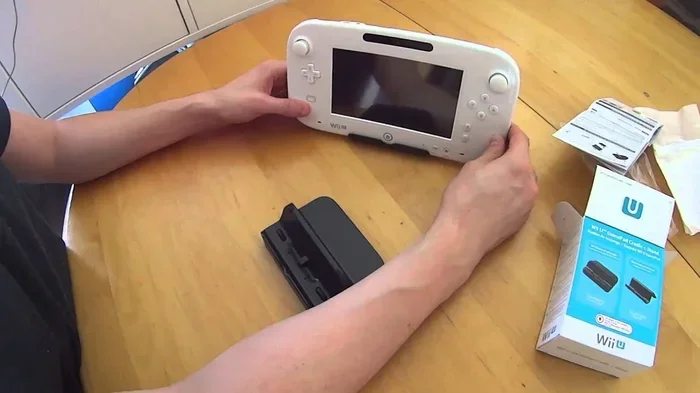
The Wii U gamepad is a unique controller. It has a touchscreen and motion controls. You can use a real Wii U gamepad with Cemu if you have one. Otherwise, a good Xbox or PlayStation controller works great. Some players also like using a keyboard and mouse for certain games, especially those that support it.
Keep Your Emulator Updated
Cemu developers release updates frequently. Each update brings better emulation accuracy and fixes for game-specific bugs. Make it a habit to check for updates before you play a new game. This simple step can save you from many headaches.
Join the Community
The emulation community is a great resource. Join the Cemu Discord server or visit forums like Emulation64. You can find game-specific tips, compatibility reports, and help for any issues you face. Other players share their setups and settings, which can help you optimize your own configuration.
Quick Tips for the Best Experience
- Use an SSD for faster game loading.
- Set Windows to high performance mode in power settings.
- Disable full-screen optimizations for Cemu in Windows settings.
- Use a controller instead of a keyboard for better feel.
- Save your game files in a dedicated folder for easy access.
Conclusion
Can you emulate Wii U games on your computer or phone? Absolutely. With tools like Cemu, you can enjoy your favorite Wii U titles on a bigger screen with better graphics. PC emulation offers the best experience by far. Phone emulation is possible but still experimental. As long as you have a decent gaming PC and follow the steps in this guide, you will be up and running in no time.
Remember to stay legal by only using game files from games you own. Keep your emulator updated and your drivers current. Join the community for tips and support. Emulation is a fantastic way to keep classic games alive. With a little patience and the right setup, you can emulate Wii U games and enjoy them whenever you want.
Start with a simple game first. Get comfortable with the emulator settings. Then move on to more demanding titles. The world of Wii U emulation is wide open. Have fun exploring it and happy gaming!
Frequently Asked Questions
Is it legal to emulate Wii U games on my PC?
Yes, owning and using a Wii U emulator is legal in most countries. The emulator software itself is not illegal. However, downloading game files for titles you do not own is considered piracy. Always use files from games you already own to stay on the right side of the law.
What is the best emulator for Wii U games on PC?
Cemu is widely regarded as the best Wii U emulator for PC. It is open-source, free to use, and supports a large library of Wii U titles. It receives regular updates and has a strong community behind it. Other emulators exist, but Cemu offers the best performance and compatibility.
Can I use my Wii U gamepad with an emulator?
Yes, you can use a real Wii U gamepad with Cemu if you have the hardware. You will need a way to connect it to your PC, such as through Bluetooth or a USB cable. You can also use Xbox or PlayStation controllers, which are easier to set up for most users.
Do I need a powerful PC to emulate Wii U games?
A mid-range gaming PC is enough for most Wii U titles. You do not need a top-of-the-line machine. A PC with an Intel i5 or AMD Ryzen 5 processor and a mid-range GPU like an GTX 1060 will run most games well. More demanding titles may benefit from a stronger setup.
Why do some Wii U games crash in an emulator?
Game crashes can happen for several reasons. Outdated GPU drivers are the most common cause. Using an old version of Cemu can also lead to crashes. Some games are simply not fully supported yet. Always update your drivers and emulator, and check the Cemu compatibility list for known issues with specific titles.
Can I emulate Wii U games on an iPhone or iPad?
iOS devices do not support Wii U emulation well. Apple’s strict software policies make it very difficult to run emulator software on iPhones and iPads. Android devices offer more flexibility, but phone emulation still has significant performance limits. A PC remains the best option for a smooth experience.