Can I Connect Hdmi Out To Displayport In Without Adapters
Yes, you can connect HDMI out to DisplayPort in, but you will almost always need an adapter or converter. Direct plug-and-play connections between these two different port types do not work because they use different signal protocols. This guide breaks down exactly why adapters are necessary, which ones to buy, and how to avoid common setup mistakes.
You have an HDMI output on your device and a DisplayPort input on your monitor. The question is simple: can you just plug one into the other? The short answer is no. You cannot connect HDMI out to DisplayPort in without some kind of adapter or converter in between. But do not worry. This is a very common situation, and there is a clear solution. In this guide, we will walk you through everything you need to know. We will explain why these two ports do not work together directly, which adapters you need, and how to set up your connection the right way.
Whether you are a gamer, a remote worker, or someone just trying to get a second monitor running, this guide has you covered. We will look at the differences between HDMI and DisplayPort, explore active and passive adapter options, and help you avoid the most common setup mistakes. By the end, you will know exactly what to buy and how to get your display working perfectly.
Key Takeaways
- HDMI and DisplayPort are not directly compatible: They use different digital signal protocols, so a direct cable connection will not work.
- You need an active adapter or converter: Passive cables alone cannot convert the HDMI signal to a DisplayPort-compatible input.
- Check your GPU and monitor specs: Not all adapters support every resolution or refresh rate, so compatibility matters.
- Audio may need separate handling: Some adapters pass audio, while others require a separate audio cable.
- Cheap adapters cause problems: Low-quality adapters often lead to no signal, flickering, or limited resolution.
- DisplayPort Alt Mode on USB-C is another option: If your device supports it, you can use a USB-C to HDMI or DisplayPort cable instead.
- Always match your adapter direction: Buy an HDMI-to-DisplayPort adapter, not the reverse, for your specific setup.
📑 Table of Contents
- Understanding HDMI and DisplayPort
- Can You Connect HDMI Out to DisplayPort In Without Adapters
- Active vs Passive Adapters for HDMI to DisplayPort
- How to Choose the Right HDMI to DisplayPort Adapter
- Setting Up Your HDMI to DisplayPort Connection
- Alternative Connection Options
- Final Thoughts and Key Takeaways
Understanding HDMI and DisplayPort
Before we dive into adapters, it helps to understand what HDMI and DisplayPort actually are. Both are digital display interfaces used to transmit video and audio from a source device to a display. However, they are built on different technologies and use different signal protocols. This is the core reason you cannot just plug one into the other.
What Is HDMI?
HDMI stands for High-Definition Multimedia Interface. It is one of the most widely used display connections in the world. You will find HDMI ports on TVs, laptops, gaming consoles, Blu-ray players, and graphics cards. HDMI carries both high-definition video and audio over a single cable. It has been around since 2003 and has gone through several versions, including HDMI 1.4, HDMI 2.0, and HDMI 2.1. Each newer version supports higher resolutions and faster refresh rates.
What Is DisplayPort?
DisplayPort is a display interface developed by VESA, the Video Electronics Standards Association. It is commonly found on computer monitors, graphics cards, and some laptops. DisplayPort was designed with PC use in mind, which means it often supports higher refresh rates and resolutions than HDMI at the same price point. DisplayPort 1.2, 1.4, and the newer DisplayPort 2.0 each bring improvements in bandwidth and display support. Many gamers prefer DisplayPort because it supports adaptive sync technologies like FreeSync and G-Sync.
Key Differences Between HDMI and DisplayPort
Here are the main differences that matter when you are trying to connect these two types of ports:
- Signal protocol: HDMI and DisplayPort use different digital signaling methods. This is why a direct connection fails.
- Connector shape: HDMI has a flat, trapezoidal plug. DisplayPort has a rectangular plug with a small latch on one side.
- Audio support: Both carry audio, but how they handle it differs slightly in terms of channels and formats.
- Refresh rate support: DisplayPort generally supports higher refresh rates at 4K and beyond compared to HDMI of the same version.
- Daisy-chaining: DisplayPort supports multi-stream transport, which lets you connect several monitors to one port. HDMI does not do this.
- License fees: HDMI requires licensing fees for manufacturers. DisplayPort is royalty-free, which is one reason it is popular in the PC space.
Can You Connect HDMI Out to DisplayPort In Without Adapters
This is the big question, and the answer is clear. You cannot connect HDMI out to DisplayPort in without an adapter. The two ports speak different digital languages. An HDMI output sends a signal in the HDMI protocol. A DisplayPort input expects a signal in the DisplayPort protocol. Without a converter, these two simply cannot communicate.
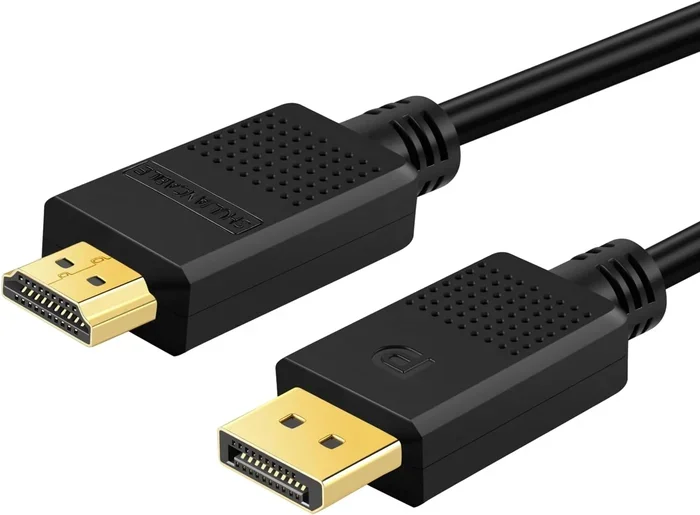
Some people try to use a simple cable with different connectors on each end, hoping it will work. These cables do not work for HDMI to DisplayPort conversion. The physical shape of the connectors might look like they could fit, but the internal signal processing is completely different. You need an active adapter or an active converter to translate the HDMI signal into something a DisplayPort monitor can understand.
Why Direct Connections Fail
Think of it like trying to plug a US electrical plug into a European outlet. The shape might look similar, but the voltage and frequency are completely different. You need a converter to make it work safely. The same idea applies here. HDMI and DisplayPort use different voltage levels, data encoding, and handshaking protocols. A direct cable cannot bridge that gap.
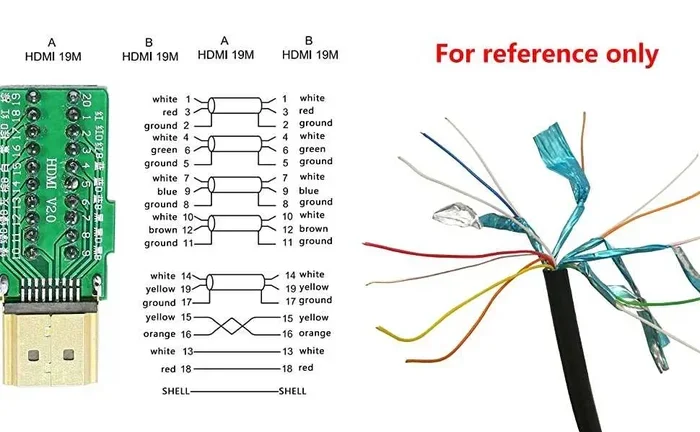
Another reason direct connections fail is the pin configuration. HDMI has 19 pins, and DisplayPort has 20 pins. Even if you could physically force a connection, the pin assignments do not match up. The result would be no signal at all, or at best, a corrupted image.
When You Might Think It Works (But Does Not)
There are a few situations where people mistakenly think a direct connection works:
- Using a hybrid cable: Some cables have an HDMI connector on one end and a DisplayPort connector on the other. These do not perform signal conversion. They simply will not work.
- Using a DisplayPort-to-HDMI cable: This goes the wrong direction for most setups. A DisplayPort output to HDMI input cable works in the opposite direction from what we are discussing here.
- Confusing USB-C with DisplayPort: Some USB-C ports support DisplayPort Alt Mode. This is not the same as a native DisplayPort connection and requires its own type of adapter.
Active vs Passive Adapters for HDMI to DisplayPort
Now that you know you need an adapter, the next question is: which type? The answer is almost always an active adapter. Let us break down the difference between active and passive adapters so you can make the right choice.
What Is an Active Adapter
An active adapter contains internal electronics that actually convert the HDMI signal into a DisplayPort signal. It uses a small chip inside the adapter to translate the data from one protocol to another. This is what makes HDMI to DisplayPort conversion possible. Active adapters require external power in most cases, either through a USB port or a small power cable.
Active adapters are essential for going from HDMI out to DisplayPort in. They handle the signal conversion properly and support a wide range of resolutions and refresh rates. Most quality active adapters support 4K at 60Hz or even higher, depending on the model and the version of HDMI and DisplayPort you are working with.
What Is a Passive Adapter
A passive adapter does not contain any conversion electronics. It simply reroutes the pins from one connector shape to another. Passive adapters only work when the source and display use the same protocol. For example, a passive DisplayPort-to-DisplayPort adapter works fine because both ends use the same signal. But a passive HDMI-to-DisplayPort adapter does not work, because the signals are different.
You will see some cheap products online labeled as “passive HDMI to DisplayPort adapters.” These are misleading and will not work for your needs. Avoid them. If a seller claims a passive adapter can convert HDMI to DisplayPort, that is a red flag.
Comparison Table: Active vs Passive Adapters
| Feature | Active Adapter | Passive Adapter |
|---|---|---|
| Signal Conversion | Yes, converts HDMI to DisplayPort | No, just reroutes pins |
| Works for HDMI to DisplayPort | Yes | No |
| Requires Power | Usually yes (USB or external) | No |
| Price Range | $15 to $80+ | $5 to $15 |
| Resolution Support | Up to 4K or 8K depending on model | N/A for this use case |
| Reliability | High with quality brands | Will not work for HDMI to DP |
Quick Tip: Always Go Active
When shopping for an HDMI to DisplayPort adapter, always choose an active one. Look for products from reputable brands like Cable Matters, Club3D, or StarTech. Read the product description carefully to confirm it supports the resolution and refresh rate you need. A good active adapter is a small investment that saves you from a lot of frustration.
How to Choose the Right HDMI to DisplayPort Adapter
Not all adapters are created equal. Choosing the right one depends on your specific setup and what you want to achieve. Here is what you should consider before making a purchase.
Check Your Source Device
Start by identifying the HDMI output on your device. Is it a laptop with an HDMI port? A desktop graphics card? A game console? A Blu-ray player? Each source device may have a different HDMI version, which affects the maximum resolution and refresh rate it can output. For example, an HDMI 2.0 source can output 4K at 60Hz, while an HDMI 1.4 source is limited to 4K at 30Hz.
Check Your Display
Next, look at your DisplayPort input. What version of DisplayPort does your monitor support? A DisplayPort 1.2 monitor can handle 4K at 60Hz. A DisplayPort 1.4 monitor can handle higher refresh rates and even HDR content. Make sure your adapter supports the version of DisplayPort your monitor uses.
Resolution and Refresh Rate Needs
Think about what resolution and refresh rate you need. Here are common scenarios:
- 1080p at 60Hz: Almost any active HDMI to DisplayPort adapter will handle this easily.
- 1440p at 144Hz: You need an adapter that supports DisplayPort 1.2 or higher and HDMI 2.0 or higher.
- 4K at 60Hz: Make sure your adapter explicitly supports 4K at 60Hz. This requires HDMI 2.0 and DisplayPort 1.2 minimum.
- 4K at 120Hz or 144Hz: You need a premium adapter that supports HDMI 2.1 and DisplayPort 1.4 or 2.0.
Audio Support
Most active HDMI to DisplayPort adapters pass audio along with video. However, some budget adapters may not handle audio properly. If you need audio to play through your monitor’s speakers or headphones, check the product specifications before buying. Look for adapters that explicitly mention audio support in their description.
USB-C Power Delivery
Some active adapters include a USB-C port that can charge your laptop while you use the adapter. This is a handy feature if you are using a laptop with limited USB ports. It keeps your device powered and your display connected at the same time.
Common Mistakes to Avoid
Here are the most common mistakes people make when buying an HDMI to DisplayPort adapter:
- Buying a passive adapter: This is the number one mistake. Passive adapters will not convert HDMI to DisplayPort.
- Ignoring version compatibility: An adapter that only supports HDMI 1.4 will limit your setup even if your GPU outputs HDMI 2.1.
- Choosing the wrong direction: Make sure you buy an HDMI-to-DisplayPort adapter, not a DisplayPort-to-HDMI one.
- Skipping brand research: Cheap, no-name adapters often fail or produce poor image quality. Stick with trusted brands.
- Not checking for firmware updates: Some active adapters receive firmware updates that improve compatibility. Check the manufacturer’s website.
Setting Up Your HDMI to DisplayPort Connection
Once you have the right active adapter, setting everything up is straightforward. Here is a step-by-step guide to get your display working.
Step-by-Step Setup Process
- Turn off both devices: Power down your source device and your monitor before making any connections. This prevents signal conflicts during setup.
- Connect the HDMI cable: Plug one end of your HDMI cable into the HDMI output on your source device. Plug the other end into the HDMI input on your active adapter.
- Connect the DisplayPort cable: Plug one end of your DisplayPort cable into the DisplayPort output on your adapter. Plug the other end into the DisplayPort input on your monitor.
- Power on the adapter: If your adapter requires external power, plug it in now. If it draws power from USB, connect it to a USB port on your source device or a powered USB hub.
- Power on your devices: Turn on your source device and your monitor. Wait a few seconds for the signal to initialize.
- Select the correct input: Use your monitor’s input selector to choose the DisplayPort input that you connected to.
- Adjust display settings: On your source device, go to display settings and configure the resolution, refresh rate, and orientation to match your monitor’s capabilities.
Troubleshooting Common Issues
Sometimes things do not work right away. Here are the most common problems and how to fix them:
- No signal on the monitor: Check all cable connections. Make sure the adapter is powered on. Try a different DisplayPort cable.
- Low resolution or flickering: Your adapter or cable may not support the resolution you have set. Lower the resolution in your display settings and see if it stabilizes.
- No audio: Go to your device’s sound settings and select the DisplayPort output as the audio device. Some adapters need a separate audio configuration.
- Adapter not recognized: Try a different USB port for power. Update your graphics card drivers. Restart both devices.
- Flickering at high refresh rates: Your cable or adapter may not support the refresh rate you selected. Try lowering the refresh rate or using a higher-quality cable.
Expert Insight
According to display technology experts, the quality of the active adapter matters more than most people realize. A high-quality adapter with good signal processing will deliver a clean, stable image. A cheap adapter may introduce latency, color inaccuracies, or intermittent signal drops. If you are using this setup for gaming or professional video work, investing in a premium adapter is worth every penny. Look for adapters that are certified by DisplayPort or HDMI licensing organizations for guaranteed compatibility.
Alternative Connection Options
If you are having trouble finding the right adapter or if the adapter route does not work for your setup, there are alternative options worth considering.
USB-C with DisplayPort Alt Mode
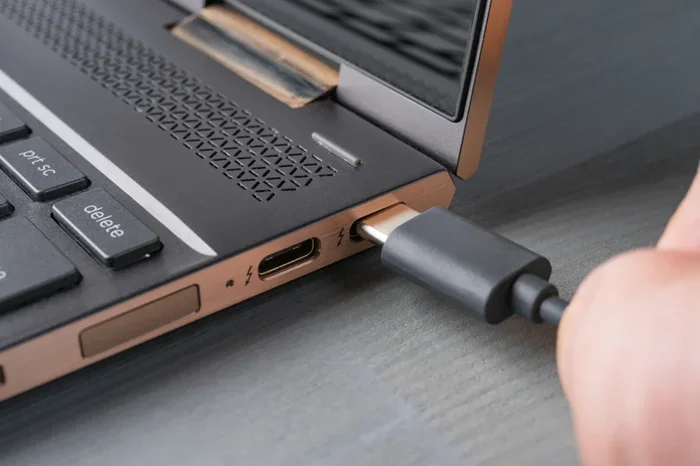
Many modern laptops and tablets come with USB-C ports that support DisplayPort Alt Mode. This means the USB-C port can output a DisplayPort signal natively. If your source device has a USB-C port with DisplayPort Alt Mode, you can use a USB-C to DisplayPort cable directly. You can also use a USB-C to HDMI adapter if your monitor has an HDMI input. This bypasses the need for an HDMI-to-DisplayPort adapter entirely.
Using a DisplayPort Output Instead
If your graphics card or device has both HDMI and DisplayPort outputs, consider using the DisplayPort output directly. This eliminates the need for any adapter and gives you the best possible performance. DisplayPort connections often support higher refresh rates and resolutions compared to HDMI on the same device.
Docking Stations and KVM Switches
A docking station with both HDMI and DisplayPort ports can simplify your setup. Many modern docking stations include built-in signal conversion, so you can connect your HDMI source and DisplayPort monitor through the dock without buying a separate adapter. KVM switches also offer multi-port connectivity with built-in conversion.
Final Thoughts and Key Takeaways
Connecting HDMI out to DisplayPort in is absolutely possible, but it requires the right tool for the job. An active adapter is the key to making this connection work. Direct plug-and-play connections between HDMI and DisplayPort will not work because they use different signal protocols. Always invest in a quality active adapter from a reputable brand, and make sure it supports your desired resolution and refresh rate.
Remember to check your source device and monitor specifications before buying. Consider your audio needs, power requirements, and whether you need additional features like USB-C passthrough charging. Avoid the temptation of cheap passive adapters, as they simply will not perform the signal conversion you need.
With the right adapter and a proper setup, you can enjoy a seamless connection between your HDMI source and your DisplayPort monitor. Whether you are gaming, working, or streaming, the right adapter makes all the difference. Take your time, choose wisely, and you will have a reliable, high-quality display connection that works exactly as it should.
Frequently Asked Questions
Can I connect HDMI out to DisplayPort in with just a cable?
No, you cannot connect HDMI out to DisplayPort in with just a standard cable. HDMI and DisplayPort use different signal protocols, so a direct cable connection will not work. You need an active adapter that converts the HDMI signal into a DisplayPort-compatible signal.
Do I need an active or passive adapter for HDMI to DisplayPort conversion?
You always need an active adapter for HDMI to DisplayPort conversion. Passive adapters do not contain the electronics needed to convert the signal between these two different protocols. An active adapter has a built-in chip that handles the conversion properly.
Will an HDMI to DisplayPort adapter support 4K resolution?
Many active HDMI to DisplayPort adapters support 4K resolution, but it depends on the model. Look for an adapter that explicitly lists 4K support and matches the HDMI and DisplayPort versions of your devices. For 4K at 60Hz, you need at least HDMI 2.0 and DisplayPort 1.2 compatibility.
Does an HDMI to DisplayPort adapter pass audio?
Most quality active adapters do pass audio along with video. However, some budget models may not handle audio correctly. Check the product specifications before buying if audio output is important to your setup. You may also need to configure your sound settings to select the DisplayPort output as the audio device.
Can I use a DisplayPort-to-HDMI adapter instead?
A DisplayPort-to-HDMI adapter goes in the opposite direction. It converts a DisplayPort output to an HDMI input. If your setup requires HDMI out to DisplayPort in, you need an HDMI-to-DisplayPort adapter specifically. Buying the wrong direction will not work for your needs.
What should I do if my HDMI to DisplayPort adapter is not working?
If your adapter is not working, first check all cable connections and make sure the adapter is powered on. Try using a different DisplayPort cable or a different USB port for power. Update your graphics card drivers and restart both devices. If the problem persists, the adapter may be defective or incompatible with your specific hardware setup.