Can You Use Microsoft Office On A Mac Yes Here Is How
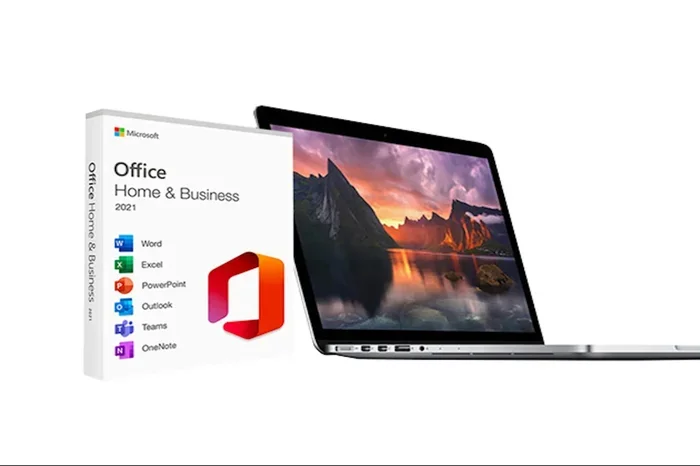
Yes, you can absolutely use Microsoft Office on a Mac. The full Microsoft Office suite works on Apple computers, giving Mac users access to Word, Excel, PowerPoint, Outlook, and more. You can download and install these apps directly from Microsoft’s website or the Mac App Store. Whether you have a Microsoft 365 subscription or a standalone license, your Mac is fully supported. Here is everything you need to know about setting up and using Microsoft Office on your Mac.
Key Takeaways
- Full Compatibility: Microsoft Office works seamlessly on Mac computers, including the latest Apple Silicon models.
- Easy Installation: You can download Office apps from Microsoft’s website or the Mac App Store in just a few minutes.
- Same Core Apps: Word, Excel, PowerPoint, Outlook, and OneNote are all available on Mac with near-identical features.
- Subscription Required: A Microsoft 365 subscription gives you the latest updates, cloud storage, and cross-device syncing.
- Minor Differences Exist: Some features and keyboard shortcuts differ slightly between the Mac and Windows versions.
- System Requirements Matter: Make sure your Mac meets the minimum specs for smooth performance.
📑 Table of Contents
- Can You Use Microsoft Office On A Mac? Here Is Everything You Need to Know
- Is Microsoft Office Available for Mac?
- How to Install Microsoft Office on a Mac
- Which Office Apps Work on Mac?
- Office for Mac vs Office for Windows
- System Requirements for Microsoft Office on Mac
- Tips and Common Mistakes for Using Office on Mac
- Conclusion
Can You Use Microsoft Office On A Mac? Here Is Everything You Need to Know
The short answer is yes. You can use Microsoft Office on a Mac, and it works really well. Millions of people around the world use Office apps on their Apple computers every single day. Whether you are a student, a professional, or someone who just needs to write a paper, Microsoft Office on a Mac has you covered.
Many people assume that Microsoft Office is only for Windows computers. That is simply not true. Microsoft has built a full version of its Office suite specifically for Mac users. The apps look great, run smoothly, and offer almost all the same features you get on Windows.
In this guide, we will walk you through everything you need to know. We will cover how to install Office on your Mac, which apps are available, what the differences are between Mac and Windows versions, and how to get the best experience. By the end, you will feel confident using Microsoft Office on your Mac.
If you have been wondering whether Microsoft Office for Mac is worth it, the answer is a clear yes. Let us dive in and explore how you can get started.
Is Microsoft Office Available for Mac?
Yes, Microsoft Office is fully available for Mac. Apple Mac compatibility with Microsoft Office has been around for decades. Microsoft has always supported its Office suite on macOS, and that has not changed. In fact, the Mac versions of Office have become more powerful with each update.
You can use Office on any Mac that runs a supported version of macOS. This includes Intel-based Macs and the newer Apple Silicon Macs with M1, M2, M3, and M4 chips. Microsoft has optimized its Office apps specifically for Apple Silicon, so you get great performance and battery life.
Here are the key things to know about Office for Mac availability:
- Microsoft 365 subscribers get access to all Office apps on Mac, including automatic updates.
- Standalone Office 2021 and Office 2024 licenses also work on Mac.
- Free web versions of Word, Excel, and PowerPoint work in any browser on a Mac.
- OneDrive integration lets you save and sync files across devices easily.
The bottom line is that Mac productivity software options are excellent, and Microsoft Office is one of the best. You do not need a Windows computer to use the full Office suite.
Quick Tips: Checking Mac Compatibility
- Open the Apple menu and click “About This Mac” to see your macOS version.
- Make sure you have at least 4 GB of RAM (8 GB or more is recommended).
- Check that you have at least 10 GB of free disk space for installation.
- Ensure you have a stable internet connection for downloading and activating Office.
How to Install Microsoft Office on a Mac
Installing Microsoft Office on a Mac is straightforward. You do not need to be a tech expert to get it done. The process takes only a few minutes, and you will be up and running in no time.
There are two main ways to install Office on your Mac. You can download it from Microsoft’s website, or you can grab it from the Mac App Store. Both methods work great, so pick whichever feels more comfortable for you.
Method 1: Download from Microsoft’s Website
This is the most common way to get Office on your Mac. Here is how you do it:
- Go to office.com and sign in with your Microsoft account.
- Click on the “Install Office” button.
- Choose “Mac” as your platform.
- Download the installer file to your Mac.
- Open the downloaded file and follow the on-screen instructions.
- Once installed, open any Office app and sign in with your Microsoft account.
After you complete these steps, all the Office apps will appear in your Applications folder. You can also find them in your Dock for quick access. The Office for Mac download process is smooth and user-friendly.
Method 2: Download from the Mac App Store
If you prefer using the Mac App Store, you can find several Office apps there. However, the App Store versions may not include all the features of the full Microsoft 365 suite. For the complete experience, downloading directly from Microsoft is the better choice.
Here is a quick comparison of the two methods:
| Feature | Microsoft Website | Mac App Store |
|---|---|---|
| Full app access | Yes | Limited for some apps |
| Auto-updates | Yes | Yes |
| OneDrive integration | Full | Full |
| Setup ease | Very easy | Very easy |
| Best for | Microsoft 365 subscribers | Casual users |
Quick Tips: Installation Best Practices
- Always make sure your macOS is up to date before installing Office.
- Close all other apps before starting the installation.
- If you get an error, restart your Mac and try again.
- Sign in with the same Microsoft account on all your devices for seamless syncing.
Which Office Apps Work on Mac?
Microsoft offers a wide range of Office apps for Mac users. You get access to the same core apps that Windows users enjoy, with a few Mac-specific tweaks here and there. Let us look at each app and what you can expect.
Microsoft Word for Mac
Microsoft Word for Mac is one of the most popular apps in the suite. It lets you create documents, reports, resumes, and more. The Mac version of Word looks and feels almost identical to the Windows version. You get all the formatting tools, templates, and collaboration features you need.
Word on Mac supports track changes, comments, and real-time co-authoring. You can also save files directly to OneDrive, making it easy to access your documents from any device. The Apple Mac compatibility with Word is excellent, and most users will not notice any difference from the Windows version.
Microsoft Excel on Mac
Excel on Mac works just as well as it does on Windows. You get all the powerful formulas, charts, and data analysis tools. Pivot tables, conditional formatting, and macros all work on the Mac version.
One small difference is that some advanced Excel features are available on Windows but not on Mac. For example, certain Power Query features and some VBA macros may behave slightly differently. However, for everyday spreadsheet work, Excel on Mac is more than capable.
Microsoft PowerPoint on Mac
PowerPoint on Mac is a fantastic tool for creating presentations. You get all the templates, animations, and design tools you need. The Mac version supports presenter view, slide transitions, and multimedia embedding just like the Windows version.
Many Mac users actually prefer PowerPoint on Mac because the design tools integrate well with Apple’s high-resolution displays. Your presentations will look sharp and professional on any screen.
Outlook for Mac
Outlook for Mac handles email, calendar, and contacts all in one app. It supports Exchange, IMAP, and POP email accounts. You can manage multiple email accounts, schedule meetings, and stay organized with the built-in calendar.
The Mac version of Outlook has improved significantly over the years. It now offers a modern ribbon interface and integrates smoothly with OneDrive and Teams. If you rely heavily on email for work, Outlook on Mac is a great choice.
OneNote for Mac
OneNote for Mac lets you take notes, organize ideas, and collaborate with others. It works across all devices, so you can start a note on your Mac and pick it up on your iPhone or iPad. The app supports handwriting, drawing, and multimedia embedding.
Other Apps in the Suite
Beyond the core apps, Microsoft also offers other tools on Mac. Publisher and Access are not available on Mac, but you can use alternatives or access them through the web. The Office apps for Mac lineup covers most everyday needs very well.
Office for Mac vs Office for Windows
While the Mac and Windows versions of Office share many similarities, there are some differences worth knowing about. Understanding these differences helps you set the right expectations and work more efficiently.
Key Similarities
- Both versions offer the same core features for Word, Excel, PowerPoint, and Outlook.
- File formats are fully compatible between Mac and Windows.
- Real-time collaboration works the same way on both platforms.
- OneDrive integration is available on both.
- You get regular updates and new features with a Microsoft 365 subscription.
Key Differences
- Keyboard shortcuts differ between Mac and Windows. For example, Ctrl+C on Windows becomes Command+C on Mac.
- Some advanced features like certain Excel add-ins are Windows-only.
- Design and layout of the interface may look slightly different due to macOS design guidelines.
- Default file paths and folder structures differ between the two operating systems.
- Printer and peripheral support may vary depending on your setup.
Comparison Table: Office for Mac vs Office for Windows
| Feature | Office for Mac | Office for Windows |
|---|---|---|
| Core apps (Word, Excel, PowerPoint) | Yes | Yes |
| Outlook email client | Yes | Yes |
| OneNote | Yes | Yes |
| Publisher | No | Yes |
| Access | No | Yes |
| Real-time collaboration | Yes | Yes |
| OneDrive integration | Yes | Yes |
| Apple Silicon support | Yes | N/A |
| Auto-save to cloud | Yes | Yes |
| Customizable ribbon | Yes | Yes |
Overall, the differences are minor for most users. If you are switching from Windows to Mac, you will feel right at home with Office on your new machine. The Office for Mac vs Windows comparison shows that Mac users get a very complete experience.
System Requirements for Microsoft Office on Mac
Before you install Office on your Mac, make sure your system meets the requirements. Running Office on a Mac that does not meet the minimum specs can lead to slow performance and frustration.
Minimum System Requirements
- Operating System: macOS 11 (Big Sur) or later
- Processor: Intel or Apple Silicon (M1 or newer recommended)
- RAM: 4 GB minimum (8 GB or more recommended)
- Hard Disk Space: 10 GB of free space
- Display: 1280 x 800 resolution or higher
- Internet: Required for installation and activation
For the best experience, Microsoft recommends using a Mac with at least 8 GB of RAM and an Apple Silicon chip. This ensures smooth performance even when working with large files or running multiple Office apps at once.
Quick Tips: Optimizing Your Mac for Office
- Close unused apps while working on large documents or spreadsheets.
- Keep your macOS updated for the best security and performance.
- Use OneDrive for cloud storage to save local disk space.
- Restart your Mac regularly to keep things running smoothly.
- Clear your Office cache if you experience any slowdowns.
Tips and Common Mistakes for Using Office on Mac
Getting Office on your Mac is only half the battle. Using it effectively takes a little know-how. Here are some tips to help you get the most out of your setup, along with common mistakes to avoid.
Quick Tips for a Better Experience
- Learn the Mac keyboard shortcuts. Replace Ctrl with Command for most shortcuts. This alone will save you a lot of time.
- Use Trackpad gestures. Mac trackpads support pinch-to-zoom and swipe gestures in Office apps, which makes navigation faster.
- Enable AutoSave. AutoSave to OneDrive ensures you never lose your work. Turn it on in the preferences of each app.
- Use the unified menu bar. On Mac, the Office ribbon menu appears at the top of the screen, not inside the app window. This takes a little getting used to, but it works well.
- Explore the Mac App Store for add-ins. Some useful add-ins and plugins are available exclusively through the Mac App Store.
Common Mistakes to Avoid
- Skipping updates. Microsoft releases frequent updates that fix bugs and add features. Keeping your Office apps updated ensures the best experience.
- Not signing in with the right account. If you use multiple Microsoft accounts, make sure you sign in with the one linked to your subscription.
- Ignoring OneDrive setup. OneDrive is a huge part of the Microsoft 365 experience on Mac. Set it up properly to get the most out of cloud storage and collaboration.
- Using the web version when you need desktop features. The web versions of Office are great for quick tasks, but they lack many advanced features. Install the desktop apps for full functionality.
- Assuming all Windows features are available on Mac. Some features like Access and Publisher are not available on Mac. Plan accordingly if you rely on those tools.
Expert Insights: Getting the Most from Office on Your Mac
According to productivity experts, the key to a great Office experience on Mac is to embrace the ecosystem. Use OneDrive for file storage, Teams for communication, and the native Mac features like Spotlight and Siri to streamline your workflow.
Many professionals who work on Mac say that Microsoft Office licensing through Microsoft 365 is the best option. It gives you access to all apps, regular updates, 1 TB of OneDrive storage, and the ability to install Office on up to five devices. This means you can use Office on your Mac, iPhone, iPad, and even a Windows PC if you need to.
Another expert tip is to take advantage of the Office 365 on Mac integration with Apple features. For example, you can use FaceTime to collaborate with colleagues while working on a shared document in Word or PowerPoint. The combination of Apple hardware and Microsoft software creates a powerful productivity setup.
If you are new to using Office on a Mac, give yourself a few days to adjust. The learning curve is small, and most users feel comfortable within a week. The apps are intuitive, and Apple’s own support resources can help you along the way.
Conclusion
The answer to the question “Can You Use Microsoft Office On A Mac” is a resounding yes. You can download, install, and use the full Microsoft Office suite on any compatible Mac. From Word and Excel to PowerPoint and Outlook, every major app works beautifully on Apple computers.
Whether you choose a Microsoft 365 subscription or a standalone Office license, your Mac will run Office smoothly. The installation process is simple, the apps are powerful, and the cross-platform compatibility means you can work seamlessly between Mac and Windows.
Remember to keep your system updated, use OneDrive for cloud storage, and learn the Mac-specific keyboard shortcuts. These small steps make a big difference in your daily productivity. With the right setup, Microsoft Office on a Mac is every bit as good as it is on Windows.
So go ahead and install Office on your Mac today. You will be glad you did. The combination of Apple’s great hardware and Microsoft’s powerful software creates an excellent productivity environment for work, school, or personal projects.
Frequently Asked Questions
Do I need a Microsoft account to use Office on a Mac?
Yes, you need a Microsoft account to sign in and activate Office on your Mac. This account is also used to manage your subscription or license. If you do not have one, you can create a free Microsoft account during the setup process.
Can I use the same Office license on my Mac and PC?
Yes, with a Microsoft 365 subscription, you can install Office on up to five devices, including both Macs and PCs. This makes it easy to switch between platforms without any issues. Your files and settings sync across all devices through OneDrive.
Is Microsoft Word free on Mac?
Microsoft Word is not completely free on Mac, but you can use the free web version through your browser. For the full desktop app, you need a Microsoft 365 subscription or a standalone Office license. Students and educators may qualify for discounted or free Office access through their school.
Does Office on Mac support dark mode?
Yes, Office apps on Mac support macOS dark mode. When you enable dark mode on your Mac, Office apps will automatically switch to a dark theme. This makes working late at night much easier on your eyes.
Can I open Office files created on a Windows PC on my Mac?
Absolutely. Office files are fully compatible between Mac and Windows. You can open, edit, and save files on either platform without any issues. The file formats like .docx, .xlsx, and .pptx are the same on both systems.
What should I do if an Office app is not working properly on my Mac?
First, make sure your macOS and Office apps are up to date. If the problem persists, try restarting your Mac and signing out and back into your Microsoft account. You can also try reinstalling the app from the Microsoft website. If none of these steps work, contact Microsoft Support for further assistance.