How to Find Wifi Dead Zones Without An Analyzer Device
You can easily find wifi dead zones without buying expensive analyzer equipment. Using your phone, a simple walkthrough test, and a few free apps, you can map weak signal areas in your home. This guide shows you practical, step-by-step methods to identify and fix dead spots in your wireless network.
Have you ever walked into a room and noticed your phone suddenly lost its wifi connection? Maybe your streaming keeps buffering in the bedroom, or the kitchen tablet drops off the network every time you try to look up a recipe. These frustrating moments happen because of what experts call wifi dead zones. A dead zone is any area in your home where the wireless signal strength drops too low to work properly.
The good news is that you do not need to spend hundreds of dollars on a specialized analyzer device to find these problem areas. You can find wifi dead zones without an analyzer device using nothing more than your smartphone, a little patience, and some simple techniques. This guide walks you through every method you need to map weak signal areas, understand why they happen, and fix them for good.
Whether you live in a small apartment or a large house with thick walls, these strategies work for any home network. Let us dive in and take back control of your wireless connectivity.
Key Takeaways
- Free smartphone apps can measure signal strength: You do not need a dedicated analyzer device to find weak wifi areas.
- Router placement matters a lot: Moving your router to a central location can eliminate many dead zones.
- Physical obstacles block wifi signals: Walls, metal objects, and appliances weaken your wireless coverage.
- Mesh systems and extenders help: Devices like Deco mesh units can fill coverage gaps effectively.
- Simple testing takes just minutes: A manual walkthrough with your phone gives you actionable results fast.
📑 Table of Contents
- What Are Wifi Dead Zones and Why Do They Happen
- Simple Methods to Find Wifi Dead Zones at Home
- Using Your Smartphone to Map Weak Signal Areas
- How Router Placement Affects Your Wifi Coverage
- Solutions to Eliminate Wifi Dead Zones
- When to Upgrade Your Equipment
- Common Mistakes People Make When Dealing with Dead Zones
- Expert Insights on Solving Wifi Dead Zones
- Conclusion
What Are Wifi Dead Zones and Why Do They Happen
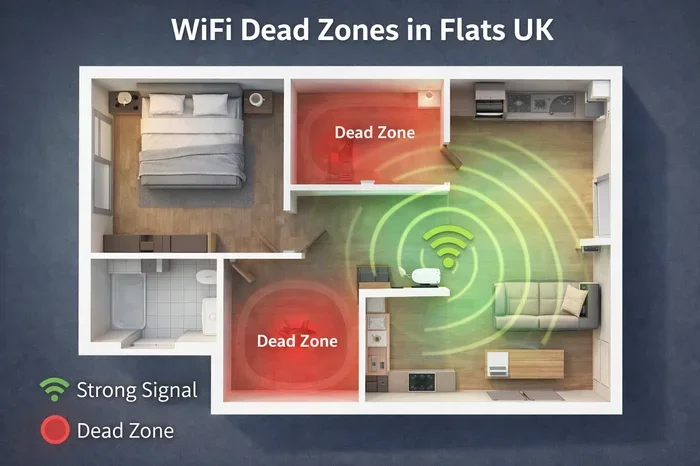
A wifi dead zone is simply an area where your router’s signal cannot reach with enough strength to maintain a reliable connection. Think of your router as a speaker playing music. The closer you stand, the louder and clearer it sounds. Walk far away, and the music gets quieter until you cannot hear it at all. Wifi signals work the same way, except the walls, floors, and furniture in your home act like noise that muffles the sound.
Common Causes of Dead Spots
Several factors create internet dead spots in your home. Understanding these causes helps you prevent and fix the problem faster.
- Distance from the router: The further you are from the router, the weaker the signal becomes. network range limits how far your wifi can travel effectively.
- Thick walls and floors: Concrete, brick, and even dense drywall absorb wifi signals. A house with multiple floors often has dead zones between levels.
- Electronic interference: Microwaves, baby monitors, cordless phones, and Bluetooth devices all operate on similar frequencies and can disrupt your wireless signal.
- Router placement: Putting your router in a corner, closet, or behind a large piece of furniture blocks the signal from spreading properly.
- Old or outdated equipment: Older routers may not have the power or technology to push a strong signal throughout a modern home.
- Too many connected devices: When many devices share the same bandwidth, the network slows down and weak areas get worse.
Why You Should Care About Dead Zones
Dead zones are more than just an annoyance. They affect your productivity, your entertainment, and even your smart home devices. If your wireless connectivity drops in certain rooms, you might miss important notifications, struggle with video calls, or find that your smart cameras go offline. Fixing these zones improves your entire wifi coverage experience.
Simple Methods to Find Wifi Dead Zones at Home
You do not need fancy equipment to locate weak signal areas. Here are the most effective free methods you can try right now.
Method 1: The Walkthrough Test
The simplest approach costs nothing and takes about ten minutes. All you need is a smartphone or laptop connected to your home network.
- Stand next to your router and note the signal strength on your device.
- Walk slowly through your home room by room.
- Pause in each room and check the signal bars or indicator.
- Open a webpage or try streaming a video to test real performance.
- Mark any rooms where the signal drops significantly or where pages fail to load.
This basic wifi troubleshooting method gives you a clear picture of where your wireless signal strength weakens. Write down the rooms that give you trouble and move on to the next method.
Method 2: Use Your Phone Built-In Signal Indicator
Both Android and iPhone devices show you a rough estimate of your wifi signal strength in the status bar. On Android phones, you can enable a feature that shows the signal strength in dBm (decibel-milliwatts), which gives you a more precise number. A reading of negative 30 dBm means excellent signal, while negative 80 dBm or lower means a very weak or dead connection.
To check this on most Android phones, go to Settings, then Network, and look for your SSID details. You will see the signal strength listed there. Walk through your home and compare the numbers room by room.
Method 3: Try a Free Wifi Speed Test App
Several free apps on both the App Store and Google Play measure your wifi signal strength and speed at the same time. Apps like Wifi Analyzer, NetSpot, or even the speed test built into your browser give you real data about your network coverage area.
These apps show you a visual map of signal strength. Some even create a heat map of your home, highlighting strong and weak areas with color coding. This makes it easy to spot dead spots at a glance without any special hardware.
Quick Tip: Run your speed test at the same time of day for consistent results. Internet speeds can vary based on how many neighbors are online and what time it is.
Using Your Smartphone to Map Weak Signal Areas
Your phone is one of the most powerful tools you have for wifi troubleshooting. You can turn it into a basic signal strength meter without downloading anything extra.
How to Read Signal Strength on iPhone
On an iPhone, you can access the hidden field test mode by dialing 3001#12345# in your phone app. This opens a screen showing your wifi signal strength in dBm. The number will be negative, and the closer it is to zero, the stronger your signal. Anything above negative 67 dBm is good. Below negative 80 dBm means you are in a weak zone.
How to Read Signal Strength on Android
Android phones vary by manufacturer, but most let you view signal details in Settings under Network or Connections. Look for the wifi signal strength reading. Some Android phones also let you install a field test app from the manufacturer that gives you detailed signal maps.
Create a Simple Floor Plan Map
Here is a pro trick that works beautifully. Draw a simple floor plan of your home on a piece of paper. As you walk through each room with your phone, write down the dBm reading in that spot. After you finish, you will have a hand-drawn map that shows exactly where your wireless connectivity is strong and where it is weak.
This map becomes your personal blueprint for deciding where to place a wifi booster, extender, or additional router. It is surprisingly effective and costs you nothing.
How Router Placement Affects Your Wifi Coverage
Where you put your router has a huge impact on your wifi coverage. Many people hide their router in a cabinet, closet, or corner because it looks better. But this practice kills your signal and creates dead spots everywhere else.
Best Places to Put Your Router
- Central location: Place your router in the middle of your home, ideally on the main floor. This gives the signal the best chance to reach every room equally.
- Elevated position: Put the router on a shelf or table, not on the floor. Signals spread outward and downward, so elevation helps them reach more areas.
- Open space: Keep your router away from walls, furniture, and appliances. The more open space around it, the better the signal travels.
- Away from interference: Keep it far from microwaves, cordless phones, baby monitors, and large metal objects like refrigerators or filing cabinets.
What to Avoid
Do not place your router behind a TV, inside a closed cabinet, or in a basement corner. These spots block the signal and make your network coverage area much smaller. If your router has external router antenna units, point them straight up for the best horizontal coverage throughout your home.
If you have tried repositioning your router and still have weak areas, it might be time to consider hardware upgrades. Some routers support external antennas that boost signal range. You can also look into whether adding an external antenna to your router would improve coverage in your specific setup.
Solutions to Eliminate Wifi Dead Zones
Once you have identified your dead zones, you need solutions that actually work. Here are the most effective ways to eliminate weak signal areas in your home.
Option 1: Move Your Router
This is the first and easiest fix. Sometimes simply moving your router to a better location eliminates half your dead zones. Try the central, elevated, open placement tips mentioned above and test again.
Option 2: Use a Wifi Extender
A wifi extender picks up your existing signal and rebroadcasts it to areas your router cannot reach. These devices are affordable and easy to set up. However, they can sometimes reduce your overall speed because they use the same radio to receive and transmit data.
If you are considering an extender, look into whether Deco mesh units can work as a wifi extender. They offer a smarter approach because they create one seamless network rather than two separate ones.
Option 3: Set Up a Mesh Network System
A mesh network uses multiple devices placed around your home to create one strong, unified wifi coverage area. Each mesh node talks to the others and to your main router, creating a web of strong signal throughout your home.
Mesh systems are the gold standard for eliminating dead zones in larger homes. If you already have a router and want to expand coverage, you might wonder about compatibility. Connecting a Wi-Fi 6 mesh system to an older Wi-Fi 5 router is possible in many cases, though you may not get the full speed benefits of the newer standard.
Option 4: Use Powerline Adapters
Powerline adapters use your home’s existing electrical wiring to carry internet to distant rooms. You plug one adapter near your router and another in the room with the dead zone. This method bypasses walls and interference entirely. It is a great option for homes with thick walls that block wireless signals.
Option 5: Extend Coverage to Outbuildings
If your dead zone is in a shed, garage, or backyard, you need a different approach than indoor solutions. Extending wifi to a shed often requires a dedicated access point or a mesh node placed strategically between your house and the outbuilding.
When to Upgrade Your Equipment
Sometimes no amount of repositioning or extenders will fix your dead zones. Your router might simply be too old or too weak for your home size. Here are signs it is time for an upgrade.
- Your router is more than five years old.
- You have tried multiple extenders and still experience weak signals.
- Your internet plan has upgraded but your router cannot keep up.
- You have more than ten connected devices in your home.
- Your current router does not support the latest wifi standards.
Modern routers with wifi 6 or wifi 6E technology offer much better range, speed, and device handling than older models. They also handle interference from neighbors networks much better, which matters if you live in a dense apartment complex or suburban neighborhood.
Checking Your Current Equipment
Look at the label on the back of your router. It should list the wifi standard it supports (like 802.11ac or 802.11ax). If it says 802.11n or older, you are likely missing out on significant speed and range improvements. Upgrading to a newer router or mesh system can transform your home network and eliminate dead zones for good.
Common Mistakes People Make When Dealing with Dead Zones
Avoid these common pitfalls that make the problem worse instead of better.
- Buying the most expensive equipment first: Before spending money, try free methods like repositioning your router and running a walkthrough test.
- Placing the extender too far from the router: An extender needs a strong signal from the router to work well. Place it halfway between your router and the dead zone.
- Ignoring interference sources: Even a small microwave or baby monitor can disrupt your wireless signal in adjacent rooms.
- Assuming all dead zones have the same cause: A dead zone caused by distance needs a different fix than one caused by interference.
- Not testing after changes: Always re-test your wifi signal strength after moving your router or adding new equipment to confirm the fix worked.
Expert Insights on Solving Wifi Dead Zones
Networking professionals agree that the best approach combines several methods. Start with the free walkthrough test to identify problem areas. Then optimize your router placement. If that is not enough, add a mesh node or extender in the right location based on your signal map.
One expert tip: do not rely on a single solution. The most reliable setups combine good router placement with a mesh system or strategically placed extenders. Think of it like lighting a room. One bright lamp in the center helps, but adding smaller lamps in corners eliminates all the shadows.
Also, remember that your wireless interference environment changes over time. New appliances, renovations, or even your neighbor adding a new router can create new dead zones. Periodically re-run your signal test to stay on top of changes.
Conclusion
Finding wifi dead zones without an analyzer device is completely doable with the right approach. You have learned how to use your smartphone as a signal meter, how to create a simple floor plan map, and how to identify the root causes of weak signal areas. You also know the best solutions, from repositioning your router to upgrading to a mesh system.
The key is to start simple. Do the walkthrough test today. Check your signal strength in every room. Move your router to a better spot if needed. These small changes can make a big difference in your wifi coverage and wireless connectivity.
If simple fixes do not solve the problem, consider a wifi extender or mesh system. These tools are designed specifically to eliminate dead zones and give you strong, reliable internet everywhere in your home. Take action today, and you will enjoy uninterrupted streaming, faster downloads, and seamless connectivity in every room.
Frequently Asked Questions
Can I find wifi dead zones using just my phone?
Yes, absolutely. Your phone has built-in tools that show signal strength, and free apps like Wifi Analyzer give you detailed readings. You do not need any special equipment to identify weak signal areas in your home.
How accurate are free wifi signal apps compared to professional analyzers?
Free apps are surprisingly accurate for home use. Professional analyzers offer more precision and advanced features, but for identifying dead zones and comparing signal strength room by room, free apps work very well. They give you the data you need to make smart decisions.
What is the best router placement for avoiding dead zones?
The best placement is a central, elevated, open location in your home. Keep the router away from walls, metal objects, and electronics that cause interference. A centrally placed router reaches more rooms with stronger signal than one hidden in a corner.
Do wifi extenders really work to eliminate dead zones?
Yes, wifi extenders work well when placed correctly. The key is to position the extender where it still receives a strong signal from the router. If you place it too far away, it will just repeat a weak signal and create a new dead zone on the other side.
How often should I recheck my home for wifi dead zones?
Check your wifi coverage at least once every few months. Changes like adding new devices, moving furniture, or neighbors installing new equipment can alter your wireless environment. A quick walkthrough test takes only a few minutes and keeps your network running smoothly.
Is a mesh system worth the investment for fixing dead zones?
For larger homes or homes with thick walls, mesh systems are absolutely worth it. They create seamless, whole-home coverage that single routers and extenders often cannot match. If you have persistent dead zones despite other fixes, a mesh system is the most reliable long-term solution.