Can You Connect Hdmi Wirelessly With No Cables Needed
Yes, you can connect HDMI wirelessly using specialized adapters and transmitters that send high-definition video and audio without any cables. Wireless HDMI technology has improved dramatically, offering reliable connections for streaming, gaming, and presentations. This guide covers how wireless HDMI works, the best products available, setup steps, and real-world tips to help you go completely cable-free.
Have you ever stared at a tangle of cables behind your TV and thought there has to be a better way? You are not alone. More and more people want to ditch the wires and enjoy clean, clutter-free entertainment setups. The big question is simple: can you connect HDMI wirelessly?
The short answer is absolutely yes. Wireless HDMI technology has come a long way in recent years. What once required expensive, bulky equipment now comes in sleek, affordable packages that anyone can use. Whether you want to stream movies to a projector in another room, share your laptop screen during a meeting, or build a minimalist living room, wireless HDMI solutions make it possible.
In this guide, we will walk you through everything you need to know. We will explain how wireless HDMI works, compare the different types of products, give you a step-by-step setup guide, and share honest tips from real-world use. By the end, you will know exactly whether going cable-free with HDMI is the right move for you.
Key Takeaways
- Wireless HDMI is real and practical: You can transmit 4K video and audio without running a single cable across your room.
- Multiple solutions exist: From dedicated wireless HDMI kits to Wi-Fi-based streaming devices, there is an option for every budget and need.
- Setup is simpler than you think: Most wireless HDMI systems plug in and work within minutes, no technical skills required.
- Latency has improved significantly: Modern wireless HDMI adapters deliver near-instantaneous video with minimal delay.
- Range matters: Choose a system that fits your space, whether it is a small apartment or a large living room.
- Wireless HDMI is not a replacement for every wired setup: Some ultra-high-performance scenarios still benefit from a direct cable connection.
📑 Table of Contents
What Is Wireless HDMI and How Does It Work?
Wireless HDMI refers to technology that sends high-definition video and audio from a source device to a display without using a physical HDMI cable. Instead of a wire carrying the signal, the data travels through the air using radio frequencies or Wi-Fi technology.
How the Technology Works
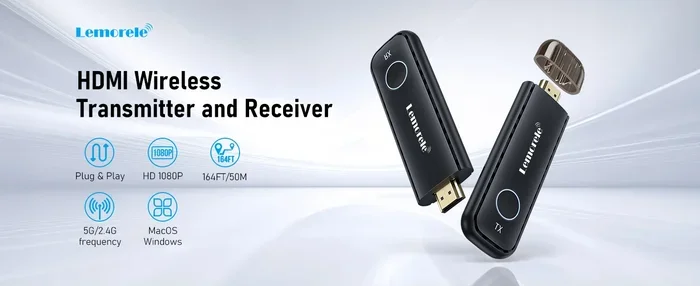
Most wireless HDMI systems use a transmitter and receiver setup. You plug the transmitter into your source device, like a Blu-ray player, gaming console, or laptop. The receiver plugs into your TV or projector. The transmitter sends the HDMI signal wirelessly to the receiver, which then displays it on your screen.
These systems typically operate on the 5GHz or 60GHz frequency band. Higher frequencies allow for faster data transfer, which is essential for carrying uncompressed 4K video. Some newer products use Wi-Fi or Wi-Fi Direct to achieve similar results, though the quality and latency can vary.
Wired vs. Wireless HDMI: Key Differences
It helps to understand what you are giving up when you go wireless. A direct HDMI cable provides the most reliable, highest-quality connection possible. There is zero latency, no compression, and no signal drops. A wireless HDMI connection adds a small layer of processing, which can introduce minor differences in performance.
However, modern wireless HDMI adapters have closed much of this gap. Many systems now support 4K resolution at 60Hz with latency low enough for gaming and fast-paced video. The convenience of cable-free connectivity often outweighs these minor trade-offs for most users.
Benefits of Going Cable-Free With HDMI
Switching to a wireless HDMI setup offers several real advantages that go beyond just aesthetics. Let us look at why so many people are making the switch.
1. A Cleaner, More Organized Space
Nothing ruins a nicely designed room faster than a mess of cables running across the floor or behind the TV. A wireless HDMI connection eliminates the need for long cable runs. Your living room, bedroom, or office instantly looks tidier and more professional.
2. Flexibility and Portability
With wireless HDMI, you are not stuck with your devices in fixed positions. Want to move your projector from the living room to the backyard for a movie night? Just pack it up and go. Wireless HDMI streaming gives you the freedom to set up your display wherever it makes sense.
3. Easy Setup for Non-Tech Users
Most wireless HDMI kits are designed with simplicity in mind. You plug in the transmitter, plug in the receiver, and the connection happens automatically. There is no software to install, no network configuration, and no technical expertise needed. Many systems work right out of the box.
4. Multi-Room Entertainment
Some advanced wireless HDMI solutions let you send a single source to multiple displays. Want to watch the same movie in the living room and the master bedroom? Certain systems support this, making it easy to build a whole-home entertainment network without running cables through walls.
5. Reduced Wear and Tear
HDMI cables get bent, pulled, and worn out over time. A loose connection can cause flickering, sparkly lines, or complete signal loss. Going wireless with HDMI removes this problem entirely. There is no cable to degrade, so your connection stays consistent over time.
Top Wireless HDMI Solutions Available Today
The market for wireless HDMI technology has grown significantly. There are now many options at different price points. Here is a look at the main types of wireless HDMI solutions you will encounter.
Dedicated Wireless HDMI Transmitter and Receiver Kits
These are the most popular and reliable option for wireless HDMI connections. Brands like Nyrius, Actiontec, and Avanlink make well-known kits. A typical kit includes a small transmitter box and a receiver box. You connect the transmitter to your source device and the receiver to your TV using short HDMI cables.
Most of these kits support 1080p or 4K resolution. They use proprietary wireless protocols designed specifically for video transmission, which means they tend to have lower latency and better reliability than general-purpose Wi-Fi solutions.
Price ranges from about $50 for basic 1080p kits to $300 or more for premium 4K models. The wireless HDMI transmitter and receiver combo is the go-to choice for most home theater setups.
Wi-Fi-Based HDMI Streaming Devices
Devices like Google Chromecast, Amazon Fire TV Stick, and Apple TV offer a different approach to HDMI without cables. Instead of a dedicated transmitter and receiver, these devices connect to your home Wi-Fi network and stream content wirelessly.
The advantage is that you likely already own a Wi-Fi network and a smartphone or tablet that can control the device. The downside is that Wi-Fi streaming involves compression, which can reduce video quality slightly. Latency can also be higher compared to dedicated wireless HDMI kits.
These devices work best for streaming content from apps like Netflix, YouTube, and Hulu. They are not ideal if you want to mirror your entire laptop screen or connect a gaming console with minimal delay.
Screen Mirroring and Casting Technologies
Miracast, AirPlay, and Google Cast are built into many modern TVs and devices. These technologies allow wireless display sharing from phones, tablets, and laptops to a TV screen. They are convenient for quick sharing and presentations.
However, screen mirroring over Wi-Fi is not the same as a direct wireless HDMI connection. The video is compressed and sent over your home network, which can lead to lag and lower resolution. For casual use like sharing photos or presenting slides, these technologies work fine. For high-quality video, a dedicated wireless HDMI extender is a better choice.
Comparison Table: Wireless HDMI Options
| Feature | Dedicated Wireless HDMI Kit | Wi-Fi Streaming Device | Screen Mirroring |
|---|---|---|---|
| Video Quality | Up to 4K | Up to 4K (compressed) | Up to 1080p |
| Latency | Low to moderate | Moderate to high | Moderate to high |
| Setup Complexity | Very easy | Easy | Very easy |
| Price Range | $50 – $300 | $20 – $150 | Free (built-in) |
| Best For | Home theater, gaming | Streaming apps | Quick sharing, presentations |
| Cables Needed | Short HDMI cables for transmitter/receiver | Power cable only | None |
How to Set Up a Wireless HDMI Connection
Setting up a wireless HDMI system is straightforward. Here is a step-by-step walkthrough that works for most transmitter and receiver kits.
Step 1: Choose the Right Location
Place the transmitter close to your source device. Place the receiver close to your TV or display. Make sure there is a clear line of sight between the two units. Obstacles like walls and furniture can weaken the wireless HDMI signal, so try to minimize them.
Step 2: Connect the Transmitter
Plug one end of a short HDMI cable into your source device, such as a cable box, laptop, or game console. Plug the other end into the HDMI input on the transmitter. If your transmitter has a USB port for power, connect it to a USB adapter or wall outlet.
Step 3: Connect the Receiver
Plug a short HDMI cable from the receiver into your TV or projector. Connect the receiver to a power source using the included USB cable or power adapter. The LED light on the receiver should turn on, indicating it is powered and ready.
Step 4: Power On and Pair
Turn on your source device and your TV. Switch your TV to the correct HDMI input. Most wireless HDMI adapters will auto-pair when both units are powered on. Some systems require you to press a button on the transmitter or receiver to initiate pairing.
Step 5: Test and Adjust
Play a video or open a game to test the connection. Check for smooth playback and any signs of delay. If you experience issues, try moving the transmitter and receiver closer together or removing obstacles between them. Some systems have channels or frequency settings you can adjust to reduce interference from other wireless devices.
Quick Tips for the Best Wireless HDMI Experience
- Keep it close: Stay within the recommended range of your kit, usually 10 to 30 feet.
- Avoid interference: Keep the units away from microwaves, cordless phones, and other wireless devices that operate on the same frequency.
- Use quality HDMI cables: Even though the main connection is wireless, the short cables between your devices and the transmitter/receiver should be good quality.
- Update firmware: Check the manufacturer website for firmware updates that can improve performance and fix bugs.
- Cool temperatures: Keep the transmitter and receiver in well-ventilated areas. Overheating can cause signal drops.
Common Problems and How to Fix Them
Wireless HDMI technology is reliable, but it is not perfect. Here are the most common issues people run into and how to solve them.
Signal Dropouts or Intermittent Connection
This is the most frequent complaint with wireless HDMI setups. The most common cause is interference from other wireless devices. Wi-Fi routers, Bluetooth devices, and even baby monitors can disrupt the signal. Try changing the wireless channel on your router or moving the transmitter and receiver farther from these devices.
Another cause is physical obstructions. Walls, metal objects, and even large appliances can block the wireless signal. Repositioning the units to maintain a clear path between them often solves this problem.
Video Lag or Latency
Some delay is normal with any wireless HDMI connection, but excessive lag is annoying, especially for gaming. Lower-quality kits tend to have higher latency. If lag is a problem, check if your kit supports a low-latency mode or gaming mode. Upgrading to a higher-end wireless HDMI transmitter and receiver pair can also make a big difference.
No Signal or Black Screen
If your TV shows a black screen, first check that all power connections are secure. Make sure the TV is on the correct HDMI input. Try unplugging both the transmitter and receiver, waiting 10 seconds, and plugging them back in. This simple reset fixes the issue in most cases.
Poor Video Quality
If your video looks blurry or pixelated, the signal may be compressed or weakened. Check that you are using a kit that supports your desired resolution. A basic 1080p kit will not deliver true 4K quality. Also, make sure the HDMI cables you use between your devices and the transmitter/receiver are rated for the resolution you want.
Overheating
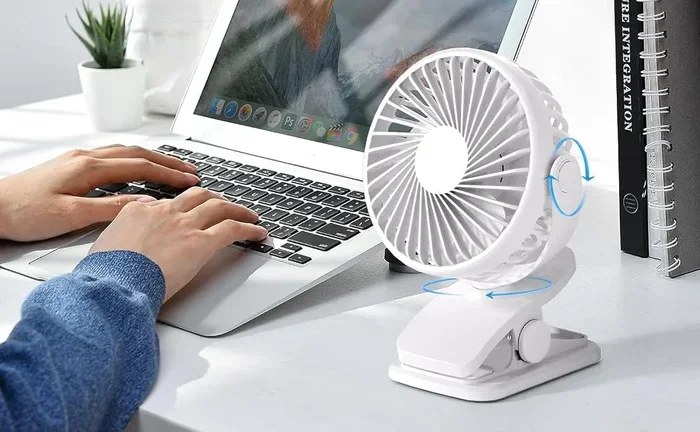
Wireless HDMI transmitters and receivers generate heat during operation. If a unit feels very hot, turn it off and let it cool down. Place it on a flat, hard surface rather than fabric or carpet. Some kits come with small fans or heat sinks to manage temperature, and adding a small external fan can help in warm rooms.
Is Wireless HDMI Worth It? Final Verdict
After exploring all the options, the real question remains: is a wireless HDMI connection worth it for you? The answer depends on your needs and situation.
If you want a clean, cable-free setup for your home theater, wireless HDMI solutions are absolutely worth it. The convenience of moving your TV, projector, or display anywhere in the room without worrying about cable length is a game-changer. Families with kids or pets who might trip over cables will especially appreciate the safety and simplicity.
For gamers, the picture is a bit more nuanced. Competitive gamers who need the absolute lowest latency and highest image quality may still prefer a direct HDMI cable. However, casual gamers and those who play single-player games will find modern wireless HDMI adapters more than adequate. Many users report no noticeable difference in their gaming experience with a good wireless kit.
For office presentations and classroom use, wireless HDMI is a fantastic option. It eliminates the need to run cables across a conference room or lecture hall. Presenters can move freely and connect their laptop to the display in seconds. Wireless HDMI streaming in professional settings saves setup time and reduces technical headaches.
The bottom line is this: wireless HDMI technology has matured to the point where it is a practical, reliable alternative to traditional cables for most everyday uses. The initial cost of a wireless HDMI kit is a one-time investment that pays off in convenience, flexibility, and a cleaner living space.
If you have been sitting on the fence about going cable-free with HDMI, now is a great time to take the leap. The options are better and more affordable than ever before. Pick a kit that fits your budget and needs, follow the setup steps in this guide, and enjoy the freedom of a truly wireless entertainment setup.
Remember, the goal is to enhance your viewing and sharing experience, not to overcomplicate it. Start simple, test your setup, and adjust as needed. With the right wireless HDMI transmitter and receiver pair, you will wonder why you ever dealt with cable clutter in the first place.
Frequently Asked Questions
Can you connect HDMI wirelessly without any extra equipment?
In most cases, you need a wireless HDMI adapter or kit, which includes a transmitter and receiver. Some smart TVs and streaming devices support built-in Wi-Fi streaming, but a dedicated wireless HDMI connection requires a transmitter-receiver pair to send the signal without cables.
Does wireless HDMI have any lag or delay?
Modern wireless HDMI solutions have significantly reduced latency compared to older models. Most kits offer low enough latency for casual gaming and movie watching. However, competitive gamers who need frame-perfect responsiveness may still notice a small delay compared to a direct HDMI cable connection.
What is the best range for a wireless HDMI setup?
Most wireless HDMI transmitters work reliably within 10 to 30 feet. Some premium kits can reach up to 50 feet or more. The range depends on the frequency band used and any obstacles in the path. Keeping the transmitter and receiver in the same room with a clear line of sight gives the best results.
Can I use wireless HDMI for 4K and HDR content?
Yes, many modern wireless HDMI kits support 4K resolution and HDR. However, you need to check the specifications before buying. Not all wireless HDMI adapters handle 4K or HDR, and those that do tend to cost more than basic 1080p models.
Is wireless HDMI safe and secure?
Most wireless HDMI connections use encrypted wireless protocols to protect the signal. This means your content is transmitted securely and cannot be easily intercepted. Dedicated wireless HDMI systems are generally more secure than open Wi-Fi streaming because they use proprietary, closed wireless channels.
Can I connect multiple devices to one wireless HDMI receiver?
Most wireless HDMI setups connect one source device to one display at a time. However, some advanced wireless HDMI solutions support switching between multiple sources or sending the signal to multiple receivers. These multi-device systems cost more but offer greater flexibility for complex entertainment setups.
=== CONCLUSION ===
Can you connect HDMI wirelessly? The answer is a clear and definitive yes. Wireless HDMI technology has evolved into a practical, affordable, and reliable way to enjoy high-definition video and audio without the hassle of cables. From dedicated transmitter and receiver kits to Wi-Fi streaming devices and built-in screen mirroring, there is a solution for every need and budget.
Going cable-free with HDMI brings real benefits: cleaner spaces, more flexibility, easier setup, and the freedom to place your display anywhere. While a direct HDMI cable still offers the absolute best quality and lowest latency for demanding applications, modern wireless HDMI adapters are more than capable for the vast majority of home entertainment, gaming, and presentation scenarios.
We encourage you to explore the options outlined in this guide. Consider your specific needs, your budget, and the devices you want to connect. Pick a wireless HDMI solution that fits, set it up following our simple steps, and enjoy the experience of a clean, clutter-free display setup. The future of home entertainment is wireless, and it is easier to join than you might think.