Can I Connect Iphone to Printer Without Extra Hassle
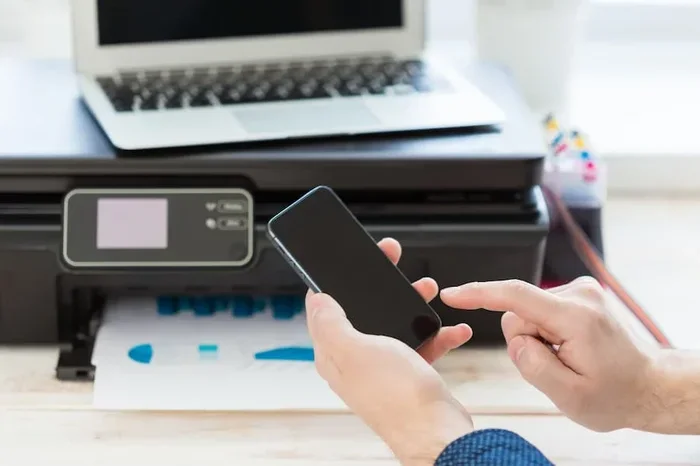
Yes, you can connect iPhone to printer easily using AirPrint, Wi-Fi, Bluetooth, or third-party apps. This guide walks you through every method step by step so you can start printing documents and photos from your phone right away. Whether you own an HP, Canon, or Epson printer, you will find the right setup that works for you.
You are sitting on the couch with your iPhone in hand. You need a printout of a boarding pass, a recipe, or a memorable photo. But then it hits you. Can I connect iPhone to printer? The good news is yes, absolutely. You do not need a computer or any fancy equipment. With a few simple steps, your iPhone and printer can work together like magic. This guide covers every method, every tip, and every trick you need to know.
Printing from your iPhone has become incredibly easy over the years. Apple built AirPrint right into iOS, and countless printer brands now support it. Even if your printer is older or does not support AirPrint, there are workarounds. You can use Wi-Fi, Bluetooth, USB cables, or dedicated printing apps. No matter what printer you own, you will find a solution here. Let us dive in and make this simple.
Key Takeaways
- AirPrint is the easiest way: Most modern printers support AirPrint, making iPhone printing seamless and wireless.
- Multiple connection methods exist: You can connect via Wi-Fi, Bluetooth, USB cable, or cloud printing services.
- Third-party apps expand compatibility: Apps like HP Smart and Canon PRINT unlock printing for older or non-AirPrint printers.
- Common issues have simple fixes: Network mismatches, outdated software, and incorrect settings cause most printing problems.
- Photo printing is simple: With the right app, printing high-quality photos from your iPhone takes just a few taps.
- Setup takes minutes: You do not need technical skills to get your iPhone and printer talking to each other.
📑 Table of Contents
Why Connecting iPhone to Printer Matters
We live in a mobile-first world. Your phone holds tickets, receipts, contracts, photos, and documents. Sometimes you need a physical copy. Maybe you are at a hotel and need to print a confirmation. Maybe your child’s school needs a paper form. Or perhaps you just want to print a stunning photo from last weekend. Whatever the reason, knowing how to print from your iPhone saves time and frustration.
Mobile printing is no longer a luxury. It is a daily necessity for many people. Business travelers print boarding passes and hotel reservations. Students print homework and study materials. Parents print permission slips and recipes. The ability to print directly from your phone gives you freedom and flexibility. You are never stuck just because you do not have a laptop nearby.
Quick Tips for iPhone Printing Success
- Keep your iPhone and printer on the same Wi-Fi network. This is the single most important step for wireless printing.
- Update your iPhone regularly. iOS updates often improve printer compatibility and fix bugs.
- Restart both devices if printing fails. A simple reboot solves more problems than you might think.
- Use the right app for your printer brand. HP, Canon, and Epson all offer free apps with extra features.
How to Connect iPhone to Printer Using AirPrint
AirPrint is Apple’s built-in wireless printing feature. It lets you print directly from your iPhone without installing any software. Most modern printers from HP, Canon, Epson, Brother, and many other brands support AirPrint. If your printer was made in the last several years, there is a good chance it works with AirPrint.
Step-by-Step AirPrint Setup
- Make sure your printer is turned on. Check that it has paper and ink.
- Connect both your iPhone and printer to the same Wi-Fi network. Go to Settings on your iPhone and check your Wi-Fi connection. Then check your printer’s display or manual for its network name.
- Open the document, photo, or webpage you want to print. This could be in Safari, Photos, Mail, Files, or any other app.
- Tap the Share button. It looks like a square with an arrow pointing up. You will find it at the bottom or top of your screen depending on the app.
- Scroll down and tap Print. It is in the row of quick actions.
- Tap Select Printer and choose your printer. Your printer should appear on the list if it is on the same network.
- Tap Print in the top right corner. Your document will start printing immediately.
That is it. Three taps and your document is printing. AirPrint handles everything behind the scenes. You do not need to enter IP addresses or configure any settings. This is why AirPrint remains the most popular way to connect iPhone to printer wirelessly.
Which Printers Support AirPrint?
Apple maintains an official list of AirPrint-compatible printers. Most printers released after 2010 support it. Here are some popular brands and models that work seamlessly:
- HP: Envy, OfficeJet, DeskJet, and Smart Tank series
- Canon: PIXMA, MAXIFY, and imageCLASS lines
- Epson: Expression, EcoTank, and WorkForce models
- Brother: MFC, HL, and DCP series
- Lexmark: MB series and CX series
If you are unsure whether your specific printer supports AirPrint, check the manufacturer’s website or the printer’s settings menu. Look for an AirPrint or Wi-Fi Direct option. Many newer printers also support wireless printing through their own companion apps even if AirPrint is not listed.
Connecting iPhone to Printer Without AirPrint
Not all printers support AirPrint. Older models, budget printers, and some specialty printers may not have this feature. But do not worry. You still have several options to connect iPhone to printer without AirPrint. These methods work just as well and give you more flexibility.
Method 1: Use Your Printer’s Brand App
Almost every major printer manufacturer offers a free mobile app. These apps connect your iPhone to the printer using Wi-Fi or Bluetooth. They often include extra features like scanning, ink level checks, and photo editing.
| Printer Brand | App Name | Platform |
|---|---|---|
| HP | HP Smart | iOS (iPhone) |
| Canon | Canon PRINT | iOS (iPhone) |
| Epson | Epson iPrint | iOS (iPhone) |
| Brother | Brother iPrint&Scan | iOS (iPhone) |
| Epson | Epson Print | iOS (iPhone) |
| Xerox | Xerox Connect | iOS (iPhone) |
To use these apps, simply download the app from the App Store, follow the on-screen setup instructions, and connect your printer. Most apps detect printers on the same Wi-Fi network automatically. Once connected, you can print from within the app or share documents directly to the app from other programs on your iPhone.
Method 2: Use a USB Cable with the Apple Camera Adapter
If Wi-Fi is not an option, you can connect your iPhone directly to a printer using a cable. Apple sells a Lightning to USB Camera Adapter that lets you plug a USB printer cable into your iPhone. This method works with most USB printers regardless of their wireless capabilities.
Here is how it works:
- Get a Lightning to USB Camera Adapter from Apple or a trusted third party.
- Connect your USB printer cable to the adapter.
- Plug the adapter into your iPhone’s Lightning port.
- Your iPhone should recognize the printer and show a print option.
- Open your document, tap Share, and select Print.
This method is great for travel or situations where Wi-Fi is unreliable. However, it does require carrying an extra cable and adapter. It is not as convenient as wireless printing, but it gets the job done when you need it.
Method 3: Use Cloud Printing Services
Cloud printing lets you send print jobs over the internet to a printer that is connected to a computer or cloud service. Google Cloud Print was a popular option, but Google shut it down in 2021. However, many printer manufacturers now offer their own cloud printing solutions.
Services like HP ePrint, Canon PRINT Business, and Epson Connect let you send print jobs from your iPhone using email or a web portal. You send an email with your document attached to a unique email address assigned to your printer. The printer receives the email and prints the document automatically. This is incredibly useful for printing from anywhere in the world as long as you have internet access.
Method 4: Use Third-Party Printing Apps
The App Store is full of universal printing apps that work with almost any printer. These apps act as a bridge between your iPhone and the printer. Some popular options include:
- Printer Pro by Readdle: Supports over 30 printer brands and works over Wi-Fi and cloud.
- PrintCentral Pro: A versatile app that handles printing, scanning, and faxing.
- PrintWizard: Works with many printers and offers advanced settings for customization.
These apps are especially helpful when your printer does not support AirPrint and the manufacturer does not offer a dedicated app. They give you the freedom to print from almost any iPhone to almost any printer.
Troubleshooting Common iPhone Printing Problems
Even with the simplest setup, things can go wrong sometimes. Your iPhone might not find the printer, the print job might get stuck, or the output might look wrong. Here are the most common problems and how to fix them.
iPhone Does Not Find the Printer
This is the most common issue, and it usually has a simple fix. The number one reason is that your iPhone and printer are on different Wi-Fi networks. Check both devices and make sure they are connected to the same network. If you recently changed your Wi-Fi password, both devices need to reconnect with the new password.
Other fixes include:
- Turning AirPrint off and back on by toggling Airplane Mode on your iPhone.
- Restarting both your iPhone and printer.
- Moving closer to your Wi-Fi router to strengthen the signal.
- Updating your iPhone to the latest iOS version.
- Updating your printer’s firmware through its settings menu or manufacturer website.
Print Job Gets Stuck or Fails
If your print job hangs or fails mid-way, try these steps:
- Cancel the stuck print job from your iPhone by going to Settings > Printers & Scanners and tapping Cancel.
- Check that your printer has enough paper, ink, and toner.
- Make sure the printer is not in sleep mode or offline.
- Try printing a different document to rule out file-specific issues.
- Restart your router to refresh the network connection.
Print Quality Is Poor
If your prints come out blurry, faded, or streaky, the issue is likely with the printer itself rather than the connection. Try running a print head cleaning cycle from your printer’s settings. Check ink levels and replace cartridges if needed. Also, make sure you are printing at the highest quality setting available in your print options.
Printer Shows as Offline
When your iPhone says the printer is offline, it means it cannot communicate with the printer over the network. Try these steps:
- Turn the printer off, wait 30 seconds, and turn it back on.
- Check that the printer’s Wi-Fi light is solid and not blinking.
- Remove the printer from your iPhone’s printer list and re-add it.
- Reset your network settings on your iPhone as a last resort.
Best Printing Apps for iPhone Users
While AirPrint works great for most people, dedicated printing apps offer extra features that make the experience even better. Here are the best options for different needs.
HP Smart
HP Smart is a free app that works with all HP printers. It does much more than just printing. You can scan documents, check ink levels, order replacement cartridges, and even troubleshoot printer issues. The app is intuitive and works smoothly with iPhones. If you own an HP printer, this is the go-to app for printing from your phone.
Canon PRINT
Canon PRINT supports a wide range of Canon printers and offers excellent photo printing quality. The app lets you edit photos before printing, adjust color settings, and print directly from your camera roll. It also supports scanning and copying through compatible Canon all-in-one printers. Canon PRINT is a solid choice for anyone with a Canon printer.
Epson iPrint
Epson iPrint is designed for Epson printers but works well with many third-party models too. It offers wireless printing, scanning, and even the ability to print directly from cloud services like Google Drive and Dropbox. The interface is clean and easy to navigate, making it a great option for all skill levels.
Printer Pro by Readdle
Printer Pro is a universal printing solution that works with over 30 printer brands. It supports Wi-Fi, USB, and cloud printing. The app also lets you print from Safari, email attachments, and cloud storage. It is a paid app, but the extra compatibility it offers makes it worth it for people with less common printers.
Expert Insights on Mobile Printing
According to tech experts at Wirecutter and PCMag, AirPrint remains the gold standard for iPhone printing because of its simplicity and built-in support. However, they recommend using manufacturer apps for older printers or when you need advanced features like scanning and ink management.
Network setup is the foundation of reliable mobile printing. Experts recommend using a dual-band router and connecting both your iPhone and printer to the 5GHz band for faster, more stable connections. This reduces the chances of print jobs failing or getting stuck. For home offices, a dedicated Wi-Fi network for printers can also improve security and performance.
Another expert tip is to keep your printer’s firmware updated. Manufacturers regularly release firmware updates that improve compatibility with newer devices and fix known bugs. Check your printer manufacturer’s website or app periodically for updates. A simple firmware update can solve many printing issues you did not even know existed.
Key Takeaways
- AirPrint makes iPhone printing effortless: If your printer supports it, you can print in seconds without any extra apps or setup.
- Brand apps fill the gaps: HP Smart, Canon PRINT, and Epson iPrint add features and compatibility for printers that do not support AirPrint.
- USB cables work in a pinch: The Lightning to USB Camera Adapter lets you connect directly to any USB printer when Wi-Fi is not available.
- Cloud printing works from anywhere: Services like HP ePrint and Epson Connect let you send print jobs over the internet to your home printer.
- Most problems have simple fixes: Check your Wi-Fi connection, restart your devices, and update software before assuming something is broken.
- Third-party apps expand your options: Apps like Printer Pro support a wide range of printers and offer advanced features.
Conclusion
So, can I connect iPhone to printer? The answer is a resounding yes. Whether you use AirPrint, a brand-specific app, a USB cable, or a cloud printing service, connecting your iPhone to a printer is easier than most people think. You do not need to be tech-savvy. You just need the right method for your printer and a few minutes to set things up.
Start with AirPrint if your printer supports it. It is the fastest and simplest option. If it does not work, try the manufacturer’s app or a third-party printing app. For travelers or people without reliable Wi-Fi, a USB connection is a dependable backup. And if you need to print from far away, cloud printing services have you covered.
The bottom line is that mobile printing has never been more accessible. Your iPhone is a powerful printing tool right in your pocket. With the tips and methods in this guide, you can print anything, anywhere, anytime. So go ahead, give it a try, and enjoy the convenience of printing directly from your iPhone without any extra hassle.
Take a moment today to test your setup. Print a photo, a document, or a webpage. Once you see it working, you will wonder how you ever lived without it. Mobile printing is one of those small conveniences that makes a big difference in everyday life. Embrace it, and you will never be stuck without a printed copy when you need one.
Frequently Asked Questions
Can I connect iPhone to any printer?
Most modern printers support AirPrint, which works directly with iPhones. For older or non-AirPrint printers, you can use the manufacturer’s app, a USB cable with the Apple Camera Adapter, or third-party printing apps. Almost any printer can be connected to an iPhone with the right method.
Do I need Wi-Fi to print from my iPhone?
Wi-Fi is the most common way to print wirelessly from an iPhone. However, you can also print using Bluetooth on some printers, a USB cable with the Lightning to USB Camera Adapter, or cloud printing services that work over cellular data. Wi-Fi is the easiest and most reliable option for most users.
Why is my iPhone not finding the printer on the network?
The most common reason is that your iPhone and printer are on different Wi-Fi networks. Make sure both devices are connected to the same network. You can also try restarting both devices, toggling Airplane Mode on your iPhone, or moving closer to your Wi-Fi router to improve the signal strength.
Can I print photos from my iPhone to any printer?
Yes, you can print photos from your iPhone using AirPrint, manufacturer apps like HP Smart or Canon PRINT, or third-party apps like Printer Pro. For the best photo print quality, use a printer that supports high-resolution photo printing and make sure you select the highest quality setting in your print options.
Is there a cost to use printing apps on iPhone?
Most printer manufacturer apps like HP Smart, Canon PRINT, and Epson iPrint are completely free to download and use. Some third-party apps like Printer Pro may charge a small fee for advanced features. However, the basic printing functionality is typically free across all apps.
Can I print from my iPhone to a printer at a public location like an office or library?
Yes, many offices and libraries have printers that support AirPrint or have their own mobile printing solutions. You can also use cloud printing services to send documents to a printer at home or work from anywhere. Some public locations offer dedicated printing apps or email-based printing services that work with iPhones.