Can A Mac Connect To Any Printer Without Any Hassle
Yes, a Mac can connect to almost any printer, whether through Wi-Fi, USB, Bluetooth, or a shared network. Apple’s AirPrint technology makes wireless printing simple and hassle-free for most modern printers. This guide walks you through every connection method, brand compatibility, and common troubleshooting steps to get your Mac and printer working together perfectly.
If you own a Mac and need to print something, you might wonder whether your computer will work with just any printer. The short answer is yes. Macs can connect to a wide variety of printers, but the process depends on the printer model, the connection type, and your macOS version. This article breaks it all down so you never have to guess or struggle.
Printing on a Mac is generally smoother than many people expect. Apple has built strong support for printers into macOS over the years. From the simple plug-and-play experience of USB cables to the magic of wireless printing Mac users enjoy today, connecting a printer to your Mac is easier than you think. Let us walk through everything you need to know.
Key Takeaways
- Macs support a wide range of printers through AirPrint, USB, Wi-Fi, and Bluetooth connections.
- AirPrint eliminates the need for extra software on most modern printers.
- Older or niche printers may need manual driver installation to work with macOS.
- USB and Wi-Fi are the most reliable connection methods for Mac printing.
- Keeping your Mac and printer software updated prevents most connection issues.
- Major brands like HP, Canon, Epson, and Brother offer strong Mac compatibility.
- Troubleshooting is usually simple and involves checking network settings or reinstalling drivers.
📑 Table of Contents
- How Macs Connect to Printers
- Understanding AirPrint and Its Role
- Step-by-Step Guide to Connecting a Printer to Your Mac
- Common Printer Brands and Mac Compatibility
- Troubleshooting Common Connection Issues
- Tips for Smooth Mac Printing
- Can A Mac Connect To Any Printer? The Final Verdict
- Frequently Asked Questions
- Conclusion
How Macs Connect to Printers
There are several ways a Mac can talk to a printer. Each method has its own strengths. Understanding these options helps you choose the best one for your setup.
USB Connections
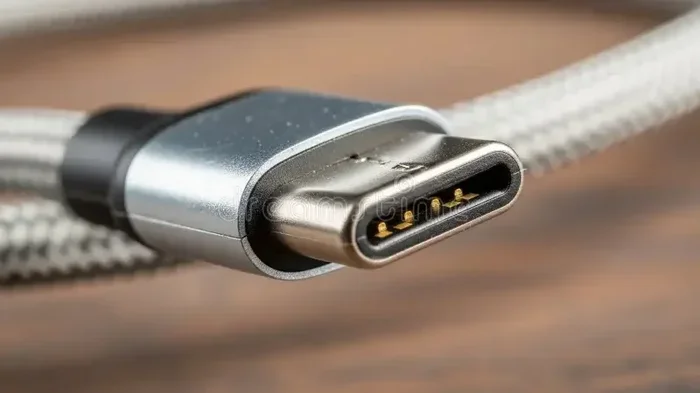
USB is the most straightforward way to connect a printer to a Mac. You simply plug one end of the cable into the printer and the other into your Mac. macOS usually recognizes the printer almost instantly. No extra software is needed in most cases.
USB connections are stable and fast. They work well for people who do not want to deal with network settings. If you have a printer that does not support wireless printing, a USB cable is your best friend. Just keep your cable handy and your Mac will handle the rest.
Wi-Fi and Network Printing
Wi-Fi printing is the most popular method today. Both your Mac and the printer need to be on the same network. Once they are connected to the same Wi-Fi, your Mac should detect the printer automatically.
This method is perfect for households or offices with multiple devices. You can print from your Mac, iPhone, or iPad without running cables across the room. Network printer Mac setups are clean, flexible, and incredibly convenient. You just send the print job and wait for the output.
Bluetooth Printing
Bluetooth is another wireless option, though less common for printers. Some compact and portable printers support Bluetooth connectivity. You pair the printer with your Mac through the Bluetooth settings, and you are good to go.
Bluetooth printing works best for quick, small jobs. It is not ideal for large documents or high-volume printing. The range is also limited compared to Wi-Fi. Still, it is a useful option for people who need portability and simplicity.
Understanding AirPrint and Its Role
AirPrint is Apple’s built-in wireless printing technology. It allows you to print without installing any drivers or additional software. This is one of the biggest reasons why printing on a Mac feels so effortless.
What Is AirPrint?
AirPrint wireless printing lets your Mac find compatible printers on the same network and send print jobs directly. There is no setup required in most cases. You simply open a document, hit Command + P, and select your printer from the list.
AirPrint supports basic printing features like color, black-and-white, number of copies, and page range. It does not support advanced features like stapling or booklet printing on its own. For those extras, you may need the printer manufacturer’s software.
Which Printers Support AirPrint?
Most modern printers support AirPrint. Major brands like HP, Canon, Epson, and Brother include AirPrint compatibility in many of their models. If your printer was made in the last eight to ten years, there is a good chance it supports AirPrint.
Older printers or very budget models might not have AirPrint. In those cases, you will need to install the printer’s driver manually. You can usually find the driver on the manufacturer’s website. Look for the macOS version of the driver and follow the installation steps.
Step-by-Step Guide to Connecting a Printer to Your Mac
Getting your printer connected to your Mac is a simple process. Follow these steps based on your preferred connection method.
Adding a Printer via Wi-Fi
Connecting a printer over Wi-Fi is the easiest method for most users. Here is how to do it:
- Make sure your printer is turned on and connected to the same Wi-Fi network as your Mac.
- On your Mac, open System Settings (or System Preferences on older macOS versions).
- Click on Printers & Scanners.
- Click the Add button, which looks like a plus sign.
- Your Mac will search for available printers. Select your printer from the list.
- Click Add, and your Mac will set up the printer automatically.
That is it. You should now be able to print from any app on your Mac. The Mac printer setup process takes less than a minute when both devices are on the same network.
Adding a Printer via USB
If you prefer a wired connection, USB is simple and reliable:
- Connect your printer to your Mac using a USB cable.
- Turn on the printer and wait for your Mac to recognize it.
- Go to System Settings and click on Printers & Scanners.
- Your Mac should detect the printer and install it automatically.
- If it does not appear, click the Add button and look for your printer in the list.
USB connections are great because they do not depend on Wi-Fi signal strength. You get a direct, stable connection every time. This is ideal for home offices or areas with weak Wi-Fi.
Adding a Printer via Bluetooth
For Bluetooth-enabled printers, follow these steps:
- Turn on your printer and enable Bluetooth pairing mode.
- On your Mac, go to System Settings and click on Bluetooth.
- Find your printer in the list of available devices.
- Click Connect next to the printer name.
- Go to Printers & Scanners and add the printer if it does not appear automatically.
Bluetooth is handy for portable printers. Just remember that the printer needs to stay within range of your Mac for a stable connection.
Common Printer Brands and Mac Compatibility
One of the most common questions is whether specific printer brands work well with Macs. The good news is that most major brands have solid Mac support. Here is a closer look.
HP Printers on Mac
HP printer Mac compatibility is excellent. HP offers a dedicated driver for macOS called HP Smart. This app lets you set up, scan, and print from your HP printer with ease. Most HP printers made in recent years support AirPrint out of the box. You can find the HP Smart app in the Mac App Store or download it from HP’s website.
Canon Printers on Mac
Canon printers also work beautifully with Macs. Canon provides its own driver package for macOS, which you can download from their support page. Many Canon models support AirPrint, making setup a breeze. The Canon PRINT app adds extra features like scanning and ink level monitoring on your Mac.
Epson and Brother Printers on Mac
Epson printers are known for strong Mac compatibility. Epson offers the Epson Printer Utility for macOS, which handles driver installation and maintenance. Brother printer Mac support is also very good. Brother provides dedicated drivers for macOS and offers a helpful setup wizard. Both brands support AirPrint on most of their newer models.
Here is a quick comparison of Mac compatibility across popular brands:
| Brand | AirPrint Support | Dedicated Mac Driver | Setup Ease |
|---|---|---|---|
| HP | Yes (most models) | HP Smart app | Very Easy |
| Canon | Yes (most models) | Canon driver package | Very Easy |
| Epson | Yes (most models) | Epson Printer Utility | Easy |
| Brother | Yes (most models) | Brother driver | Easy |
| Lexmark | Limited | Lexmark macOS driver | Moderate |
| Samsung | Limited | Samsung printer driver | Moderate |
As you can see, the big four brands offer the smoothest experience with macOS. If you are buying a new printer and want hassle-free Mac compatible printers, sticking with HP, Canon, Epson, or Brother is a smart choice.
Troubleshooting Common Connection Issues
Even with the best setup, you might run into issues now and then. Do not worry. Most problems have simple fixes.
Printer Not Showing Up on Mac
If your printer does not appear in the Printers & Scanners list, try these steps:
- Check that both your Mac and printer are on the same Wi-Fi network.
- Restart your printer and your Mac.
- Make sure your printer is turned on and not in sleep mode.
- Go to System Settings, click General, then Network, and check your Wi-Fi connection.
- If using a USB connection, try a different cable or USB port.
Sometimes the simplest fix is just a restart. Both your Mac and printer benefit from a fresh start. This clears temporary glitches and refreshes the connection.
Driver and Software Problems
If your Mac says the printer is unsupported or the print quality is poor, you might need to update or reinstall the driver:
- Visit the printer manufacturer’s website and download the latest macOS driver.
- Remove the old driver by going to Printers & Scanners, selecting the printer, and clicking the minus button.
- Install the new driver and add the printer again.
- Check for macOS updates in System Settings under General and Software Update.
Keeping your software updated is one of the best ways to prevent connection issues. Apple regularly releases macOS updates that improve printer support and fix bugs. The same goes for printer firmware. Check the manufacturer’s website for firmware updates for your printer model.
Tips for Smooth Mac Printing
A few simple habits can keep your Mac printing experience smooth and frustration-free.
Keeping Software Updated
Always run the latest version of macOS. Apple includes printer support improvements in every update. Similarly, keep your printer firmware up to date. Manufacturers release updates that fix bugs and add new features. Checking for updates once a month takes just a few minutes.
Setting Your Mac as the Default Printer
If you use multiple printers, set the one you use most as your default. Go to System Settings, click Printers & Scanners, and select your preferred printer. Then click the minus button and re-add it to move it to the top of the list. This ensures your Mac always sends print jobs to the right printer.
Using Printer Utility Apps
Most printer brands offer free utility apps for Mac. These apps let you monitor ink levels, clean print heads, and adjust print settings. Installing the manufacturer’s app gives you more control over your printer. It also helps you troubleshoot issues faster.
Another great tip is to use the Mac printing tips built into macOS. Hold down the Option key when you click the printer dropdown in the print menu. This reveals advanced options like duplex printing and paper source selection. These hidden features can save you time and paper.
Can A Mac Connect To Any Printer? The Final Verdict
So, can a Mac connect to any printer? The answer is a resounding yes, with a few caveats. Modern printers with AirPrint support connect to Macs almost effortlessly. Older or niche printers may require a driver download, but they still work. USB, Wi-Fi, and Bluetooth all provide reliable connection paths.
Apple has done an excellent job making printer connectivity simple. The days of wrestling with cables and confusing setup screens are mostly behind us. Whether you are printing a school assignment, a work document, or a family photo, your Mac can handle it. The key is choosing the right connection method and keeping your software up to date.
If you ever run into trouble, remember that most issues have straightforward solutions. Check your network, update your drivers, and restart your devices. With the right approach, connecting a printer to your Mac is one of the easiest tech tasks you will ever do.
Frequently Asked Questions
Can I connect any wireless printer to my Mac?
Most wireless printers can connect to a Mac, especially those that support AirPrint. If the printer is on the same Wi-Fi network as your Mac, it should show up automatically in the Printers & Scanners settings. For printers that do not support AirPrint, you can usually download the manufacturer’s driver from their website.
Do I need to install software to use a printer with my Mac?
Not always. AirPrint-compatible printers work without any extra software. You simply add the printer in your Mac settings and start printing. For non-AirPrint printers, you will need to download and install the driver from the printer manufacturer’s website. The installation process is usually straightforward and takes just a few minutes.
Why does my Mac not find my printer on the network?
This usually happens when the Mac and printer are on different Wi-Fi networks. Make sure both devices are connected to the same network. Also try restarting both your Mac and your printer. If the problem persists, check your router settings or try connecting via USB instead.
Can I connect a Windows printer to a Mac?
Yes, you can. Many Windows printers work fine with Macs, especially if they support AirPrint or have a macOS driver available. You may need to download the driver from the manufacturer’s website. Once installed, the printer should work just like any other Mac-compatible printer.
Is USB printing better than wireless printing on a Mac?
USB printing is more stable and does not depend on Wi-Fi signal strength. It is a great option if your printer is close to your Mac. Wireless printing offers more convenience and flexibility, especially in multi-device households. Both methods work well, so choose the one that fits your setup best.
How do I update my printer driver on a Mac?
Go to the printer manufacturer’s website and look for the latest macOS driver for your model. Download and install it. Then remove the old printer from your Printers & Scanners settings and add it back. Your Mac will use the new driver automatically. You can also check for macOS system updates, which sometimes include improved printer support.
Conclusion
Can a Mac connect to any printer? Absolutely. With AirPrint, USB, Wi-Fi, and Bluetooth options, your Mac is ready to work with almost any printer you throw at it. The process is simple, fast, and user-friendly. Whether you are a student, a professional, or a casual user, you can count on your Mac to handle your printing needs.
Remember to keep your software updated, choose the right connection method for your setup, and do not hesitate to reach out to the manufacturer’s support if you get stuck. Printing on a Mac should be easy, and now you have all the knowledge to make it happen without any hassle. Grab your favorite document, hit print, and enjoy the seamless experience that Apple has designed for you.