Can Dvi To Hdmi Do 1080p Everything You Need To Know
Yes, a DVI to HDMI connection can absolutely do 1080p. A DVI to HDMI adapter transmits high-definition video signals at full 1080p resolution without losing quality. This guide breaks down everything you need to know about DVI to HDMI 1080p compatibility, including cable types, audio limitations, and setup tips.
Key Takeaways
- DVI to HDMI supports 1080p: Digital DVI connections deliver full HD 1080p resolution to HDMI displays.
- No signal conversion is needed: Both DVI and HDMI use digital signals, making the transition seamless.
- Audio does not pass through DVI: You will need a separate audio cable or a DVI to HDMI cable with an audio jack.
- Dual-link DVI offers better quality: It supports higher resolutions and refresh rates than single-link DVI.
- HDCP compliance matters: Ensure your adapter and cables are HDCP compliant for protected content playback.
- Adapter quality affects performance: Cheap adapters may cause signal issues or compatibility problems.
- Backward compatibility is a plus: DVI to HDMI adapters work with most modern displays and older equipment.
📑 Table of Contents
- Can DVI to HDMI Do 1080p? The Short Answer
- Understanding DVI and HDMI: What Are the Differences?
- How Does DVI to HDMI 1080p Work?
- Does DVI to HDMI Support Audio?
- What You Need for a DVI to HDMI 1080p Setup
- Common Problems and How to Fix Them
- Expert Tips for the Best DVI to HDMI 1080p Experience
- DVI to HDMI vs Other Connection Options
- Frequently Asked Questions
- Final Thoughts
Can DVI to HDMI Do 1080p? The Short Answer
The short answer is yes. A DVI to HDMI connection can absolutely handle 1080p resolution. Whether you are connecting an older computer to a modern monitor or setting up a home theater system, this adapter combo gets the job done.
But there is more to it than just plugging things in. Understanding how DVI to HDMI 1080p works helps you avoid common pitfalls. It also ensures you get the best picture quality every time. Let us walk through everything you need to know.
DVI stands for Digital Visual Interface. HDMI stands for High Definition Multimedia Interface. Both are widely used for video connections. The good news is that digital DVI and HDMI share the same signaling format. This means a simple adapter can bridge the gap between them without any loss in quality.
So if you have been sitting on a DVI cable and a new HDMI monitor, you are in luck. You do not need to replace your entire setup. A basic DVI to HDMI adapter is all you need to get started.
Understanding DVI and HDMI: What Are the Differences?
Before diving into 1080p specifics, it helps to understand the basics. DVI and HDMI look different. They also carry different types of signals. But when it comes to digital video, they work together beautifully.
What Is DVI?
DVI is a video display interface developed in the late 1990s. It was designed to replace older analog connections like VGA. DVI comes in three main types:
- DVI-D: Digital only. This is the best type for HDMI connections.
- DVI-A: Analog only. This will not carry a digital signal to HDMI.
- DVI-I: Integrated. Supports both digital and analog signals.
For 1080p video, you want DVI-D or DVI-I. These carry the digital signal that HDMI needs. DVI-A will not work for this purpose because it only handles analog signals.
What Is HDMI?
HDMI is the modern standard for audio and video connections. It carries both digital video and digital audio through a single cable. HDMI is found on almost every modern TV, monitor, and projector today.
HDMI has evolved over the years. There are now several versions, including HDMI 1.4, HDMI 2.0, and HDMI 2.1. Each version supports different features and bandwidth levels. But for 1080p, even older HDMI versions work perfectly fine.
Key Differences Between DVI and HDMI
Here are the main differences between these two connection types:
- Audio support: HDMI carries audio. DVI does not carry any audio signal.
- Connector shape: DVI connectors are larger and have more pins. HDMI connectors are smaller and more compact.
- Compatibility: HDMI is the modern standard. DVI is older but still widely used.
- Signal type: Both support digital video signals for 1080p and beyond.
- Copy protection: HDMI uses HDCP for content protection. DVI also supports HDCP in its digital form.
Despite these differences, the digital video signal between DVI and HDMI is essentially the same. This is why a simple adapter works so well for DVI to HDMI 1080p setups.
How Does DVI to HDMI 1080p Work?
The technical side of this connection is simpler than you might think. Both DVI and HDMI transmit digital video signals using the same protocol. When you use a DVI to HDMI adapter, you are essentially just changing the physical connector shape.
Here is how the process works:
- Your source device (like a PC or laptop) sends a digital video signal through the DVI port.
- The DVI to HDMI adapter converts the DVI connector to an HDMI connector.
- The HDMI cable carries the signal to your display.
- Your monitor or TV receives and displays the 1080p video.
No signal conversion happens in the middle. The digital signal stays intact from start to finish. This is why DVI to HDMI 1080p delivers excellent picture quality without any degradation.
Single-link DVI supports up to 1920×1200 resolution at 60Hz. That is more than enough for 1080p (which is 1920×1080). Dual-link DVI goes even further, supporting higher resolutions and refresh rates. For 1080p purposes, single-link DVI is perfectly sufficient.
Does DVI to HDMI Support Audio?
This is one of the most common questions people ask. The answer is no. DVI does not carry audio signals. When you use a DVI to HDMI adapter, you only get video.
This can be frustrating if you are connecting a computer to a TV and want sound. But there are simple solutions:
- Use a separate audio cable: Connect a 3.5mm audio cable from your PC’s headphone jack to your TV or monitor’s audio input.
- Buy a DVI to HDMI cable with audio: Some cables include a built-in 3.5mm audio jack. These are great for all-in-one setups.
- Use your device’s internal speakers: If you are using a monitor with built-in speakers, this may not be an issue.
- Bluetooth or wireless audio: Pair wireless speakers or headphones with your source device for a clean setup.
Keep this in mind when planning your DVI to HDMI 1080p setup. The video will be perfect, but you need a separate solution for sound.
What You Need for a DVI to HDMI 1080p Setup
Setting up a DVI to HDMI 1080p connection is straightforward. Here is what you will need and some tips to make sure everything works smoothly.
Required Equipment
- A DVI output device: This could be a desktop computer, laptop, or media player with a DVI port.
- An HDMI input display: A monitor, TV, or projector with an HDMI input.
- A DVI to HDMI adapter or cable: This is the bridge between your devices.
- An HDMI cable: If your adapter is a DVI-only adapter, you will need a separate HDMI cable.
- An audio cable (optional): Only if you need sound and your setup does not support audio through the adapter.
Choosing the Right Adapter
Not all adapters are created equal. Here are some tips for picking a good one:
- Go for a branded adapter: Brands like Cable Matters, StarTech, and Ugreen make reliable adapters.
- Check for HDCP support: If you plan to watch protected content, make sure the adapter supports HDCP.
- Match your DVI type: Ensure the adapter matches your DVI connector (DVI-D or DVI-I).
- Avoid cheap no-name adapters: They may cause signal issues or fail to support 1080p.
- Consider a DVI to HDMI cable: These combine the adapter and cable into one convenient unit.
A quality DVI to HDMI adapter should cost between $5 and $15. There is no need to spend more than that for a simple passive adapter.
Step-by-Step Setup Guide
Here is how to set up your DVI to HDMI 1080p connection:
- Turn off both your source device and display.
- Plug the DVI end of the adapter into your source device’s DVI port.
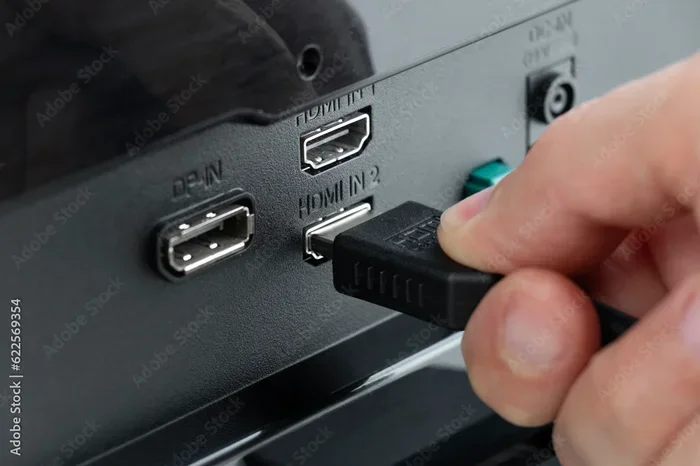
- Connect the HDMI cable to the adapter’s HDMI port.
- Plug the other end of the HDMI cable into your display.
- If needed, connect an audio cable separately.
- Turn on both devices.
- Select the correct HDMI input on your display.
- Go to your source device’s display settings and set the resolution to 1920×1080 (1080p).
That is it. You should now see a crisp 1080p image on your screen. If the picture looks blurry, double-check that the resolution is set correctly in your display settings.
Common Problems and How to Fix Them
Even though DVI to HDMI 1080p is a simple setup, you might run into some issues. Here are the most common problems and their solutions.
No Signal on the Display
If your screen shows no signal, try these steps:
- Check that the adapter is firmly plugged into both devices.
- Make sure the HDMI cable is securely connected.
- Verify that your display is set to the correct HDMI input.
- Try a different HDMI port on your display.
- Test with a different adapter or cable to rule out a faulty adapter.
Black Screen or Intermittent Signal
A black screen or flickering can happen for several reasons:
- The adapter may be low quality. Replace it with a reputable brand.
- The cable might be too long, causing signal loss. Keep cables under 6 feet for best results.
- Your DVI port might be DVI-A (analog). Make sure you have a DVI-D or DVI-I port.
- Try a different HDMI port on your display.
No Audio
Since DVI does not carry audio, this is expected. Use a separate audio cable or check your device’s audio output settings to route sound to the correct device.
Wrong Resolution or Overscan
If the image does not fill the screen or looks cut off:
- Go to your display settings and set the resolution to 1920×1080.
- Adjust the overscan settings on your TV if applicable.
- Check your graphics card settings for scaling options.
Expert Tips for the Best DVI to HDMI 1080p Experience
Want to get the most out of your DVI to HDMI 1080p setup? Here are some expert tips that make a real difference.
Always use a short, high-quality HDMI cable. Longer cables can introduce signal degradation. For most setups, a 3 to 6 foot cable is perfect. If you need a longer run, consider an active HDMI cable or a signal booster.
Keep your adapter and ports clean. Dust and debris can cause poor connections. A quick wipe with a dry cloth before plugging things in can prevent issues.
Update your graphics drivers. Sometimes display problems are caused by outdated drivers. Visit your GPU manufacturer’s website and download the latest drivers for the best experience.
Test your setup with HDCP content. If you plan to watch Blu-rays or stream protected content, make sure every link in the chain supports HDCP. This includes the adapter, cable, and display.
Do not mix analog and digital signals. If your DVI port is DVI-A (analog), it will not work with an HDMI display through a simple adapter. You would need an active digital-to-analog converter instead.
DVI to HDMI vs Other Connection Options
How does DVI to HDMI 1080p compare to other connection methods? Here is a quick comparison of popular options for connecting a device to a 1080p display.
| Connection Type | Supports 1080p | Carries Audio | Compatibility | Ease of Use |
|---|---|---|---|---|
| DVI to HDMI Adapter | Yes | No (requires separate cable) | Works with most DVI and HDMI devices | Very Easy |
| HDMI to HDMI | Yes | Yes | Best for modern devices | Very Easy |
| VGA to HDMI (with converter) | Yes (with active converter) | No | Requires powered converter box | Moderate |
| DisplayPort to HDMI | Yes | No (depends on adapter) | Works with most modern PCs | Very Easy |
| USB-C to HDMI | Yes (up to 4K) | Yes | Requires compatible device | Very Easy |
As you can see, a DVI to HDMI adapter is one of the simplest and most affordable ways to connect older devices to modern displays. It may not carry audio, but the video quality at 1080p is excellent.
Frequently Asked Questions
Can I use a DVI to HDMI adapter for 4K resolution?
No, standard DVI to HDMI adapters do not support 4K resolution. DVI was designed for lower resolutions and bandwidths. For 4K, you need a DisplayPort or HDMI 2.0 connection. A DVI to HDMI 1080p setup is the maximum you can expect from a DVI connection.
Will a DVI to HDMI adapter work with all TVs?
Yes, most modern TVs with HDMI inputs will work with a DVI to HDMI adapter. Just make sure your TV has an HDMI port and your source device has a DVI port. The connection is plug-and-play in most cases.
Do I need a powered DVI to HDMI adapter?
Most DVI to HDMI adapters for 1080p are passive and do not require external power. However, some adapters with additional features like audio extraction may need a USB power source. Check the product specifications before purchasing.
Can I use a DVI to HDMI cable instead of an adapter?
Yes, DVI to HDMI cables are available and work exactly the same as a separate adapter and HDMI cable. They are convenient because they combine both components into one piece. Just make sure the cable supports 1080p resolution.
Is DVI to HDMI 1080p good for gaming?
It can be, but with limitations. A DVI to HDMI 1080p connection delivers solid video quality for gaming at 1080p and 60Hz. However, it does not carry audio, and it lacks features like variable refresh rate (VRR) that modern HDMI connections offer. For competitive gaming, a direct HDMI or DisplayPort connection is better.
Does the length of the DVI to HDMI cable matter for 1080p?
Yes, cable length can affect signal quality. For 1080p, keep your DVI to HDMI cable under 6 feet for the best results. Longer cables may experience signal loss or interference. If you need a longer run, look for an active or shielded cable designed for extended distances.
Final Thoughts
DVI to HDMI 1080p is a reliable and affordable way to connect older devices to modern displays. The digital signal passes through without any conversion, meaning you get a clean, crisp 1080p picture every time.
The main thing to remember is that DVI does not carry audio. You will need a separate audio solution if sound is important to your setup. Beyond that, the process is simple and straightforward.
Invest in a quality DVI to HDMI adapter from a reputable brand. Keep your cables short and well-connected. And always check that your devices support HDCP if you plan to watch protected content.
With the right gear and a little know-how, your DVI to HDMI 1080p setup will deliver excellent results for years to come. Whether you are using it for work, gaming, or streaming movies, this connection type remains a solid choice in today’s world of ever-changing display technology.
So go ahead and set up that DVI to HDMI 1080p connection. You will be enjoying high-definition video in no time.