Can You Convert Hdmi To Usb Here Is What You Need To Know
Yes, you can convert HDMI to USB using the right adapter or capture card, but it depends on your device and what you want to achieve. This guide breaks down how HDMI to USB conversion works, which adapters deliver the best results, and common mistakes to avoid. Whether you want to stream, record, or connect a display, understanding your options saves time and money.
You have an HDMI cable plugged into a device and a USB port on your computer. It seems like a simple connection, right? But here is the thing. These two ports speak completely different languages. HDMI sends high-definition video and audio signals. USB handles data transfer and power delivery. So can you convert HDMI to USB? The short answer is yes. But the full answer is a bit more involved.
This guide walks you through everything you need to know about HDMI to USB conversion. We will cover how it works, which adapters to buy, common mistakes, and practical tips to get the best results. By the end, you will feel confident about choosing the right setup for your needs.
Whether you are a content creator, a gamer, or someone who just wants to connect a second monitor, understanding video signal conversion is essential. Let us dive in.
Key Takeaways
- HDMI and USB are different signals: HDMI carries high-definition video and audio, while USB is a data transfer standard. Conversion requires active hardware.
- USB HDMI capture cards are the most reliable option: They convert HDMI input into USB output that your computer can read and process.
- Not all adapters work the same way: Some only support certain resolutions, refresh rates, or audio formats.
- Your device matters: Laptops, desktops, and tablets have different USB ports and capabilities that affect compatibility.
- Avoid cheap unbranded adapters: They often cause signal loss, lag, or poor video quality.
- You can use HDMI to USB for streaming, recording, and screen mirroring: The use case determines the type of adapter you need.
📑 Table of Contents
What Is HDMI and What Is USB?
Before we talk about conversion, it helps to understand what each port does. HDMI stands for High-Definition Multimedia Interface. It was designed to carry uncompressed video and audio from one device to another. Think of your cable box, gaming console, or laptop. These devices use HDMI to send a picture and sound to a TV or monitor.
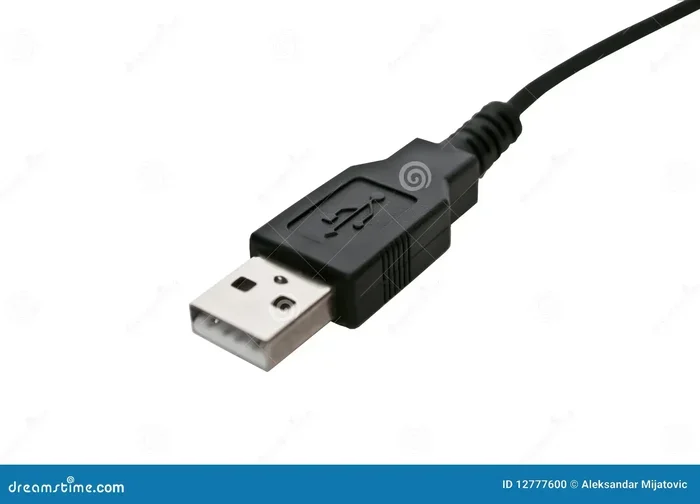
USB stands for Universal Serial Bus. It is a standard for connecting devices and transferring data. USB ports on computers handle everything from charging phones to connecting keyboards and external hard drives. USB has evolved over the years. We now have USB-A, USB-B, USB-C, and USB 3.0, USB 3.1, and USB 4 standards.
The core difference comes down to signal type. HDMI is a dedicated audio and video signal. USB is a data and power signal. You cannot plug an HDMI cable into a USB port and expect it to work. You need a converter or adapter that translates one signal into the other.
How HDMI and USB Differ
- Signal type: HDMI carries digital video and audio. USB carries digital data and power.
- Bandwidth: HDMI supports much higher bandwidth for video. USB bandwidth depends on the version.
- Purpose: HDMI is for display output. USB is for data and peripheral connections.
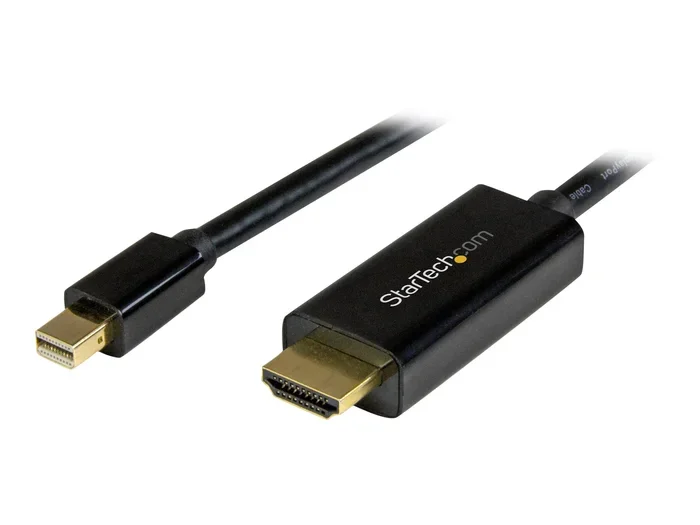
- Connector types: HDMI has a specific 19-pin connector. USB comes in several shapes and sizes.
Understanding this difference is the first step in making a smart purchase. A USB HDMI adapter bridges this gap, but it does so using specific technology that we will cover next.
Can You Convert HDMI to USB? The Truth Revealed
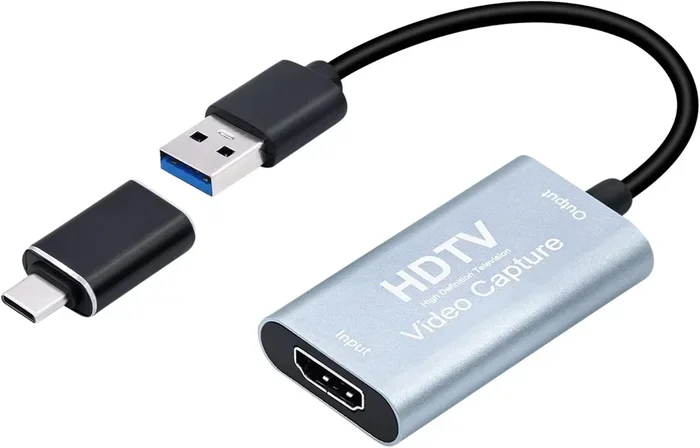
Here is the part that confuses a lot of people. You cannot simply plug an HDMI cable into a USB port and have it work. HDMI to USB conversion requires a dedicated device. This device is usually called an HDMI capture card, an HDMI USB adapter, or a video grabber.
The converter takes the HDMI signal as input. It processes the signal internally. Then it sends the converted data out through a USB connection to your computer. Your computer sees the incoming signal as a video source. You can then display it on screen, record it, or stream it live.
There are two main types of HDMI to USB devices on the market. The first is a USB HDMI capture card. This is the most popular option. It captures HDMI input and sends it to your computer via USB. The second type is a USB-C to HDMI adapter. But wait. That one works in the opposite direction. It converts USB output to HDMI input. So make sure you buy the right one for your needs.
Direction Matters
This is a common mistake. People buy a USB-C to HDMI adapter when they actually need an HDMI to USB capture card. The direction of conversion matters a lot.
- HDMI to USB: Takes HDMI input and converts it to a USB signal your computer can read. Use this for recording, streaming, or capturing gameplay.
- USB to HDMI: Takes a USB signal and converts it to HDMI output. Use this to connect your laptop to a TV or monitor with HDMI input.
So when someone asks, can you convert HDMI to USB, the answer is yes, but you need the right device. A USB HDMI capture device is what you are looking for.
How HDMI to USB Conversion Works
Now let us look under the hood. How does an HDMI to USB adapter actually work? The process involves a small chip inside the device called a converter chip. This chip reads the incoming HDMI signal. It decodes the video and audio data. Then it re-encodes that data into a format your computer understands through USB.
The conversion process happens in real time. There is a slight delay, which is called input lag. With a good quality capture card, this lag is minimal. You may not even notice it. With a cheap adapter, the lag can be significant and frustrating.
The Role of the Converter Chip
The converter chip is the brain of the device. It handles the heavy lifting of translating signals. Different chips support different features. Some handle 1080p resolution at 60 frames per second. Others support 4K resolution at 30 frames per second. The chip also determines whether the device supports audio capture along with video.
When shopping for an HDMI USB converter, look at the chip specifications. Popular chips include the MS2109 and MS2130. These are known for reliable performance. If a product does not list the chip model, that is a red flag.
Software and Drivers
Most HDMI to USB capture devices work on a plug and play basis. You plug the device in, and your computer recognizes it. However, some devices require you to install specific drivers or software. This is especially true for advanced capture cards used in streaming or professional video production.
Popular software options include OBS Studio, which is free and widely used for streaming and recording. You can also use built-in tools like Windows Camera or QuickTime on Mac. The software acts as a bridge between the capture card and your recording or streaming platform.
Best HDMI to USB Adapters and Devices
Not all adapters are created equal. The market is full of options at different price points. Here is a breakdown of the most reliable types of HDMI to USB converters.
USB HDMI Capture Cards
These are the go-to choice for most users. They come in two sizes. Full-size cards that connect via USB 3.0 and compact dongle-style cards that plug directly into a laptop.
- Elgato HD60 X: A top-tier option for streaming and recording. Supports 1080p at 60fps with excellent quality.
- AVerMedia Live Gamer Mini: Compact and affordable. Great for beginners who want a simple setup.
- Generic USB Capture Cards: Available on most online marketplaces. Quality varies widely, so read reviews carefully.
USB-C HDMI Adapters
Wait. We mentioned these earlier. They go the other way. But some dual-purpose adapters exist that handle both directions. These are versatile and useful if you switch between devices often.
Portable HDMI Grabbers
These are small, affordable devices that plug into a USB port. They are perfect for quick setups. You plug an HDMI cable into the grabber, then plug the grabber into your computer. They are ideal for capturing retro console footage or connecting a secondary device for a video call.
Comparison Table
| Device Type | Best For | Price Range | Quality |
|---|---|---|---|
| USB HDMI Capture Card | Streaming, recording, gaming | $30 – $150 | High |
| Portable HDMI Grabber | Quick capture, casual use | $10 – $25 | Moderate |
| Dual-Purpose Adapter | Versatile setups | $20 – $60 | Moderate to High |
| Professional Capture Card | Broadcast quality, production | $150 – $300+ | Very High |
When choosing a device, consider your primary use case. If you are streaming gameplay, invest in a quality capture card. If you just need to record a quick video call, a basic grabber will do the job.
Common Uses for HDMI to USB Conversion
Why would someone need to convert HDMI to USB in the first place? There are several practical reasons. Let us explore the most common ones.
Streaming and Content Creation
This is the number one reason people buy HDMI to USB devices. Content creators use USB capture cards to bring HDMI sources into their computer. This lets them stream gameplay from a console, capture a camera feed, or record a presentation from an external device.
Popular streaming platforms like Twitch and YouTube rely on this setup. You connect your console or camera via HDMI, run it through a capture card, and stream directly from your computer.
Screen Mirroring and Display Extension
Some people use HDMI to USB conversion to mirror or extend their screen. This is especially useful for professionals who need a second display. A capture card can pick up an HDMI signal and display it on your computer screen.
However, for simple display extension, a USB-C to HDMI adapter (going the other direction) is usually better. Make sure you understand which direction you need before buying.
Recording Presentations and Lectures
Teachers and presenters often need to record HDMI feeds from projectors or document cameras. A USB HDMI capture device makes this easy. You plug in the HDMI source, capture the feed on your computer, and save the recording for later use.
Using a TV as a Monitor
If your computer has HDMI output but your TV only accepts HDMI input, you might think you need a converter. Actually, in this case, you just need an HDMI cable. But if your computer only has USB-C output and your TV has HDMI input, you need a USB-C to HDMI adapter. This is the reverse of what this article covers, but it is a related scenario worth knowing about.
Common Mistakes to Avoid
Buying the wrong adapter is just the beginning. Here are common mistakes people make when setting up an HDMI to USB conversion system.
Buying the Wrong Direction
This is the biggest mistake. Make sure you know whether you need HDMI to USB or USB to HDMI. The names sound similar but they do completely different things. Check the port labels on the device before purchasing.
Ignoring Resolution and Frame Rate Support
Not all capture cards support the same resolution or frame rate. If you buy a card that only supports 1080p at 30fps, you will not get smooth 4K gameplay. Always check the specs and match them to your needs.
Skipping Driver Installation
Some capture cards work without drivers. Others require you to install specific software first. If your device is not recognized by your computer, check the manufacturer website for drivers and instructions.
Using Low-Quality Cables
A great capture card paired with a cheap HDMI cable will give you poor results. Use certified high-speed HDMI cables to ensure the best signal quality.
Not Checking USB Port Version
USB 2.0 ports are too slow for most capture cards. You need at least a USB 3.0 port for reliable performance. Check your computer ports before buying a device.
Expert Tips for Getting the Best Results
Here are some practical tips from experienced users and tech professionals to help you get the most out of your HDMI to USB setup.
- Use a powered USB hub: If your laptop has limited USB power, a powered hub can stabilize the connection and reduce lag.
- Close unnecessary programs: Video capture uses a lot of system resources. Close background apps for smoother performance.
- Test your setup before going live: Do a test recording or stream before an important session. This helps you catch any issues early.
- Keep your drivers updated: Manufacturers often release updates that improve compatibility and performance.
- Consider your internet speed for streaming: A good capture card is only half the battle. You also need a stable internet connection for live streaming.
If you are exploring streaming or content creation options, you might also want to look into alternatives to traditional cable services like Dish Network and DirectTV. Many content creators are cutting the cord and using streaming platforms alongside their capture card setups to build a complete home entertainment and content creation station.
Frequently Asked Questions
Can you plug an HDMI cable directly into a USB port?
No, you cannot plug an HDMI cable directly into a USB port. The two ports use different signals and connectors. You need a converter device, such as an HDMI capture card or adapter, to bridge the gap between HDMI and USB.
Do HDMI to USB converters support audio?
Most quality HDMI to USB capture cards support both video and audio. However, some budget adapters may only capture video. Always check the product specifications to confirm audio support before purchasing.
Can I use an HDMI to USB adapter for gaming?
Yes, you can. Many gamers use USB HDMI capture cards to record or stream gameplay from consoles like PlayStation and Xbox. For the best experience, choose a capture card that supports at least 1080p at 60 frames per second.
Is there a difference between USB 2.0 and USB 3.0 for HDMI conversion?
Yes, there is a big difference. USB 3.0 offers much faster data transfer speeds than USB 2.0. For HDMI video capture, USB 3.0 is strongly recommended. USB 2.0 may work for basic tasks but can cause lag, dropped frames, or lower quality.
Can I convert HDMI to USB on a Mac?
Yes, most HDMI to USB capture cards work with Mac computers. However, you should check compatibility before buying. Some cards require specific drivers or software that may not be available for macOS. Look for cards that explicitly list Mac support.
What resolution can HDMI to USB converters handle?
It depends on the device. Budget grabbers typically support up to 1080p at 30fps. Mid-range capture cards handle 1080p at 60fps. High-end options support 4K resolution, though often at reduced frame rates. Always match the specs to your needs.
Conclusion
So, can you convert HDMI to USB? Absolutely. The right HDMI to USB adapter or capture card makes it possible to bring HDMI sources into your computer for streaming, recording, or display purposes. The key is understanding the difference between HDMI and USB signals, choosing the right device for your needs, and avoiding common pitfalls like buying the wrong direction or using low-quality cables.
Take your time when shopping. Read reviews, check specifications, and make sure your computer has the right ports. A good USB HDMI capture device can transform how you create content, game, or connect displays. The investment pays off quickly if you use it regularly.
Start with a reliable capture card, set up your software, and test everything before your next big stream or recording session. With the right setup, HDMI to USB conversion opens up a world of possibilities for your tech setup.