Can USB Read RS232 Without Any Extra Adapter Needed
Yes, USB can read RS232 data, but direct connection without any adapter is rarely possible. Most modern computers lack native RS232 ports, so you typically need a USB to RS232 adapter or cable. This guide explains exactly how serial communication works over USB and what you need to get it done right.
You plugged your old RS232 device into a USB port and expected it to work. It didn’t. Now you’re wondering if USB can read RS232 without any extra adapter. The short answer is no, not directly. But the full story is more interesting than that.
USB and RS232 are two completely different ways to move data between devices. They speak different languages, use different voltages, and connect through different hardware. So when you try to plug an RS232 cable straight into a USB port, nothing meaningful happens. You need something in between to translate the signals. That “something” is usually a USB to RS232 adapter or a USB serial converter.
In this article, we’ll break down exactly why USB and RS232 don’t talk to each other natively. We’ll look at what adapters you actually need, how to set them up, and what common mistakes to avoid. Whether you’re working with legacy devices, industrial equipment, or just trying to recover data from an old machine, this guide has you covered.
Key Takeaways
- USB cannot natively read RS232: USB and RS232 use different protocols, so a direct connection usually fails without a converter.
- USB-to-RS232 adapters are the most common solution: They bridge the gap between modern USB ports and legacy serial devices.
- Driver installation is essential: Without the right device driver, your computer won’t recognize the virtual COM port.
- Built-in RS232 ports still exist: Some industrial computers and motherboards include native RS232 serial ports.
- Baud rate and settings matter: Mismatched baud rate or serial parameters cause communication failures.
- Quality adapters prevent data loss: Cheap adapters may drop packets or corrupt serial data transfer.
- Legacy devices still rely on RS232: Many industrial equipment and older systems use RS232 protocol every day.
📑 Table of Contents
- What Is RS232 and Why Does It Still Matter?
- How USB and RS232 Differ
- Can USB Read RS232 Without an Adapter?
- Types of USB to RS232 Solutions
- How to Set Up RS232 Communication Over USB
- Common Problems and How to Fix Them
- Expert Tips for Reliable RS232 over USB
- The Future of RS232 in a USB World
- Conclusion
What Is RS232 and Why Does It Still Matter?
RS232 is one of the oldest serial communication standards still in use today. It was introduced in the 1960s by the Electronic Industries Association. Back then, computers used it to connect modems, printers, and other peripherals. The standard defined how data moves one bit at a time over a single wire.
The History of RS232 Serial Communication
RS232 became the go-to standard for serial data transfer for decades. Every computer had a DB9 connector or a DB25 port on the back. You’d plug in a modem, a mouse, or a serial printer, and data would flow. The RS232 protocol used voltage levels between -15V and +15V to represent binary ones and zeros. This was robust for its time but clunky by modern standards.
As USB emerged in the mid-1990s, it quickly replaced RS232 in consumer electronics. USB offered faster speeds, simpler connectors, and plug and play convenience. But RS232 didn’t disappear. Many industries kept using it because their equipment worked perfectly fine.
Where You’ll Still Find RS232 Today
You’d be surprised how many places still rely on RS232 serial ports. Here are some common examples:
- Industrial machines and manufacturing equipment
- Medical devices and laboratory instruments
- Networking gear like switches and routers
- Point-of-sale systems and cash registers
- Older scientific and measurement tools
- Telecommunications infrastructure
- Embedded systems and microcontroller boards
These devices use RS232 serial communication because it’s simple, reliable, and well understood. Replacing them with USB-only alternatives would be expensive and unnecessary. That’s why USB to RS232 conversion remains a hot topic in the accessories world.
How USB and RS232 Differ
To understand why you can’t just plug an RS232 device into a USB port, you need to see how different these two technologies really are. They differ in voltage, protocol, connector type, and data transfer method.
Understanding USB Communication
USB stands for Universal Serial Bus. Despite the word “serial” in its name, USB is not the same as true serial communication. USB uses a host-controlled architecture. Your computer acts as the host, and USB devices are just peripherals. Data moves in packets through a structured protocol. USB supports speeds from 1.5 Mbps (Low Speed) up to 40 Gbps (USB4).
USB connectors come in many shapes: Type-A, Type-B, Mini, Micro, and Type-C. The voltage levels are much lower than RS232, typically 0.3V to 5V. USB also supports power delivery, which RS232 does not. This makes USB far more versatile but also more complex.
Understanding RS232 Communication
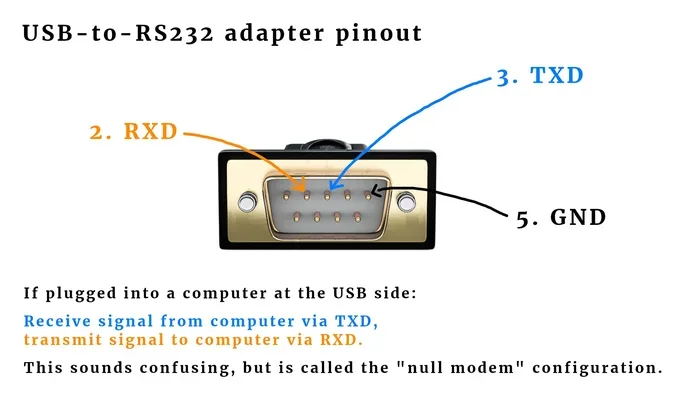
RS232 is a point-to-point protocol. One device transmits, and one device receives. It uses higher voltage levels (typically ±3V to ±15V) to represent binary data. The DB9 connector is the most common RS232 port shape you’ll see today. RS232 is simple and deterministic, which makes it great for embedded systems and industrial control.
Key differences between USB and RS232 include:
- Voltage levels: RS232 uses high voltages; USB uses low voltages
- Protocol: USB uses packet-based communication; RS232 uses asynchronous serial
- Speed: USB is much faster than RS232
- Distance: RS232 works over longer cable runs (up to 15m)
- Power: USB can power devices; RS232 cannot
- Connectors: USB uses rectangular ports; RS232 uses D-sub connectors
Because of these differences, a direct connection between USB and RS232 is not possible without translation hardware. That translation is exactly what a USB serial adapter provides.
Can USB Read RS232 Without an Adapter?
This is the question everyone wants answered. The honest answer depends on your hardware. Let’s look at the different scenarios.
The Reality of Direct Connection
If you take an RS232 cable and plug it directly into a standard USB port, nothing useful will happen. The USB port expects USB protocol signals. The RS232 cable sends RS232 voltage levels. Your computer’s USB controller simply won’t understand what it’s receiving. At best, nothing happens. At worst, you could damage the port.
Some people claim they’ve connected RS232 devices directly to USB and it “worked.” In most cases, what actually happened is that the device was detected as an unknown peripheral but couldn’t communicate. The serial data transfer failed silently, and the user assumed it was working.
When Built-In Support Works
There are rare exceptions where a computer has a native RS232 port built in. Some industrial motherboards include RS232 serial ports directly. Certain rack-mounted servers and embedded systems still offer DB9 connectors. If your computer has a real RS232 port, you don’t need a USB adapter at all. You just plug the RS232 device straight in.
However, most modern laptops and desktops have completely removed RS232 ports. They exist only as USB Type-A or USB-C ports. For those machines, an adapter is mandatory. There’s no way around it.
| Scenario | Direct USB to RS232? | Adapter Needed? |
|---|---|---|
| Modern laptop with USB-C only | No | Yes |
| Desktop with USB-A ports | No | Yes |
| Industrial PC with DB9 port | N/A (native RS232) | No |
| Old server with serial port | N/A (native RS232) | No |
| Raspberry Pi with GPIO | Partial (UART, not RS232) | Level shifter needed |
As you can see from the table, almost every modern setup requires some form of USB to RS232 conversion. The adapter is not optional in most cases.
Types of USB to RS232 Solutions
When you need to connect an RS232 device to a modern computer, you have several options. Each has its own strengths and weaknesses. Let’s explore them.
USB to RS232 Cables
A USB to RS232 cable has a USB connector on one end and an RS232 DB9 connector on the other. Inside the cable, there’s a small circuit board that handles the protocol translation. These cables are simple to use. You plug them in, install a driver, and they appear as a virtual COM port on your system.
Popular brands in this category include FTDI, Prolific, and Silicon Labs. Each uses a different UART chip inside the cable to manage the conversion. FTDI chips are generally considered the most reliable and widely supported.
USB Serial Adapters
A USB serial adapter is similar to a cable but usually has a separate box or dongle in the middle. You plug the USB end into your computer, and the RS232 end connects to your device with a DB9 cable. These adapters often offer better signal isolation and more durable construction than simple cables.
Adapters are especially useful when you need to connect to industrial equipment that uses a female DB9 port. Many adapters come with a female DB9 connector built in, making them a seamless match.
Embedded USB-to-Serial Chips
Some devices come with built-in USB-to-serial chips. Certain microcontrollers, development boards, and embedded systems include this functionality natively. For example, many Arduino boards and ESP32 modules have a built-in USB-to-serial converter. When you plug them into your computer, they appear as a COM port without any extra hardware.
If you’re designing your own equipment or working with development boards, choosing a board with an embedded USB serial converter can save you money and hassle.
Comparison Table: USB to RS232 Solutions
| Solution | Pros | Cons | Best For |
|---|---|---|---|
| USB to RS232 Cable | Simple, compact, affordable | Limited signal isolation, cable length | Quick connections, home use |
| USB Serial Adapter | Better build quality, isolation | Bulkier, slightly more expensive | Industrial use, long-term setups |
| Embedded USB-to-Serial | No extra hardware needed | Only works with compatible boards | Development, embedded projects |
| USB-to-RS485 Converter | Supports multi-drop networks | Not true RS232, different protocol | Industrial networks, long distances |
For most users, a quality USB to RS232 cable or USB serial adapter is the right choice. Make sure to pick one with a well-known chipset like FTDI or Prolific for the best device driver support.
How to Set Up RS232 Communication Over USB
Once you have the right adapter, setting it up is straightforward. But there are a few steps you need to follow carefully to avoid frustration.
Installing Drivers
The first step is installing the correct device driver. When you plug in a USB serial adapter, your operating system may not recognize it immediately. You need to download and install the driver from the manufacturer’s website.
Here’s the typical process:
- Plug the adapter into your USB port
- Wait for Windows to attempt driver installation
- If it fails, visit the manufacturer’s website
- Download the latest driver for your operating system
- Run the installer and follow the prompts
- Restart your computer if prompted
After the driver installs, your adapter should appear as a virtual COM port in Device Manager. You’ll see it listed under “Ports (COM & LPT).” The port number might be COM3, COM4, or higher depending on what else is connected.
Configuring COM Port Settings
Once your adapter shows up as a COM port, you need to configure the serial parameters correctly. These settings must match what your RS232 device expects. The most important settings include:
- Baud rate: The speed of data transfer (common values: 9600, 19200, 38400, 115200)
- Data bits: Usually 7 or 8
- Parity: None, Odd, Even, Mark, or Space
- Stop bits: Usually 1 or 2
- Flow control: None, Hardware (RTS/CTS), or Software (XON/XOFF)
You can configure these settings in Windows through the Device Manager or in your terminal software. If any setting is wrong, your serial communication will fail. The device might not respond at all, or you might receive garbled data.
Testing Your Connection
After setting up the driver and configuring the COM port, test your connection. You can use a simple terminal program like PuTTY, Tera Term, or the Windows HyperTerminal replacement. Open the COM port with the correct settings and try sending a command to your RS232 device.
If you get a response, congratulations! Your USB to RS232 setup is working. If not, double-check the cable, the driver, and the COM port settings. Nine times out of ten, the problem is a mismatched baud rate or a faulty cable.
Common Problems and How to Fix Them
Even with the right adapter, you might run into issues. Here are the most common problems and their solutions.
Driver Issues
Driver problems are the number one cause of USB serial adapter failures. Windows sometimes installs a generic driver that doesn’t work properly. If your COM port shows up with a yellow warning triangle in Device Manager, the driver is likely the issue.
To fix this, uninstall the current driver, download the correct one from the chipset manufacturer, and reinstall. Restarting your computer after the install usually resolves the problem.
Baud Rate Mismatches
If your data looks garbled or you’re missing characters, the baud rate is probably wrong. Both the adapter and the RS232 device must use the same baud rate. Check the device documentation and set your terminal software to match.
Also, make sure your USB serial cable or adapter supports the baud rate you need. Some cheap adapters max out at 9600 baud and can’t handle higher speeds.
Signal Compatibility Problems
RS232 uses specific voltage levels and signal standards. If your adapter doesn’t properly convert these signals, communication will fail. Some adapters only support TX, RX, and GND, but your device might need additional signals like RTS, CTS, or DTR.
Check your device’s pinout requirements and make sure your USB to RS232 adapter supports all the necessary signals. If it doesn’t, you may need a different adapter or a breakout box.
Expert Tips for Reliable RS232 over USB
Getting RS232 communication working over USB is one thing. Keeping it stable is another. Here are some expert tips that make a real difference.
Best Practices
- Always use a USB serial adapter from a reputable manufacturer
- Keep your cable runs as short as possible for best signal integrity
- Use shielded cables in electrically noisy environments
- Save your COM port settings as a profile in your terminal software
- Update your drivers regularly, especially after OS updates
- Avoid USB hubs; plug adapters directly into the computer when possible
- Label your cables and adapters so you don’t mix them up
Quick Tips
Here are a few quick tips that save time and headaches:
- If your device isn’t responding, try a different USB port on your computer
- Use a multimeter to check voltage levels on the RS232 connector before troubleshooting software
- Keep a spare USB to RS232 cable on hand if you work with legacy equipment regularly
- When in doubt, reset all serial parameters to 8N1 (8 data bits, No parity, 1 stop bit) as a starting point
- Write down your working settings so you can reproduce them later
These small habits add up. They prevent hours of troubleshooting and keep your serial data transfer running smoothly.
The Future of RS232 in a USB World
USB has clearly become the dominant connectivity standard. New devices almost never include RS232 ports. But RS232 isn’t going away anytime soon. Industries that depend on legacy serial devices will continue to need USB to RS232 conversion for years to come.
On the flip side, newer protocols like RS485 and Ethernet-based fieldbus systems are slowly replacing RS232 in industrial settings. These modern standards offer multi-device networking and longer cable runs. But they also require their own adapters when connecting to USB-equipped computers.
The bottom line is that serial communication skills and USB serial adapter knowledge remain valuable. Whether you’re a technician, a hobbyist, or an engineer, understanding how to bridge old and new technologies is a real-world skill that pays off.
Conclusion
So, can USB read RS232 without any extra adapter? The answer is almost always no. USB and RS232 are fundamentally different technologies. They need a translator to communicate, and that translator is a USB to RS232 adapter or cable.
With the right adapter, proper drivers, and correct COM port settings, connecting RS232 devices to modern computers is straightforward. The key is choosing a quality USB serial converter from a trusted brand, installing the right device driver, and matching your serial parameters to the device you’re working with.
Don’t let the age of RS232 fool you. This serial interface is still alive and well in factories, labs, and workshops around the world. With a good USB to RS232 adapter in your toolkit, you can connect to any RS232 device and get the job done. Keep this guide handy the next time you need to bridge the gap between old and new technology.
Frequently Asked Questions
Do all USB to RS232 adapters work the same way?
No, they use different chipsets like FTDI, Prolific, or Silicon Labs. FTDI-based adapters are generally the most reliable and widely supported. Always check chipset compatibility before buying, especially if you’re working with specific operating systems or industrial software.
Can I use a USB to RS232 adapter with a Mac or Linux system?
Yes, most quality USB serial adapters work with macOS and Linux. However, you may need to install specific drivers or configure the virtual COM port manually. Always check the manufacturer’s website for Linux and Mac driver support before purchasing.
What is a virtual COM port and why does it matter?
A virtual COM port is a software representation of a physical serial port created by your USB serial adapter. It allows your computer to treat the USB connection as if it were a traditional RS232 port. This is essential for running legacy software that only supports COM port communication.
How long can an RS232 cable be when used with a USB adapter?
Standard RS232 cables work reliably up to about 15 meters (50 feet). With a USB to RS232 adapter, the USB portion can be much longer using active cables or hubs. For best results, keep the RS232 side under 15 meters and use quality shielded cable to reduce interference.
Why does my RS232 device work with an old computer but not with a USB adapter?
This is usually caused by a baud rate mismatch, incorrect serial parameters, or a faulty driver. Try resetting all settings to 8N1 and 9600 baud first. If that doesn’t work, test the device on another computer to rule out hardware failure.
Are there wireless options for RS232 to USB communication?
Yes, you can use wireless USB serial adapters that include Bluetooth or Wi-Fi modules. These are great for situations where running cables is impractical. They still require a USB to RS232 converter on the RS232 side but transmit data wirelessly to your computer.