Can You Connect Xbox Controller To iPhone Right Now
Yes, you can connect Xbox controller to iPhone easily and start playing your favorite games with full tactile control. The process uses Bluetooth pairing and works with most modern iOS devices and the latest Xbox Wireless Controller. Whether you are a casual gamer or a competitive player, this guide covers everything you need to get your controller linked to your iPhone in minutes.
If you love gaming on your iPhone and want a better feel than tapping a screen, you have come to the right place. The question of whether you can connect Xbox controller to iPhone is one of the most searched queries in mobile gaming today. The good news is that it works, and the process is simpler than most people think.
Apple has made big strides in supporting external controllers on iOS devices. This means your trusty Xbox controller is not just for your TV or PC anymore. You can now use it to play games right on your iPhone with smooth, responsive controls. Let us walk you through everything you need to know.
In this guide, we will cover the full setup process, which games work best, common problems you might face, and quick fixes to keep your gaming sessions running smoothly. By the end, you will have all the knowledge you need to start playing with your Xbox controller on your iPhone today.
Key Takeaways
- Direct Bluetooth Pairing: You can connect Xbox controller to iPhone using the built-in Bluetooth feature on your device.
- Wide Game Compatibility: Many popular iOS games now support external controller input for a better experience.
- Xbox App Integration: The official Xbox app on iPhone helps manage controller settings and game library.
- Firmware Matters: Keeping your controller firmware updated ensures smooth connection and fewer issues.
- Battery and Connectivity Tips: Simple steps like charging your controller and minimizing interference can improve performance.
- Works Across Devices: The same Xbox controller can connect to iPhone, iPad, and Apple TV for versatile gaming.
📑 Table of Contents
- Can You Connect Xbox Controller To iPhone The Easy Way
- Which iPhone Models Support Xbox Controller
- Best Games That Work With Xbox Controller On iPhone
- Troubleshooting Common Connection Problems
- Comparison: Xbox Controller Vs Other iPhone Controllers
- Expert Tips For The Best Gaming Experience
- Common Mistakes To Avoid When Connecting Xbox Controller To iPhone
- Final Thoughts
Can You Connect Xbox Controller To iPhone The Easy Way
The short answer is yes. You can connect Xbox controller to iPhone using Bluetooth wireless technology. Both the Xbox Wireless Controller and the newer Xbox Elite Controller work with iOS devices running iOS 13 or later. This includes iPhone 8 and all newer models.
Here is what you need before you start:
- An iPhone running iOS 13 or later
- An Xbox Wireless Controller with Bluetooth support
- A fully charged controller battery
- The Xbox app installed from the App Store (optional but helpful)
The Xbox Wireless Controller has had Bluetooth built in since the Xbox One S controller release. If you have a controller from around 2016 or newer, it likely supports wireless connection to your iPhone. Older controllers without Bluetooth will need a USB adapter, which adds extra steps we will cover later.
Step-by-Step Pairing Process
Follow these simple steps to pair your controller with your iPhone:
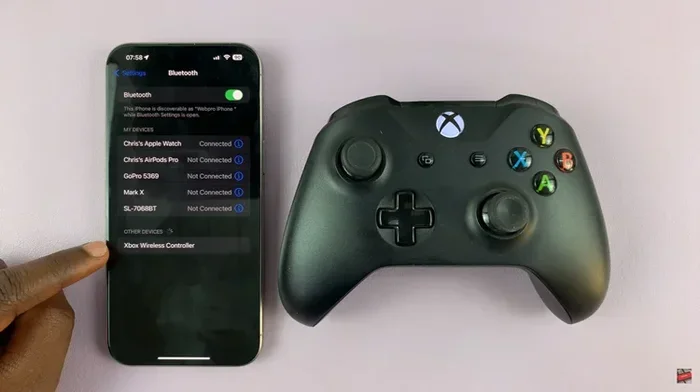
- Turn on your Xbox controller by pressing the Xbox button in the center.
- Press and hold the pairing button on the top edge of the controller near the USB-C port. The Xbox button will start flashing rapidly.
- Open the Settings app on your iPhone.
- Tap Bluetooth and make sure it is turned on.
- Look for your controller under Other Devices. It will show as “Xbox Wireless Controller.”
- Tap on the controller name to pair it.
- Once connected, the Xbox button will stay solid and not flash.
That is it. Your controller is now connected and ready to use. You can test it by opening any game that supports controller input and moving the analog stick. The on-screen controls should respond immediately.
Using the Xbox App for Extra Features
The free Xbox app on the App Store adds extra value when you connect Xbox controller to iPhone. You can use it to check controller battery levels, update firmware, and even browse your Xbox Game Pass library. The app also lets you manage your friends list and join multiplayer games directly.
To get started, download the Xbox app from the App Store, sign in with your Microsoft account, and make sure Bluetooth is on. The app will detect your paired controller automatically. You can also use it to update your controller firmware, which is important for fixing bugs and improving connection stability.
Which iPhone Models Support Xbox Controller
Not every iPhone can connect to an Xbox controller. Apple set specific requirements for controller support. Here is a quick breakdown of what works and what does not.
Compatible iPhone Models
The following iPhone models fully support Xbox controller connection via Bluetooth:
- iPhone 8 and iPhone 8 Plus
- iPhone X
- iPhone XR and iPhone XS
- iPhone 11 series
- iPhone 12 series
- iPhone 13 series
- iPhone 14 series
- iPhone 15 series
All of these models run iOS 13 or later, which is the minimum requirement for external controller support. If you have an older iPhone, you might still be able to connect using a USB adapter, but the experience will not be as smooth.
iOS Version Requirements
Your iPhone must be running iOS 13 or a newer version. You can check your iOS version by going to Settings, tapping General, and then tapping About. Look for the Software Version line. If your version is below 13, update your iPhone through Settings, General, Software Update before trying to connect your controller.
Best Games That Work With Xbox Controller On iPhone
Not every game on iPhone supports external controllers. Apple requires developers to specifically add controller support to their games. Here are some of the best games that work beautifully with your Xbox controller connected.
Top Controller-Compatible Games
- Genshin Impact: A hugely popular open-world RPG that runs great with an Xbox controller.
- Fortnite: One of the most played battle royale games with full controller support.
- Minecraft: Building and exploring is much better with physical controls.
- Stardew Valley: A relaxing farming game that feels great on a controller.
- Hollow Knight: A challenging action game that benefits from precise controller input.
- Dead Cells: Fast-paced action that feels smooth with an Xbox controller.
- Diablo II: Resurrected: A classic RPG that works well on iPhone with controller support.
- Borderlands: The looter-shooter series supports external controllers on iOS.
- Sky: Children of the Light: A beautiful adventure game with controller compatibility.
- Crossy Road: A simple but fun arcade game that supports controller input.
When you download a game from the App Store, check the game description for a controller icon. This tells you the game supports external controllers before you buy or download it. You can also check Apple’s official list of controller-compatible games on their website.
Games That Do Not Work With Controllers
Some games rely on touch controls and do not support external controllers. These include many casual arcade games, puzzle games, and some multiplayer titles. Always check before assuming a game will work with your Xbox controller connected to your iPhone.
Troubleshooting Common Connection Problems
Even though connecting Xbox controller to iPhone is straightforward, you might run into issues sometimes. Here are the most common problems and how to fix them.
Controller Not Showing Up in Bluetooth
If your controller does not appear under Other Devices in Bluetooth settings, try these steps:
- Make sure your controller is fully charged or has fresh batteries.
- Turn Bluetooth off and back on from your iPhone Settings.
- Restart your iPhone and try pairing again.
- Hold the pairing button on the controller for a full five seconds.
- Move closer to your iPhone to reduce signal interference.
Controller Disconnects During Gameplay
A controller that keeps disconnecting can be frustrating. This usually happens because of low battery or Bluetooth interference from other devices. Try these fixes:
- Charge your controller fully before a long gaming session.
- Turn off other Bluetooth devices nearby that might cause interference.
- Restart both your iPhone and controller, then reconnect.
- Update your controller firmware through the Xbox app.
- Check for iOS updates on your iPhone under Settings, General, Software Update.
Controller Input Lag or Delay
If you notice a delay between pressing a button and seeing the action on screen, try these solutions:
- Close background apps on your iPhone to free up processing power.
- Make sure you are not too far from your iPhone.
- Remove any metal cases or covers that might block the Bluetooth signal.
- Re-pair the controller by forgetting the device in Bluetooth settings and pairing again.
Comparison: Xbox Controller Vs Other iPhone Controllers
If you are deciding between controller options for iPhone gaming, here is a helpful comparison of the Xbox controller against other popular choices.
| Feature | Xbox Wireless Controller | PlayStation DualSense | Apple Siri Remote | 8BitDo Ultimate |
|---|---|---|---|---|
| iPhone Compatibility | Full support via Bluetooth | Limited, not officially supported | Built-in for Apple Arcade | Full support via Bluetooth |
| Connection Type | Bluetooth and USB | Bluetooth | Bluetooth built-in | Bluetooth and USB |
| Battery Life | Up to 40 hours | Up to 12 hours | Built-in rechargeable | Up to 18 hours |
| Price Range | $50-$65 | $70+ | Included with Apple Arcade | $40-$60 |
| Build Quality | Premium, durable | Premium, comfortable | Basic, compact | Good, customizable |
| Haptic Feedback | No | Yes | No | Some models yes |
The Xbox Wireless Controller remains one of the best choices for iPhone gaming. It offers excellent battery life, solid build quality, and wide game compatibility. The 8BitDo Ultimate is a strong budget alternative that also works well with iOS devices.
Expert Tips For The Best Gaming Experience
Getting your Xbox controller connected to your iPhone is only the first step. Here are some expert tips to make your mobile gaming experience the best it can be.
Keep Your Controller Firmware Updated
Microsoft regularly releases firmware updates for Xbox controllers. These updates fix bugs, improve Bluetooth connectivity, and add new features. Always check for updates through the Xbox app before a gaming session. An outdated firmware version can cause connection drops and input lag.
Use A Quality USB-C Cable For Charging
Since your Xbox controller charges through USB-C, using a good quality cable matters. Cheap cables can cause slow charging or intermittent connection issues during gameplay. Invest in a braided USB-C cable that is at least 3 feet long for comfortable gaming.
Adjust Controller Settings In The Xbox App
The Xbox app lets you customize your controller settings. You can remap buttons, adjust trigger sensitivity, and set up profile switches. This is especially useful for games that require specific control layouts. Take a few minutes to explore these settings and tailor them to your play style.
Consider A Controller Mount Or Stand
Holding your iPhone with one hand and your controller with the other can be tiring during long sessions. A controller mount or stand holds your iPhone at the right angle and keeps both hands free for playing. These accessories are affordable and make a big difference in comfort.
Enable Assistive Touch As A Backup
Some games do not fully support controllers. In those cases, you can use iOS Assistive Touch as a backup. Go to Settings, Accessibility, Touch, and turn on Assistive Touch. This creates a virtual control overlay that you can customize. It is not as good as a real controller, but it helps when you are stuck.
Common Mistakes To Avoid When Connecting Xbox Controller To iPhone
Avoid these common mistakes that many people make when setting up their Xbox controller with an iPhone.
- Using an old controller without Bluetooth: Controllers from before 2016 may not have Bluetooth built in. You will need a USB wireless adapter, which adds complexity.
- Skipping firmware updates: An outdated controller firmware is the number one cause of connection issues. Always update before pairing.
- Ignoring iOS updates: Older iOS versions may not support controller input properly. Keep your iPhone updated to the latest version.
- Pairing in a crowded Bluetooth environment: If you are in a place with many Bluetooth devices, interference can cause pairing failures. Move to a quieter area and try again.
- Not checking game compatibility: Just because a game is on iPhone does not mean it supports controllers. Always verify before you start playing.
By avoiding these simple mistakes, you can save yourself a lot of frustration and get your Xbox controller working with your iPhone on the first try.
Final Thoughts
Connecting Xbox controller to iPhone opens up a whole new world of mobile gaming. You get the comfort of physical buttons, precise analog sticks, and triggers that make games feel so much better than touch controls alone. The process is simple, the compatibility is wide, and the experience is genuinely enjoyable.
Whether you are playing Genshin Impact on a long commute or settling in for an evening of Fortnite, your Xbox controller makes everything better. Keep your firmware updated, check game compatibility, and follow the tips in this guide for the smoothest experience possible.
The ability to connect Xbox controller to iPhone is proof that Apple and Microsoft have made mobile gaming more accessible than ever. You do not need a expensive gaming phone or a portable console. Your iPhone and your Xbox controller are all you need to enjoy great games anywhere.
So go ahead, pair your controller, pick a game, and start playing. You will wonder how you ever managed without it. Happy gaming.
Frequently Asked Questions
Can I connect any Xbox controller to my iPhone?
Most Xbox controllers made after 2016 support Bluetooth and work with iPhone. If your controller has a USB-C port and a pairing button on the top edge, it should connect without any issues. Older models with a proprietary wireless receiver will not connect directly and need an adapter.
Do I need to download any special app to use the controller?
No, you do not need any special app to connect Xbox controller to iPhone. The Bluetooth pairing happens through your iPhone Settings. However, the free Xbox app is recommended for checking battery levels, updating firmware, and managing your game library.
Why does my Xbox controller keep disconnecting from my iPhone?
This is usually caused by low battery, outdated firmware, or Bluetooth interference from other devices. Make sure your controller is charged, update the firmware through the Xbox app, and move away from crowded Bluetooth areas. Re-pairing the controller often fixes the issue as well.
Can I use the Xbox controller with Apple Arcade games?
Yes, most Apple Arcade games support external controllers including the Xbox controller. Apple designed Apple Arcade with controller compatibility in mind. You can connect your Xbox controller and enjoy hundreds of games without touch controls.
Is the connection stable for competitive gaming?
The Bluetooth connection between Xbox controller and iPhone is stable for most games. However, for highly competitive or fast-paced games, there may be a slight input delay compared to wired connections. For most casual and mid-core games, the wireless connection is more than adequate.
Can I connect my Xbox controller to iPhone and iPad at the same time?
No, the Xbox controller can only be actively paired with one device at a time. You can switch between devices by unpairing from one and pairing with another. The controller remembers previously paired devices, making switching quick and easy.
=== CONCLUSION ===
You now have everything you need to know about connecting Xbox controller to iPhone. From the simple Bluetooth pairing process to troubleshooting common issues and finding the best games, this guide covers it all. The ability to use your Xbox controller on your iPhone gives you a serious advantage in mobile gaming comfort and precision.
Remember to keep your controller firmware updated, check game compatibility before downloading, and follow the expert tips for the best experience. The mobile gaming world has opened up, and your Xbox controller is the perfect tool to enjoy it.
Start today. Connect your Xbox controller to your iPhone, pick your favorite game, and enjoy a level of control you never knew was possible on a phone. You will not look back.