Can Usb C Connect To Older Usb Devices And Ports Easily
Yes, USB C can connect to older USB devices using the right adapter or cable. USB Type-C is designed with backward compatibility in mind, so you can link it to USB-A, USB-B, and other legacy ports easily. This guide covers everything you need to know about making USB-C work with older hardware, from adapters to troubleshooting tips.
This is a comprehensive guide about Can Usb C Connect To Older Usb.
Key Takeaways
- USB-C is backward compatible: You can connect USB-C to older USB-A and USB-B ports with the right adapter.
- Adapters are affordable and easy to find: USB-C to USB-A adapters cost just a few dollars and work reliably.
- Data transfer speeds may vary: Older USB ports limit the speed of your USB-C connection to their own standard.
- Power delivery works in both directions: USB-C can charge older devices and draw power from them too.
- Not all USB-C cables are equal: Cable quality and spec matter a lot for compatibility and performance.
- Common mistakes cause connection issues: Using the wrong adapter or damaged cable is the top reason for failure.
- USB-C is the future standard: Most new devices use USB-C, so adapters will remain essential for years.
[FEATURED_IMAGE_PLACEHOLDER]
Can USB C Connect To Older USB Devices And Ports Easily?
The short answer is yes. USB Type-C can connect to older USB devices and ports with minimal effort. Whether you have a USB-A port from 2010 or a USB-B port from an old printer, USB-C can work with them. You just need the right adapter or cable to make the physical connection.
USB-C was designed from the start to be a universal connector. The USB Implementers Forum (USB-IF) built backward compatibility into the standard. This means USB-C devices can communicate with older USB ports without any special software or drivers. The physical shape is different, but the underlying protocol is the same.
However, there are some things you should know before plugging in. Not every connection will give you the full speed of your USB-C device. And not every adapter works the same way. Let us walk through everything you need to know about connecting USB-C to older USB devices so you never run into surprises.
USB C connect to older USB setups are extremely common in homes and offices today. New laptops, phones, and tablets all use USB-C. But most people still have older peripherals sitting in drawers. This guide helps you bridge that gap.
Understanding USB-C and Older USB Standards
What Makes USB-C Different?
USB-C is a connector shape, not a technology standard. This is an important distinction. The USB-C connector is small, reversible, and oval-shaped. It replaced the older USB-A and USB-B connectors that most people are familiar with.
Older USB connectors had a specific up-and-down orientation. You had to flip them multiple times to get them in right. USB-C solves that problem. The connector works either way, which is a huge quality-of-life improvement.
But USB-C also supports newer technology standards. It can carry USB 3.1, USB 3.2, and USB4 data protocols. It supports faster data transfer rates up to 40 Gbps with USB4. It also supports USB Power Delivery, which can push up to 240 watts of power.
Despite all these advances, USB-C remains fully compatible with older USB standards. A USB-C port can work with USB 2.0 and USB 3.0 devices. The connection simply operates at the speed of the slower device or port.
The History of USB Connectors
USB connectors have evolved a lot over the years. Here is a quick look at the main types you may still encounter:
- USB-A: The classic rectangular port found on computers, TVs, and chargers since the late 1990s. This is the most common older port.
- USB-B: The square-ish port often found on printers and larger peripherals. It comes in standard and mini sizes.
- USB Mini-B: A smaller version of USB-B used in older cameras and portable devices.
- USB Micro-B: Even smaller, used in older Android phones and portable hard drives.
- USB-C: The newest standard, small, reversible, and capable of high speeds and power delivery.
Each of these older connectors can connect to USB-C with the right adapter. The USB-IF made sure of that when they finalized the USB-C design. Backward compatibility was a core goal from day one.
How USB C Connects to Older USB Ports
The Role of Adapters and Cables
When you want to connect USB-C to older USB devices, adapters and cables do the heavy lifting. The USB-C connector cannot plug directly into a USB-A port. They have different shapes and pin layouts. But an adapter bridges that gap perfectly.
There are several types of adapters you can use:
- USB-C to USB-A adapter: The most common and affordable option. Plugs into a USB-A port on one end and accepts a USB-C plug on the other.
- USB-C to USB-B adapter: Useful for connecting to printers and scanners that use the square USB-B port.
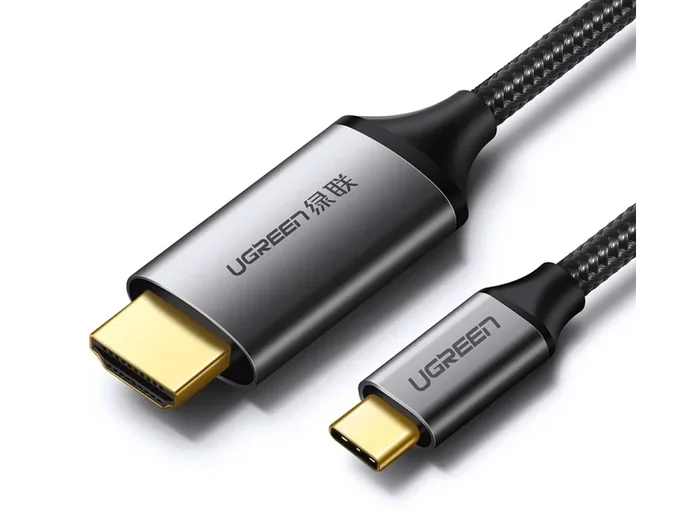
- USB-C to USB Micro-B cable: Lets you connect older Android devices or portable drives directly.
- USB-C to USB Mini-B cable: Less common now, but still useful for older cameras and GPS devices.
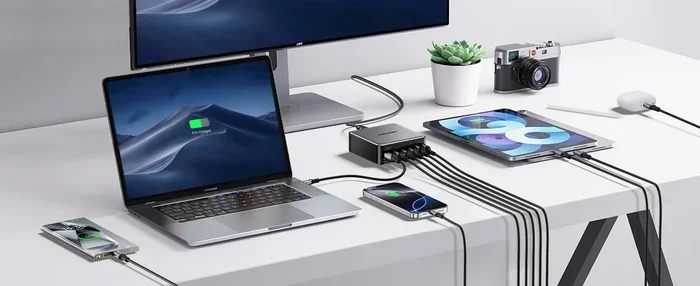
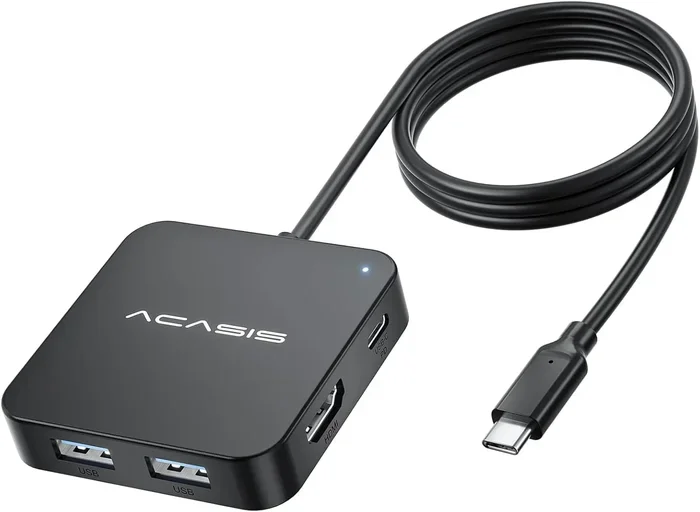
- USB-C hub with multiple ports: Gives you several older USB ports in one compact device.
Most of these adapters are passive. That means they do not convert signals or change the data protocol. They simply reroute the physical pins from one connector shape to another. This is why they are usually plug-and-play with no setup required.
What Happens to Speed and Performance?
Here is something important to understand. When you connect a USB-C device to an older USB port, the connection runs at the speed of the slower device. If your USB-C flash drive supports USB 3.2 speeds but you plug it into a USB 2.0 port through an adapter, it will only run at USB 2.0 speeds.
This is not a flaw. It is simply how backward compatibility works. The USB protocol negotiates the best common speed between the two devices. You cannot get faster speeds than the oldest device in the chain supports.
For most everyday tasks, this does not matter. Charging a phone or transferring a few documents works fine at USB 2.0 speeds. But if you are moving large video files or backing up huge folders, you will notice the slowdown.
Common Devices That Need USB-C to Older USB Connections
Laptops and Computers
Many modern laptops now only have USB-C ports. Apple removed all other ports from the MacBook in 2016. Many Windows laptops followed suit. This means if you want to connect an older USB-A mouse, keyboard, or flash drive, you need an adapter.
A simple USB-C to USB-A adapter solves this problem instantly. You can plug in all your old peripherals without buying new ones. This saves money and reduces e-waste.
Smartphones and Tablets
Older Android devices used Micro-USB or Mini-USB for charging and data. Many people still have these devices. If you want to transfer files between an old phone and a modern laptop with USB-C, you need a USB-C to Micro-USB cable or adapter.
iPads and older tablets may also use Lightning or USB-A cables. USB-C adapters make it possible to connect these to modern computers. The process is straightforward and usually works without any driver installation.
Printers and Scanners
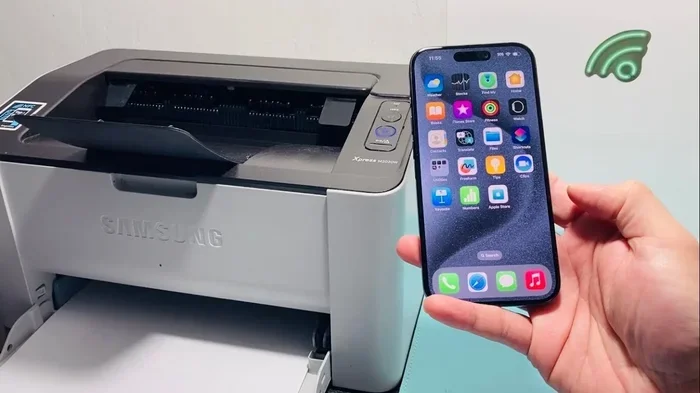
Many printers still ship with USB-B cables. These square ports are reliable and widely used in offices. Connecting a USB-C laptop to a USB-B printer requires a USB-C to USB-B adapter.
Some printers also support Wi-Fi or Ethernet connections. But a wired USB connection is often faster and more reliable for printing and scanning. The adapter makes this possible even with the newest laptops.
External Hard Drives and Flash Drives
Older external hard drives often come with USB-A connectors. If your new laptop only has USB-C, you cannot plug the drive in directly. A USB-C to USB-A adapter or cable fixes this instantly.
The same goes for USB flash drives. Many people have a collection of old USB sticks lying around. With the right adapter, they all work with modern USB-C devices. You do not need to replace them.
Best Adapters and Cables for Connecting USB-C to Older Devices
What to Look For in an Adapter
Not all adapters are created equal. When shopping for a USB-C to older USB adapter, look for these features:
- USB-IF certification: This ensures the adapter meets official USB standards for compatibility and safety.
- Metal construction: Metal adapters last longer and conduct heat better than plastic ones.
- Support for USB 3.0 or higher: If you want fast data transfer, make sure the adapter supports at least USB 3.0 speeds.
- Right-angle design: These save space and prevent cable strain in tight spaces.
- Compact size: You want something portable that you can keep in your laptop bag.
Top Recommended Adapters
Here are some practical options that work well for most people:
- Cable Matters USB-C to USB-A Adapter: Small, affordable, and supports USB 3.0 speeds up to 5 Gbps. Great for everyday use.
- Anker USB-C to USB-A Cable: Combines the adapter and cable into one piece. No need for a separate adapter.
- Satechi USB-C Multiport Adapter: Adds multiple ports including USB-A, HDMI, and SD card slots. Perfect for laptop users.
- UGREEN USB-C Hub: Offers several USB-A ports plus other connections. Great for office setups.
These adapters range from $5 to $30 depending on features. The basic USB-C to USB-A adapters are very affordable and work reliably for most tasks.
Troubleshooting USB-C to Older USB Connection Issues
Device Not Recognized
If your older device is not showing up when connected through a USB-C adapter, try these steps:
- Unplug the adapter and try a different USB port on your computer.
- Test the older device directly on another computer to rule out a hardware issue.
- Try a different USB-C to USB-A adapter. Some cheap adapters may not work well.
- Check your operating system for driver updates, especially on Windows.
- Restart your computer with the adapter and device connected.
Slow Data Transfer Speeds
If your connection is slower than expected, the most common cause is a USB 2.0 bottleneck. Here is how to fix it:
- Make sure your adapter supports USB 3.0 or higher if you need fast speeds.
- Check that both the USB-C device and the older port support the same speed standard.
- Avoid using long extension cables. Shorter cables maintain better signal quality.
- Try a different USB port on your computer. Some ports may be USB 2.0 while others are USB 3.0.
Intermittent Connection or Disconnects
If your device keeps disconnecting, the adapter or cable may be faulty. Try these fixes:
- Inspect the adapter for physical damage or bent pins.
- Clean the USB-C port on your device. Dust and lint can block the connection.
- Use a different cable. Damaged cables are a common cause of connection issues.
- Avoid using USB hubs between the adapter and your device. Direct connections are more reliable.
Quick Tips for USB-C to Older USB Users
Keep a Few Adapters on Hand
It is smart to keep at least one USB-C to USB-A adapter with your laptop at all times. You never know when you will need to plug in a USB-A device. A small adapter in your bag or backpack solves this problem permanently.
Label Your Adapters
If you have multiple adapters, label them. A small piece of tape with the adapter type saves confusion. You will not waste time trying to figure out which adapter goes where.
Buy Quality Over Price
Cheap adapters from unknown brands may seem like a good deal. But they often have poor build quality and unreliable connections. Spending a few extra dollars on a reputable brand saves frustration in the long run.
Check Your Cable Length
Longer cables can reduce data transfer speeds and charging power. For best results, use shorter cables (under 3 feet) for data transfers and longer cables only when you need reach for charging.
Expert Insights on USB-C Backward Compatibility
Industry experts agree that USB-C backward compatibility is one of the connector’s greatest strengths. The USB-IF designed it to work seamlessly with decades of older USB hardware. This forward-thinking approach is why USB-C became the universal standard so quickly.
According to the USB-IF, over 10 billion USB-C devices are in use worldwide as of 2024. This massive adoption rate means adapters and compatibility will remain important for many years. Even as new devices arrive, older peripherals will still need a way to connect.
Technology reviewers also note that the reversible design of USB-C has changed how people think about connectors. The frustration of flipping a USB-A plug multiple times is gone. This small design improvement has made a big difference in daily usability.
One thing experts emphasize is that cable quality matters enormously. Not all USB-C cables support the same speeds or power levels. A cheap cable might only support USB 2.0 data speeds or 60 watts of power. Always check the cable specifications before purchasing.
Key Takeaways
- USB-C connects to older USB devices easily: You just need the right adapter or cable. The physical connection is simple and straightforward.
- USB-C is fully backward compatible: It works with USB-A, USB-B, USB Mini-B, and USB Micro-B ports without any special software.
- Speed depends on the older port: Your connection will run at the speed of the slowest device in the chain. USB 2.0 ports will limit USB-C speeds accordingly.
- Adapters are inexpensive and widely available: You can find quality USB-C to USB-A adapters for under $15 at most electronics stores.
- Cable quality matters: Not all USB-C cables are the same. Look for USB-IF certification and check speed and power ratings.
- Troubleshooting is simple: Most connection issues come from faulty cables, wrong adapters, or dirty ports. Basic fixes usually resolve the problem.
- USB-C is here to stay: As the universal connector standard, USB-C will continue to support older devices through adapters for years to come.
Conclusion
Can USB C connect to older USB devices and ports easily? Absolutely. The answer is a clear yes. USB-C was built with backward compatibility at its core. Whether you have a USB-A port from an old desktop, a USB-B port on a printer, or a Micro-USB cable from an older phone, USB-C can work with all of them through simple adapters and cables.
The process is straightforward. Pick the right adapter for your older device. Plug it in. The connection just works in most cases. No software, no drivers, no complicated setup. This is what makes USB-C such a game-changer for everyday technology users.
Keep a few adapters handy. Buy quality cables from reputable brands. And remember that speed limitations come from the older port, not from your USB-C device. With the right setup, you can bridge the gap between old and new technology effortlessly.
USB C connect to older USB setups are simple, affordable, and reliable. You do not need to replace your older peripherals just because you bought a new laptop or phone. A small adapter goes a long way. Embrace the universal nature of USB-C and keep your existing devices working perfectly with your new hardware.
Can USB-C Connect to USB 2.0 Ports?
Yes, USB-C can connect to USB 2.0 ports using a USB-C to USB-A adapter. The connection will work, but data transfer speeds will be limited to USB 2.0 rates (up to 480 Mbps). Charging should still work normally.
Do I Need a Special Cable to Connect USB-C to Older Devices?
You need a USB-C to older USB cable or a USB-C adapter with the appropriate cable. Standard USB-C cables alone cannot plug into older USB-A or USB-B ports because the connector shapes are different. The adapter or cable bridges this physical gap.
Will Connecting USB-C to Older USB Ports Damage My Devices?
No, connecting USB-C to older USB ports will not damage your devices. The USB standard includes built-in protection for both the host and the device. As long as you use a quality adapter from a reputable brand, your devices are safe.
Why Is My USB-C Adapter Not Working with My Older Device?
The most common reasons are a faulty adapter, a damaged cable, a dirty USB port, or using an adapter that does not match the port type. Try a different adapter, clean the port, and make sure the adapter matches your older device’s port shape.
Can I Use a USB-C Hub to Connect Multiple Older Devices?
Yes, a USB-C hub is an excellent way to connect multiple older USB devices at once. Most USB-C hubs include several USB-A ports along with other connections like HDMI and SD card slots. This is ideal for office setups and presentations.
Is USB-C Faster Than All Older USB Standards?
USB-C itself is a connector shape, not a speed standard. However, USB-C ports typically support USB 3.0, USB 3.1, USB 3.2, or USB4 protocols, which are all faster than USB 2.0. When connected to a USB 2.0 port through an adapter, the speed drops to USB 2.0 levels.
Frequently Asked Questions
What is Can Usb C Connect To Older Usb?
Can Usb C Connect To Older Usb is an important topic with many practical applications.