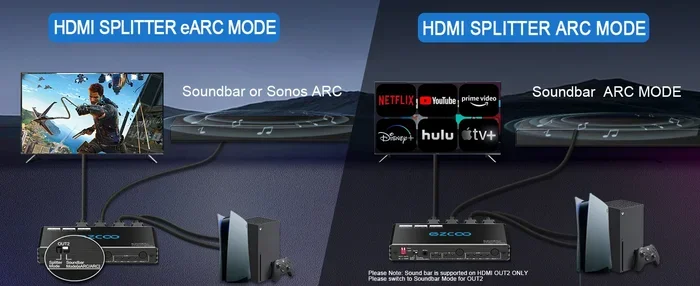
Can I Split Audio From Hdmi A Simple Guide For Beginners
Yes, you can split audio from HDMI using several simple methods. Whether you want to send HDMI audio to a soundbar, receiver, or separate speakers, this guide covers every option. You will learn about HDMI audio extractors, ARC settings, optical converters, and software solutions that make HDMI audio splitting easy for beginners.
Have you ever plugged in an HDMI cable and found that your audio is going to the wrong place? Maybe your TV speakers are playing sound instead of your soundbar. Or perhaps you want to route HDMI audio to a separate amplifier in another room. Whatever your situation is, the question “Can I split audio from HDMI?” comes up a lot. The short answer is yes. You absolutely can. And there are several straightforward ways to do it.
This guide is for beginners who want a clear, no-nonsense explanation of how HDMI audio splitting works. We will cover the different methods, the devices you need, and common mistakes to avoid. By the end, you will know exactly which solution fits your setup. Let us dive in.
Key Takeaways
- HDMI carries both audio and video: You can separate them using the right device or setting.
- HDMI audio extractors are the most popular and reliable way to split audio from HDMI signals.
- HDMI ARC and eARC allow audio to travel back to your TV soundbar or receiver without extra cables.
- Optical audio converters offer a simple and affordable alternative for splitting HDMI audio.
- Software solutions on PCs let you manage HDMI audio output without extra hardware.
- Common HDMI audio problems like no sound or audio delay are easy to fix with basic troubleshooting.
- Choosing the right method depends on your devices, budget, and what you want to achieve.
📑 Table of Contents
- Understanding How HDMI Carries Audio
- Method 1: Using an HDMI Audio Extractor
- Method 2: Using HDMI ARC or eARC
- Method 3: Using an HDMI Audio Converter
- Method 4: Software Solutions for PC Users
- Troubleshooting Common HDMI Audio Problems
- Comparing HDMI Audio Splitting Methods
- Quick Tips for Success
- Common Mistakes to Avoid
- Expert Insights: What Professionals Recommend
- Final Thoughts on Splitting Audio From HDMI
- Frequently Asked Questions
Understanding How HDMI Carries Audio
Before we talk about splitting, it helps to understand what HDMI does. HDMI stands for High-Definition Multimedia Interface. It carries both video and audio through a single cable. This is one of the biggest reasons HDMI became so popular. You plug in one cable, and you get high-quality picture and sound.
But this convenience also creates a challenge. When you want to send the audio somewhere else, you need to extract it. HDMI audio signals are digital. They use formats like Dolby Digital, DTS, and uncompressed multichannel audio. Your TV, soundbar, or receiver must be able to decode these formats. If it cannot, you may get no sound at all.
Why Do People Want to Split HDMI Audio?
There are many reasons someone might need to separate audio from an HDMI source. Here are the most common ones:
- Upgrading your TV speakers: You want better sound but do not want to replace your TV.
- Home theater setups: You have a separate AV receiver and want all audio routed to it.
- Multi-room audio: You want sound from your cable box or gaming console to play in a different room.
- Recording or streaming: You need to capture HDMI audio separately for editing or broadcasting.
- Using older equipment: Your speakers or amplifier only accept analog or optical inputs.
No matter your reason, there is a method that will work for you. Let us look at the most popular options now.
Method 1: Using an HDMI Audio Extractor
An HDMI audio extractor is the most common and reliable way to split audio from HDMI. This small device sits between your source device and your TV. It takes the combined HDMI signal and separates the audio from the video. The video continues to your TV through one output, and the audio goes to a separate device through another output.
How Does an HDMI Audio Extractor Work?
The extractor receives the full HDMI signal. Inside the device, a chip separates the audio and video streams. The video output goes to your display. The audio output usually goes to one of two places:
- HDMI audio passthrough: Some extractors pass the audio back through another HDMI cable to a receiver.
- Analog or optical output: Many extractors include a 3.5mm headphone jack or an optical (TOSLINK) output. This lets you connect directly to speakers, a soundbar, or an amplifier.
Best HDMI Audio Extractors for Beginners
You do not need to spend a lot of money on an extractor. Here are some popular options:
- Kinivo 550BN: A well-known model with HDMI input, HDMI output, and optical audio output. It supports 4K video and is very easy to set up.
- Fosmon HDMI Audio Extractor: A budget-friendly option with HDMI and analog audio outputs. Great for simple setups.
- UGREEN HDMI Audio Extractor: Supports 4K HDMI and includes both optical and analog outputs. Good for home theater users.
When buying an extractor, make sure it supports the resolution you need. If you watch 4K content, choose a 4K-compatible model. Also check whether it supports the audio formats your devices use.
Method 2: Using HDMI ARC or eARC
If you have a modern TV and a soundbar or AV receiver, HDMI ARC (Audio Return Channel) might be all you need. ARC lets audio travel back from your TV to your sound system through the same HDMI cable. This means you do not need a separate audio cable at all.
What Is HDMI ARC?
HDMI ARC is a feature built into most HDMI cables and modern TVs. It allows your TV to send audio to an external speaker system. You connect your TV and soundbar with an HDMI cable, and the TV automatically sends audio to the soundbar. This works for built-in TV apps, streaming sticks, and even game consoles connected to the TV.
eARC (enhanced Audio Return Channel) is the newer version. It supports higher-quality audio formats like Dolby Atmos and uncompressed 7.1 surround sound. If you have a 2019 or newer TV, it likely supports eARC.
How to Set Up HDMI ARC
Setting up ARC is straightforward. Follow these steps:
- Connect your TV and soundbar with an HDMI cable. Plug it into the ARC-labeled ports on both devices.
- Go to your TV settings. Find the HDMI or audio settings section.
- Enable HDMI ARC or eARC. The exact name varies by TV brand.
- On your soundbar, select the HDMI ARC input.
- Play audio on your TV. The sound should now come from your soundbar.
One thing to watch out for: some TVs have an “auto output” setting that controls whether audio goes to the TV speakers or the external system. Make sure this is set correctly. If it is not, you may still hear sound from the TV speakers even with ARC enabled.
Method 3: Using an HDMI Audio Converter
An HDMI audio converter is similar to an extractor but focuses only on converting the audio signal. These devices take HDMI input and output audio in a different format. The most common conversions are HDMI to optical or HDMI to analog (3.5mm).
When Should You Use an HDMI Audio Converter?
Converters are useful when your audio destination does not accept HDMI. For example:
- Older stereo systems: Many older amplifiers only have RCA or 3.5mm inputs. A converter lets you connect HDMI audio to these systems.
- Optical-only soundbars: Some soundbars only have an optical input. An HDMI to optical converter bridges this gap.
- PC setups: If your computer has HDMI output but your speakers only accept 3.5mm, a converter solves the problem.
Popular HDMI audio converters include models from brands like UGREEN, Cable Matters, and Kinivo. Prices range from $15 to $50 depending on features and quality.
Method 4: Software Solutions for PC Users
If you are using a PC or laptop with HDMI output, you have software options too. Windows and macOS both let you manage audio output devices. You can split or route HDMI audio without buying extra hardware.
How to Manage HDMI Audio on Windows
Windows makes it easy to choose which device plays your audio. Here is how:
- Right-click the speaker icon in your taskbar.
- Select “Open Sound settings.”
- Under “Output,” choose your HDMI device from the dropdown menu.
- Your PC audio will now play through the HDMI-connected display.
If you want more advanced control, free software like Voicemeeter or Equalizer APO lets you route audio to multiple outputs at once. This is perfect for streaming setups where you want game audio on HDMI and voice chat on your headset.
How to Manage HDMI Audio on macOS
Mac users can also split HDMI audio easily:
- Go to System Settings and click “Sound.”
- Select the “Output” tab.
- Choose your HDMI display from the list of devices.
- Adjust the volume and balance as needed.
For more advanced routing, apps like BlackHole or Rogue Amoeba’s Audio Hijack let you create virtual audio devices. These tools are powerful but may have a learning curve for beginners.
Troubleshooting Common HDMI Audio Problems
Sometimes splitting HDMI audio does not work right away. Here are the most common issues and how to fix them.
HDMI Audio Not Working
If you have no sound after splitting, try these steps:
- Check that your HDMI cable is fully inserted at both ends.
- Make sure the correct audio output device is selected in your settings.
- Verify that your extractor or converter is powered on.
- Restart both the source device and the display.
- Update the audio drivers on your PC if applicable.
HDMI Audio Delay or Sync Issues
Audio delay is frustrating but common. It usually happens when audio and video travel through different paths. Here is how to fix it:
- Look for an “audio delay” or “lip sync” setting on your TV or receiver.
- Reduce the delay in small increments until audio and video match.
- Use the same type of connection for both audio and video when possible.
- Avoid long cable runs for the audio path, as this can add latency.
HDMI Audio Format Not Supported
Sometimes your TV or soundbar does not support the audio format coming through HDMI. This often happens with Dolby Atmos or DTS:X content. To fix this:
- Go to your source device’s audio settings.
- Change the HDMI audio output format to a compatible one like PCM or stereo.
- Check your soundbar or receiver manual for supported formats.
Comparing HDMI Audio Splitting Methods
Not sure which method is right for you? Here is a quick comparison of the main options.
| Method | Best For | Cost Range | Setup Difficulty | Audio Quality |
|---|---|---|---|---|
| HDMI Audio Extractor | Separating audio and video for different devices | $20 – $80 | Easy | High (supports most formats) |
| HDMI ARC/eARC | TV to soundbar or receiver audio return | Free (uses existing cable) | Very Easy | High (eARC supports Dolby Atmos) |
| HDMI Audio Converter | Converting HDMI audio to optical or analog | $15 – $50 | Easy | Good (depends on converter quality) |
| Software (PC/Mac) | Routing PC audio to HDMI or multiple outputs | Free – $50 | Moderate | High (depends on software) |
As you can see, each method has its strengths. For most home setups, an HDMI audio extractor or ARC connection will handle the job. PC users who need flexible routing will benefit most from software solutions.
Quick Tips for Success
Here are some fast tips that will save you time and frustration:
- Always check your HDMI cable version. Older cables may not support the audio formats you need. HDMI 2.0 or higher is recommended for 4K and surround sound.
- Label your cables. When you have multiple audio paths, labeling helps you troubleshoot faster.
- Test one change at a time. If something stops working, revert to the previous setup before trying a new fix.
- Keep your firmware updated. TVs, soundbars, and extractors often receive updates that fix audio compatibility issues.
- Buy from reputable brands. Cheap no-name extractors sometimes fail to support certain audio formats or resolutions.
Common Mistakes to Avoid
Even experienced users make mistakes when setting up HDMI audio. Here are the ones to watch out for:
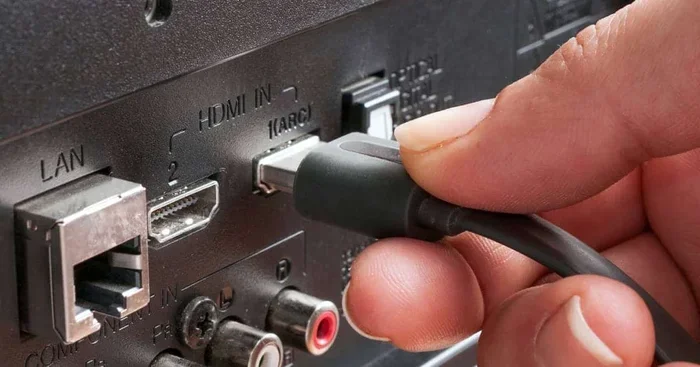
- Using the wrong HDMI port: Not all HDMI ports on your TV support ARC. Look for the port labeled ARC or eARC.
- Ignoring audio format settings: If your source device outputs Dolby Atmos but your receiver only supports Dolby Digital, you will get no sound or degraded audio.
- Forgetting to enable ARC in TV settings: Just connecting the cable is not enough. You must enable ARC in your TV menu.
- Using a damaged cable: A frayed or bent HDMI cable can cause intermittent audio or no audio at all.
- Assuming all extractors are the same: Some extractors only support stereo audio. If you need surround sound, check the specs carefully.
Expert Insights: What Professionals Recommend
Home theater installers and AV professionals have a few tried-and-true recommendations for HDMI audio splitting. First, they almost always suggest an HDMI audio extractor for setups that need to route audio to a separate receiver. Second, they recommend eARC over ARC whenever possible because of its higher bandwidth and support for modern audio formats. Third, they advise keeping firmware updated on all connected devices. This simple step resolves a surprising number of audio issues.
Professionals also stress the importance of using high-quality HDMI cables. A certified Premium High Speed HDMI cable ensures reliable signal transmission for both audio and video. And finally, they recommend testing your full setup before mounting your TV or permanently placing your equipment. It is much easier to fix problems before everything is installed.
Final Thoughts on Splitting Audio From HDMI
Splitting audio from HDMI is easier than most people think. Whether you use an HDMI audio extractor, take advantage of HDMI ARC, or rely on software on your PC, the solution is within reach. Each method has its place, and the best choice depends on your specific setup and needs.
Start by identifying what you want to achieve. Do you need separate audio outputs for different rooms? An extractor is your best bet. Do you simply want better TV sound through a soundbar? Enable ARC and save yourself the hassle of extra devices. Are you a PC user who wants flexible audio routing? Software tools can do the job without any extra hardware.
The key takeaway is that splitting HDMI audio is not complicated. With the right device or setting, you can route audio exactly where you want it. Do not let confusing cables and settings stop you. Pick the method that fits your situation, follow the steps in this guide, and enjoy your audio exactly the way you want it.
Take a few minutes today to check your current setup. You might be surprised at how simple the fix is. And once you hear your audio playing through the right speakers, you will wonder why you did not try it sooner.
Frequently Asked Questions
Can I split HDMI audio to two different speakers at the same time?
Yes, you can. An HDMI audio extractor with multiple outputs lets you send audio to two devices simultaneously. Some extractors have both an optical and a 3.5mm output, so you can connect a soundbar and a pair of powered speakers at the same time. Check your extractor’s specifications to confirm it supports dual audio output.
Do I need a special HDMI cable to split audio?
Not necessarily. A standard HDMI cable works for most audio splitting tasks. However, if you are using 4K video or advanced audio formats like Dolby Atmos, you should use an HDMI 2.0 or higher cable. A Premium High Speed HDMI cable ensures reliable performance for both audio and video signals.
Why is there no audio when I split HDMI?
No audio usually happens for a few reasons. Your TV or source device may not have the correct audio output format selected. Your HDMI cable might not be fully seated. Or your extractor or converter may not support the audio format being sent. Try changing the audio output to PCM or stereo in your device settings and check all cable connections.
Is an HDMI audio extractor the same as an HDMI splitter?
No, they are different. An HDMI splitter duplicates the entire HDMI signal, including both audio and video, to multiple displays. An HDMI audio extractor separates the audio from the video and sends them to different outputs. Make sure you buy the right device for your needs.
Can I use HDMI ARC with any soundbar?
Most modern soundbars support HDMI ARC. Check your soundbar’s manual or look for an HDMI ARC port on the back. If your soundbar only has optical input, you will need an HDMI audio extractor with an optical output instead of relying on ARC.
Does splitting HDMI audio reduce quality?
In most cases, no. A good quality HDMI audio extractor maintains the original audio quality. However, cheap or unsupported extractors may downconvert the audio to stereo or fail to pass through certain formats. Always choose a well-reviewed extractor that supports the audio formats you need, such as Dolby Digital or Dolby Atmos.