Can I Use My Iphone As A Microphone With A Bluetooth Speaker
Yes, you can use your iPhone as a microphone with a Bluetooth speaker — it is easier than most people think. This guide covers everything from pairing your devices to choosing the right apps for the best sound. You will learn practical steps, expert tips, and common mistakes to avoid when turning your phone into a wireless microphone.
Have you ever been at a party or a small event and thought, “I wish I had a microphone without the hassle of wires”? The good news is that you probably already have one in your pocket. Your iPhone can work as a microphone with a Bluetooth speaker, and the whole process is simpler than you might expect.
Whether you are hosting a karaoke night, giving a short presentation, or just want to amplify your voice across a room, this setup can save you money and a lot of hassle. In this guide, we will walk you through every step. You will learn how the technology works, which apps to use, how to pair your devices, and how to troubleshoot common problems.
So, can you really use your iPhone as a microphone with a Bluetooth speaker? Absolutely. Let us dive in and show you exactly how.
Key Takeaways
- iPhone as Bluetooth mic works: You can route your iPhone’s microphone audio to a Bluetooth speaker with ease.
- Apps make it simple: Several free and paid apps let you use your iPhone as a wireless microphone instantly.
- Pairing is straightforward: The process involves Bluetooth settings on both devices and takes only a few minutes.
- Sound quality varies: Distance, interference, and app choice all affect how well your setup performs.
- Common issues are fixable: Most problems like lag or no audio can be solved with simple troubleshooting steps.
- Best for events and fun: This setup is great for karaoke, parties, small presentations, and outdoor gatherings.
📑 Table of Contents
- What Does It Mean to Use Your iPhone as a Microphone with a Bluetooth Speaker?
- How It Works: The Technology Behind Using iPhone as a Bluetooth Microphone
- Step-by-Step Guide to Connecting Your iPhone to a Bluetooth Speaker
- Best Apps That Let You Use iPhone as a Microphone
- Common Problems and How to Fix Them
- Tips for Getting the Best Sound Quality
- Is It Safe and Legal to Use Your iPhone This Way?
- Comparison: iPhone as Bluetooth Mic vs. Traditional Wireless Microphone
- Final Thoughts
What Does It Mean to Use Your iPhone as a Microphone with a Bluetooth Speaker?
When you use your iPhone as a microphone with a Bluetooth speaker, you are routing the sound from your phone’s built-in microphone through the air to a speaker. The speaker then amplifies that sound so everyone in the room can hear you clearly. It turns your phone into a wireless microphone without any extra hardware.
This is different from just playing music through a speaker. In this case, your voice is the audio source. The iPhone captures your voice, sends it wirelessly via Bluetooth, and the speaker plays it back louder. It is a simple chain of audio input, wireless transmission, and output.
People use this setup for all kinds of things. Karaoke nights are a big one. Small business owners use it for pop-up stalls or outdoor markets. Teachers use it for outdoor lessons. And of course, plenty of people just think it is a fun party trick. Whatever your reason, the core idea is the same — your iPhone becomes the microphone and the Bluetooth speaker becomes the amplifier.
Why Would You Want to Do This?
There are several reasons why this setup makes sense. First, it saves you from buying a dedicated wireless microphone system. Those can cost anywhere from fifty to several hundred dollars. Second, you already own the devices you need. Third, it offers flexibility. You can move around freely without being tied down by cables.
Also, modern iPhones have really good microphones. The built-in mics pick up clear audio even in noisy environments. Pair that with a decent Bluetooth speaker, and you get a surprisingly effective wireless voice amplification setup.
How It Works: The Technology Behind Using iPhone as a Bluetooth Microphone
Understanding how this works helps you get better results. The process relies on Bluetooth connectivity to send audio data from your iPhone to the speaker. Here is a simple breakdown of what happens behind the scenes.
Your iPhone’s microphone picks up your voice and converts it into a digital audio signal. That signal is then sent wirelessly through Bluetooth to the paired speaker. The speaker receives the signal and converts it back into sound waves that you can hear. All of this happens in real time, which is why there is sometimes a tiny delay.
The Bluetooth protocol used for audio is called A2DP (Advanced Audio Distribution Profile). This is the same tech that lets you stream music wirelessly. But when you use an app that routes microphone input through Bluetooth, you are essentially repurposing that same connection for voice instead of music.
Bluetooth Range and What It Means for You
Most Bluetooth devices work within a range of about 30 feet. In real-world conditions, walls and obstacles can reduce that distance. If you move too far from the speaker, the audio may cut out or become choppy.
For best results, stay within 15 to 20 feet of your Bluetooth speaker. This gives you plenty of room to move around while keeping a stable connection. If you need more range, consider a speaker with Bluetooth 5.0 or higher, which offers significantly better wireless range and stability.
Step-by-Step Guide to Connecting Your iPhone to a Bluetooth Speaker
Setting up your iPhone as a wireless microphone is straightforward. Follow these steps and you will be up and running in just a few minutes.
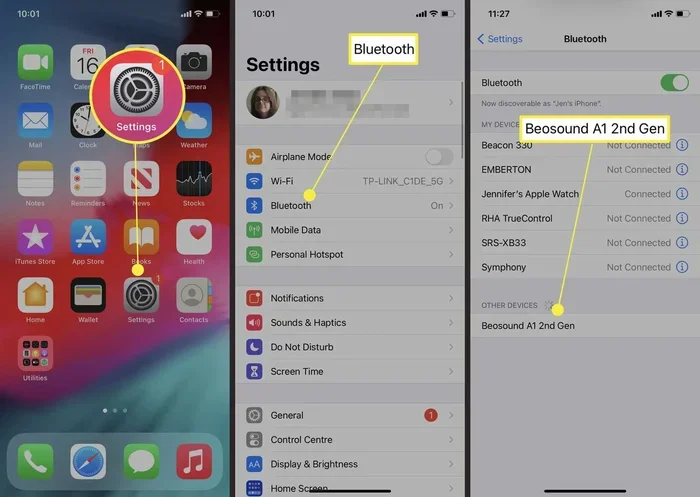
Step 1: Turn on Bluetooth on your iPhone. Open the Settings app and tap Bluetooth. Make sure the toggle is switched on. Your iPhone will start scanning for nearby devices.
Step 2: Put your Bluetooth speaker in pairing mode. Most speakers have a dedicated Bluetooth button or a blinking light that shows they are ready to pair. Check your speaker’s manual if you are unsure.
Step 3: Select the speaker from your iPhone’s Bluetooth list. Your iPhone should show the speaker name under “Other Devices.” Tap on it to connect. Once paired, the speaker will appear under “My Devices.”
Step 4: Open a microphone app. This is where it gets interesting. The default iPhone settings route audio output to the speaker, but they do not automatically route microphone input. You need an app to make that happen. More on this below.
Step 5: Test your setup. Speak into your iPhone and listen to the speaker. Adjust the volume on both devices until you get a clear, balanced sound.
Quick Tips for a Smooth Connection
- Keep both devices charged before you start.
- Turn off other Bluetooth devices nearby to avoid interference.
- Restart both devices if the pairing fails.
- Make sure your speaker firmware is up to date.
- Stay close to the speaker during the initial setup.
Best Apps That Let You Use iPhone as a Microphone
The App Store has several apps designed specifically for using your iPhone as a wireless microphone. These apps handle the audio routing that the default settings do not cover. Here are some of the best options available right now.
Boom Cards: This is a popular choice for karaoke and party use. It lets you connect your iPhone to a Bluetooth speaker and use your voice as the input. The app is free to download and offers a simple, user-friendly interface.
Singa: Another great option for karaoke lovers. Singa lets you sing along with thousands of songs while your iPhone mic feeds audio to your speaker. It also includes pitch correction and echo effects, which can make your voice sound even better.
Megaphone App: This app is perfect for presentations and outdoor events. It turns your iPhone into a literal megaphone, amplifying your voice through the connected speaker. It is simple, reliable, and works well in a pinch.
Voice Recorder with Bluetooth Output: Several voice recording apps allow you to route the microphone output to a Bluetooth speaker. Look for apps that specifically mention “audio output” or “speaker routing” in their features.
What to Look for in a Microphone App
Not all apps are created equal. Here are some features to look for when choosing the right one for your needs.
- Low latency: You want minimal delay between speaking and hearing your voice through the speaker.
- Audio routing support: The app must be able to send microphone input to Bluetooth output.
- Volume controls: Separate controls for input and output make it easier to fine-tune your sound.
- Effects and filters: Echo, reverb, and pitch correction can add a fun or professional touch.
- Compatibility: Make sure the app works with your specific iPhone model and iOS version.
Common Problems and How to Fix Them
Even though the setup is simple, you might run into a few hiccups along the way. Here are the most common issues and how to solve them.
Problem 1: No sound coming through the speaker. This usually happens because the audio is not being routed correctly. Make sure you have opened the microphone app and granted it permission to access your iPhone’s microphone. Also check that the speaker volume is turned up.
Problem 2: Audio delay or lag. Bluetooth audio always has some latency, but it should not be noticeable. If you hear a clear delay, move closer to the speaker. Also, close any other apps running in the background that might be using audio resources.
Problem 3: Connection keeps dropping. Bluetooth interference from other devices can cause this. Move away from Wi-Fi routers, microwaves, and other Bluetooth devices. Restarting both devices often fixes the issue as well.
Problem 4: Poor audio quality. If your voice sounds muffled or distorted, check the microphone position. Make sure nothing is covering the bottom of your iPhone. Also, try adjusting the input gain within the app if available.
Quick Troubleshooting Checklist
- Restart Bluetooth on both devices.
- Forget the speaker and re-pair it.
- Update your iPhone to the latest iOS version.
- Update your speaker firmware.
- Try a different microphone app.
- Move closer to the speaker to reduce interference.
- Check that no other audio is playing on the speaker.
Tips for Getting the Best Sound Quality
Once your setup is working, you will want to get the best possible sound. A few simple adjustments can make a huge difference in how your voice sounds through the Bluetooth speaker.
Position your iPhone correctly. The bottom of your iPhone houses the primary microphone. Hold the phone so that the bottom faces your mouth. Avoid covering the mic with your fingers or case.
Control the room environment. Hard surfaces like walls and floors create echo. If you are indoors, try to set up in a room with carpets, curtains, or soft furniture. This reduces echo and makes your voice sound clearer through the speaker.
Adjust input and output levels separately. Most good microphone apps let you control how loud your voice is picked up (input) and how loud it plays through the speaker (output). Start with both at medium levels and adjust from there.
Keep your iPhone charged. Using the microphone while streaming audio via Bluetooth drains battery faster than normal use. Keep a charger nearby for long events.
Use a speaker with good battery life. For events that last more than a couple of hours, choose a Bluetooth speaker with at least 10 hours of battery life. This ensures you do not run out of power in the middle of your event.
Expert Insights on Using iPhone as a Bluetooth Microphone
Audio engineers often say that the quality of your setup depends on the weakest link in the chain. In this case, that could be your iPhone’s microphone, the Bluetooth connection, or the speaker itself. Using a high-quality Bluetooth speaker with good drivers will dramatically improve your sound output.
Another expert tip is to avoid using your iPhone in environments with a lot of background noise. While modern iPhones have excellent noise cancellation, Bluetooth audio compression can sometimes amplify background sounds. If you are outdoors, try to face away from wind and traffic for the cleanest audio.
Some professionals also recommend using an external microphone that plugs into your iPhone’s Lightning or USB-C port. This gives you studio-quality input while still using the Bluetooth speaker for output. It is a small investment that makes a big difference for serious use.
Is It Safe and Legal to Use Your iPhone This Way?
Yes, using your iPhone as a microphone with a Bluetooth speaker is perfectly safe. It does not damage your phone or the speaker. The Bluetooth technology used is low-power and has been extensively tested for safety.
As for legality, using this setup is fine in most situations. However, if you are amplifying your voice in a public space, check local noise ordinances. Some areas have rules about amplified sound after certain hours. For private events like parties or backyard gatherings, you should be completely fine.
Also, be mindful of other people’s privacy. Using a microphone setup in crowded public areas without consent can raise concerns. Use common sense and be respectful of those around you.
Comparison: iPhone as Bluetooth Mic vs. Traditional Wireless Microphone
You might be wondering how this setup compares to a traditional wireless microphone system. Here is a quick comparison to help you decide.
- Cost: iPhone + Bluetooth speaker = what you already own. Traditional wireless mic = $50 to $500+.
- Setup time: iPhone setup takes about 5 minutes. Traditional systems can take 15-30 minutes.
- Sound quality: Traditional wireless mics generally sound better, especially at higher volumes.
- Portability: iPhone setup is ultra-portable. You always have it with you.
- Battery life: Traditional mics often last longer on a single charge.
- Versatility: iPhone setup lets you do more than just amplify your voice. You can play music, use effects, and more.
For casual use, parties, and small events, the iPhone setup is hard to beat. For professional performances or large venues, a dedicated wireless microphone system is still the better choice.
Final Thoughts
Using your iPhone as a microphone with a Bluetooth speaker is one of those clever tricks that makes life more fun and convenient. Whether you are hosting a karaoke night, giving a toast at a party, or setting up a small outdoor event, this setup delivers surprisingly good results with minimal effort.
The key is to choose the right app, keep your devices close, and troubleshoot any issues quickly. With the tips and guidance in this article, you are well equipped to get the most out of your setup. So go ahead, grab your iPhone and Bluetooth speaker, and give it a try. You might be surprised at how well it works.
Once you see how easy and effective this can be, you will wonder how you ever managed without it. Happy amplifying!
Frequently Asked Questions
Can any Bluetooth speaker work with an iPhone as a microphone?
Most Bluetooth speakers can work with this setup. The key requirement is that the speaker supports Bluetooth audio input and your iPhone can pair with it. Nearly all modern Bluetooth speakers from brands like JBL, Sony, Bose, and Anker will work fine.
Is there a delay when using iPhone as a Bluetooth microphone?
Yes, there is a small delay because Bluetooth audio takes a moment to transmit from your phone to the speaker. This delay is usually less than a second and is barely noticeable for casual use. However, for live singing or presentations, it can feel slightly off. Using apps with low-latency audio processing helps reduce this.
Do I need any extra equipment to make this work?
No extra equipment is needed. You just need an iPhone with Bluetooth and a Bluetooth speaker. If you want better audio quality, you can use an external microphone that plugs into your iPhone, but it is completely optional.
Will using my iPhone as a microphone drain the battery quickly?
Yes, using the microphone while streaming audio via Bluetooth uses more battery than normal phone use. For long events, keep your iPhone plugged into a charger or use a portable battery pack to keep it powered throughout.
Can I use this setup for professional events or performances?
For small to medium events, this setup works well. However, for large venues or professional performances, a dedicated wireless microphone system is recommended. The Bluetooth connection can have latency and audio quality limitations that professional equipment does not.
What is the best app for using iPhone as a microphone with a Bluetooth speaker?
The best app depends on your needs. For karaoke, Singa and Boom Cards are great choices. For presentations and amplification, Megaphone App works well. For general use, look for apps that support audio routing and have low latency ratings on the App Store.
=== CONCLUSION ===
So, can you use your iPhone as a microphone with a Bluetooth speaker? The answer is a clear yes. With just a few simple steps, you can turn your phone and speaker into a wireless microphone setup that works great for parties, events, and everyday fun.
The process is affordable, easy to set up, and incredibly versatile. You do not need expensive equipment or technical skills. Just your iPhone, a Bluetooth speaker, and the right app. Follow the steps in this guide, avoid the common mistakes, and you will have a working setup in no time.
Now that you know how to do it, the only thing left is to try it. Grab your devices, pick an app, and start experimenting. You will be amazed at how well this simple setup works. Enjoy your new wireless microphone!