Can I Connect VGA to D Sub Everything You Need to Know
Yes, you can connect VGA to D Sub because a VGA connector is actually a type of D-Sub connector known as DB-15. This guide covers everything from pinout compatibility and cable types to adapters and troubleshooting tips. You will learn how to set up your analog video connection with confidence.
If you have ever looked at the back of your computer or monitor and wondered about those blue or gray ports, you are not alone. The question can I connect VGA to D Sub comes up all the time. People see these ports and assume they must be different things. The truth is simpler than you might think.
VGA and D Sub are closely related. In fact, a VGA connector is a specific type of D Sub connector. They share the same physical shape and pin layout. This means you can connect them directly without any special adapter in most cases. But there is more to know about signal quality, cable types, and compatibility. This guide covers everything you need to connect your devices with confidence.
Whether you are setting up a legacy monitor, connecting a projector, or troubleshooting an old display, understanding the relationship between VGA and D Sub is essential. Let us break it all down in simple terms so you can get your display working right away.
Key Takeaways
- VGA and D Sub are compatible: A VGA connector is a 15-pin D-Sub connector, so they work together directly.
- Check your pinout: Understanding the HD-15 pin arrangement helps you troubleshoot and set up connections correctly.
- Use the right cable: Not all VGA cables are the same. Cable quality affects signal strength and image clarity.
- Adapters open up options: VGA to D Sub adapters and converters let you bridge different display setups easily.
- Signal quality matters: Cable length, shielding, and port condition all impact your analog video performance.
- Troubleshooting is simple: Most VGA to D Sub issues can be fixed with basic steps like checking connections and updating drivers.
📑 Table of Contents
- What Is VGA and What Is D Sub?
- Can You Connect VGA to D Sub? The Short Answer
- Understanding the Pinout and Compatibility
- Step by Step Guide to Connecting VGA to D Sub
- Adapters, Converters, and Cable Options
- Troubleshooting Common Connection Issues
- Expert Tips and Best Practices
- VGA to D Sub Compared With Modern Connection Types
- Frequently Asked Questions
- Final Thoughts
What Is VGA and What Is D Sub?
Before we answer the main question, it helps to understand what each term means. Many people use VGA and D Sub interchangeably, but they are not exactly the same thing.
What Is VGA?
VGA stands for Video Graphics Array. It is an analog video standard that was introduced by IBM in 1987. VGA carries video signals from your computer’s graphics card to a display device like a monitor or projector. When you hear someone say “VGA cable” or “VGA port,” they are referring to the connector and signal standard used for analog video output.
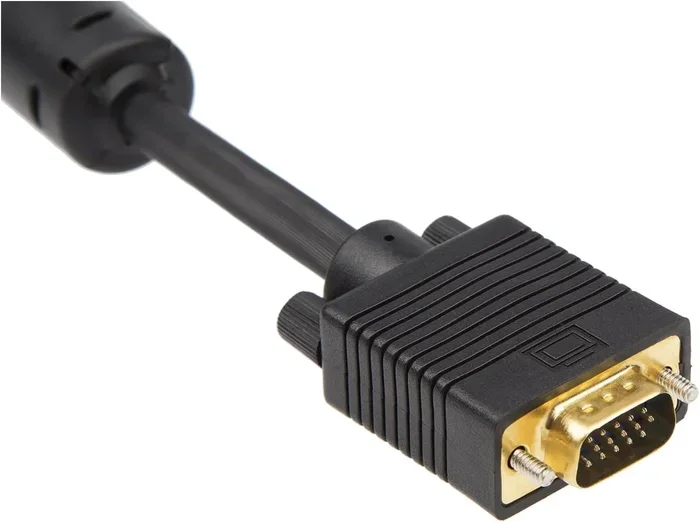
The VGA connector has 15 pins arranged in three rows. This shape is often called an HD-15 connector. It is the familiar blue plug you see on older computers and monitors. VGA supports standard display resolutions up to 2048×1536, though image quality depends on cable quality and length.
What Is D Sub?
D Sub stands for D Subminiature. It is a broader category of connectors that come in different sizes and pin counts. The “D” shape of the connector shell gives it the name. D Sub connectors are used in many applications beyond video, including serial ports, parallel ports, and other data connections.
The specific D Sub connector used for VGA is the DB-15, which has 15 pins. This is also called a High Density D Sub or HD-15. So when you see a D Sub port on your device, it could be a VGA port or another type of D Sub connection depending on the pin count and purpose.
Can You Connect VGA to D Sub? The Short Answer
Here is the good news. Yes, you can connect VGA to D Sub because they use the same connector. A VGA cable plugs directly into a D Sub port when both are DB-15 HD-15 connectors. There is no adapter needed in this case. The connection is plug and play.
This is because VGA is essentially a subset of the D Sub connector family. Think of it this way. All VGA connectors are D Sub connectors, but not all D Sub connectors are VGA connectors. A DB-9 D Sub port, for example, is a different connector used for serial communication. It has a different pin count and a different purpose.
When people ask if they can connect VGA to D Sub, they are usually asking about the DB-15 HD-15 version. And the answer is a definite yes. The pin layout matches perfectly. The analog video signal passes through the same pins in both connectors.
Understanding the Pinout and Compatibility
Now that you know VGA and D Sub are compatible, it helps to understand the pinout. The pin arrangement is the same because VGA uses a D Sub shell. Knowing how the pins work can help you troubleshoot issues and understand your connection better.
The 15-Pin VGA D Sub Layout
The VGA D Sub connector has 15 pins arranged in three rows of five pins each. Each pin has a specific job. Here is a quick overview of what the pins do:
- Pins 1, 2, 3: These carry the red, green, and blue color signals. They form the RGB video channel.
- Pins 6, 7, 8: These are ground pins for the red, green, and blue signals. They ensure a stable connection for each color channel.
- Pins 9, 10: Pin 9 carries the pixel clock signal. Pin 10 is the digital ground for synchronization.
- Pins 11, 12, 13, 14: These handle horizontal and vertical synchronization signals. They tell the display when to refresh the image.
- Pin 15: This is an ID pin used for monitor identification in some setups.
Because both VGA and D Sub use this exact layout, the signals align perfectly. There is no risk of sending the wrong signal to the wrong pin. This is what makes the connection so reliable and straightforward.
When Compatibility Can Be Tricky
While VGA and D Sub DB-15 are fully compatible, there are situations where things get tricky. If your device has a D Sub port that is not DB-15, the connection will not work. For example, a DB-9 D Sub port has only 9 pins and serves a completely different purpose. You cannot plug a VGA cable into a DB-9 port and expect video output.
Also, some devices use a VGA connector but label the port differently. You might see “D Sub 15” or “HD-15” on a device. These all refer to the same connector type. Always check the pin count to confirm compatibility before plugging anything in.
Step by Step Guide to Connecting VGA to D Sub
Connecting a VGA cable to a D Sub port is simple. But doing it the right way ensures the best signal quality and a long-lasting connection. Follow these steps for a reliable setup.
Step 1: Identify the Port Type
Look at the port on your device. A VGA or D Sub DB-15 port has 15 pins arranged in three rows. The shell is usually blue for VGA ports, but D Sub ports can be any color. Count the pins or check the labels on the device to confirm it is a DB-15 connector.
Step 2: Check the Cable
Inspect your VGA cable. Make sure the connector on both ends is a 15-pin HD-15 type. Some cheap cables may have fewer pins or a different shell design. A quality VGA cable has a sturdy connector with all 15 pins present and a good strain relief at the cable entry point.
Step 3: Align and Plug In
Hold the cable connector and align it with the port. The D shaped shell should match the D shaped port. Push the connector in gently but firmly. You should feel it click into place. Do not force it. If it does not fit, double check the pin count and orientation.
Step 4: Secure the Connection
Many VGA D Sub connectors have small screws on the sides of the shell. Use your fingers or a small screwdriver to tighten these screws. This locks the cable in place and prevents it from pulling out accidentally. A secure connection reduces signal loss and improves image clarity.
Step 5: Test the Display
Turn on your computer and monitor. Check if the display appears correctly. If you see a blank screen, try adjusting the input source on your monitor. If the image is distorted or has color issues, check the cable connections and try a different port.
Adapters, Converters, and Cable Options
While VGA and D Sub are directly compatible, there are times when you need adapters or converters. Understanding your options helps you make the right choice for your setup.
VGA to D Sub Adapters
Most of the time, you do not need an adapter because VGA plugs directly into a D Sub DB-15 port. However, if you need to convert a VGA signal to a different type of connection, adapters are available. Common options include VGA to HDMI adapters, VGA to DVI converters, and VGA to DisplayPort adapters. These devices convert the analog VGA signal to a digital format that modern displays can read.
VGA Cable Types
Not all VGA cables are created equal. Here are the main types you might encounter:
- Standard VGA cables: Basic cables with 15-pin HD-15 connectors on both ends. Good for short distances up to about 15 feet.
- Shielded VGA cables: These have extra shielding to reduce interference. They are ideal for longer cable runs or environments with lots of electromagnetic noise.
- VGA extender cables: These boost the signal over longer distances. They are useful when your display is far from your computer.
- VGA splitter cables: These split the VGA signal to multiple displays. Great for presentations or multi-monitor setups.
When to Use a Converter
You need a converter when your source device outputs VGA but your display only accepts digital inputs like HDMI or DVI. A VGA to HDMI converter takes the analog signal and converts it to a digital one. This lets you connect older devices to modern displays. Make sure to choose a converter that supports your desired resolution for the best results.
Troubleshooting Common Connection Issues
Even though the VGA to D Sub connection is straightforward, problems can still happen. Here are the most common issues and how to fix them.
No Display on the Monitor
If your monitor shows no signal, start by checking the physical connection. Make sure the VGA cable is firmly plugged into both the computer and the monitor. Check that the cable is not bent or damaged. Try a different cable if the current one looks worn out. Also make sure your monitor is set to the correct input source.
Fuzzy or Distorted Image
A blurry or distorted image usually points to a signal quality problem. Long VGA cables are more prone to signal loss. Try shortening the cable or using a shielded cable. Also check for kinks or bends in the cable that could damage the internal wires. A bad cable often causes ghosting or flickering on the screen.
Color Distortion or Tinting
If the image has a color tint, one or more color pins may not be making proper contact. Unplug the cable and inspect the pins for bending or dirt. Use a soft cloth to clean the pins gently. Also try a different port on your graphics card. Sometimes a single pin can be bent and not making contact inside the port.
Intermittent Signal Loss
If the display cuts in and out, the connection is likely loose. Check the screws on the D Sub connector and tighten them. Also inspect the cable ends for bent or missing pins. A damaged connector should be replaced. Intermittent issues can also be caused by electromagnetic interference from nearby power cables. Keep your VGA cable away from power cords and power supplies.
Expert Tips and Best Practices
Getting the most out of your VGA to D Sub connection comes down to a few smart practices. These tips help you maintain signal quality and avoid common pitfalls.
Keep cables as short as possible. VGA is an analog signal, and longer cables mean more signal degradation. For the best image quality, use the shortest cable that reaches your setup. If you must run a long cable, invest in a high-quality shielded cable with built-in signal amplification.
Always secure the screws. The two screws on a D Sub connector are not just for show. They hold the connector firmly in place and maintain a stable connection. Loose VGA connections are one of the most common causes of display problems.
Label your cables. If you have multiple VGA cables running to different devices, label them. This saves you time when troubleshooting or reconfiguring your setup. A simple piece of tape with the destination device name goes a long way.
Check your graphics card drivers. Sometimes display issues are not about the cable at all. Outdated or corrupted graphics drivers can cause resolution problems, flickering, or no signal at all. Keep your drivers updated through your device manufacturer’s website.
Store cables properly. When not in use, coil VGA cables loosely and store them in a cool, dry place. Tightly winding or kinking a cable can damage the internal wires and lead to signal problems over time.
VGA to D Sub Compared With Modern Connection Types
VGA and D Sub connections have been around for decades. They served us well through the era of CRT monitors and early LCD displays. But modern connection types offer better performance in many ways. Here is how VGA compares to some newer standards.
- VGA (D Sub): Analog signal, supports up to Full HD resolution, susceptible to interference, widely compatible with older devices.
- HDMI: Digital signal, supports high resolutions including 4K, carries audio and video on one cable, less prone to interference.
- DisplayPort: Digital signal, supports very high resolutions and refresh rates, popular for gaming and professional displays.
- DVI: Can be digital or analog, supports high resolutions, no audio support, common on older graphics cards.
While VGA served its purpose well for many years, digital connections offer sharper images and better reliability. If you are setting up a new display, consider using HDMI or DisplayPort instead. But for legacy devices and older projectors, VGA to D Sub remains a reliable and practical choice.
Frequently Asked Questions
Is a VGA connector the same as a D Sub connector?
A VGA connector is a type of D Sub connector. Specifically, it is a DB-15 HD-15 D Sub connector with 15 pins. Not all D Sub connectors are VGA connectors, but the VGA connector uses the D Sub form factor. So when someone says VGA or D Sub DB-15, they are usually referring to the same thing.
Can I plug a VGA cable into any D Sub port?
You can only plug a VGA cable into a D Sub port that has 15 pins arranged in three rows. A DB-9 D Sub port has only 9 pins and is used for serial communication, not video. Always check the pin count and shape before connecting. Plugging a VGA cable into the wrong D Sub port will not work and could potentially cause issues.
Do I need an adapter to connect VGA to D Sub?
No, you do not need an adapter when both the cable and the port are DB-15 HD-15. A standard VGA cable plugs directly into a D Sub port. You only need an adapter if you are converting VGA to a different connection type like HDMI or DVI. For a direct VGA to D Sub connection, no adapter is necessary.
Why is my VGA to D Sub connection showing no signal?
No signal usually means the cable is not making proper contact. Check that the cable is firmly plugged into both devices and that the screws are tightened. Try a different cable or a different port. Also make sure your monitor is set to the correct input source. If none of these steps work, the cable or port may be damaged and need replacement.
Can VGA to D Sub support 1080p resolution?
Yes, VGA to D Sub can support 1080p resolution, but the image quality depends on cable quality and length. A high-quality shielded VGA cable can carry a 1080p signal reliably over short to medium distances. Longer cables may experience signal loss or interference at this resolution. For the best results, keep the cable run under 15 feet and use a well-shielded cable.
Are VGA to D Sub connections still relevant today?
While digital connections like HDMI and DisplayPort are now the standard, VGA to D Sub connections are still relevant in many situations. Legacy projectors, older monitors, industrial equipment, and some business setups still rely on VGA connections. Knowing how to connect and troubleshoot a VGA to D Sub setup is a valuable skill, especially in environments with older technology.
Final Thoughts
So, can you connect VGA to D Sub? The answer is a clear and simple yes. A VGA connector is a D Sub DB-15 connector, and they are fully compatible with each other. You can plug a VGA cable directly into a D Sub port and expect a reliable analog video connection.
Understanding the pinout, choosing the right cable, and following basic troubleshooting steps will help you get the best results from your connection. Whether you are setting up an older monitor, connecting a projector, or working with legacy equipment, the VGA to D Sub connection remains a practical and dependable option.
While modern digital connections offer better performance, VGA and D Sub continue to serve important roles in many setups around the world. With the tips and knowledge from this guide, you are now equipped to connect, troubleshoot, and optimize your VGA to D Sub setup with confidence. Go ahead and make that connection. You have got this.