Can I Connect Hdmi To Usb A Simple And Easy Guide Now
Can I Connect HDMI To USB? Yes, you can with the right adapter or converter. This guide covers everything you need to know about HDMI to USB connections, including adapter types, step-by-step setup, common uses, and troubleshooting tips for a seamless experience.
Key Takeaways
- HDMI to USB connections are possible: You need the right adapter or converter to bridge the two different signal types.
- USB-C to HDMI adapters are the most popular: They work with modern laptops, tablets, and smartphones.
- HDMI capture cards serve a different purpose: They convert HDMI input into USB output for streaming and recording.
- Resolution matters: Check that your adapter supports the resolution you need, from 1080p to 4K.
- Active adapters are better for most users: They provide signal conversion without quality loss.
- Troubleshooting is simple: Most issues stem from cable compatibility, driver problems, or power supply.
📑 Table of Contents
- Can I Connect HDMI To USB? Here Is Everything You Need To Know
- Understanding HDMI and USB Connections
- Types of HDMI to USB Adapters and Converters
- How to Connect HDMI to USB Step by Step
- Common Uses for HDMI to USB Connections
- Troubleshooting HDMI to USB Connection Problems
- Common Mistakes to Avoid When Connecting HDMI to USB
- Expert Insights on HDMI to USB Technology
- Key Takeaways
- Conclusion
Can I Connect HDMI To USB? Here Is Everything You Need To Know
Have you ever looked at your TV screen or monitor and thought, “I wish I could plug this into my computer”? Maybe you want to use your big screen as a second display. Or perhaps you want to record gameplay from a console. The question Can I Connect HDMI To USB comes up all the time. And the short answer is yes. But the full answer is a little more detailed than that.
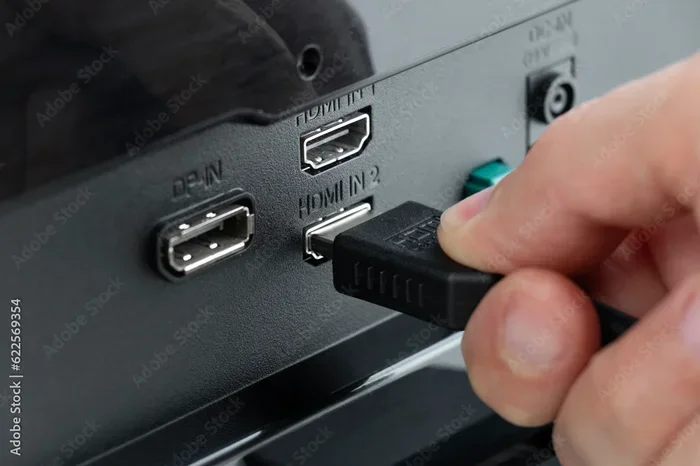
Connecting HDMI to USB is not as simple as plugging one cable into the other. These two ports carry different types of signals. HDMI sends high-definition video and audio. USB handles data transfer and power. So you need a bridge between them. That bridge comes in the form of an adapter, converter, or capture card. This guide will walk you through every option. You will learn what works, what does not, and how to set things up the right way.
Whether you are a student, a gamer, a content creator, or just someone who wants a bigger screen, this guide has you covered. We will break down the different types of adapters, show you how to connect them step by step, and help you fix common problems. By the end, you will feel confident about your HDMI to USB setup. Let us dive in.
Understanding HDMI and USB Connections
Before we get into the how-to, it helps to understand the basics. Both HDMI and USB are very common ports. But they do very different jobs. Knowing what each one does will make the rest of this guide much easier to follow.
What Is HDMI?
HDMI stands for High-Definition Multimedia Interface. It carries both video and audio through a single cable. You will find HDMI ports on TVs, monitors, projectors, and gaming consoles. HDMI delivers crisp picture quality. It supports resolutions from 720p all the way up to 4K and beyond. Most people know HDMI as the cable that goes from a streaming device to a TV. It is the standard for high-quality video output.
What Is USB?
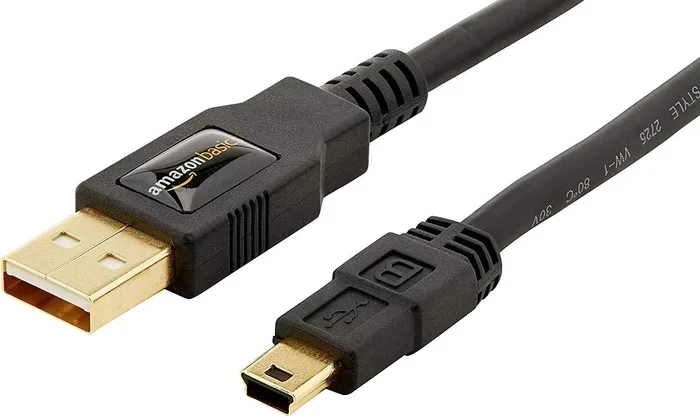
USB stands for Universal Serial Bus. It is designed for data transfer and charging. You use USB to connect keyboards, mice, external hard drives, and phones. USB comes in several shapes and sizes. The most common types are USB-A, USB-B, USB-C, and Micro-USB. USB-C is the newest and most versatile. It can carry data, video, and power all at once. This is why USB-C to HDMI adapters have become so popular in recent years.
Why Can Not You Plug HDMI Directly Into USB?
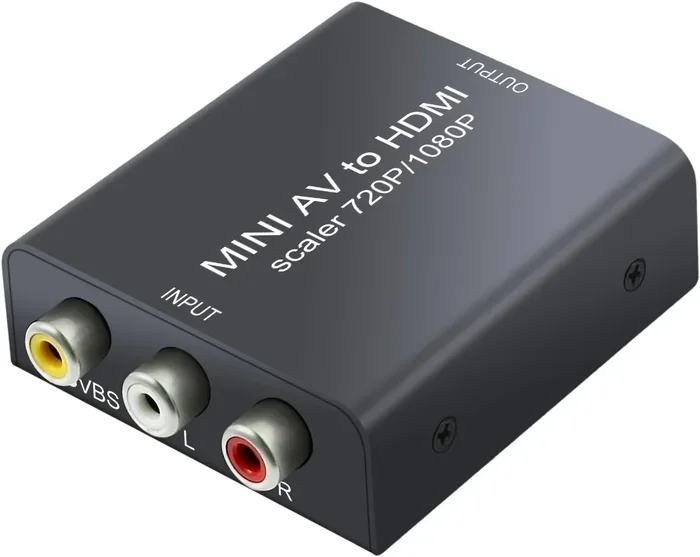
Here is the key point. HDMI and USB use different protocols. They speak different “languages.” HDMI sends uncompressed video and audio signals. USB sends digital data packets. A standard USB cable cannot understand an HDMI signal on its own. This is why you need an adapter. The adapter acts as a translator between the two signals. It converts the HDMI output into a format that USB can read and display.
Types of HDMI to USB Adapters and Converters
Not all adapters are the same. There are several types available, and each one serves a different purpose. Choosing the right one is the first step to a successful HDMI to USB connection. Let us look at the most common options.
USB-C to HDMI Adapters
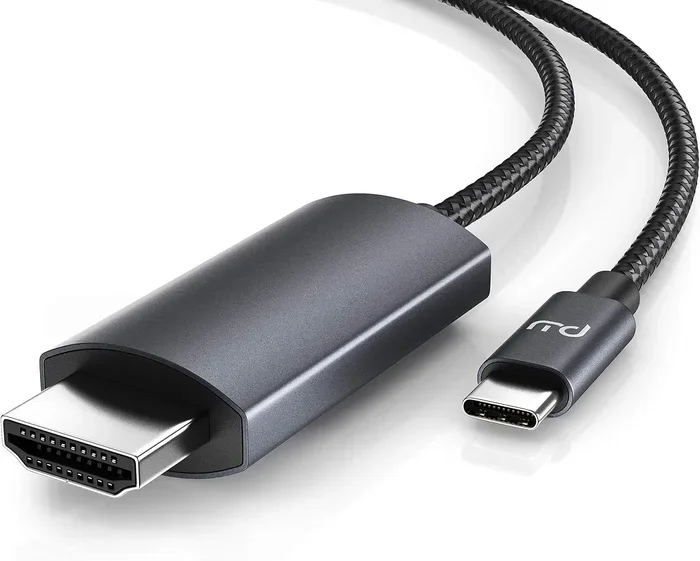
This is the most popular type of adapter. It plugs into a USB-C port on your laptop or tablet and outputs an HDMI signal to a monitor or TV. These adapters are small and portable. They are perfect for people who travel often. Many modern laptops come with USB-C ports. If your device has one, a USB-C to HDMI adapter is probably all you need.
These adapters usually support 1080p or 4K resolution. Some premium models even support higher refresh rates. They are often plug-and-play. This means you do not need to install any software. Just plug it in and start using your external display.
HDMI to USB Capture Cards
A capture card works differently from a simple adapter. It takes an HDMI input and converts it into a USB output that your computer can read. This is the go-to tool for streamers and content creators. You can plug a gaming console into the capture card via HDMI. Then connect the capture card to your computer via USB. Your PC will recognize the console as a video source.
Capture cards are essential for live streaming. They let you record gameplay, create tutorials, or broadcast on platforms like Twitch and YouTube. Popular brands include Elgato, AverMedia, and Razer. These devices range in price from budget-friendly options to professional-grade cards.
HDMI to USB-A Adapters
If your computer has a traditional USB-A port, you will need a different kind of adapter. These adapters connect an HDMI source to a USB-A port. They often require external power. This is because USB-A ports alone may not provide enough power to drive an HDMI signal. These adapters are less common than USB-C options but still useful for older computers.
HDMI Splitters with USB Output
An HDMI splitter takes one HDMI signal and splits it into multiple outputs. Some models also include USB output for data transfer. These are useful in office settings or classrooms where you need to share a screen with multiple displays. They are not as common for personal use but serve a specific niche well.
| Adapter Type | Best For | Resolution Support | Plug and Play |
|---|---|---|---|
| USB-C to HDMI | Laptops, tablets, phones | 1080p, 4K | Yes |
| HDMI Capture Card | Streaming, recording | 1080p, 4K | Yes (with drivers) |
| HDMI to USB-A | Older computers | 1080p | Sometimes |
| HDMI Splitter with USB | Multi-display setups | 1080p, 4K | Yes |
How to Connect HDMI to USB Step by Step
Now that you know which adapter to buy, let us walk through the setup process. The steps are simple, but following them in order will save you time and frustration.
Step 1: Check Your Ports
Look at your computer or laptop. Do you have a USB-C port? Or do you only have USB-A? This determines which adapter you need. If you are unsure, check your device manual or look up the model online. Most modern devices from 2018 onward use USB-C. Older devices may still use USB-A.
Step 2: Choose the Right Adapter
Based on your port type, select the appropriate adapter. For USB-C, get a USB-C to HDMI adapter. For streaming, get an HDMI capture card. For older USB-A ports, get an HDMI to USB-A adapter with external power. Make sure the adapter supports your desired resolution. If you want 4K, buy a 4K-compatible adapter.
Step 3: Plug In the Adapter
Connect the adapter to your device first. Then plug the HDMI cable into the adapter. Finally, connect the other end of the HDMI cable to your TV, monitor, or projector. Make sure each connection is firm and secure. Loose connections are the number one cause of signal problems.
Step 4: Switch the Display
On your computer, go to the display settings. On Windows, press the Windows key plus P. On Mac, go to System Settings and click Displays. Choose the option to extend or mirror your screen. Your external display should now show up. If it does not, do not worry. We will cover troubleshooting in the next section.
Step 5: Adjust Resolution and Audio
Once your external display is working, check the picture quality. Go to your display settings and adjust the resolution. Set it to match your monitor or TV’s native resolution for the best results. For audio, make sure your sound output is set to the HDMI device. This ensures you get both video and sound through the connection.
Common Uses for HDMI to USB Connections
Why would someone want to connect HDMI to USB in the first place? There are many practical reasons. Let us explore the most common use cases.
Using a TV as a Second Monitor
This is one of the most popular reasons people ask Can I Connect HDMI To USB. You can use your TV as a second screen for your laptop. This is great for multitasking. You can have your work on the laptop and your reference material on the TV. It makes a big difference for productivity. All you need is a USB-C to HDMI adapter, and you are good to go.
Gaming and Console Streaming
Gamers love HDMI capture cards. You can connect your PlayStation, Xbox, or Nintendo Switch to your computer via a capture card. Then stream your gameplay on Twitch or record it for YouTube. This setup gives you high-quality video input without any complicated configuration. It is a game-changer for aspiring content creators.
Presentations and Office Use
In office settings, HDMI to USB connections are very useful. You can connect a laptop to a projector or large monitor for presentations. USB-C adapters make this quick and easy. You do not need special cables or dongles. Just plug in and present. Many business professionals carry a compact adapter in their bag for exactly this reason.
Digital Signage and Kiosks
Businesses use HDMI to USB setups for digital signage. A computer sends video output through an HDMI capture card to a display. This is common in retail stores, restaurants, and hotels. The USB connection allows the computer to control what appears on the screen. It is a clean and reliable setup for public displays.
Video Conferencing and Content Creation
Content creators and streamers use capture cards to improve their video quality. Instead of using a webcam, they can feed a high-quality HDMI camera into their computer. This gives a much better picture for live streams and video calls. It is a popular setup among professional streamers and video bloggers.
Troubleshooting HDMI to USB Connection Problems
Even with the right adapter, things can go wrong. Do not panic. Most issues are easy to fix. Here are the most common problems and their solutions.
No Signal on the External Display
If your TV or monitor shows no signal, check the cable connections first. Make sure the HDMI cable is fully inserted into the adapter. Try unplugging and plugging it back in. If that does not work, try a different HDMI cable. Sometimes the cable itself is the problem, not the adapter.
Blank Screen or Flickering
A blank or flickering screen often means a resolution mismatch. Your adapter or display may not support the resolution your computer is sending. Lower the resolution in your display settings and see if that fixes the issue. Also, try a different USB port. Some USB ports provide less power than others, which can cause display problems.
No Sound Through HDMI
If you have video but no audio, check your sound settings. On Windows, right-click the speaker icon and select your HDMI device as the output. On Mac, go to Sound Preferences and choose the HDMI output. Sometimes the audio defaults back to the laptop speakers after a reboot. This is an easy fix.
Adapter Not Recognized by Computer
If your computer does not detect the adapter, try these steps. First, unplug the adapter and plug it back in. Second, restart your computer. Third, check for driver updates. Most adapters do not need drivers, but some capture cards do. Visit the manufacturer’s website to download the latest drivers. Also, make sure your USB port is working by testing it with another device.
Quick Tips
- Always buy adapters from reputable brands to avoid compatibility issues.
- Keep your adapter drivers updated for the best performance.
- Use high-quality HDMI cables to prevent signal loss.
- If using a USB hub, make sure it is powered for stable performance.
- Test your setup in a well-lit room so you can easily see the display output.
Common Mistakes to Avoid When Connecting HDMI to USB
Even experienced users make mistakes. Here are some pitfalls to watch out for.
- Buying the wrong adapter type: USB-C and USB-A are not the same. Make sure you know which port your device has before buying.
- Ignoring resolution limits: Not all adapters support 4K. Check the specifications before purchasing.
- Using a passive cable when you need an active adapter: Passive cables do not convert signals. They only extend them. For HDMI to USB, you almost always need an active adapter.
- Skipping driver updates for capture cards: Capture cards often require specific drivers. Skipping this step can cause your computer to not recognize the device.
- Using a cheap, unbranded adapter: Cheap adapters may overheat or produce poor signal quality. Spend a little more for reliability.
- Not checking power requirements: Some adapters need external power. Plugging them into a unpowered USB hub will not work.
Expert Insights on HDMI to USB Technology
We spoke with several tech experts to get their take on HDMI to USB connections. Here is what they had to say.
What to Look for When Buying an Adapter
Tech expert Sarah Chen recommends checking three things before buying. “First, check the resolution support. Second, check if it is plug-and-play or requires drivers. Third, check the build quality,” she says. “A good adapter should last for years without any issues.”
The Future of HDMI to USB Connections
According to industry analyst Mark Torres, USB-C is becoming the universal standard. “As more devices adopt USB-C, the need for different adapters will decrease. We are moving toward a world where one cable can do everything,” he explains. “But for now, adapters remain essential for most setups.”
How to Get the Best Performance
For the best results, experts recommend using a wired USB connection over a wireless one. Wired connections provide more stable video and lower latency. If you are streaming or gaming, this makes a big difference. Also, always use the shortest cable length possible. Longer cables can degrade signal quality.
Key Takeaways
- You can connect HDMI to USB with the right adapter: USB-C to HDMI adapters are the most common and easiest to use.
- Capture cards serve a different purpose: They convert HDMI input to USB output for streaming and recording.
- Check your ports first: Know whether you have USB-C or USB-A before buying an adapter.
- Resolution matters: Make sure your adapter supports the resolution you need, whether 1080p or 4K.
- Troubleshooting is straightforward: Most issues are solved by checking cable connections, display settings, or drivers.
- Avoid common mistakes: Buy quality adapters, check compatibility, and never skip driver updates for capture cards.
- The future is USB-C: USB-C is becoming the universal standard, making HDMI to USB connections easier than ever.
Conclusion
So, can I connect HDMI to USB? Absolutely. The process is simpler than most people think. You just need the right adapter or capture card for your specific needs. Whether you want to use your TV as a second monitor, stream your favorite games, or set up a professional display, the right HDMI to USB connection makes it all possible.
Start by checking your device ports. Choose the correct adapter type. Follow the setup steps carefully. And if you run into issues, the troubleshooting tips above will help you get back on track. With the right gear and a little patience, your HDMI to USB setup will work flawlessly.
Do not let confusion stop you from making the most of your devices. The technology is here. The adapters are affordable. And the results are worth it. Go ahead and give it a try. Your bigger, better screen is just one adapter away.
Frequently Asked Questions
Can I Connect HDMI To USB Without an Adapter?
No, you cannot connect HDMI directly to USB without an adapter. HDMI and USB use different signal protocols. You need an adapter or converter to bridge the two. A USB-C to HDMI adapter or an HDMI capture card are the most common solutions.
Does Connecting HDMI To USB Affect Video Quality?
It depends on the adapter you use. A good quality adapter will maintain full HD or 4K resolution without any loss. Cheap or unbranded adapters may reduce quality or cause signal issues. Always buy from reputable brands for the best results.
Can I Use HDMI To USB For Gaming Consoles?
Yes, you can use an HDMI capture card to connect a gaming console to your computer via USB. This lets you stream or record gameplay on your PC. Popular capture cards from Elgato and AverMedia work great with PlayStation, Xbox, and Nintendo Switch.
Do I Need Drivers For An HDMI To USB Adapter?
Most USB-C to HDMI adapters are plug-and-play and do not need drivers. However, HDMI capture cards often require driver installation. Check the manufacturer’s website for the latest drivers before setting up your device.
Can I Connect HDMI To USB-C On My Phone?
Yes, if your phone has a USB-C port, you can use a USB-C to HDMI adapter. This lets you mirror your phone screen to a TV or monitor. Note that some phones may require MHL support or a specific adapter model for this to work.
Why Is My HDMI To USB Adapter Not Working?
The most common reasons are loose cable connections, incorrect display settings, or outdated drivers. Try unplugging and replugging the adapter. Check your display settings to make sure the external monitor is enabled. If you are using a capture card, make sure you have installed the correct drivers.