Can A USB Hub Damage Your USB Port And Your Device
A USB hub can potentially damage a USB port if you use a low-quality hub, overload it, or connect power-hungry devices to an unpowered hub. Most damage comes from overcurrent, short circuits, or electrical surges rather than from hubs themselves. Using a powered USB hub from a reputable brand greatly reduces the risk and keeps your ports safe.
Have you ever plugged a USB hub into your laptop and suddenly wondered if it could harm your device? This is a question many people ask but few get a clear answer to. The truth is that a USB hub can potentially cause damage to your USB port, but it does not happen very often.
Most people use USB hubs every single day without running into any problems at all. However, certain situations can create real risks for your USB port and even your entire device. Understanding how USB hubs work and what conditions lead to damage is the first step toward preventing it.
In this guide, we will walk you through everything you need to know about USB port damage, hub safety, and how to keep your devices protected. You will learn about powered and unpowered hubs, the most common causes of port problems, and practical tips that make a real difference. Whether you use a hub for work or fun, this article will help you use it with confidence.
Key Takeaways
- A USB hub can damage a USB port: but it is uncommon and usually results from misuse, cheap hardware, or electrical issues.
- Powered hubs are much safer: they take the power load off your computer and reduce the risk of overcurrent damage.
- Overloading is the biggest risk: connecting too many power-hungry devices to an unpowered hub can strain and burn out your port.
- Buy quality hubs from reputable brands: they include overcurrent and surge protection that cheap hubs lack entirely.
- Watch for warning signs: intermittent connections, slow speeds, and physical damage all signal a potentially harmed port.
- Use good cables and keep ports clean: damaged cables and dust buildup contribute to port problems over time.
- Act quickly if you notice damage: unplug everything and consult a professional before the problem worsens.
📑 Table of Contents
How Does A USB Hub Work?
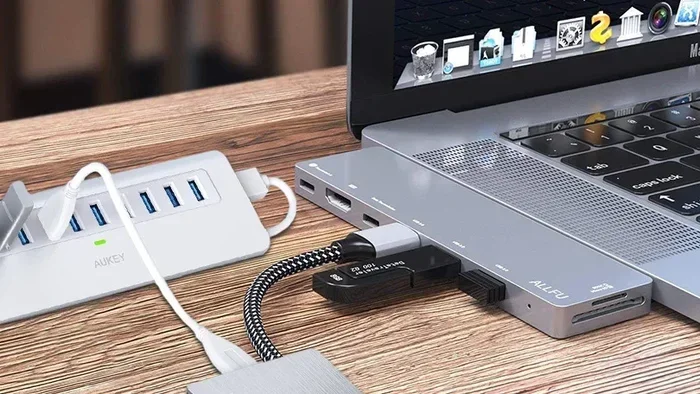
A USB hub is a small device that expands a single USB port into multiple ports. Think of it like a power strip, but for USB connections. You plug the hub into one port on your computer, and then you can connect several devices at the same time.
USB hubs come in all shapes and sizes. Some are tiny and travel-friendly. Others are larger desktop models with extra features like power switches or built-in cooling fans. No matter the size, the basic idea is the same. The hub takes the signal and power from one upstream port on your computer and shares it across all the downstream ports.
There are two main types of hubs you should know about. A powered USB hub has its own power supply. It plugs into a wall outlet and uses that electricity to charge your connected devices. An unpowered USB hub relies entirely on the power coming from your computer’s USB port. This distinction matters a lot when it comes to keeping your ports safe.
When you connect devices through a hub, data flows back and forth between your computer and each device. The hub manages this traffic and makes sure every device gets the bandwidth it needs. Most modern hubs support USB 3.0 or USB 3.1 standards. These offer fast data transfer speeds and better power delivery than older USB 2.0 hubs. The USB-C standard has also become very popular, offering even faster speeds and higher power delivery for modern laptops and tablets.
Can A USB Hub Damage Your USB Port?
The honest answer is yes, a USB hub can damage a USB port, but it does not happen often. Most damage comes from misuse, cheap hardware, or electrical issues rather than from the hub itself being inherently dangerous.
When a hub works the way it should, it simply passes data and power through. It does not generate extra voltage or force current into your port. So under normal conditions, a quality hub is perfectly safe. The problems start when something goes wrong with the hub, the connection, or the power flow.
Here are the main ways a hub can potentially harm your port:
- Overcurrent draw: If you connect too many power-hungry devices to an unpowered hub, it pulls more current than the port can handle. This strains the port and can cause overheating over time.
- Short circuits: A faulty hub with damaged internal wiring can create a short circuit. This sends an uncontrolled flow of electricity into your port and can fry the internal circuitry.
- Power surges: A low-quality hub may not have proper surge protection. If there is a sudden spike in power, it can travel through the hub and into your device’s USB port.
- Physical wear and tear: Plugging and unplugging a hub repeatedly can wear out the port’s connector over time. A loose or poorly fitting hub puts extra stress on the port.
- Incompatible power delivery: Some hubs do not match the power requirements of certain devices. Forcing a mismatch can damage both the hub and the port on your device.
The good news is that most modern computers and laptops have built-in protection circuits. These circuits are designed to prevent damage from overcurrent or short circuits. However, these protections are not completely foolproof. A severe electrical event can still cause harm to your port or even your device motherboard.
The Role Of Your Device’s Motherboard
Your device motherboard plays a big role in how vulnerable your ports are. High-end laptops and desktops usually have strong protection built right into the motherboard. Budget devices, on the other hand, may have less protection. This makes them more susceptible to hub-related damage.
The USB controller on your motherboard manages all USB traffic. If a hub sends too much power or corrupt data, the controller tries to regulate it. But if the surge is too strong, the controller can fail. In rare cases, a damaged USB controller can affect other parts of the motherboard as well. This is why choosing a quality hub matters so much.
Common Reasons A USB Hub Can Harm Your Port
Now that you understand the basic risks, let us look at the specific reasons why port damage happens. Knowing these causes helps you avoid them in your daily use.
Overloaded Ports
One of the most common causes of port damage is overloading. When you plug too many devices into a single hub, especially devices that draw a lot of power like an external hard drive, a printer, or a monitor, the hub struggles to deliver enough current. An unpowered hub simply cannot handle the load.
The excess current has to go somewhere. It flows back into your computer’s port, which can overheat the port’s internal components. Over time, this heat weakens the port and can cause permanent port damage. This is especially true if you leave the hub running at full capacity for hours every day.
Cheap And Low-Quality Hubs
Not all USB hubs are created equal. Cheap hubs from unknown brands often skip important safety features. They may lack overcurrent protection, surge protection, or proper internal insulation. These hubs are much more likely to cause port damage than quality hubs from reputable brands.
A low-quality hub might also have poorly soldered connections inside. These loose connections create intermittent electrical contacts, which generate heat and sparking. Over time, this degrades both the hub and the port it plugs into. The cost savings of a cheap hub are never worth the risk to your device.
Using The Wrong Cable
The cable you use with your hub matters more than you might think. A damaged or low-quality USB cable causes resistance in the connection. This resistance generates heat, which can damage both the cable and the port. Always use cables that are in good condition and rated for the data and power speeds you need. A good USB-C cable or USB-A cable makes a big difference in safety and performance.
Plugging And Unplugging Forcefully
It is easy to be rough with USB connections. Yanking a cable out or forcing a connector in at the wrong angle can physically damage the port. A USB hub adds another connector into the mix, which means there is one more point of potential physical stress. Be gentle when connecting and disconnecting your hub. A little care goes a long way.
Electrical Surges From External Sources
Sometimes the problem is not the hub itself but the electrical environment around you. If you are using a hub connected to a computer that is also plugged into a faulty power outlet, a surge from the wall can travel through the hub and into your device. This is more common with powered hubs that draw electricity from the wall outlet. Using a surge protector helps prevent this issue.
Common Mistakes That Lead To Port Damage
Many people make simple mistakes that increase the risk of USB port damage. Here are the most common ones to avoid:
- Using an unpowered hub for high-power devices: This is the number one mistake. Printers, external drives, and monitors need their own power source.
- Ignoring the hub’s current rating: Every hub has a maximum current it can handle. Going over this limit stresses your port.
- Daisy-chaining multiple hubs: Connecting one hub to another adds resistance and reduces available power. It also increases the risk of overheating.
- Using damaged cables: Frayed or bent cables create resistance and heat. Replace them immediately.
- Plugging in hot devices: If a device is already warm from heavy use, plugging it into a hub adds more heat to the connection.
Powered USB Hubs vs Unpowered USB Hubs
This is one of the most important topics in the entire discussion about port safety. The type of hub you choose makes a huge difference in how safe your ports are.
Powered USB Hubs
A powered USB hub has its own power adapter. It plugs into a wall outlet and generates its own power for connected devices. This means your computer’s USB port does not have to supply power to the connected devices. The port only needs to handle data transfer, which puts much less strain on your system.
Powered hubs are generally much safer for your ports. Because the power load is handled by the wall adapter, there is less strain on your computer’s internal circuits. Powered hubs are ideal for use with power-hungry devices like external hard drives, monitors, and printers. Most tech experts recommend using a powered hub if you plan to connect multiple devices regularly. The extra cost is worth the protection it provides.
Unpowered USB Hubs
An unpowered USB hub draws all of its power from the host computer’s port. This works fine for low-power devices like keyboards, mice, and flash drives. But if you try to connect power-hungry devices, the hub and port can become overloaded quickly.
Unpowered hubs are fine for light use. Just be mindful of what you plug into them. If you are only connecting simple peripherals like a mouse and a keyboard, an unpowered hub should not cause any problems. The key is knowing the limits of your hub and not exceeding them.
| Feature | Powered Hub | Unpowered Hub |
|---|---|---|
| Power Source | Wall outlet | Computer USB port |
| Best For | High-power devices | Low-power peripherals |
| Port Safety | Higher | Lower |
| Cost | More expensive | More affordable |
| Portability | Less portable | More portable |
| Overload Risk | Low | Higher |
| Surge Protection | Often included | Rarely included |
As you can see from the comparison table, powered hubs offer better protection for your ports. They also provide more reliable power to your connected devices, which means better performance overall. If you use your hub for anything beyond basic peripherals, a powered model is the smart choice.
How To Protect Your USB Ports When Using A Hub
Protecting your ports does not have to be complicated. A few simple habits can go a long way in preventing damage and keeping your devices working smoothly.
Choose A Quality Hub
Always buy a USB hub from a reputable brand. Look for hubs that include overcurrent protection and surge protection. These safety features are not expensive to build into a hub, and any quality brand will include them. Avoid the cheapest no-name hubs you find online. They may save you a few dollars but could cost you a damaged port that needs expensive repairs.
Check Power Requirements
Before connecting devices to your hub, check their power requirements. If a device needs more power than your hub can provide, use a powered hub instead. This simple step prevents most overcurrent issues before they ever happen. Look for the power rating on the device or in its manual.
Do Not Exceed The Hub’s Limit
Every hub has a maximum current rating. This is usually listed on the packaging or in the product manual. Do not connect more devices than the hub can handle. Spreading your devices across multiple hubs is a smart way to stay within safe limits and keep your ports healthy.
Use Good Quality Cables
The cables you use with your hub matter a great deal. Use cables that are well-made and free from damage. A good cable ensures a stable connection and reduces the risk of resistance-related heat buildup. Replace any cable that looks frayed, bent, or damaged right away.
Avoid Frequent Hot-Swapping
Constantly plugging and unplugging devices while your computer is running can wear down the port over time. Try to connect and disconnect devices when the computer is off whenever possible. If you must hot-swap, do it gently and make sure the connection is secure before letting go.
Keep Your Hub And Ports Clean
Dust and debris can accumulate in USB ports over time. This can cause poor connections and overheating. Use compressed air to clean your ports regularly. A clean connection is a safe connection. This simple habit can extend the life of your ports significantly.
Quick Tips For Hub Safety
- Always use a hub with built-in overcurrent protection.
- Never plug in a hub that feels hot to the touch.
- Use a surge protector for your powered hub.
- Match your hub’s USB standard to your device’s port.
- Replace damaged cables immediately.
- Do not daisy-chain multiple hubs together.
- Give your devices and hub regular breaks from heavy use.
Signs Your USB Port May Be Damaged
It is important to recognize the warning signs of port damage early. Catching the problem quickly can prevent it from getting worse and spreading to other parts of your device.
Intermittent Connections
If your device keeps disconnecting and reconnecting randomly, the port may be damaged. This is especially true if the problem only happens on one specific port. A healthy port should maintain a stable connection without dropping devices unexpectedly.
Slower Data Transfer Speeds
A damaged port may not be able to maintain the full speed of your USB 3.0 or USB-C connection. If your transfer speeds drop significantly, the port could be partially damaged. Try connecting the same device to a different port to compare speeds.
Physical Damage
Look closely at the port. Are the metal contacts bent or discolored? Is there any visible damage to the port housing? Physical signs of damage are clear indicators that something is wrong. Do not force devices into a port that looks damaged.
Device Not Recognized
If your computer stops recognizing a device that was working fine before, the port might be the culprit. Try plugging the device into a different port. If it works in another port, the original port is likely damaged and needs attention.
Burning Smell Or Heat
This is the most serious warning sign. If you smell something burning or notice excessive heat coming from a port, unplug everything immediately. This could indicate a serious electrical problem that needs professional attention. Do not continue using the port until it has been inspected by a technician.
What To Do If Your Port Is Damaged
If you suspect your port is damaged, stop using it right away. Continuing to use a damaged port can make the problem worse and potentially harm other components. Here is what you should do:
- Unplug all devices from the affected port.
- Inspect the port for visible damage.
- Try your devices in other ports to confirm the issue.
- Restart your computer and check if the port is still recognized.
- If the port is still not working, consult a professional repair technician.
Do not try to repair a damaged port yourself unless you have experience with electronics. Opening up your device can void your warranty and cause even more damage. A professional technician has the right tools and expertise to fix the problem safely.
Expert Tips For Safe USB Hub Use
We asked a few tech experts about their best practices for using USB hubs safely. Here is what they had to say.
Start With The Right Hub
Tech specialist Maria Chen recommends always choosing a hub with its own power supply for desktop setups. “An unpowered hub is fine for a keyboard and mouse, but anything beyond that needs its own power source,” she says. “Your computer’s port will thank you for being proactive about this choice.”
Respect The Power Budget
Hardware expert James Rivera emphasizes the importance of understanding power budgets. “Every USB port has a maximum current it can deliver. When you add a hub, you need to account for the power draw of every connected device. If you go over the limit, you risk damaging the port and potentially other components too,” Rivera explains.
Update Your Drivers
Software engineer Priya Patel points out that keeping your USB drivers updated can help prevent issues. “Sometimes what looks like port damage is actually a driver problem. A simple driver update can restore normal function and save you from unnecessary worry,” she notes.
Use A Hub With Individual Switches
Many quality hubs come with individual power switches for each port. This lets you control the power to each device independently. It is a great way to manage power distribution and reduce the risk of overloading any single port. This feature is especially useful if you frequently connect and disconnect devices throughout the day.
Key Takeaways
- A USB hub can damage a USB port: but it is uncommon and usually results from misuse, low-quality hubs, or electrical issues.
- Powered hubs are much safer: they take the power load off your computer and reduce the risk of overcurrent damage to your port.
- Overloading is the biggest risk: connecting too many power-hungry devices to an unpowered hub can strain and burn out your USB port over time.
- Buy quality hubs from reputable brands: they include safety features like overcurrent and surge protection that cheap hubs completely lack.
- Watch for warning signs: intermittent connections, slow speeds, and physical damage are all signs of a potentially harmed port.
- Use good cables and keep ports clean: damaged cables and dust buildup contribute to port problems over time.
- Act quickly if you notice damage: unplug everything and consult a professional before the problem gets worse.
Conclusion
The question of whether a USB hub can damage your USB port does not have a simple yes or no answer. In most cases, using a quality hub correctly is perfectly safe. The real risks come from cheap hubs, overloading, and poor usage habits that put unnecessary stress on your ports.
By choosing a powered USB hub when needed, respecting power limits, and using good cables, you can enjoy all the benefits of a hub without putting your ports at risk. A little care goes a long way in protecting your devices and making sure they last for years.
Remember, your USB port is a gateway to connecting all kinds of peripherals and accessories. Treat it well, and it will serve you reliably every single day. If you ever notice warning signs of damage, act quickly to prevent further problems from developing.
Now that you know the risks and how to avoid them, you can use any USB hub with confidence. Stay informed, choose quality, and keep your devices safe. Your ports will thank you for it.
Frequently Asked Questions
Can a cheap USB hub really damage my port?
Yes, a cheap USB hub can potentially damage your port. Low-quality hubs often lack overcurrent protection and surge protection. They may also have poorly made internal connections that generate heat or cause short circuits. Investing in a quality hub from a reputable brand significantly reduces this risk.
Is it safe to leave a USB hub plugged in all the time?
Generally, it is safe to leave a USB hub plugged in continuously. However, if the hub feels hot to the touch, you should unplug it. Overheating is a sign that the hub or connected devices are drawing too much power. Giving your hub occasional breaks helps extend its lifespan and keeps your ports safe.
Can a USB hub damage a USB-C port specifically?
A USB hub can damage any type of USB port, including USB-C ports. USB-C ports support higher power delivery, which means the stakes can be higher if something goes wrong. Always use a USB-C hub that supports the correct Power Delivery standard for your device to minimize the risk of damage.
What should I do if my USB port stops working after using a hub?
First, unplug the hub and all connected devices. Restart your computer and try plugging a device directly into the port. If the port still does not work, the damage may be permanent. In this case, consult a professional repair technician. Avoid using the port until it has been inspected.
Do powered USB hubs protect against electrical surges?
Powered USB hubs with built-in surge protection do offer some defense against electrical surges. However, no hub is completely surge-proof. For the best protection, plug your powered hub into a surge protector power strip. This adds an extra layer of defense for both your hub and your device.
Can daisy-chaining USB hubs cause port damage?
Yes, daisy-chaining multiple hubs together can increase the risk of port damage. Each hub in the chain adds resistance and reduces the available power and bandwidth. This can lead to overheating, unstable connections, and eventually port damage. It is best to connect each hub directly to your computer’s port rather than chaining them together.