Does Cricket Wireless Offer Wi Fi Calling Explained
Yes, Cricket Wireless does offer Wi-Fi calling on most plans and devices. This feature lets you make calls over a wireless connection instead of relying on cellular towers. It is especially useful in areas with weak signal or when you want to save battery life.
Cricket Wireless has become a popular choice for people looking for affordable prepaid wireless service. One question many customers ask is whether Cricket Wireless offers Wi-Fi calling. The short answer is yes. But like most things in the mobile world, there are details you should know before you rely on this feature every day.
Wi-Fi calling is a handy tool that lets you place voice calls using a wireless internet connection instead of a traditional cellular network. This means you can make phone calls even when your cell signal is weak or completely gone. For Cricket Wireless users, this feature can be a real game changer, especially if you live in an area with spotty coverage or spend a lot of time indoors where signals struggle to reach.
In this article, we will walk through everything you need to know about Wi-Fi calling on Cricket Wireless. We will cover how it works, which devices support it, how to set it up, and some practical tips to get the best experience. Whether you are new to Cricket Wireless or have been a customer for years, this guide will help you make the most of your service.
Key Takeaways
- Wi-Fi Calling is Available: Cricket Wireless supports Wi-Fi calling on compatible devices and plans.
- Easy to Enable: You can turn on Wi-Fi calling directly in your phone settings without extra equipment.
- Works on Android and iPhone: Both major platforms support this feature with Cricket Wireless.
- No Extra Cost: Wi-Fi calling is included at no additional charge on most Cricket plans.
- Great for Dead Zones: This feature helps you make calls even when cellular coverage is poor.
- Requires a Stable Connection: Your Wi-Fi speed and signal strength affect call quality.
- Check Carrier Settings: Always update your device settings to ensure full compatibility with Cricket Wireless.
📑 Table of Contents
- What Is Wi-Fi Calling and How Does It Work?
- Does Cricket Wireless Support Wi-Fi Calling?
- How to Set Up Wi-Fi Calling on Cricket Wireless
- Benefits of Using Wi-Fi Calling with Cricket Wireless
- Common Issues and How to Fix Them
- Tips for Getting the Best Wi-Fi Calling Experience
- How Wi-Fi Calling Compares to Regular Cellular Calls
- Final Thoughts on Cricket Wireless Wi-Fi Calling
What Is Wi-Fi Calling and How Does It Work?
Wi-Fi calling is a feature that routes your voice calls through a wireless internet connection rather than cell towers. When you make a call, your phone sends the audio data over your home or office Wi-Fi network. The carrier receives this data and connects your call to the regular phone network. This process is seamless, and the person on the other end does not even notice a difference.
The technology behind Wi-Fi calling uses something called Voice over Wi-Fi (VoWiFi). This is similar to how apps like WhatsApp or FaceTime handle calls, but with one key difference. Wi-Fi calling uses your native phone app and your regular phone number. You do not need to install any extra software or ask the other person to download anything.
Why Wi-Fi Calling Matters for Mobile Users
Many people live in homes or buildings where cellular signals have trouble reaching. Basements, concrete buildings, and rural areas are common problem spots. With Wi-Fi calling, you can make clear calls from these locations as long as you have a decent wireless connection. This is especially helpful for Cricket Wireless customers who may not have the strongest cell coverage in their area.
Another big benefit is battery life. Cell phones use a lot of power searching for weak signals. When you use Wi-Fi calling, your phone does not need to hunt for a distant cell tower. This can help your phone last longer throughout the day, which is something every mobile user appreciates.
Does Cricket Wireless Support Wi-Fi Calling?
Yes, Cricket Wireless supports Wi-Fi calling on most of its plans. The carrier has been rolling out this feature to give customers a better calling experience. Cricket Wireless uses the AT&T network, which means you get access to the same infrastructure that supports advanced features like Wi-Fi calling. This is a major advantage for prepaid customers who want premium features without the premium price tag.
However, not every Cricket plan or device automatically supports this feature. You need to check a few things before you can start using Wi-Fi calling. Let us look at what you need to make it work.
Cricket Wireless Plan Requirements
Most Cricket Wireless plans include Wi-Fi calling at no extra cost. This is true for both the monthly unlimited plans and the smaller data packages. Cricket has made this feature available to the majority of its customer base because it improves the overall user experience.
Here are the key things to keep in mind about Cricket Wireless plans and Wi-Fi calling:
- Unlimited Plans: All unlimited plans from Cricket Wireless support Wi-Fi calling. This includes the Unlimited Extra, Unlimited Ultimate, and standard unlimited options.
- Prepaid Plans: Even smaller prepaid plans typically include this feature. You do not need to pay extra to access it.
- No Monthly Fee: Wi-Fi calling is a free feature. Cricket Wireless does not charge additional fees to use it.
- Network Access: Because Cricket uses the AT&T network, you inherit the same Wi-Fi calling capabilities that AT&T postpaid customers enjoy.
Device Compatibility for Cricket Wireless
Not every phone works with Cricket Wireless Wi-Fi calling. Your device needs to support the feature, and it must be unlocked or approved for use on the Cricket network. Most modern smartphones from brands like Samsung, Apple, Google, and Motorola are compatible.
If you are using a phone you bought from Cricket Wireless directly, it will almost certainly support Wi-Fi calling. These devices come pre-configured for the network. But if you bring your own device, you need to make sure it meets the requirements. You can check Cricket Wireless’s official website for a full list of compatible devices.
How to Set Up Wi-Fi Calling on Cricket Wireless
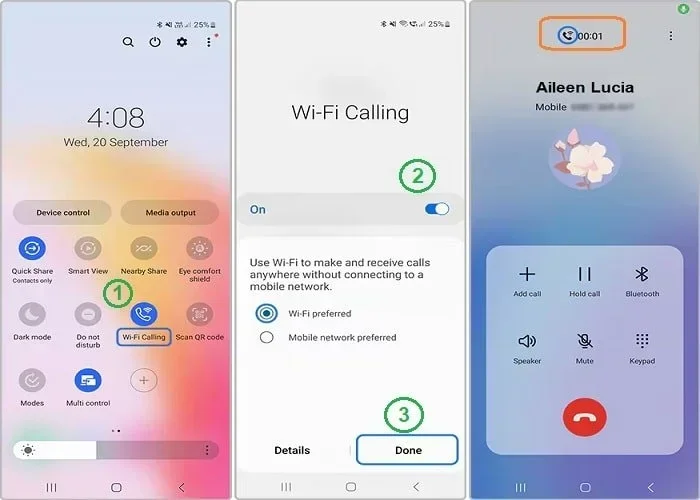
Setting up Wi-Fi calling on Cricket Wireless is straightforward. The process is slightly different depending on whether you use an Android phone or an iPhone, but both are easy to follow. You do not need any special equipment or technical skills.
Setting Up Wi-Fi Calling on Android
Most Android phones make it easy to turn on Wi-Fi calling. Here is a step-by-step guide:
- Open the Settings app on your phone.
- Look for the Network & Internet or Connections section.
- Tap on Mobile Network or SIM Cards.
- Find the Wi-Fi Calling option.
- Toggle the switch to turn it on.
- You may need to enter your home address for emergency services. This helps 911 locate you when you call over Wi-Fi.
Once you turn on Wi-Fi calling, your phone will automatically use a wireless connection for calls whenever it is available. You do not need to do anything else. The feature works in the background and switches between Wi-Fi and cellular seamlessly.
Setting Up Wi-Fi Calling on iPhone
iPhone users will find the setup process just as simple. Here is what to do:
- Open the Settings app on your iPhone.
- Tap on Phone.
- Select Wi-Fi Calling.
- Toggle Wi-Fi Calling on This iPhone to on.
- You may be prompted to enter your address for emergency location services.
If you also use an Apple Watch with your iPhone, you can enable Wi-Fi calling on the watch as well. This lets you make and receive calls even when your phone is not nearby. Just go to the Watch app on your iPhone and find the Wi-Fi calling settings there.
Benefits of Using Wi-Fi Calling with Cricket Wireless
There are several real-world benefits to using Wi-Fi calling with your Cricket Wireless service. Let us look at why this feature is worth turning on.
Better Coverage in Weak Signal Areas
The biggest advantage of Wi-Fi calling is that it extends your reach. If you have ever been in a basement, a large building, or a rural area where your cell signal drops to one bar or disappears completely, you know how frustrating it can be to miss calls. With Wi-Fi calling, you can still make and receive calls as long as you have a wireless internet connection. This is a huge benefit for Cricket Wireless users who may not always have the strongest cell coverage.
Improved Call Quality
Wi-Fi calls can sound clearer than regular cellular calls, especially in crowded areas. When many people are using the same cell tower, call quality can suffer. Wi-Fi calling bypasses the tower congestion and uses your internet connection instead. If your Wi-Fi is fast and stable, you will notice a real improvement in voice clarity.
No Extra Charges
One of the best things about Wi-Fi calling on Cricket Wireless is that it costs nothing extra. You do not need to buy any special add-on or upgrade your plan. This makes it an easy way to improve your calling experience without spending more money. If you are looking to cut costs, this is a great feature to take advantage of.
Works While Traveling Internationally
Wi-Fi calling can also help you stay connected when you travel abroad. Instead of paying expensive roaming charges, you can use Wi-Fi calling to reach people back home. Cricket Wireless supports international Wi-Fi calling on many devices, which can save you a lot of money on your next trip. Just make sure your phone is set up before you leave.
Common Issues and How to Fix Them
While Wi-Fi calling is generally reliable, you may run into some issues from time to time. Here are the most common problems Cricket Wireless users face and how to solve them.
Wi-Fi Calling Not Showing Up in Settings
If you cannot find the Wi-Fi calling option on your phone, the first thing to check is your device compatibility. Not all phones support this feature. You can also try updating your carrier settings. On iPhone, go to Settings and look for a software update prompt. On Android, check for system updates in your settings menu. Sometimes a simple update is all it takes to make the feature appear.
Poor Call Quality Over Wi-Fi
If your calls sound choppy or you experience delays, your wireless connection may be the culprit. A slow or unstable Wi-Fi signal will affect call quality. Try moving closer to your router or switching to a less crowded Wi-Fi channel. You can also check if other devices are using a lot of bandwidth, like someone streaming a video or downloading a large file.
Calls Not Switching to Wi-Fi Automatically
Sometimes your phone will not switch to Wi-Fi calling even when you are connected to a wireless network. This can happen if your phone thinks the cellular signal is still strong enough. You can force Wi-Fi calling by turning off your mobile data temporarily. Your phone should then route calls through the Wi-Fi connection. You can also try toggling Wi-Fi calling off and back on to reset the connection.
Emergency Location Issues
Wi-Fi calling requires you to register a home address for emergency services. If your address is incorrect or not set up, you may have trouble connecting to 911. Make sure your address is accurate in your phone settings. This is especially important if you move to a new home or use Wi-Fi calling at a different location frequently.
Tips for Getting the Best Wi-Fi Calling Experience
To get the most out of Wi-Fi calling on Cricket Wireless, follow these practical tips. They will help you enjoy clearer calls and fewer problems.
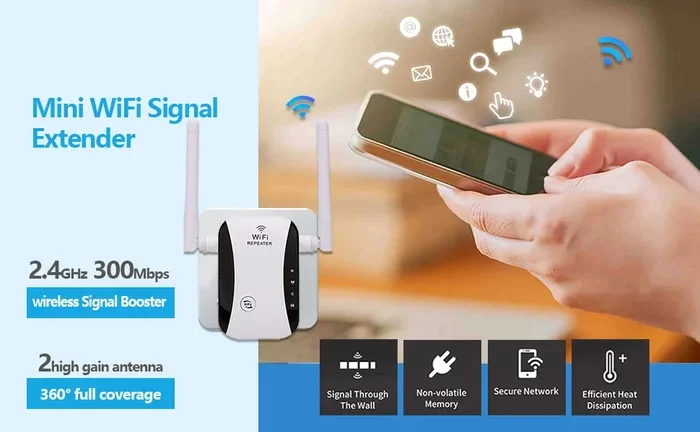
- Use a Strong Wi-Fi Connection: A fast and stable wireless connection makes all the difference. If your Wi-Fi signal is weak, consider moving closer to your router or using a mesh system to extend coverage.
- Keep Your Phone Updated: Software updates often include improvements to Wi-Fi calling performance. Make sure your phone is running the latest version of its operating system.
- Check Your Router Placement: Place your router in a central location in your home. Avoid putting it in closets or behind walls, as this can weaken the signal throughout your space.
- Restart Your Phone Regularly: A simple restart can fix many connectivity issues. If Wi-Fi calling is acting up, try turning your phone off and back on again.
- Set Your Home Address Correctly: This ensures emergency services can find you when you call over Wi-Fi. Take a few minutes to verify this setting on your phone.
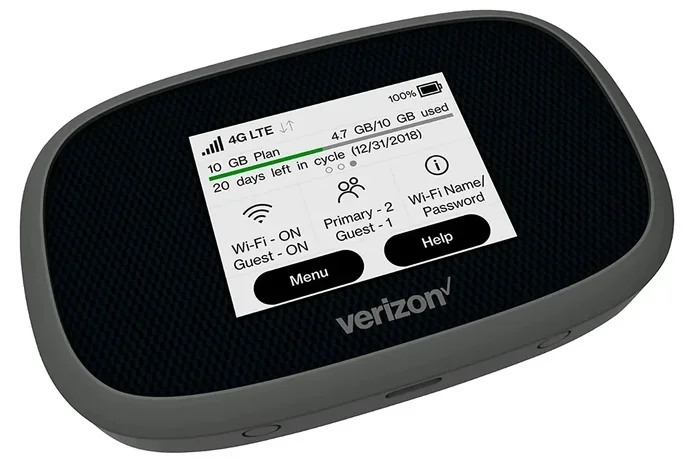
You might also consider investing in a quality router if you are having persistent Wi-Fi issues. A good router can improve your entire wireless experience, not just calling. If you are exploring your options, check out whether portable Wi-Fi devices might be a good fit for your needs. These compact devices can give you a reliable connection on the go.
How Wi-Fi Calling Compares to Regular Cellular Calls
To understand the value of Wi-Fi calling, it helps to compare it directly with regular cellular calls. Here is a quick look at how the two stack up.
| Feature | Regular Cellular Calls | Wi-Fi Calling |
|---|---|---|
| Network Used | Cell towers | Wireless internet connection |
| Works in Dead Zones | No | Yes, with Wi-Fi access |
| Call Quality | Good in strong signal areas | Excellent with stable Wi-Fi |
| Cost | Included in plan | Included in plan, no extra fee |
| Battery Usage | Higher when searching for signal | Lower, less tower searching |
| International Use | Often requires roaming fees | Free over Wi-Fi in many cases |
As you can see, Wi-Fi calling offers clear advantages in several areas. It is not meant to replace your cellular plan entirely, but it is a powerful supplement that fills in the gaps. For Cricket Wireless customers, this feature adds real value to your service without costing you anything extra.
Final Thoughts on Cricket Wireless Wi-Fi Calling
Cricket Wireless does offer Wi-Fi calling, and it is a feature worth using. Whether you are dealing with weak cell signals, poor call quality, or just want to save battery life, Wi-Fi calling delivers real benefits. It is free, easy to set up, and works on most modern smartphones.
The process of enabling this feature is simple. You just need to go into your phone settings and toggle it on. Once it is active, your phone will handle the rest automatically. You can enjoy clearer calls, better coverage, and peace of mind knowing you will not miss important calls just because your cell signal is weak.
If you are still having trouble getting Wi-Fi calling to work, reach out to Cricket Wireless customer support. They can help you troubleshoot device-specific issues and make sure your account is set up correctly. Sometimes a simple adjustment to your carrier settings is all it takes to get everything running smoothly.
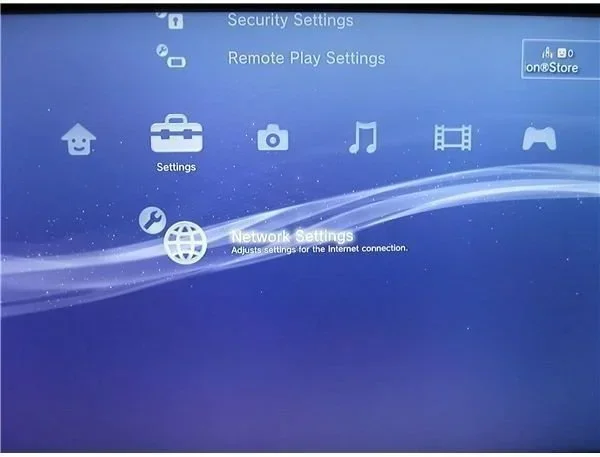
For more tips on getting the most out of your wireless setup, you might also want to explore options for improving your home network. If you are wondering about changing your Wi-Fi router to get better performance, there are some great options to consider. A strong and reliable wireless connection makes all the difference when it comes to call quality and overall connectivity.
Wi-Fi calling is one of those features that you start using and then wonder how you ever lived without it. Give it a try with your Cricket Wireless service and see the difference for yourself.
Frequently Asked Questions
Is Wi-Fi calling free on Cricket Wireless?
Yes, Wi-Fi calling is included at no extra cost on Cricket Wireless plans. You do not need to pay any additional fees or upgrade your plan to use this feature. It is a free addition to your service that can improve your calling experience significantly.
Can I use Wi-Fi calling on any Cricket Wireless plan?
Most Cricket Wireless plans support Wi-Fi calling, including both unlimited and smaller data plans. However, you should check your specific plan details or contact Cricket support to confirm. Device compatibility also plays a role in whether the feature is available to you.
Will Wi-Fi calling use my data allowance?
Wi-Fi calling uses your wireless internet connection, not your cellular data. This means it does not count against your data plan. As long as you are connected to Wi-Fi, your calls will not eat into your monthly data allowance. This is one of the biggest advantages of using this feature.
Can I make emergency calls using Wi-Fi calling?
Yes, you can make emergency calls using Wi-Fi calling. However, you must register your home address in your phone settings so that emergency services can locate you. This is an important step that all users should take before relying on Wi-Fi calling for emergency situations.
What happens if my Wi-Fi connection drops during a call?
Your phone will automatically switch back to the cellular network if your Wi-Fi connection drops. This ensures your call stays connected even if your wireless signal is interrupted. The transition is seamless and usually happens without you noticing any disruption.
Do I need a special router for Wi-Fi calling to work?
No, you do not need any special router or equipment for Wi-Fi calling. Any standard wireless router that provides a stable internet connection will work. The feature relies on your phone’s built-in capabilities and your carrier’s network support, not on your hardware.