Can The Original Ps3 Connect To Wi Fi Without Extra Gear
Yes, the original PS3 can connect to Wi Fi without extra gear right out of the box. The built in wireless adapter means you do not need a USB dongle or adapter to get online. This guide walks you through the full setup process, troubleshooting tips, and common issues so you can get your PlayStation 3 online quickly and easily.
The original PlayStation 3 has been around for a long time. It launched back in 2006 and won the hearts of millions of gamers worldwide. Even today, many people still own one and love playing their favorite games on it. But here is the question that keeps popping up: can the original PS3 connect to Wi Fi without needing any extra stuff? The short answer is yes. The long answer is even more helpful, and that is what this guide is all about.
If you have an old PS3 sitting in a closet and want to bring it back to life, you need to know about its wireless capabilities. The good news is that Sony built Wi Fi right into the original PS3. You do not need to buy any special adapter or dongle. This makes it easy to get online for gaming, streaming, and browsing. Let us walk through everything you need to know about connecting your original PS3 to a wireless network the right way.
Key Takeaways
- The original PS3 has built in Wi Fi: No external adapter or dongle is needed for wireless connections.
- Setup is straightforward: You can connect to your wireless network through the PS3 system settings in just a few minutes.
- WPA2 security may be an issue: Older PS3 firmware sometimes struggles with modern WPA2 encryption, so you may need to adjust router settings.
- An Ethernet cable works as a backup: If Wi Fi fails, a wired connection is a reliable alternative.
- Firmware updates matter: Keeping your PS3 system software up to date helps with wireless connectivity.
- Signal strength affects performance: Placement of your PS3 near the router improves the wireless connection.
- Common issues are fixable: Most Wi Fi problems on the original PS3 can be solved with simple steps like restarting or resetting network settings.
📑 Table of Contents
- Understanding The Original PS3 Wireless Capabilities
- Step By Step Guide To Connect The Original PS3 To Wi Fi
- Common Wi Fi Problems And How To Fix Them
- PS3 Network Settings Explained
- PS3 Firmware Updates And Wireless Performance
- Using Ethernet As An Alternative To Wi Fi
- Expert Tips For The Best PS3 Wireless Experience
- What You Can Do With Wi Fi On The Original PS3
- Common Mistakes People Make When Setting Up PS3 Wi Fi
- Final Thoughts On The Original PS3 Wi Fi Connection
Understanding The Original PS3 Wireless Capabilities
The original PS3, also known as the CECHA01 and CECHB01 models, came with a built in wireless module. This was a big deal back in 2006 because most consoles at the time did not include wireless support out of the box. Sony wanted to make the PS3 a hub for entertainment, not just gaming. So they included 802.11 b/g wireless networking as a standard feature.
Here is what that means for you today. Your PS3 supports wireless B and G standards. These are older wireless protocols. They work fine for basic tasks like browsing the internet and playing online games. However, they do not support the newer N or AC standards that modern routers use. This can sometimes cause slow connection speeds or intermittent wireless signal problems.
What Wireless Standards Does The PS3 Support
The original PS3 only works with 2.4 GHz frequency bands. It does not support 5 GHz connections. Here is a quick breakdown:
- Wireless B: Max speed of 11 Mbps. Very old but still functional.
- Wireless G: Max speed of 54 Mbps. This is what the PS3 uses most often.
- No 5 GHz support: The PS3 cannot connect to 5 GHz bands on modern dual band routers.
- No WPS push button support: The PS3 does not support Wi Fi Protected Setup. You must enter your password manually.
Knowing these limitations helps you set realistic expectations. Your PS3 will connect to Wi Fi, but it will not get the fastest speeds your router can offer. That is perfectly fine for most uses though.
Step By Step Guide To Connect The Original PS3 To Wi Fi
Setting up a PS3 wireless connection is pretty simple. You do not need to be a tech expert. Follow these steps and you will be online in no time.
Step 1: Turn On Your PS3 And Go To Settings
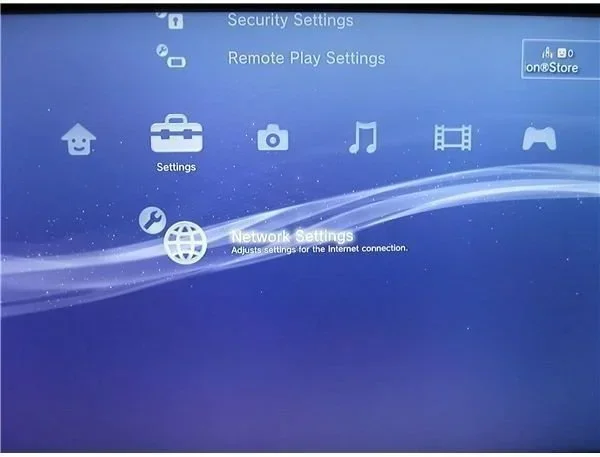
First, power on your PlayStation 3. From the main XrossMediaBar (XMB) menu, scroll over to Settings. It is the toolbox icon on the left side. Click on Network Settings. This is where you manage all your internet connections.
Step 2: Select Internet Connection Settings
Inside Network Settings, you will see two options. One is for the connection that is currently active. The other is for setting up a new connection. Choose Internet Connection Settings. The PS3 will warn you about losing your current connection if you have one. Confirm that you want to proceed.
Step 3: Choose Wireless Connection
The PS3 will ask you what type of connection you want. Select Wireless. Do not pick Easy if your network has a custom name or hidden SSID. Easy mode works best for standard networks. The PS3 will then scan for available networks.
Step 4: Select Your Network
Your router name should appear in the list. Select it. The PS3 will then ask for your wireless password. Use the on screen keyboard to type it in carefully. Passwords are case sensitive, so watch for capital letters.
Step 5: Test Your Connection
After entering the password, the PS3 will try to connect. Once connected, run a connection test. This checks your IP address, download speed, and upload speed. If the test passes, you are good to go. You can now access the PS3 internet browser, play online games, and use streaming services.
Common Wi Fi Problems And How To Fix Them
Sometimes things do not go smoothly. Even though the original PS3 Wi Fi setup is simple, you might run into issues. Here are the most common problems and how to solve them.
Problem 1: The PS3 Cannot Find Your Network
If your network does not show up in the scan list, try these fixes. First, make sure your router is turned on and broadcasting its SSID. Some modern routers hide the network name by default. You need to log into your router settings and enable SSID broadcast. Second, move your PS3 closer to the router. The PS3 wireless signal receiver is not very strong. Distance and walls can block the signal.
Problem 2: Connection Fails After Entering Password
This is a very common issue. The most likely cause is a security mismatch. Modern routers often use WPA2 or WPA3 encryption. The original PS3 supports WPA and WPA2 (TKIP) but has trouble with WPA2 (AES) on some firmware versions. To fix this, log into your router admin panel and change the security to WPA-PSK (TKIP). This is the most compatible setting for the PS3.
Problem 3: Connected But No Internet Access
If the PS3 says it is connected but you cannot load web pages, check your router settings. Make sure your router is not blocking the PS3 by MAC address. Also try setting the DNS manually on the PS3. Use Google DNS at 8.8.8.8 and 8.8.4.4. This often fixes connection issues that look like Wi Fi problems but are actually DNS related.
Problem 4: Slow Speeds And Lag During Gaming
Wireless G speeds max out at 54 Mbps. In real world use, you will get much less than that. If you experience lag during online gaming, try moving the PS3 closer to the router. You can also change the wireless channel on your router to avoid interference from neighbors networks. If none of this works, an Ethernet cable will give you a much better experience.
PS3 Network Settings Explained
The PS3 has a few network settings that are worth understanding. These settings can make a big difference in how well your PS3 wireless connection performs.
IP Address Settings
By default, the PS3 uses DHCP to get an IP address automatically. This is the easiest option and works in most homes. If you need a static IP address, you can set one manually. This is useful if you run a home server or want consistent network performance.
MTU Settings
MTU stands for Maximum Transmission Unit. This is the size of the largest packet your connection can handle. The PS3 default is usually fine. But if you have a PS3 connection issue that causes disconnects, try changing the MTU to 1400. This is a common fix for routers that have strict packet filtering.
Proxy Server Settings
Most home users do not need a proxy server. But if you use one for content filtering or privacy, you can enter the proxy details in the PS3 network settings. The PS3 supports HTTP proxies on port 8080 by default.
PS3 Firmware Updates And Wireless Performance
Keeping your PS3 system software up to date is important. Sony released many firmware updates over the years that improved wireless performance and fixed bugs. The latest firmware for the original PS3 is version 4.85. You can update your PS3 by going to Settings, then System Update.
An updated PS3 handles wireless router compatibility better. Older firmware versions had known issues with certain router brands. Updating ensures you have the latest patches and improvements. Always connect your PS3 to the internet before updating. If you cannot connect wirelessly, use an Ethernet cable temporarily to download the update.
What To Do If Your PS3 Will Not Update
Sometimes the PS3 cannot connect to the PlayStation Network for an update. This happens when the firmware is very old. In that case, you can download the update file on a computer and transfer it to a USB drive. Format the USB drive as FAT32, create a folder called PS3, and inside that folder create another folder called UPDATE. Put the update file (called PS3UPDAT.PUP) in the UPDATE folder. Then go to Settings, System Update, and choose Update from Storage Media. This method works even if your PS3 internet connection is not working.
Using Ethernet As An Alternative To Wi Fi
While this guide focuses on wireless connections, it is worth mentioning the Ethernet option. The original PS3 has a built in Ethernet port. You can plug in a cable directly from your router to the PS3. This gives you a much more stable connection than Wi Fi.
Ethernet on the PS3 supports Gigabit speeds, which is way faster than Wireless G. For online gaming, a wired connection is always better. It reduces lag, lowers ping, and eliminates wireless interference. If you are setting up your PS3 in a home theater room, running a long Ethernet cable might be worth the effort.
However, if running a cable is not practical, the built in Wi Fi works well enough for most things. Just keep your PS3 reasonably close to the router for the best results.
Expert Tips For The Best PS3 Wireless Experience
Here are some expert tips that will help you get the most out of your original PS3 wireless connection.
- Place your PS3 in the same room as your router: The closer, the better. Wireless G signals degrade quickly through walls and floors.
- Restart your router regularly: A simple router reboot can fix many connection issues. Unplug it for 30 seconds and plug it back in.
- Change your wireless channel: Use a free Wi Fi analyzer app on your phone to find the least crowded channel. Set your router to that channel.
- Keep your PS3 firmware updated: Newer firmware improves wireless compatibility with modern routers.
- Use WPA-PSK (TKIP) security: This is the most compatible encryption type for the PS3. Avoid WPA2 AES if you have connection issues.
- Disable any QoS or traffic shaping on your router: Some routers prioritize certain devices. Make sure the PS3 is not being deprioritized.
- Clear the PS3 network cache: Go to Network Settings and choose Test Connection. Then reset the network settings if you notice any weird behavior.
What You Can Do With Wi Fi On The Original PS3
Once you have your PS3 connected to Wi Fi, you can do a lot of things. Online gaming is the obvious one. Games like Call of Duty, FIFA, and Gran Turismo still have active online communities. You can also use the PS3 internet browser to surf the web. The built in web browser is basic but functional for simple browsing.
Streaming is another great use. You can access Netflix, YouTube, and Spotify on the PS3 if you have the apps installed. Media streaming from your PC to the PS3 works well too. You can use apps like PS3 Media Server to stream your personal video and music collection over your wireless network.
Even though the PS3 is old, it is still a capable device when connected to the internet. The wireless network setup opens up a whole world of possibilities for an older console.
Common Mistakes People Make When Setting Up PS3 Wi Fi
Avoid these common mistakes to save yourself frustration.
- Using WPA2 AES encryption: The PS3 often cannot connect to networks using WPA2 AES. Stick with WPA or WPA2 TKIP.
- Hiding the SSID: The PS3 struggles to find hidden networks. Make sure your SSID is broadcast.
- Using WPS: The PS3 does not support WPS push button or PIN setup. You must enter the password manually.
- Placing the PS3 too far from the router: Wireless G has limited range. Keep the PS3 within a reasonable distance.
- Skipping firmware updates: Old firmware causes compatibility issues with modern routers. Always update first.
- Ignoring the DNS settings: If you can connect but cannot browse, try changing the DNS to 8.8.8.8.
These mistakes are easy to avoid. Just take your time during setup and double check your router settings before you start the PS3 configuration.
Final Thoughts On The Original PS3 Wi Fi Connection
So, can the original PS3 connect to Wi Fi without extra gear? Absolutely. The built in wireless adapter means you do not need to buy anything extra. Just go into your network settings, select your wireless network, enter the password, and you are connected.
The experience will not be as fast or as stable as a modern console or a wired connection. But for casual gaming, browsing, and streaming, the original PS3 wireless connection gets the job done. Keep your PS3 close to the router, use compatible security settings, and keep the firmware updated. With these tips, you will be enjoying your PS3 online in no time.
The original PS3 is a classic console that still has a lot to offer. Getting it connected to your wireless network is the first step to unlocking all of that potential. Follow the steps in this guide and you will have a working PS3 wireless connection in under ten minutes.
Frequently Asked Questions
Do I need a Wi Fi adapter to connect the original PS3 to wireless?
No, you do not need any extra adapter. The original PS3 has a built in wireless module that supports 802.11 b/g standards. You can connect to Wi Fi directly from the network settings menu without purchasing any additional hardware.
Why can my PS3 not find my wireless network?
The most common reason is that your router is hiding its SSID or using a security type the PS3 does not support. Make sure SSID broadcast is enabled on your router and that your security is set to WPA or WPA2 TKIP. Also try moving the PS3 closer to the router to improve signal detection.
Can the original PS3 connect to 5 GHz Wi Fi networks?
No, the original PS3 only supports 2.4 GHz wireless connections. It does not have 5 GHz capability. If your router broadcasts both bands, make sure the PS3 connects to the 2.4 GHz network for the best compatibility.
What security type should I use on my router for the PS3?
Use WPA-PSK (TKIP) for the best compatibility with the original PS3. WPA2 AES often causes connection failures on the PS3. If you must use WPA2 AES, try updating your PS3 firmware to the latest version first to see if that resolves the issue.
Is Wi Fi on the original PS3 good enough for online gaming?
It is acceptable for casual gaming but not ideal for competitive games. Wireless G speeds are limited and can introduce lag during fast paced gameplay. For the best online gaming experience, use an Ethernet cable connection instead of Wi Fi.
How do I update the PS3 firmware if I cannot connect to Wi Fi?
You can download the firmware update file on a computer and transfer it to a USB drive. Format the drive as FAT32, create a PS3 folder, then an UPDATE folder inside it, and place the update file named PS3UPDAT.PUP in the UPDATE folder. Then use the USB update option in the PS3 system settings to install the update.
=== CONCLUSION ===
The original PS3 can connect to Wi Fi without any extra gear. Sony included a built in wireless adapter in every original PS3 model, making it easy to get online. The setup process is simple and takes just a few minutes. While the PS3 only supports older wireless standards, it still works well for gaming, browsing, and streaming. Just remember to use compatible security settings, keep the firmware updated, and place the console close to your router for the best results. With this guide, you now have everything you need to get your original PS3 connected to your wireless network and back to doing what it does best.