Does Every Smart TV Have Bluetooth Built In Today
Not every smart TV comes with Bluetooth built in. While most modern brands like Samsung, LG, and Sony include wireless connectivity, budget and older models often lack this feature. You can easily add Bluetooth to any TV using a transmitter or adapter if your TV doesn’t support it natively.
When you buy a new smart TV, one of the first things you want to do is connect your wireless headphones or a portable speaker. But here’s the catch — does every smart TV have Bluetooth built in today? The short answer is no. Not all smart TVs come equipped with Bluetooth, and this can be a real frustration if you’re trying to set up a wireless audio experience. In this guide, we’ll walk you through everything you need to know about Bluetooth on smart TVs. You’ll learn which brands include it, which don’t, and what to do if your TV lacks this handy feature.
Smart TVs have changed the way we watch content at home. They give us access to streaming apps, voice assistants, and tons of online entertainment. But the wireless connectivity options can vary a lot from one model to the next. Some TVs let you pair headphones instantly, while others leave you stuck with wired audio or nothing at all. Understanding Bluetooth on smart TVs before you buy can save you a lot of time and hassle. Let’s dive into the details.
Key Takeaways
- Bluetooth is not universal: Many smart TVs include Bluetooth, but not all models do, especially budget and older sets.
- Major brands generally include it: Samsung, LG, Sony, and TCL smart TVs typically offer built-in Bluetooth in their mid-range and premium models.
- You can add Bluetooth easily: A Bluetooth transmitter is the simplest way to make any TV wireless-capable.
- Check your TV settings first: Before buying extra equipment, look in your TV’s audio or connection settings to see if Bluetooth is already available.
- Bluetooth enables more than just audio: You can connect wireless headphones, speakers, soundbars, and even game controllers to a Bluetooth-enabled TV.
- Wi-Fi and Bluetooth serve different purposes: Having Wi-Fi on your TV doesn’t guarantee Bluetooth support, so always verify both features separately.
📑 Table of Contents
- What Does It Mean When a Smart TV Has Bluetooth?
- Does Every Smart TV Have Bluetooth?
- How to Check if Your TV Has Bluetooth
- How to Add Bluetooth to a TV That Doesn’t Have It
- Benefits of Having Bluetooth on Your Smart TV
- Common Bluetooth TV Problems and How to Fix Them
- Bluetooth vs. Wi-Fi for Smart TVs: What’s the Difference?
- Expert Tips for Getting the Best Bluetooth Experience on Your TV
- Frequently Asked Questions
- Conclusion
What Does It Mean When a Smart TV Has Bluetooth?
When a smart TV has Bluetooth, it means the TV can wirelessly connect to other devices nearby. This includes headphones, speakers, soundbars, and even your phone. You don’t need any extra cables or adapters. You just go into the TV’s settings, find the Bluetooth menu, and pair your device. It’s simple and convenient.
Bluetooth on smart TVs uses short-range radio waves to send audio data between devices. Most modern Bluetooth versions, like Bluetooth 5.0, offer a strong and stable connection. You can be across the room and still enjoy clear sound without any interruptions. This makes it perfect for late-night watching when you don’t want to disturb anyone else in the house.
Types of Bluetooth Connectivity on TVs
Not all Bluetooth TV connections work the same way. Here are the most common types you’ll encounter:
- Bluetooth Audio Output: The TV sends audio to wireless headphones or speakers. This is the most common use case.
- Bluetooth Input: The TV can receive audio from a paired device, like a phone playing music through the TV speakers.
- Bluetooth Low Energy (BLE): Uses less power and is often found in smaller smart TVs and streaming devices.
- Bluetooth with aptX or LDAC: These are advanced codecs that deliver higher quality audio over Bluetooth. Premium TVs often support these.
Knowing which type your TV supports helps you get the best experience. If you’re into high-quality audio, look for a TV that supports aptX or LDAC codecs. These deliver much better sound than standard Bluetooth audio.
Does Every Smart TV Have Bluetooth?
The honest answer is no. Not every smart TV has Bluetooth built in. While the majority of mid-range and premium smart TVs include Bluetooth, many budget models and older sets skip this feature entirely. This is something manufacturers don’t always make obvious on the product box, so you really need to check the specifications before you buy.
Here’s why some TVs don’t have Bluetooth. Adding Bluetooth hardware costs money. For budget TVs priced under $200, manufacturers often cut corners to keep the price low. They include Wi-Fi for streaming apps but leave out Bluetooth to save on production costs. This is a common practice in the budget TV market, and it catches a lot of people off guard.
TV Brands and Their Bluetooth Support
Different TV brands handle Bluetooth differently. Some include it in almost every model, while others reserve it for premium lines. Here’s a closer look at what to expect from major brands.
Samsung: Most Samsung smart TVs come with Bluetooth support. This includes their QLED and The Frame series. Even some of their budget models offer Bluetooth, though you should always double-check the spec sheet.
LG: LG is another brand that widely supports Bluetooth across its smart TV lineup. Their OLED and NanoCell models all include wireless audio connectivity. If you’re considering an LG TV, Bluetooth is very likely to be included.
Sony: Sony smart TVs generally include Bluetooth, especially in their mid-range and high-end models. They also support advanced audio codecs for better wireless sound quality.
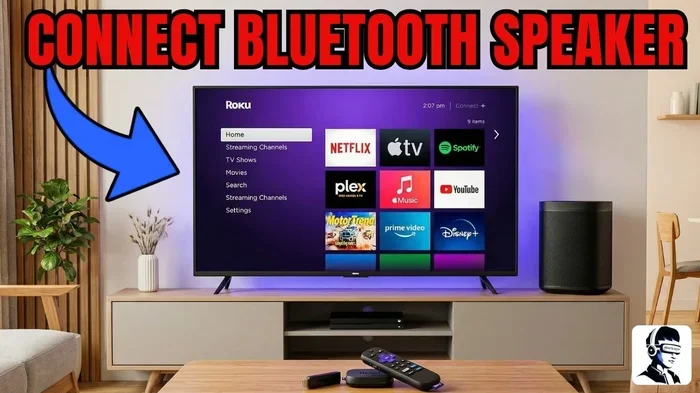
TCL and Roku TVs: These brands are a mixed bag. Some TCL and Roku TV models include Bluetooth, while others do not. This is especially true for their entry-level offerings. If Bluetooth is important to you, check the specific model number before purchasing.
Vizio and Hisense: These budget-friendly brands sometimes include Bluetooth on higher-end models but often leave it out of their base models. Always verify the specs for the exact model you’re looking at.
How to Check if Your TV Has Bluetooth
If you already own a smart TV and want to know whether it supports Bluetooth, there are a few easy ways to find out. You don’t need to be a tech expert to check this.
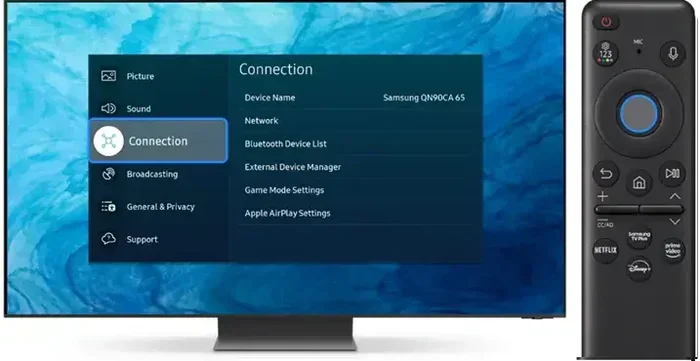
First, grab your TV remote and go to the Settings menu. Look for a section called “Sound,” “Audio,” or “Connection.” If you see a Bluetooth option there, your TV supports it. On some models, you’ll find it under “Network & Accessories” or “General Settings.”
Second, check your TV’s user manual. The manual will list all the connectivity features, including Bluetooth. If you’ve lost the physical manual, you can usually find a digital version on the manufacturer’s website. Just search for your TV model number.
Third, visit the manufacturer’s website and look up your specific model. The product page will list all the specs, including whether Bluetooth is included. This is the most reliable method because it gives you the exact details for your model.
Another quick tip is to look at the back or side of your TV. Some TVs have a Bluetooth logo printed near the ports or on the product label. While not all brands do this, it can be a fast visual clue.
How to Add Bluetooth to a TV That Doesn’t Have It
Don’t worry if your TV doesn’t have Bluetooth built in. You have several options to add wireless audio capability. None of them require a lot of technical skill, and most are very affordable.
Option 1: Bluetooth Transmitter
A Bluetooth transmitter is the most popular and easiest way to add Bluetooth to any TV. It plugs into your TV’s audio output — either a 3.5mm headphone jack, an optical port, or an RCA output. The transmitter then pairs with your wireless headphones or speakers just like a regular Bluetooth device.
These transmitters cost between $15 and $50, depending on the brand and features. Some models support aptX HD for high-quality wireless audio. Look for one that has a low-latency mode if you watch a lot of movies or play games. This ensures the audio stays in sync with the video.
Option 2: Bluetooth Audio Adapter
A Bluetooth audio adapter works similarly to a transmitter but often connects directly to the TV’s USB port or audio output. These adapters are small and plug-and-play. They don’t require any setup or configuration in most cases. Just plug it in, pair your device, and you’re good to go.
Some smart TV users prefer adapters because they stay connected permanently. You don’t need to remove them or charge them separately. They draw power from the TV itself. This makes them a great low-maintenance option for adding Bluetooth to any TV.
Option 3: Use a Smart Speaker or Soundbar with Bluetooth
If you want better sound quality overall, consider getting a smart speaker or soundbar that connects to your TV via Bluetooth or HDMI ARC. Many soundbars today include Bluetooth support, so they can double as a wireless audio hub. You connect the soundbar to your TV with an HDMI cable, and then you can also pair your wireless headphones directly to the soundbar.
This approach gives you the best of both worlds. You get powerful built-in speakers for everyday watching, plus the option to go wireless with headphones when needed. Some soundbars even support multiple device pairings, so two people can listen on different headphones at the same time.
Option 4: Streaming Devices with Bluetooth
Some streaming devices, like certain Roku or Fire TV models, support Bluetooth audio output. If you plug one of these devices into your TV, you might be able to connect wireless headphones through the streaming device instead of the TV itself. This is a clever workaround if your TV lacks Bluetooth but you have a compatible streaming stick or box.
For example, some Roku devices let you use private wireless listening with compatible headphones. You can check whether your Roku model supports this feature by visiting the Roku website or checking the user guide. This is a great option if you want to keep things simple and avoid buying extra hardware.
Benefits of Having Bluetooth on Your Smart TV
Once you understand what Bluetooth brings to the table, it’s easy to see why so many people want it on their smart TV. Here are the biggest benefits.
- Wireless freedom: You can move around the room without being tethered to your TV by a cable. Walk around the kitchen, do chores, or sit on the porch — all while watching your favorite show.
- Late-night watching without disturbing others: Connect wireless headphones to your TV and enjoy movies or shows at full volume without waking up the whole household. This is a game-changer for families and apartment dwellers.
- Better audio quality: Many wireless headphones and speakers today offer superior sound compared to built-in TV speakers. You get richer bass, clearer dialogue, and more immersive audio.
- Easy connection to multiple devices: Bluetooth lets you quickly switch between your TV, phone, tablet, and laptop. You can take calls through your TV-connected headphones or stream music from your phone to your TV speakers.
- No extra cables: Wireless connections mean fewer cables cluttering your living room. This keeps your setup clean and organized.
Common Bluetooth TV Problems and How to Fix Them
Bluetooth on smart TVs isn’t perfect. From time to time, you might run into issues. Here are the most common problems and simple fixes.
Audio delay or lag: This is the most common Bluetooth issue with TVs. You hear the audio a fraction of a second after the video. This happens because Bluetooth has a slight processing delay. To fix this, look for a transmitter or TV setting with “low-latency” or “lip-sync” mode. This reduces the delay significantly.
Connection drops: If your Bluetooth device keeps disconnecting, try moving closer to the TV. Bluetooth has a range of about 30 feet. Walls and other electronics can weaken the signal. Also, make sure your TV and headphones firmware are up to date.
Can’t find the TV in Bluetooth settings: Make sure Bluetooth is turned on in your TV settings and set to “discoverable” mode. On some TVs, you need to hold a button or go into a specific pairing mode before other devices can find it. Refer to your TV manual for exact steps.
Poor audio quality: If the sound sounds compressed or distorted, your TV might be using a basic Bluetooth codec. Upgrading to a transmitter that supports aptX or LDAC can dramatically improve audio quality. These codecs deliver near-lossless sound over Bluetooth.
Too many devices connected: Some TVs allow multiple Bluetooth connections but can get confused. If you’re having trouble, disconnect devices you’re not using and restart the pairing process for the one you want to use.
Bluetooth vs. Wi-Fi for Smart TVs: What’s the Difference?
People often confuse Bluetooth and Wi-Fi on smart TVs, but they serve different purposes. Wi-Fi connects your TV to the internet. It lets you stream apps like Netflix, YouTube, and Hulu. Bluetooth connects your TV to nearby devices for audio and input purposes. You can’t stream Netflix over Bluetooth, and you can’t pair wireless headphones over Wi-Fi (usually).
Some people assume that because their TV has Wi-Fi, it must also have Bluetooth. This is not true. Wi-Fi and Bluetooth are separate technologies, even though they both use wireless signals. Always check for both features separately when buying a TV or troubleshooting connectivity issues.
Here’s a quick comparison to help clarify:
- Wi-Fi: Connects to the internet, streams content, supports smart features, range of about 100+ feet.
- Bluetooth: Connects to nearby devices, sends audio to headphones and speakers, range of about 30 feet, no internet required.
Both features are valuable on a smart TV, but they do completely different jobs. When shopping for a new TV, make sure you get both if you want the full smart TV experience. If your current TV only has Wi-Fi, you can still enjoy streaming apps — but you’ll need a Bluetooth transmitter or adapter for wireless audio.
Expert Tips for Getting the Best Bluetooth Experience on Your TV
Want to get the most out of Bluetooth on your smart TV? Here are some expert tips that make a real difference.
- Keep your TV and Bluetooth device close together. The closer they are, the stronger and more stable the connection. Try to keep your transmitter or TV within 15 feet of the headphones or speaker you’re using.
- Update your TV’s firmware regularly. Manufacturers often release updates that improve Bluetooth performance and fix connection issues. Check your TV settings for a “Software Update” option and install any available updates.
- Use a dedicated Bluetooth transmitter for the best results. Built-in TV Bluetooth chips are sometimes weaker than standalone transmitters. A good external transmitter can deliver better range, faster pairing, and superior audio quality.
- Turn off other Bluetooth devices when not in use. Too many Bluetooth signals in the same area can cause interference. This is especially common in apartments or homes with many smart devices. Disconnecting unused devices can improve your TV’s Bluetooth performance.
- Invest in headphones with low-latency Bluetooth. Not all wireless headphones are created equal. Look for models that support low-latency codecs like aptX Low Latency. These are designed specifically for video and TV watching, so the audio stays perfectly in sync with the picture.
- Restart your TV and Bluetooth device if you have connection problems. A simple restart fixes most Bluetooth issues. Turn off both devices, wait 10 seconds, and turn them back on. Then try pairing again.
Frequently Asked Questions
Can I use Bluetooth headphones with any smart TV?
Not all smart TVs support Bluetooth headphones natively. If your TV has built-in Bluetooth, you can pair headphones directly through the TV’s settings. If it doesn’t, you can use a Bluetooth transmitter connected to your TV’s audio output. This works with virtually any TV, regardless of brand or model.
Is Bluetooth on a smart TV good for gaming?
Bluetooth can work well for gaming on a smart TV, but there’s a catch. Standard Bluetooth has a slight delay, which can cause audio to lag behind the video. For the best gaming experience, look for a Bluetooth transmitter with low-latency mode or use a wired connection for competitive gaming. Casual gaming and movie watching work great with Bluetooth.
Can I connect multiple Bluetooth headphones to one smart TV?
Some smart TVs support multiple Bluetooth connections, but this varies by brand and model. Samsung and LG TVs often allow two or more pairs of headphones to connect at the same time. If your TV doesn’t support this, you can use a Bluetooth splitter to connect multiple headphones to one audio source.
Does using Bluetooth on my TV affect the Wi-Fi connection?
Bluetooth and Wi-Fi use different frequency bands, so they generally don’t interfere with each other. However, in rare cases where both devices operate on the 2.4GHz band, you might experience slight interference. This is uncommon with modern TVs and routers that use the 5GHz band for Wi-Fi.
Can I use a Bluetooth speaker as my TV’s main audio output?
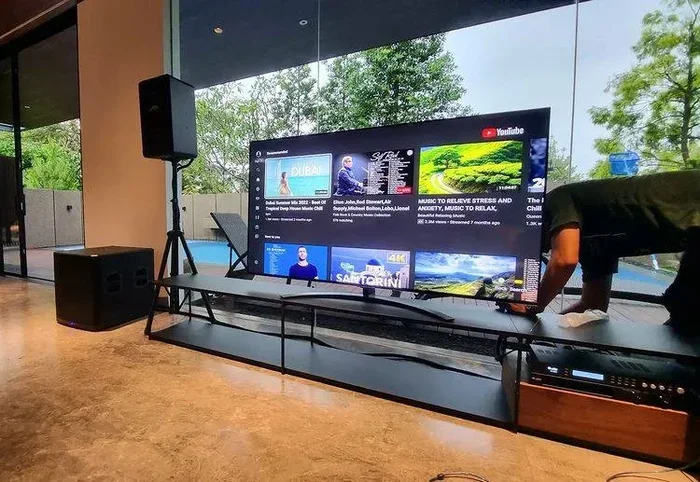
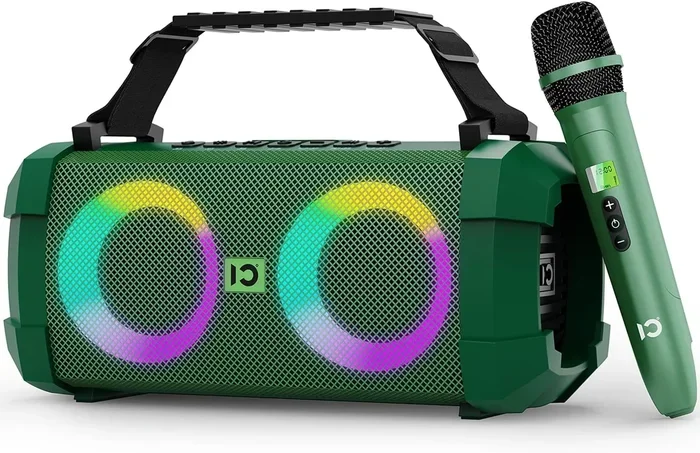
Yes, you can use a Bluetooth speaker as your TV’s main audio output if your TV supports Bluetooth. Simply pair the speaker with your TV and select it as the audio output device in your TV’s sound settings. For the best sound quality, choose a Bluetooth speaker with good bass and clear mids. Some users even connect portable speakers to their TV for outdoor movie nights.
What Bluetooth version should I look for in a smart TV?
Bluetooth 5.0 is the current standard for most smart TVs and offers the best range and stability. If you can find a TV with Bluetooth 5.2, that’s even better — it includes improvements for audio quality and multi-device connections. Bluetooth 4.2 and above will work fine for most users, but older versions may have shorter range and weaker connections.
Conclusion
The question “does every smart TV have Bluetooth” doesn’t have a simple yes or no answer. The reality is that while most modern smart TVs include Bluetooth, many budget models and older sets do not. This is something you should always verify before making a purchase. If Bluetooth matters to you, check the specifications carefully and don’t rely on the brand name alone.
Fortunately, adding Bluetooth to any TV is easy and affordable. A Bluetooth transmitter or adapter can transform your non-Bluetooth TV into a wireless audio powerhouse in minutes. Whether you want to watch movies with wireless headphones, stream music through a Bluetooth speaker, or connect a soundbar without cables, the solutions are out there.
Bluetooth on smart TVs has become an expected feature, but it’s not yet universal. Do your research before buying, and don’t hesitate to add Bluetooth yourself if your TV doesn’t have it. With the right approach, you can enjoy a completely wireless audio experience no matter what TV you own. The key is knowing your options and choosing the solution that fits your setup and budget best.
Now that you understand how Bluetooth works on smart TVs, you’re better equipped to make smart buying decisions and solve connectivity issues. Whether you’re setting up a new TV or upgrading an existing one, wireless audio is more accessible than ever. Start exploring your options today and enjoy the freedom of watching TV without wires.