Can Roku Output Bluetooth Audio to Wireless Speakers
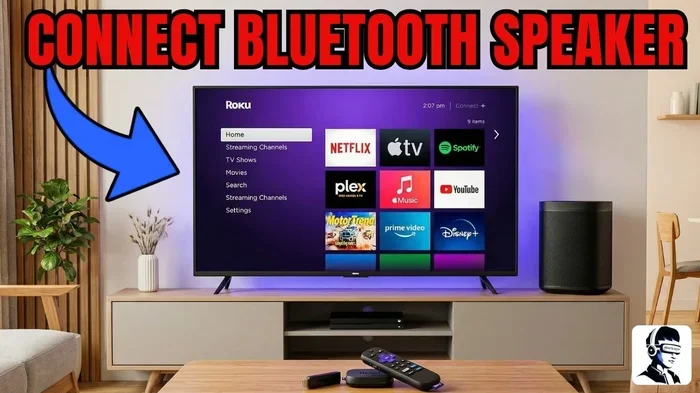
Yes, Roku can output Bluetooth audio to wireless speakers and headphones. Many Roku devices support Bluetooth pairing, letting you stream sound wirelessly to compatible speakers. This guide covers how to connect, which Roku models support it, and common troubleshooting tips.
Have you ever wanted to listen to your favorite show on Roku without disturbing anyone in the room? Or maybe you have a set of wireless speakers sitting in another room and wish your Roku could connect to them. The good news is that Roku can output Bluetooth audio to wireless speakers, headphones, and other compatible devices.
But the answer is not as simple as a yes or no. It depends on your Roku model, the type of audio device you want to connect, and how you set things up. In this article, we will walk you through everything you need to know about Roku Bluetooth audio output. We will cover which devices support it, how to pair them, and what to do when things do not work as expected.
Whether you own a Roku Ultra, a Roku Streaming Stick, or a budget Roku Express, this guide has you covered. Let us dive in and explore how to get wireless audio flowing from your Roku to your favorite speakers.
Key Takeaways
- Bluetooth audio output is supported on select Roku devices, including the Roku Ultra, Roku Streaming Stick+, and Roku TV models.
- You can pair Bluetooth speakers, headphones, and soundbars directly through Roku settings without extra hardware.
- The Roku mobile app also enables wireless audio through its private listening feature, offering a workaround for non-Bluetooth Roku models.
- Not all Roku devices have built-in Bluetooth, so checking your model first is essential.
- Audio lag or connection issues are common but usually fixable with simple troubleshooting steps.
- Third-party Bluetooth transmitters can add Bluetooth capability to any Roku device that lacks native support.
📑 Table of Contents
- Can Roku Output Bluetooth Audio? The Short Answer
- Which Roku Models Support Bluetooth Audio Output?
- How to Connect Roku to Bluetooth Speakers
- Using the Roku Mobile App for Wireless Audio
- Troubleshooting Roku Bluetooth Audio Issues
- Adding Bluetooth to Non-Bluetooth Roku Devices
- Comparing Native Bluetooth vs. Bluetooth Transmitter
- Best Bluetooth Speakers for Roku
- Roku Bluetooth Audio: Frequently Asked Questions
- Final Thoughts on Roku Bluetooth Audio Output
Can Roku Output Bluetooth Audio? The Short Answer
The short answer is yes, but with some important caveats. Roku Bluetooth audio support varies by device and model. Some Roku devices come with built-in Bluetooth, while others do not. And even among those that do, the experience can differ based on the type of audio output you are using.
Here is what you need to know right away. Roku devices that support Bluetooth audio include the Roku Ultra, Roku Streaming Stick+, Roku Express 4K+, and select Roku TV models with built-in Roku OS. These devices allow you to pair with Bluetooth speakers, headphones, and soundbars directly from the settings menu.
However, older Roku models like the Roku 1, Roku 2 (original), and some basic Roku Express versions may not have Bluetooth capability at all. If your device does not support native Bluetooth, do not worry. We will cover workarounds later in this guide.
Why Does Bluetooth Audio Matter for Roku?
Bluetooth audio gives you freedom. You are not stuck with the built-in speakers of your TV or stuck near your Roku device with a cable. With wireless audio output from Roku, you can place your speakers anywhere in the room. You can listen privately through headphones late at night. You can even send audio to a speaker in another room if your setup allows it.
For many people, this is a game-changer. Imagine hosting a movie night and piping the sound to a portable Bluetooth speaker on the patio. Or picture yourself watching late-night TV with headphones so the kids can sleep. Roku Bluetooth connectivity makes all of this possible on supported devices.
Which Roku Models Support Bluetooth Audio Output?
Not every Roku device is created equal when it comes to Bluetooth audio streaming. Below is a breakdown of the major Roku models and their Bluetooth capabilities.
Roku Devices With Built-In Bluetooth
The following Roku models support Bluetooth audio output to wireless speakers and headphones natively:
- Roku Ultra (2020 and newer): This flagship device has full Bluetooth 5.0 support. It pairs easily with most Bluetooth speakers and headphones.
- Roku Streaming Stick+: This compact streaming stick includes Bluetooth 4.2. It works well with most wireless speakers and earbuds.
- Roku Express 4K+: A budget-friendly option that still includes Bluetooth support for wireless audio output.
- Roku TV models (2019 and newer): Many smart TVs with built-in Roku OS support Bluetooth audio. Check your specific model to confirm.
- Roku Streaming Stick 4K: This newer stick also features Bluetooth connectivity for wireless speakers.
Roku Devices Without Bluetooth
Some older or basic Roku models do not have Bluetooth built in. These include:
- Roku 1, Roku 2 (original models): These legacy devices predate Bluetooth audio support.
- Roku Express (base model, 2018 and older): This budget stick lacks Bluetooth hardware.
- Roku LT: An older entry-level model without wireless audio support.
If you own one of these devices, you can still get Bluetooth audio using an external Bluetooth transmitter. We will explain how in a later section.
How to Connect Roku to Bluetooth Speakers
Pairing your Roku to a Bluetooth speaker is straightforward if your device supports it. Follow these steps to get your Roku audio output connected wirelessly.
Step-by-Step Pairing Guide
Here is the process to connect your Roku streaming device to a Bluetooth speaker:
- Turn on your Bluetooth speaker and put it in pairing mode. Most speakers have a button or indicator light that flashes when ready to pair.
- On your Roku remote, press the Home button to go to the main screen.
- Scroll up or down and select Settings.
- Choose System, then select Audio.
- Look for the Bluetooth option and select Pair Bluetooth Device.
- Your Roku will search for available devices. Select your Bluetooth speaker from the list.
- Once paired, the audio will route to your wireless speaker automatically.
That is it. The whole process takes less than a minute. Your Roku Bluetooth speaker connection is now active, and all audio from your Roku will play through the wireless speaker.
Tips for a Strong Bluetooth Connection
To get the best experience with Roku wireless audio, keep these tips in mind:
- Keep your Bluetooth speaker within 10 to 15 feet of your Roku device for the strongest signal.
- Avoid placing the speaker behind thick walls or metal objects that can block the signal.
- Make sure your speaker firmware is up to date. Many speakers update automatically through their companion app.
- Turn off other Bluetooth devices nearby that might interfere with the connection.
- If you experience audio lag, try moving the speaker closer to the Roku device.
Using the Roku Mobile App for Wireless Audio
What if your Roku device does not support Bluetooth? You still have options. The Roku mobile app offers a feature called Private Listening that lets you stream audio wirelessly to your phone or tablet. From there, you can connect to Bluetooth headphones or speakers using your phone’s Bluetooth.
How Private Listening Works
This is a clever workaround that many Roku users rely on. Here is how it works:
- Download the Roku app on your iPhone or Android device.
- Make sure your phone is connected to the same Wi-Fi network as your Roku.
- Open the Roku app and tap the Remote icon.
- Tap the headphone icon in the bottom right corner of the remote screen.
- Select your headphones or phone-connected Bluetooth speaker as the audio output.
- Now all Roku audio streams through your phone to your wireless device.
This method is not as seamless as native Bluetooth, but it works well for private listening. The audio quality depends on your phone and the Bluetooth device you connect to it. Roku private listening is a great feature that every Roku owner should know about.
Troubleshooting Roku Bluetooth Audio Issues
Even with supported devices, you may run into issues with Roku Bluetooth audio output. Audio lag, connection drops, and pairing failures are common. Here is how to fix them.
Common Problems and Solutions
Problem 1: Roku does not find the Bluetooth speaker. Make sure the speaker is in pairing mode and within range. Restart both devices and try again. Sometimes simply turning Bluetooth off and back on on the Roku fixes the issue.
Problem 2: Audio lag or delay. Bluetooth inherently has some latency. This is more noticeable when watching fast-action content. Try moving the speaker closer to the Roku. If you have a dual-band router, make sure your Roku is on the 5 GHz band for better performance.
Problem 3: Audio cuts out intermittently. This usually happens when the Bluetooth signal is weak. Remove obstacles between the Roku and speaker. Other wireless devices like microwaves and baby monitors can also interfere with the signal.
Problem 4: Paired but no sound. Go to Roku Settings, then System, then Audio. Make sure the audio output is set to Bluetooth. Some speakers require you to manually select the Bluetooth input after pairing.
Quick Tips for Smooth Bluetooth Audio
- Restart your Roku device and Bluetooth speaker before pairing.
- Update your Roku software to the latest version.
- Forget old Bluetooth pairings on your speaker before connecting to Roku.
- Use a dedicated Bluetooth speaker rather than a shared one connected to multiple devices.
- If all else fails, unplug your Roku, wait 30 seconds, and plug it back in.
Adding Bluetooth to Non-Bluetooth Roku Devices
If your Roku does not have built-in Bluetooth, you are not out of luck. A Bluetooth audio transmitter can add wireless audio capability to any Roku device. These small adapters plug into your Roku’s audio output and broadcast the sound to any Bluetooth speaker or headphone.
Best Bluetooth Transmitters for Roku
Here are some reliable options for adding Bluetooth to Roku audio output:
- TaoTronics Bluetooth 5.0 Transmitter: Affordable and reliable. Supports aptX Low Latency for minimal audio delay.
- 1Mii Bluetooth 5.0 Transmitter: Great range and stable connection. Works well with most speakers and headphones.
- Avantree DG40S: Premium option with aptX Low Latency and dual-device pairing capability.
To use a transmitter, simply plug it into your Roku’s audio output (either the 3.5mm headphone jack or the optical audio out). Then pair your Bluetooth speaker to the transmitter. The sound will stream wirelessly to your speaker. This is an excellent solution for older Roku models or devices that lack native Bluetooth support.
Comparing Native Bluetooth vs. Bluetooth Transmitter
Let us compare the two approaches to getting Roku Bluetooth audio to your wireless speakers.
| Feature | Native Bluetooth Roku | Bluetooth Transmitter |
|---|---|---|
| Setup ease | Built-in, one-tap pairing | Requires extra hardware and setup |
| Audio quality | Good, depends on Roku model | Good to excellent with aptX support |
| Latency | Slight delay on most models | Low latency with aptX Low Latency |
| Compatibility | Only supported Roku models | Works with any Roku device |
| Cost | No extra cost | $15 to $80 depending on model |
| Convenience | Seamless, no extra cables | Requires plugging in an adapter |
For most users with a supported Roku device, native Bluetooth is the way to go. It is simpler and does not require any extra gear. If you have an older Roku model, a Bluetooth transmitter for Roku is the best path to wireless audio.
Best Bluetooth Speakers for Roku
Not all Bluetooth speakers are created equal. If you are looking to pair a speaker with your Roku streaming device, here are some great options to consider.
Top Picks for Roku Bluetooth Speakers
- JBL Flip 6: Compact, powerful sound, and excellent Bluetooth range. Perfect for casual listening.
- Sonos Move: Premium sound with Bluetooth and Wi-Fi support. Great for outdoor use.
- Anker Soundcore Motion+: Budget-friendly with surprisingly rich audio and solid Bluetooth connectivity.
- Ultimate Ears Hyperboom: Loud, bass-heavy sound that fills a room. Ideal for movie nights.
- Bose SoundLink Mini II: Small but mighty. Great sound quality in a compact package.
When choosing a Bluetooth speaker for Roku, look for models with aptX or aptX Low Latency support. These codecs reduce audio delay and provide better sound quality. Most mid-range and premium speakers include these features now.
Roku Bluetooth Audio: Frequently Asked Questions
Can I connect any Bluetooth speaker to my Roku?
Most Bluetooth speakers work with Roku, as long as your Roku model supports Bluetooth audio output. Simply put your speaker in pairing mode and select it from the Roku Bluetooth settings. Some universal Bluetooth speakers may require you to manually select the Bluetooth input after pairing, but the vast majority connect automatically.
Why is there a delay between the video and audio on Bluetooth?
Bluetooth audio inherently has some latency, which is the technical term for a slight delay. This is because the audio signal takes a moment to travel from your Roku to the Bluetooth speaker. The delay is usually barely noticeable for regular TV shows. However, it can be more apparent during fast-action movies or gaming. Using a Bluetooth transmitter with aptX Low Latency can significantly reduce this delay.
Can I use Bluetooth headphones with Roku for private listening?
Yes, on supported Roku models, you can pair Bluetooth headphones directly. This is perfect for late-night viewing when you do not want to disturb anyone. Alternatively, the Roku app’s Private Listening feature lets you route audio to your phone, which can then connect to Bluetooth headphones. Both methods work well for private listening with your Roku Bluetooth audio setup.
Does Roku support Bluetooth multipoint pairing?
Most Roku devices do not support Bluetooth multipoint, which means connecting to two speakers or headphones at the same time. You can only pair one Bluetooth audio device at a time. If you want multi-room audio, consider using a speaker system that supports stereo pairing or a multi-room setup through Wi-Fi instead of Bluetooth.
Can I use a Roku Bluetooth audio transmitter with any Roku device?
Yes, a Bluetooth transmitter works with any Roku device that has an audio output. This includes older models that lack built-in Bluetooth. Simply plug the transmitter into the Roku’s audio output, pair it with your Bluetooth speaker, and you will have wireless audio. It is one of the easiest and most affordable ways to add Bluetooth capability to any Roku setup.
How do I disconnect a Bluetooth speaker from my Roku?
Go to Settings on your Roku, then System, then Audio. Select your paired Bluetooth device and choose Unpair. This removes the connection and frees up the Bluetooth slot. If you want to reconnect later, simply put the speaker back in pairing mode and follow the same pairing steps we covered earlier in this guide.
Final Thoughts on Roku Bluetooth Audio Output
Roku can output Bluetooth audio to wireless speakers, and the experience is better than ever on modern devices. Whether you want to fill your room with music from a portable speaker, enjoy private listening through headphones, or simply ditch the cables, Roku Bluetooth connectivity delivers.
The key is knowing which Roku model you have and whether it supports Bluetooth natively. If it does, the setup is quick and painless. If it does not, a Bluetooth transmitter bridges the gap easily and affordably. With the tips and troubleshooting steps in this guide, you should be able to get your Roku wireless audio working smoothly in no time.
Take a few minutes today to check your Roku model and test the Bluetooth pairing process. You might be surprised at how much better your audio experience becomes. Roku Bluetooth audio output opens up a world of flexibility, and once you set it up, you will wonder how you ever watched TV without it.