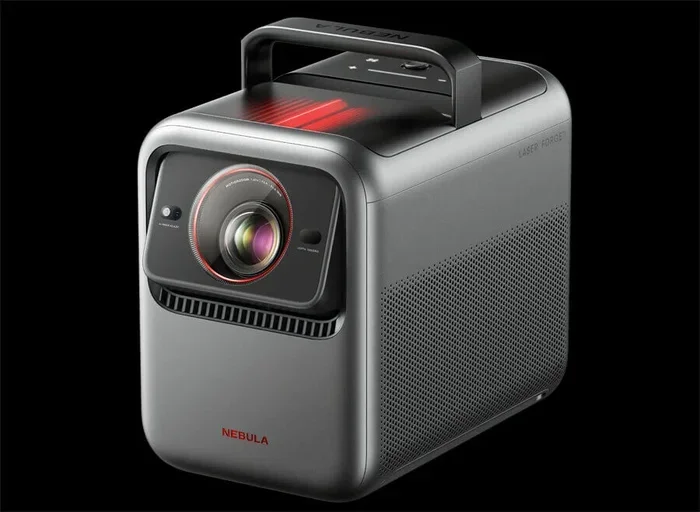
Can You Get Netflix On Nebula Projector Right Here
Yes, you can absolutely get Netflix on a Nebula projector. Whether you own the Nebula Capsule, Cosmos, or Mars model, streaming Netflix is simple and works great. This guide shows you every method, from built-in Android TV to screen mirroring and HDMI devices. You will also learn how to fix common problems and get the best picture quality for your movie nights.
So you just got a Nebula projector and you want to watch Netflix on the big screen. That is a great idea. A projector makes movie nights feel like a real theater experience. But the big question is, can you actually get Netflix running on a Nebula projector? The short answer is yes. The longer answer is that there are a few different ways to do it, and some methods work better than others depending on your model.
In this guide, I will walk you through every way to get Netflix on your Nebula projector. I will cover setup steps, model compatibility, common problems, and quick fixes. By the end, you will know exactly what to do. No guesswork. No frustration. Just clear steps that get you streaming in minutes.
Whether you have the Nebula Capsule, the Nebula Cosmos, or any other model in the Nebula line, this article has you covered. Let us dive right in.
Key Takeaways
- Netflix works on Nebula projectors: You can use the built-in Android TV system, screen mirror from your phone, or connect an HDMI streaming stick.
- Multiple methods to choose from: Pick the one that fits your setup, whether you want built-in apps or a wired connection.
- Not all models are equal: Some Nebula projectors have native Netflix support while others need a workaround.
- Setup is easy: You just need WiFi, a Netflix account, and a few minutes to get everything running.
- Common problems have simple fixes: Most streaming issues can be solved with a quick restart, update, or WiFi check.
- Extra tips boost your experience: Small changes to sound and picture settings make a big difference.
📑 Table of Contents
- How to Get Netflix on Your Nebula Projector
- Which Nebula Projector Models Support Netflix
- Step-by-Step Setup Guide for Netflix on Nebula
- Common Problems and How to Fix Them
- Quick Tips for the Best Netflix Experience on Nebula
- Is a Nebula Projector the Best Choice for Netflix
- Common Mistakes to Avoid
- Final Thoughts
How to Get Netflix on Your Nebula Projector
There are three main ways to stream Netflix on a Nebula projector. Each method has its own benefits. Let me break them down so you can pick the best one for your situation.
Method 1: Use the Built-In Android TV System
Most newer Nebula projectors come with Android TV built right in. This means you get access to the Google Play Store. From there, you can download the Netflix app just like you would on a smart TV. This is the easiest and most reliable method.
Here is how it works:
- Turn on your Nebula projector and connect it to WiFi.
- Go to the home screen and find the Google Play Store app.
- Search for Netflix in the search bar.
- Tap Install and wait for the app to download.
- Open Netflix, sign in with your account, and start watching.
This method gives you the full Netflix experience. You get all the features, profiles, and recommendations just like you would on a regular TV. The Nebula smart projector handles everything smoothly, and the interface is easy to navigate with the included remote.
Method 2: Screen Mirror from Your Phone or Tablet
If your Nebula projector does not have the Netflix app built in, you can use screen mirroring. This sends what is on your phone or tablet straight to the projector screen. It works well and does not require any extra equipment.
Here is how to set it up:
- Make sure your phone and Nebula projector are on the same WiFi network.
- Open the Netflix app on your phone or tablet.
- Tap the Cast icon. It looks like a small rectangle with Wi-Fi signals in the corner.
- Select your Nebula projector from the list of available devices.
- Your phone screen now appears on the projector. Start playing your show or movie.
Screen mirroring is quick and convenient. The one thing to keep in mind is that video quality depends on your WiFi signal. If your connection is strong, the picture will look great. If the signal is weak, you might see some lag or lower quality.
Method 3: Use an HDMI Streaming Device
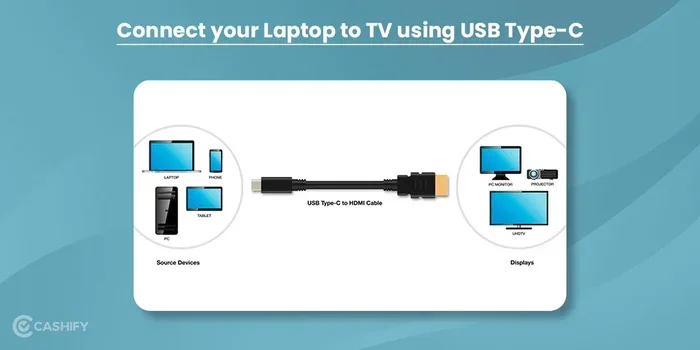
This method works for almost any Nebula projector, even older models. You simply plug a streaming device into the HDMI port on your projector. Popular options include the Roku Streaming Stick, Amazon Fire TV Stick, or Google Chromecast with Google TV.
Here is what you need to do:
- Plug the streaming device into the HDMI port on your Nebula projector.
- Connect the device to your WiFi network.
- Open the Netflix app on the streaming device.
- Sign in and start watching.
This method gives you the most flexibility. You are not limited to just Netflix either. You can also access Disney Plus, Hulu, Amazon Prime Video, and many other apps. An HDMI streaming stick turns any projector into a full smart entertainment center.
Which Nebula Projector Models Support Netflix
Not every Nebula projector is the same. Some models have native Netflix support while others need a workaround. Let me walk you through the most popular models and what you can expect.
Nebula Capsule Series
The Nebula Capsule is one of the most popular portable projectors on the market. It is small, portable, and easy to use. The Capsule runs on Android TV, which means you can download the Netflix app directly. The Capsule 3 and Capsule 3 Laser models both support Netflix natively through the Google Play Store.
These projectors are perfect for people who want a simple setup. You do not need any extra devices. Just connect to WiFi, download Netflix, and you are good to go. The built-in battery also means you can watch Netflix anywhere, even without a power outlet.
Nebula Cosmos Series
The Nebula Cosmos line is designed for home theater fans. These projectors offer bigger screens and better picture quality. The Cosmos and Cosmos Laser models both run Android TV and support the Netflix app. They also have better speakers and smarter features like auto keystone correction.
If you want the best Netflix experience on a Nebula projector, the Cosmos series is a top choice. The picture is sharp, the colors are vibrant, and the built-in Android TV makes everything easy to use.
Nebula Mars Series
The Nebula Mars series is another solid option. The Mars 2 and Mars 3 models both have Android TV built in. You can download Netflix and other streaming apps directly. These projectors are a bit bulkier than the Capsule, but they offer more power and better battery life.
The Mars series is great for people who want a projector that can handle both indoor and outdoor use. You can set it up in your living room for a movie night or take it to the backyard for a fun evening with friends.
Quick Comparison Table
| Model | Netflix Support | Method | Best For |
|---|---|---|---|
| Nebula Capsule 3 | Native app | Built-in Android TV | Portability and simplicity |
| Nebula Capsule 3 Laser | Native app | Built-in Android TV | Best picture in a small package |
| Nebula Cosmos | Native app | Built-in Android TV | Home theater experience |
| Nebula Cosmos Laser | Native app | Built-in Android TV | Premium picture quality |
| Nebula Mars 2 | Native app | Built-in Android TV | Battery life and portability |
| Nebula Mars 3 | Native app | Built-in Android TV | Versatile indoor and outdoor use |
| Older Nebula Models | No native app | Screen mirroring or HDMI stick | Budget-friendly streaming |
Step-by-Step Setup Guide for Netflix on Nebula
Now that you know your options, let me walk you through the actual setup process. I will keep it simple and straightforward so you can start watching as fast as possible.
Step 1: Connect Your Projector to WiFi
First things first. You need a solid WiFi connection. Without it, streaming Netflix will be frustrating. Here is how to connect:
- Turn on your Nebula projector and go to the home screen.
- Open the Settings menu. It usually looks like a gear icon.
- Select Network & Internet or WiFi Settings.
- Choose your WiFi network from the list.
- Enter your WiFi password and tap Connect.
Make sure you are close to your router for the best signal. If your projector is far away, you might get a weaker connection. A strong WiFi signal is the foundation of a smooth Netflix experience.
Step 2: Download the Netflix App
If your Nebula projector has Android TV, this step is easy. Open the Google Play Store, search for Netflix, and tap Install. The app will download and install automatically. This usually takes less than a minute.
If you are using screen mirroring, you do not need to download anything on the projector. Just make sure the Netflix app is installed on your phone or tablet.
If you are using an HDMI streaming device, the Netflix app comes pre-installed on most devices. Just open it and sign in.
Step 3: Sign In and Start Watching
Once the Netflix app is ready, open it and enter your login details. If you do not have a Netflix account yet, you can sign up directly through the app. Netflix offers several plans, so pick the one that fits your needs and budget.
After signing in, you are ready to watch. Browse through the catalog, pick a movie or show, and enjoy it on the big screen. There is nothing quite like watching Netflix on a projector. The image is huge and immersive, and it makes every movie feel like a cinematic experience.
Common Problems and How to Fix Them
Sometimes things do not go smoothly. Streaming issues can happen for a variety of reasons. Here are the most common problems and how to fix them quickly.
Netflix App Not Loading or Crashing
This is one of the most common issues. If the Netflix app will not open or keeps crashing, try these steps:
- Restart your Nebula projector. Turn it off, wait 30 seconds, and turn it back on.
- Check for system updates. Go to Settings, then System, then Software Update.
- Clear the Netflix app cache. Go to Settings, Apps, find Netflix, and tap Clear Cache.
- Uninstall and reinstall the Netflix app if nothing else works.
Most of the time, a simple restart fixes the problem. The Nebula projector software occasionally needs a refresh to work properly with streaming apps.
Streaming Quality Is Poor or Buffering
Buffering and low quality are usually caused by a weak WiFi signal. Here is what you can do:
- Move your router closer to the projector.
- Reduce the number of devices using your WiFi at the same time.
- Switch to a 5GHz WiFi network if your router supports it. It is faster than 2.4GHz.
- Lower the Netflix streaming quality in the app settings. Go to Account, then Streaming Quality, and select Standard.
If you are using screen mirroring, the quality depends on your phone and projector connection. A strong WiFi signal makes a big difference here too.
Audio and Video Are Out of Sync
This can be annoying but it is usually easy to fix. Try these solutions:
- Restart both the projector and your streaming device.
- Check for firmware updates on your Nebula projector.
- If using an HDMI device, try a different HDMI cable.
- Reduce the streaming quality to take the load off your connection.
Audio sync issues are often caused by processing delays. Your projector is working hard to display the image, and sometimes the audio lags behind. A restart usually sorts it out.
Quick Tips for the Best Netflix Experience on Nebula
Small adjustments can make a huge difference in how your Netflix sessions feel. Here are some quick tips that I recommend for every Nebula projector user.
Optimize Your Projector Settings
Take a few minutes to tweak your projector settings for the best picture quality:
- Set the resolution to 1080p or higher if your model supports it.
- Turn on HDR if your projector has it. This gives you richer colors and better contrast.
- Adjust the brightness based on your room lighting. Dark rooms look best with lower brightness.
- Use the Cinema or Movie picture mode for the most accurate colors.
These settings are easy to find in the projector menu. They make a noticeable difference in how sharp and clear your Netflix movies look.
Get the Sound Right
Built-in projector speakers are okay, but they are not amazing. If you want better sound, consider these options:
- Connect Bluetooth speakers to your Nebula projector.
- Use a soundbar for richer, fuller audio.
- Set up a simple home theater system with a subwoofer.
Good sound makes a big difference when you are watching movies. It adds depth and makes the experience feel much more immersive. Even a affordable Bluetooth speaker can transform your Netflix sessions on the big screen.
Expert Insight
According to projector experts, the best Netflix experience on a Nebula projector comes from combining a strong WiFi connection with the native Android TV system. Screen mirroring works well for casual viewing, but for the best quality and reliability, the built-in app is the way to go. If you want maximum flexibility, an HDMI streaming stick gives you access to all major apps without relying on your phone.
Is a Nebula Projector the Best Choice for Netflix
This is a fair question. Nebula projectors are not the only option for streaming Netflix. You could use a regular smart TV, a laptop, or a tablet. So what makes a Nebula projector special?
The answer is the big screen experience. A Nebula projector can display images from 60 inches to over 100 inches. Watching Netflix on a screen that size is completely different from watching on a phone or laptop. It feels cinematic. It feels like you are in a movie theater.
Nebula projectors are also portable. You can take them anywhere. Set one up in your living room for a family movie night, then pack it up and take it to a backyard party or a camping trip. That kind of versatility is hard to beat.
The price is another factor. Nebula projectors range from budget-friendly options to premium models. Even the more affordable ones deliver excellent picture quality and smart features. When you compare the experience to a similar-sized smart TV, a Nebula projector often costs less.
So yes, a Nebula projector is a fantastic choice for Netflix. It gives you the big screen, the smart features, and the portability that few other devices can match.
Common Mistakes to Avoid
Before you wrap up, here are some common mistakes that people make when setting up Netflix on a Nebula projector. Avoid these and you will have a much smoother experience.
- Skipping the WiFi check: A weak connection causes most streaming problems. Always test your WiFi speed before you start.
- Using an old HDMI cable: Cheap or damaged cables can cause quality issues. Use a high-speed HDMI cable for the best results.
- Not updating the software: Outdated firmware can cause compatibility issues with Netflix. Keep your projector updated.
- Ignoring ventilation: Projectors need airflow to stay cool. Do not block the vents or place the projector in a closed space.
- Forgetting to sign out on shared devices: If you are using screen mirroring on a shared phone, always sign out of Netflix when you are done.
These small mistakes can cause big headaches. Taking a few extra minutes to avoid them saves you time and frustration in the long run.
Final Thoughts
So, can you get Netflix on a Nebula projector? Absolutely. You have multiple ways to do it, and most of them are simple and straightforward. Whether you use the built-in Android TV system, screen mirror from your phone, or plug in an HDMI streaming stick, you will be watching Netflix on the big screen in no time.
The Nebula projector line offers great options for every budget and need. From the portable Capsule to the powerful Cosmos, there is a model that fits your streaming lifestyle. Just follow the setup steps, troubleshoot any issues that come up, and enjoy your favorite shows and movies in a whole new way.
Now that you know how to get Netflix running on your Nebula projector, it is time to grab some popcorn, dim the lights, and hit play. Happy streaming.
Frequently Asked Questions
Can all Nebula projectors run Netflix?
Most newer Nebula projectors can run Netflix, either through a built-in Android TV system or by using screen mirroring and HDMI streaming devices. Older models may need a workaround like an HDMI streaming stick. Check your specific model to confirm what methods are supported.
Do I need a WiFi connection to watch Netflix on a Nebula projector?
Yes, you need a WiFi connection for most Netflix streaming methods. The built-in Android TV system requires WiFi to download and run the Netflix app. Screen mirroring also depends on WiFi. The only exception is using an HDMI streaming device with a wired Ethernet connection if your router supports it.
Why is Netflix not showing up on my Nebula projector?
This can happen if your projector does not have the Google Play Store or if the Netflix app is not compatible with your model. Try screen mirroring from your phone or use an HDMI streaming device as an alternative. Also check that your projector software is up to date.
Can I watch Netflix in 4K on a Nebula projector?
This depends on your specific Nebula model. Some models like the Nebula Capsule 3 Laser and Nebula Cosmos Laser support 4K resolution. If your projector supports 4K and you have a 4K Netflix plan, you can enjoy Netflix in ultra-high definition on the big screen.
Is screen mirroring Netflix to a Nebula projector legal?
Yes, screen mirroring Netflix from your personal device to your Nebula projector is perfectly legal. You are using your own Netflix subscription on your own devices. Just make sure you are connected to the same WiFi network for the best experience.
What is the best Nebula projector for Netflix streaming?
The Nebula Cosmos Laser and Nebula Capsule 3 Laser are top choices for Netflix streaming. They offer native Android TV support, 4K resolution, excellent color accuracy, and built-in speakers. These models deliver the most immersive Netflix experience on a Nebula projector.
=== CONCLUSION ===
Getting Netflix on your Nebula projector is easier than you might think. With built-in Android TV, screen mirroring, or an HDMI streaming stick, you have multiple paths to start watching your favorite shows and movies on the big screen. The key is to pick the method that works best for your specific model and setup.
Remember to keep your WiFi connection strong, update your software regularly, and optimize your projector settings for the best picture quality. These small steps make a big difference in your streaming experience. Whether you are using a Nebula Capsule for portable movie nights or a Nebula Cosmos for a full home theater setup, Netflix on a Nebula projector delivers an incredible viewing experience that is hard to beat.
Now you have all the information you need. Set up your projector, open Netflix, and enjoy the show.