Do I Need A Dp If I Already Have A Hdmi Connection
If you are asking Do I Need A Dp If I Have A Hdmi, you are not alone. Many PC builders wonder if adding a DisplayPort is necessary when their monitor already has an HDMI port. The short answer is that it depends on your needs for resolution, refresh rate, and bandwidth. Keep reading to find out which connector is right for your setup.
If you are asking Do I Need A Dp If I Have A Hdmi, you are not alone. Many PC builders and gamers wonder if adding a DisplayPort is necessary when their monitor already has an HDMI port. The short answer is that it depends on your specific needs for resolution, refresh rate, and bandwidth. HDMI is great for most everyday tasks, but DisplayPort offers superior performance for high-end gaming and 4K displays.
Choosing the right connector can feel confusing. There are so many versions and numbers to remember. You might wonder if your current cable is good enough. Maybe you are buying a new monitor and want to make the right choice. This guide will help you understand the differences. We will look at bandwidth, refresh rates, and gaming performance. By the end, you will know exactly which port to use. You will also learn when to use an adapter and what to avoid.
Key Takeaways
- HDMI Is Great For Most Users: It handles everyday tasks, 4K at 60Hz, and home theater setups perfectly.
- DisplayPort Excels In Gaming: It offers higher bandwidth for extreme refresh rates like 144Hz and beyond.
- Check Your Graphics Card: Not all ports on your graphics card are created equal for high-end displays.
- Adapters Are Available: You can use a cable or adapter to convert DisplayPort to HDMI if needed.
- Version Matters: Always check the technology version of your ports to know the true signal capabilities.
- Multi-Monitor Setups: DisplayPort supports daisy chaining, making it easier to connect multiple monitors.
📑 Table of Contents
Understanding HDMI And DisplayPort Basics
When you look at the back of your computer or monitor, you see different shapes. The two most common shapes are the HDMI port and the DisplayPort. Both carry video and audio from your graphics card to your screen. But they are not exactly the same. Knowing the difference helps you pick the right cable for your needs.
If you are asking yourself, Do I Need A Dp If I Have A Hdmi, the answer is not a simple yes or no. It depends entirely on what you want to do with your computer. HDMI is the king of living rooms. You will find it on almost every TV, soundbar, and game console. DisplayPort, on the other hand, is the king of the desktop. It is designed specifically for computer displays and high-performance tasks. Both connector types have gone through many versions over the years. Each new version brings better technology and faster speeds. Understanding these versions is the first step to choosing the right port for your setup.
What Is HDMI?
HDMI stands for High-Definition Multimedia Interface. It is the standard for TVs and home theater systems. It sends both video and sound through one single cable. For many people, HDMI is all they need. It works great for watching movies or playing casual games. The latest versions of HDMI, like 2.1, can handle 4K resolution at 120Hz very well. This makes it perfect for modern game consoles like the PlayStation 5 and Xbox Series X. The signal is strong and reliable over long distances. You do not need any special equipment to get a great picture with HDMI.
What Is DisplayPort?
DisplayPort is a connector made for PCs. It was built to handle the heavy lifting of computer displays. If you have a powerful graphics card, you likely have a DisplayPort output. This port is great for high refresh rate gaming. It also supports higher bandwidth than older HDMI standards. This means smoother pictures on your screen. DisplayPort is also the go-to choice for professionals. Video editors and 3D animators rely on it for color accuracy. The technology behind DisplayPort allows for more data to be transferred at once. This results in incredibly sharp and fluid images on your monitor.
Bandwidth And Signal Transfer Differences
Bandwidth is the amount of data a cable can carry at once. Think of it like a highway. A wider highway lets more cars pass at the same time without traffic. In the same way, higher bandwidth lets your monitor show more detail without lag. This is very important for gaming and video editing. If your bandwidth is too low, your picture might freeze or look blurry. Always check the bandwidth before buying a new cable.
How Much Data Can HDMI Handle?
HDMI has improved a lot over the years. HDMI 2.0 can carry 18 gigabits of data per second. This is enough for 4K resolution at 60 frames per second. HDMI 2.1 is even faster. It can push up to 48 gigabits per second. This allows for 4K at 120Hz or even 8K resolution. However, not all devices support the newest HDMI versions. Many older TVs and monitors only have HDMI 1.4 or 2.0. This limits how much data they can receive. Always check the version of your HDMI port to know its true limits.
How Much Data Can DisplayPort Handle?
DisplayPort 1.4 offers 32.4 gigabits per second. This is a big jump from standard HDMI. DisplayPort 2.0 takes it even further with 77.4 gigabits per second. This huge bandwidth allows for extreme resolution and refresh rate combinations. You can run dual monitors at 4K with just one port. The signal stays strong and clear over long distances too. This makes DisplayPort ideal for multi-monitor workstations. The transfer of data is incredibly efficient, which is why professionals love it.
Quick Tips For Checking Bandwidth
- Always check the version number on your cable and port.
- Look for the HDMI 2.1 or DisplayPort 2.0 logos on the packaging.
- Higher bandwidth means better support for fast refresh rate gaming.
- Do not assume all HDMI cables are 4K ready, even if they look thick.
- Use online bandwidth calculators to test your current signal strength.
Gaming And High Refresh Rate Performance
If you are a serious gamer, your monitor choice matters a lot. You want smooth motion and sharp images. The connector you use can make a big difference in how your games look and feel. Many people ask if HDMI is good enough for their gaming setup. The answer depends on what kind of games you play. Casual players will be fine with HDMI. But competitive players need every frame they can get.
Can HDMI Support 144Hz?
Yes, HDMI can support 144Hz, but with limits. HDMI 2.0 can do 1080p at 144Hz or 1440p at 75Hz. HDMI 2.1 can do 1080p or 1440p at 144Hz easily. It can even push 4K at 120Hz. But if you want to play at 4K with a 144Hz refresh rate, you need the very latest HDMI standard. Older HDMI ports will drop the frame rate. This means your game might feel choppy. Always check if your graphics card and monitor both support HDMI 2.1 for the best gaming experience.
Why DisplayPort Wins For Gaming
DisplayPort was built specifically for PC gaming. It handles high refresh rates better than HDMI in many cases. With DisplayPort 1.4, you can easily get 1440p at 144Hz. You can also run 1080p at 240Hz. This makes DisplayPort the favorite for competitive gaming. The signal is very stable and reliable. You will not experience screen tearing as often. Many esports players prefer DisplayPort because it keeps up with their fast movements. The low latency is crucial when every millisecond counts.
Comparison Table: HDMI vs DisplayPort For Gaming
| Feature | HDMI 2.1 | DisplayPort 1.4 | DisplayPort 2.0 |
|---|---|---|---|
| Max Bandwidth | 48 Gbps | 32.4 Gbps | 77.4 Gbps |
| 4K At 144Hz | Yes | No (Requires DSC) | Yes |
| 1440p At 144Hz | Yes | Yes | Yes |
| 1080p At 240Hz | No | Yes | Yes |
| Best For | Consoles And TVs | PC Gaming | Ultra-High Refresh Gaming |
As you can see from the table, both connectors have their strengths. Choose based on your specific gaming needs and monitor capabilities. Do not just buy the most expensive cable if your port does not support it.
Resolution And Multi-Monitor Setups
Working with multiple screens can boost your productivity. It also makes gaming more immersive. But connecting several monitors depends on the ports you have. Resolution and multi-monitor setups put a lot of strain on your graphics card. You need a cable that can keep up with all that data. If your cable is too old, you will not get the full picture.
Pushing 4K And Beyond
4K resolution means four times the pixels of 1080p. Moving all that data requires a strong signal. Both HDMI 2.1 and DisplayPort 1.4 can handle 4K. But if you want 8K, DisplayPort 2.0 is currently the best choice. HDMI 2.1 can also do 8K, but it is less common on PCs. For most users, 4K at 60Hz is the sweet spot for both ports. However, if you want 4K at 120Hz or higher, you need the latest technology. Always check the version of your monitor and graphics card before buying a cable.
Daisy Chaining With DisplayPort
One big advantage of DisplayPort is something called MST, or daisy chaining. This lets you connect multiple monitors to one port on your computer. You just plug the first monitor into the PC. Then, you plug the second monitor into the first one. This saves you a lot of port space on your graphics card. HDMI does not support this feature natively. You would need separate cables for each screen. This can make your desk messy and confusing. Daisy chaining keeps things neat and organized. It also reduces the number of adapter devices you need to buy.
Expert Insights On Multi-Monitor Setups
According to display experts, DisplayPort is the clear winner for multi-monitor workstations. The daisy chaining feature simplifies cable management. It also reduces the load on your graphics card ports. If you are a professional video editor or a programmer, this is a huge benefit. It keeps your desk clean and your signal strong. Many professionals prefer DisplayPort for its reliability. They know they can trust the connector to deliver a consistent display all day long. For anyone who works with multiple screens, DisplayPort is the smart investment.
How HDR Affects Your Bandwidth Needs
High Dynamic Range, or HDR, is a feature that makes colors look more realistic. It makes bright areas brighter and dark areas darker. But HDR takes a lot of bandwidth to work properly. Both HDMI and DisplayPort support HDR, but they need enough bandwidth to do so. If your cable does not have enough bandwidth, HDR might not work at all. You will see a washed-out picture instead of vibrant colors. Always use a high-speed cable when you enable HDR on your display. This ensures the signal can handle the extra data.
Adapters And Compatibility Issues
Sometimes your monitor and graphics card do not match. You might have a DisplayPort output but an HDMI input. Or vice versa. This is where adapters come in handy. You can use a simple cable or a converter to bridge the gap. But not all adapters are the same. Some are cheap and will ruin your picture quality. Others are built with high-quality chips that preserve the signal. You need to know the difference to avoid frustration.
Can You Convert Dp To Hdmi?
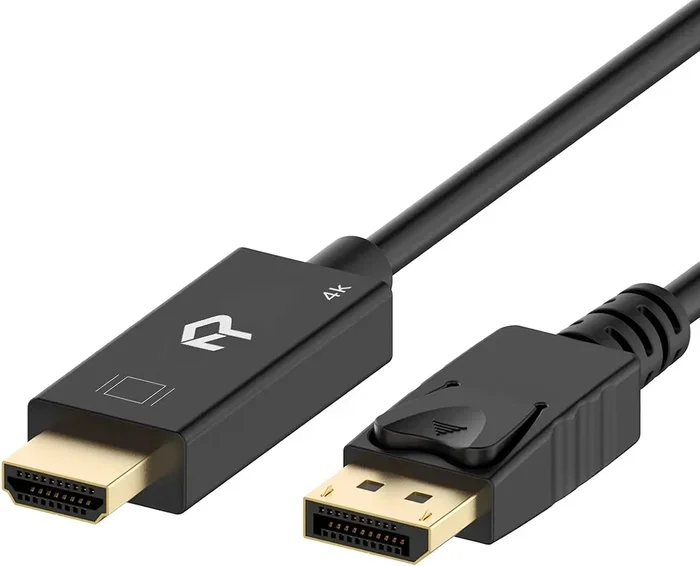
Yes, you can convert DisplayPort to HDMI. You just need the right adapter. There are two main types: active and passive. A passive adapter simply changes the shape of the connector. It does not change the signal itself. An active adapter has a chip inside. It converts the signal from one format to another. Always check if your adapter supports the resolution and refresh rate you need. A cheap passive adapter might not support 4K or high refresh rates. This can lead to a blank screen or a very low-quality picture.
Active vs Passive Adapters
A passive adapter works when both devices support the same version. For example, going from DisplayPort 1.4 to HDMI 2.0. An active adapter is needed when the signal types are different. For instance, converting a DisplayPort output to a single-link HDMI input. Active adapters cost a bit more, but they ensure the best display quality. They prevent dropped frames and blurry images. When in doubt, buy an active adapter. It is better to spend a little extra money than to ruin your monitor setup.
USB-C To Hdmi Adapters
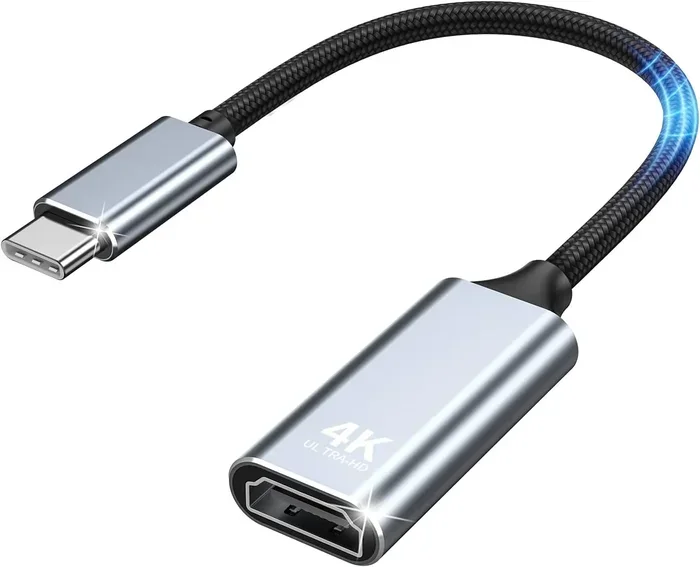
Many modern laptops only have USB-C ports. If you want to connect to an HDMI monitor, you need a USB-C to HDMI adapter. These adapters are very common and easy to find. They are great for presentations or connecting to a TV. Make sure you buy an adapter that supports the resolution you need. A cheap adapter might only support 1080p. If you have a 4K monitor, you need a 4K-capable adapter. Always read the product description carefully before buying.
Common Mistakes To Avoid
- Using cheap adapters: They often fail to support high resolution or refresh rate.
- Ignoring cable versions: A bad cable can bottleneck your bandwidth and ruin your signal.
- Forcing a connector: Never plug a DisplayPort into an HDMI port without an adapter. You will damage the pins.
- Assuming all ports are equal: Check the version number on your graphics card before buying a cable.
- Forgetting about audio: Some adapters do not carry audio. Check the specs if you need sound.
Do I Need A Dp If I Have A Hdmi? The Final Verdict
Now you know the differences. But do you really need to buy a DisplayPort cable if you already have HDMI? The answer depends on what you do every day. For most people, HDMI is perfectly fine. It is easy to use and works with almost everything. But for hardcore gaming and professional work, DisplayPort is the better choice. Let us break down exactly when you should use each one.
When HDMI Is Enough
If you watch movies, browse the web, or play casual games, stick with HDMI. It carries audio and video in one cable. It is great for connecting a laptop to a TV. HDMI is also the standard for game consoles like PlayStation and Xbox. If your monitor only has HDMI and you are happy with the picture, there is no need to change. You do not need a DisplayPort for basic tasks. Using HDMI keeps things simple. You plug it in, and it just works. This is perfect for living room setups or office environments where simplicity is key.
When You Must Have DisplayPort
You should choose DisplayPort if you are a competitive gamer. It supports higher refresh rates at 1440p and 1080p. You also need it if you want to connect multiple monitors using daisy chaining. Video editors and 3D artists also benefit from the extra bandwidth. If you are buying a new monitor for 4K at 144Hz, check your graphics card for DisplayPort 1.4 or 2.0. This ensures you get the best display possible. Do not let an old HDMI port hold back your expensive monitor. The extra cost of a DisplayPort cable is worth the performance boost.
Final Thoughts On Your Connector Choice
Think about what you need from your display. If you want simple connectivity, use HDMI. If you want peak performance, use DisplayPort. Always match your cable to the highest version supported by your graphics card and monitor. This simple step prevents bottlenecks and ensures a great signal every time. Do not overthink it. Just pick the right tool for the job, and enjoy your display.
Conclusion
So, do you need a DisplayPort if you have HDMI? The truth is, it depends on your setup. For everyday use, HDMI is a reliable and simple choice. It connects your monitor to your TV or console with ease. However, if you are chasing high refresh rates or using multiple screens, DisplayPort gives you the edge. It provides the necessary bandwidth for serious gaming and professional work. Understanding the technology behind these connectors helps you make the best choice.
Now you know exactly what to look for when setting up your next display. Pick the right cable, enjoy your signal, and have fun with your setup. Whether you choose HDMI or DisplayPort, the most important thing is that your monitor works perfectly for you. Do not let confusing port names stop you from enjoying your graphics card. You have the power to build the perfect display setup today.
Frequently Asked Questions
Can I use an HDMI cable instead of DisplayPort?
Yes, you can use an HDMI cable instead of DisplayPort for most everyday tasks. HDMI works great for watching movies, browsing the web, and casual gaming. However, if you need high refresh rates above 144Hz or advanced features like daisy chaining, DisplayPort is the better choice. Always check the version of your HDMI cable to ensure it supports your desired resolution.
Is DisplayPort better than HDMI for 4K?
DisplayPort is generally better for 4K at high refresh rates. DisplayPort 1.4 can handle 4K at 120Hz with some compression, while HDMI 2.1 handles 4K at 120Hz natively. For standard 4K at 60Hz, both cables work perfectly well. If you want the absolute best 4K performance for PC gaming, DisplayPort is the recommended option.
Do I need a special cable for 144Hz?
Yes, you need a cable that supports enough bandwidth for 144Hz. For 1080p or 1440p at 144Hz, a standard HDMI 2.0 or DisplayPort 1.4 cable will work. For 4K at 144Hz, you need an HDMI 2.1 or DisplayPort 2.0 cable. Using an old or cheap cable might limit your refresh rate and cause screen tearing.
Can I connect a DisplayPort monitor to an HDMI port?
Yes, you can connect a DisplayPort monitor to an HDMI port using an active adapter. A passive adapter will not work because the signal types are different. The active adapter converts the DisplayPort signal to an HDMI signal. Make sure to buy an active adapter that supports the resolution and refresh rate you need.
Does HDMI carry audio?
Yes, HDMI is designed to carry both video and audio through a single cable. This is one of the biggest advantages of HDMI over older standards. You do not need separate audio cables when using HDMI. DisplayPort also carries audio, but HDMI is more commonly used for audio-visual setups like home theaters.
Which is better for gaming, HDMI or DisplayPort?
DisplayPort is generally better for PC gaming, especially for competitive players. It offers higher bandwidth and better support for high refresh rates at lower resolutions. HDMI is perfectly fine for casual gaming and console gaming. If you are playing fast-paced esports titles, choose DisplayPort for the smoothest experience and lowest latency.