Can I Plug An Ethernet Cable Directly Into My Laptop
Can I plug an ethernet cable directly into my laptop? The short answer is yes, but it depends on your laptop’s hardware. Many modern laptops lack a built-in ethernet port on laptop chassis, so you may need a USB to ethernet adapter to get wired internet. This guide walks you through everything you need to know about setting up a LAN connection on your device. You will learn about ports, adapters, speed differences, and troubleshooting tips.
Can I plug an ethernet cable directly into my laptop? This is a question many people ask, especially when their Wi-Fi signal drops or slows down. A wired connection can change the way you work, game, and stream. It offers speed and stability that wireless simply cannot match.
The good news is that connecting your laptop to the internet through a cable is easier than you think. Whether your laptop has a built-in port or needs a small adapter, the process is simple and affordable. In this guide, we will walk you through every step. You will learn about ports, adapters, speed differences, and how to fix common problems.
Let us dive right in and explore everything you need to know about using a network cable with your laptop.
Key Takeaways
- Not all laptops have a built-in ethernet port: Many newer models rely only on wireless connectivity.
- A USB to ethernet adapter solves the problem: It lets you plug in a network cable even if your laptop lacks a port.
- Wired connections offer faster, more stable internet: Ethernet beats Wi-Fi for speed, latency, and reliability.
- Gigabit ethernet adapters are affordable: You can get one for under $20 and enjoy broadband connection speeds.
- Setup is simple: Plug in the adapter, connect the cable, and your laptop is online in seconds.
- Troubleshooting is straightforward: Most ethernet issues are solved by updating drivers or checking cable connections.
📑 Table of Contents
- Why You Might Want to Plug an Ethernet Cable Directly Into Your Laptop
- Do All Laptops Have an Ethernet Port?
- Can I Plug An Ethernet Cable Directly Into My Laptop? Understanding Your Options
- How to Connect an Ethernet Cable to Your Laptop
- Ethernet vs. Wi-Fi: Which Connection Is Better for Laptops?
- Choosing the Right Ethernet Adapter for Your Laptop
- Troubleshooting Common Ethernet Connection Issues
- Final Thoughts on Plugging an Ethernet Cable Into Your Laptop
Why You Might Want to Plug an Ethernet Cable Directly Into Your Laptop
There are many reasons to choose a wired setup over a wireless one. Whether you work from home, game online, or just want a better internet experience, a cable connection delivers real benefits.
The Benefits of a Wired Connection
A wired network gives you a direct path to your router. There are no walls, no interference, and no signal drops. Here are the key advantages:
- Faster internet speed: Ethernet connections deliver consistent speeds. You get the full power of your broadband plan without slowdowns.
- Stable connection: Unlike Wi-Fi, a cable does not fluctuate based on distance or obstacles. Your signal stays strong at all times.
- Lower latency: Also called ping, latency matters for gaming and video calls. A wired setup reduces delays significantly.
- Better security: A physical cable is harder to hack than a wireless signal. Your data stays safer on a wired network.
- No shared bandwidth: Wi-Fi slows down when multiple devices connect. Ethernet gives you dedicated speed every time.
When Wi-Fi Just Is Not Enough
Sometimes wireless internet falls short. Maybe you live in a large home with thick walls. Perhaps your router is far from your workspace. Or maybe your neighbors are using the same Wi-Fi channel and causing interference.
In these situations, plugging in a cable makes a huge difference. Internet connectivity becomes reliable and fast. You do not have to worry about buffering videos or dropped calls ever again.
Quick Tips: Getting the Most from Your Wired Connection
- Use a Cat6 or Cat6a cable for the best speeds.
- Keep your cable length under 100 feet for optimal performance.
- Place your router close to your laptop when possible.
- Restart your router regularly to maintain speed.
- Use a surge protector to safeguard your equipment.
Do All Laptops Have an Ethernet Port?
The answer to this question surprises many people. The truth is that not every laptop comes with a built-in port for a network cable. Let us look at why this is and what you can do about it.
Laptops With Built-In Ethernet Ports
Some laptops still include a standard RJ45 connector port. These are usually found on larger models like gaming laptops, business laptops, and desktop replacements. Brands like Lenovo ThinkPad, Dell Latitude, and HP EliteBook often include this feature.
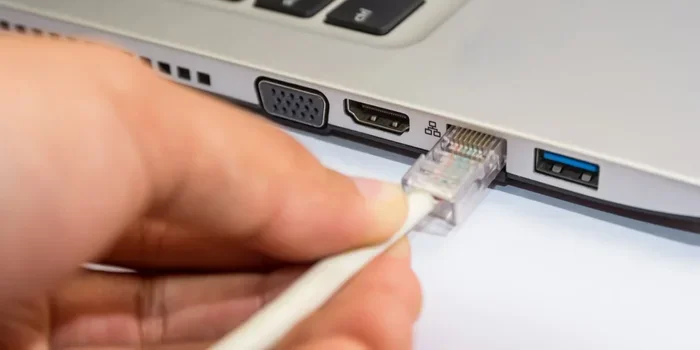
If your laptop has this port, you can plug an ethernet cable straight in. There is no extra equipment needed. Just insert the cable, and your laptop should recognize the connection immediately.
Modern Laptops Without Ethernet Ports
Most thin and lightweight laptops today do not include an ethernet port on laptop hardware. Apple MacBook Air and MacBook Pro models, for example, only have USB-C ports. Many Windows ultrabooks follow the same trend.
This design choice helps manufacturers make laptops thinner and lighter. But it means you need an external adapter to use a cable connection. The good news is that these adapters are cheap and easy to use.
Common Mistakes: Assuming Every Laptop Has an Ethernet Port
- Buying a cable when your laptop actually needs an adapter first.
- Assuming the USB-C port can accept an ethernet cable directly without an adapter.
- Not checking the specifications before purchasing a laptop.
- Confusing an HDMI port with an ethernet port.
Can I Plug An Ethernet Cable Directly Into My Laptop? Understanding Your Options
So, can I plug an ethernet cable directly into my laptop? It depends entirely on what your laptop offers. Let us break down the two main scenarios so you know exactly what to expect.
Scenario 1: Your Laptop Has a Built-In Ethernet Port
If your laptop has a standard ethernet jack, you are in luck. Simply plug the cable in and you are done. Here is what to expect:
- Your laptop should auto-detect the connection within seconds.
- No additional software is usually required.
- You get the full speed of your broadband connection.
- The connection is stable and does not drop randomly.
This is the easiest setup possible. Just make sure your cable is not damaged. A frayed or bent cable can cause connection problems.
Scenario 2: Your Laptop Needs an Adapter
If your laptop lacks a built-in port, you will need a laptop ethernet adapter. These small devices plug into your USB port and provide an ethernet jack. They are compact, affordable, and work with almost any laptop.
There are two main types of adapters you should know about:
- USB-A to Ethernet Adapters: These fit into the rectangular USB ports found on older laptops. They are very affordable and work well for most users.
- USB-C to Ethernet Adapters: These fit into the smaller, oval-shaped USB-C ports found on modern laptops. They support faster speeds and are more versatile.
Both types are plug-and-play. You do not need to install complex software. Just plug the adapter into your laptop, connect the cable, and you are online.
Expert Insight: Why Wired Connections Matter for Gaming and Streaming
Professional gamers and content creators almost always use a wired connection. The reason is simple: consistency. An ethernet connection eliminates the variables that affect Wi-Fi performance. You get the lowest possible ping, the highest sustained speeds, and zero packet loss. For anyone who takes online gaming or live streaming seriously, a wired network is not just nice to have. It is essential.
How to Connect an Ethernet Cable to Your Laptop
Setting up a wired connection is quick and straightforward. Whether you have a built-in port or use an adapter, the process is nearly identical. Here is how to do it step by step.
Step-by-Step Connection Guide
- Check your laptop for an ethernet port. Look for a rectangular slot about the size of a phone jack. It usually has a small icon of a network symbol next to it.
- Get the right cable. You need an ethernet cable, also called a network cable or LAN cable. Make sure it has an RJ45 connector on each end.
- Plug one end into the laptop. Insert the connector firmly into the port. You should feel a slight click when it seats properly.
- Plug the other end into your router or modem. Look for a labeled LAN port on your router. Any open ethernet port will work.
- Wait for the connection to establish. Your laptop should show a wired network icon in the taskbar or menu bar within a few seconds.
- Test your connection. Open a browser and visit a website. Run a speed test to confirm you are getting good speeds.
Quick Tips for a Smooth Setup
- If your laptop does not auto-connect, go to your network settings and select the wired connection manually.
- Make sure your adapter drivers are up to date. This prevents most connection issues.
- Use a cable length that fits your workspace. Longer cables work fine but avoid runs over 100 feet.
- If you are using a USB hub, plug the adapter directly into the laptop for the best performance.
Key Takeaways: Setting Up Your Wired Connection
- A built-in port means zero extra equipment is needed.
- A USB to ethernet adapter solves the problem for portless laptops.
- Always use a quality cable with solid shielding for the best speeds.
- Plug the cable in firmly to ensure a proper connection.
Ethernet vs. Wi-Fi: Which Connection Is Better for Laptops?
The debate between wired and wireless internet is not new. Both have their place. But for most users who care about performance, ethernet wins hands down. Let us compare the two side by side.
Speed Comparison
Ethernet connections consistently deliver higher speeds than Wi-Fi. A wired setup can reach gigabit ethernet speeds, which means 1,000 Mbps or more. Wi-Fi speeds vary based on distance, walls, and interference. Even the latest Wi-Fi 6 technology cannot match the sustained speeds of a good cable connection.
Stability and Reliability
A network cable provides a direct, uninterrupted path to your router. Wi-Fi signals bounce around your home and can be disrupted by appliances, walls, and other devices. For work that demands a reliable internet connection, ethernet is the clear winner.
| Feature | Ethernet | Wi-Fi |
|---|---|---|
| Speed | Faster, consistent | Slower, varies with conditions |
| Stability | Very stable, no drops | Can fluctuate with interference |
| Latency | Lower, better for gaming | Higher, noticeable in competitive play |
| Convenience | Wired, less mobile | Wireless, fully mobile |
| Security | More secure, harder to intercept | More vulnerable to attacks |
| Setup | Adapter may be needed | Built into every laptop |
When Wi-Fi Makes Sense
Wi-Fi is not without its strengths. It offers freedom of movement and convenience. If you mostly browse the web, check email, or watch videos in different rooms, Wi-Fi works great. The key is knowing when to switch to a cable for better performance.
Quick Tips: Choosing Between Wired and Wireless
- Use ethernet for gaming, video calls, and large file downloads.
- Use Wi-Fi for casual browsing and when mobility matters.
- Consider using both: connect your laptop via cable and use Wi-Fi for your phone and tablet.
- Upgrade your router if your Wi-Fi speeds are consistently slow.
Choosing the Right Ethernet Adapter for Your Laptop
If your laptop does not have a built-in port, you need a laptop ethernet adapter. Not all adapters are the same. Choosing the right one ensures you get the best performance and compatibility.
USB-to-Ethernet Adapters
These are the most common type of adapter. They plug into a standard USB-A port and provide an RJ45 ethernet jack. Most models support gigabit ethernet speeds, which is more than enough for streaming, gaming, and work.
When shopping for a USB adapter, look for these features:
- Gigabit support: Make sure the adapter supports 10/100/1000 Mbps speeds.
- Driver compatibility: Check that the adapter works with your operating system, whether Windows, macOS, or ChromeOS.
- Build quality: A well-built adapter with good shielding will deliver more stable performance.
- Size and portability: Some adapters are tiny and perfect for travel. Others are bulkier but offer better heat dissipation.
Thunderbolt and USB-C Adapters
If your laptop has USB-C or Thunderbolt ports, you can use a USB-C to ethernet adapter. These offer faster data transfer and often support higher speeds. Thunderbolt adapters are especially powerful and can handle demanding tasks like 4K video streaming and large file transfers.
Some popular brands include Anker, Belkin, and Cable Matters. These brands offer reliable adapters at reasonable prices. Most cost between $10 and $30, making them a budget-friendly upgrade.
Common Mistakes When Choosing an Adapter
- Buying a 10/100 Mbps adapter when your internet plan supports gigabit speeds.
- Choosing an adapter without driver support for your operating system.
- Using a cheap, unbranded adapter that overheats or disconnects frequently.
- Forgetting to check if the adapter fits your USB port type.
Troubleshooting Common Ethernet Connection Issues
Even with the right equipment, you may run into problems from time to time. Most ethernet issues are easy to fix. Here are the most common problems and how to solve them.
Slow Speeds and Dropouts
If your wired connection is slower than expected or keeps dropping, try these steps:
- Check your cable: A damaged or low-quality cable can limit your speed. Try a different cable to rule this out.
- Restart your router: A simple reboot can fix many connection issues. Unplug it for 30 seconds and plug it back in.
- Update your network drivers: Go to your laptop manufacturer’s website and download the latest network adapter drivers.
- Try a different port: Plug the cable into a different LAN port on your router to see if the issue persists.
- Check for interference: Keep your cable away from power cords and other electronics that might cause interference.
Driver and Software Problems
Sometimes the issue is software-related. Your laptop may not recognize the adapter or the ethernet connection at all. Here is how to fix it:
- Update your operating system: Make sure your laptop is running the latest version of Windows, macOS, or ChromeOS.
- Reinstall the adapter drivers: Go to Device Manager (Windows) or System Preferences (Mac) and uninstall the adapter, then restart your laptop.
- Disable and re-enable the adapter: In your network settings, turn off the ethernet adapter, wait a few seconds, and turn it back on.
- Reset your network settings: This clears any configuration issues that might be blocking your connection.
Expert Insight: The Importance of Network Interface Cards
Every laptop has a network interface card, or NIC, whether it is built into the motherboard or added through an adapter. This hardware component handles all ethernet communication. A quality NIC ensures faster speeds, lower latency, and fewer connection errors. When buying an adapter, look for one with a reputable NIC chipset. Realtek and Intel are two of the most reliable brands in this space.
Final Thoughts on Plugging an Ethernet Cable Into Your Laptop
Can I plug an ethernet cable directly into my laptop? Yes, you absolutely can. Whether your laptop has a built-in port or needs a small adapter, a wired connection is one of the best upgrades you can make. It brings faster speeds, a more stable connection, and lower latency to your everyday tasks.
The process is simple and affordable. A quality adapter costs less than $30, and a good ethernet cable costs even less. Within minutes, you can be enjoying a broadband connection that outperforms Wi-Fi in every way that matters.
Do not let a missing ethernet port stop you from getting the best internet experience. Grab an adapter, plug in a cable, and feel the difference. Your laptop, your work, and your entertainment will thank you.
A wired connection is reliable, secure, and fast. It is the simplest way to improve your internet setup. Try it today and see the difference for yourself.
Frequently Asked Questions
Can I plug an ethernet cable directly into my laptop if it has no ethernet port?
Yes, you can. You just need a USB to ethernet adapter. These small devices plug into your laptop’s USB port and provide an ethernet jack. Once connected, you can plug in your cable and get online just like a laptop with a built-in port.
Is an ethernet connection faster than Wi-Fi for laptops?
In most cases, yes. A wired connection delivers faster, more consistent speeds than Wi-Fi. It also has lower latency, which makes it better for gaming, video calls, and streaming. The difference is especially noticeable with a gigabit ethernet setup.
Do I need special drivers for a laptop ethernet adapter?
Most modern adapters are plug-and-play and do not require special drivers. However, some adapters may need a driver update for full compatibility. Always check the manufacturer’s website for the latest drivers before purchasing an adapter.
What type of ethernet cable should I use with my laptop?
A Cat5e or Cat6 cable is perfect for most laptop setups. These cables support gigabit ethernet speeds and are widely available. For the best performance, choose a cable with good shielding and a length that fits your workspace.
Can I use a USB-C to ethernet adapter with any laptop?
Most modern laptops with USB-C ports can use a USB-C to ethernet adapter. However, you should check your laptop’s specifications first. Some USB-C ports are charging-only and do not support data transfer. Make sure your port supports USB 3.0 or higher for the best results.
Are ethernet adapters safe to use with my laptop?
Yes, ethernet adapters are completely safe. They draw minimal power from your laptop’s USB port and do not pose any risk to your hardware. They are used by millions of people every day for reliable, high-speed internet connections.